Check What Your Laptop S Usb C Port Supports Guide
Not all USB-C ports are created equal. This guide helps you check what your laptop’s USB-C port actually supports, from data transfer speeds to charging power and video output. You will learn how to identify Thunderbolt, USB Power Delivery, and alternate modes so you can pick the right cables and accessories.
Your laptop has a USB-C port. You plug things into it every day. But here is the thing most people do not realize. Not every USB-C port is the same. Some support lightning-fast data transfer. Others only handle basic charging. And some can even connect to external monitors. If you have ever bought a USB-C cable or docking station and wondered why it does not work the way you expected, this guide is for you.
We will walk you through exactly how to check what your laptop’s USB-C port supports. You will learn about Thunderbolt, USB Power Delivery, data transfer speeds, and alternate modes. By the end, you will never buy the wrong cable or accessory again. Let us get started.
Key Takeaways
- USB-C is not universal: Different USB-C ports support different features like Thunderbolt, USB 3.2, or USB4.
- Check your laptop manual or specs page: This is the fastest way to find what your USB-C port supports.
- Thunderbolt 3 and 4 offer the fastest speeds: Up to 40Gbps data transfer and 100W charging.
- USB Power Delivery (PD) varies: Some ports charge at 15W while others support 100W fast charging.
- Alternate modes matter: DisplayPort and HDMI over USB-C let you connect external monitors.
- Use the right cable: A USB-C cable that does not support your port’s standard will limit performance.
- Stay secure when using public USB-C ports: Consider checking your VPN settings to protect your data on public networks.
📑 Table of Contents
- Why Your Laptop’s USB-C Port Matters
- How to Check What Your USB-C Port Supports
- Understanding USB-C Standards and Speeds
- USB Power Delivery: Charging Through USB-C
- Alternate Modes: Video Output Through USB-C
- Thunderbolt vs USB-C: What Is the Difference
- Common Mistakes When Buying USB-C Accessories
- Quick Tips for Getting the Most From Your USB-C Port
- Conclusion
Why Your Laptop’s USB-C Port Matters
The USB-C port on your laptop is more than just a charging hole. It is a small but powerful connection that handles data, video, and power all at once. But the features it supports depend entirely on the hardware inside your laptop. Knowing what your port can do helps you get the most out of your device.
Think of it this way. You have a highway with different lanes. Some lanes go 30 miles per hour. Others go 70. The USB-C port is that highway. The cable is your car. If you drive a slow car on a fast highway, you still only go 30. The same thing happens with USB-C cables and ports. Matching the right cable to the right port makes a huge difference.
Common USB-C Features You Should Know
Before we dive into how to check your port, let us cover the basics. Here are the main features you might find on a USB-C port:
- Data Transfer Speed: Ranges from 5 Gbps (USB 3.2 Gen 1) to 40 Gbps (Thunderbolt 3/4 or USB4).
- USB Power Delivery (PD): Delivers charging power from as low as 5W up to 240W with USB PD 3.1.
- Alternate Modes: Allow video output through DisplayPort or HDMI over the USB-C connection.
- Thunderbolt Support: Intel’s Thunderbolt technology combines data, video, and power in one cable.
- Reversible Connector: The USB-C plug flips both ways, making it easy to plug in.
Not every port has all of these features. That is why checking your specific port matters so much.
How to Check What Your USB-C Port Supports
Now let us get into the practical part. You want to know what your laptop’s USB-C port actually supports. There are several ways to find out. Some are quick and easy. Others require a bit more digging. Let us go through each one.
Method 1: Check Your Laptop’s Manual or Specs Page
The easiest way is to look up your laptop model online. Go to the manufacturer’s website and find your exact model number. Then look for the specifications or tech specs page. You should see a section that lists the USB-C port details.
Look for terms like Thunderbolt 4, USB 3.2 Gen 2, or USB-C with Power Delivery. These tell you exactly what the port can do. If you cannot find the manual, search for your laptop model followed by the word “specs” in Google. Most manufacturers list full specifications online for free.
Method 2: Check Your Operating System
Your laptop’s operating system can also tell you a lot about your USB-C port. Here is how to check on different systems.
On Windows:
- Click the Start menu and type “Device Manager.”
- Open Device Manager and expand the “Universal Serial Bus controllers” section.
- Look for entries that mention USB 3.2, Thunderbolt, or USB-C.
On macOS:
- Click the Apple menu in the top left corner.
- Select “About This Mac.”
- Click “System Report” and then look for “USB” under the Hardware section.
On Linux:
- Open a terminal window.
- Type
lsusband press Enter. - This will list all connected USB devices and their capabilities.
Method 3: Look for the Thunderbolt Logo
If your laptop has a Thunderbolt-enabled USB-C port, you will see the lightning bolt icon next to the port. This is the easiest visual clue. Thunderbolt 3 and Thunderbolt 4 ports both use the USB-C connector and look identical at first glance. The tiny lightning bolt symbol is what sets them apart.
No lightning bolt does not mean the port is bad. It just means the port does not support Thunderbolt. It might still support USB Power Delivery or data transfer at slower speeds.
Method 4: Use Third-Party Tools
Several free tools can scan your laptop and tell you what your USB-C port supports. On Windows, try USBTreeView or HWiNFO. On macOS, System Information already gives you detailed port info. These tools show you the exact USB protocol your port uses and its maximum speed.
Understanding USB-C Standards and Speeds
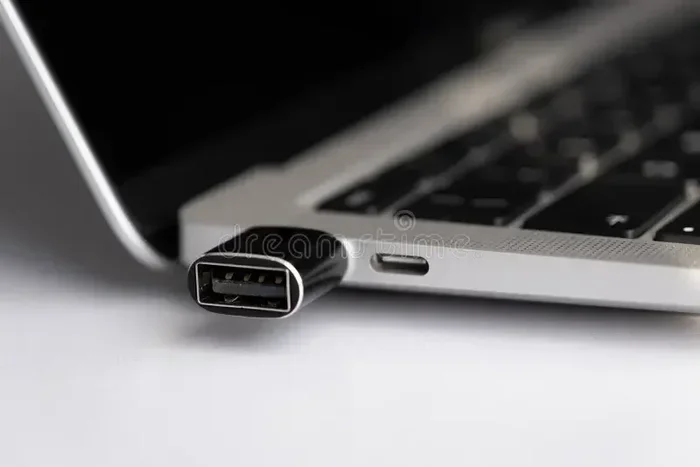
USB-C is just the shape of the connector. It is not a standard itself. The standard is what determines speed and power. Let us break down the most common USB-C standards you will encounter.
USB 2.0 over USB-C
This is the slowest option. USB 2.0 over USB-C offers data transfer speeds of up to 480 Mbps. It can also charge at low power, usually around 2.5W to 5W. You will find this on older or budget laptops. Do not expect to transfer large files quickly on a USB 2.0 connection.
USB 3.2 Gen 1 (formerly USB 3.0)
This standard delivers speeds up to 5 Gbps. It is a big step up from USB 2.0. Most modern laptops at least support USB 3.2 Gen 1 over their USB-C ports. This speed is fine for everyday tasks like backing up photos or connecting a mouse and keyboard.
USB 3.2 Gen 2
USB 3.2 Gen 2 doubles the speed to 10 Gbps. This is great for fast file transfers and connecting external hard drives. If you work with large video files or backups, this speed makes a noticeable difference.
USB4
USB4 is the newest standard and it is a game changer. It supports speeds up to 40 Gbps and is fully compatible with Thunderbolt 3 and Thunderbolt 4 devices. USB4 is becoming the new default on many modern laptops, especially those with Intel and AMD processors released in 2022 and later.
| Standard | Max Speed | Max Power | Best For |
|---|---|---|---|
| USB 2.0 | 480 Mbps | 2.5W | Basic charging, mice |
| USB 3.2 Gen 1 | 5 Gbps | 15W | Everyday peripherals |
| USB 3.2 Gen 2 | 10 Gbps | 15W | Fast file transfers |
| Thunderbolt 3 | 40 Gbps | 100W | Docks, eGPUs, monitors |
| Thunderbolt 4 | 40 Gbps | 100W | Professional setups |
| USB4 | 40 Gbps | 100W | Future-proof connectivity |
USB Power Delivery: Charging Through USB-C
USB Power Delivery is a game-changing feature. It lets your laptop charge through the same USB-C port that handles data and video. But not all USB-C ports deliver the same amount of power.
Here is what you need to know about USB PD:
- Standard USB-C ports typically deliver 5V at 3A, which equals 15W.
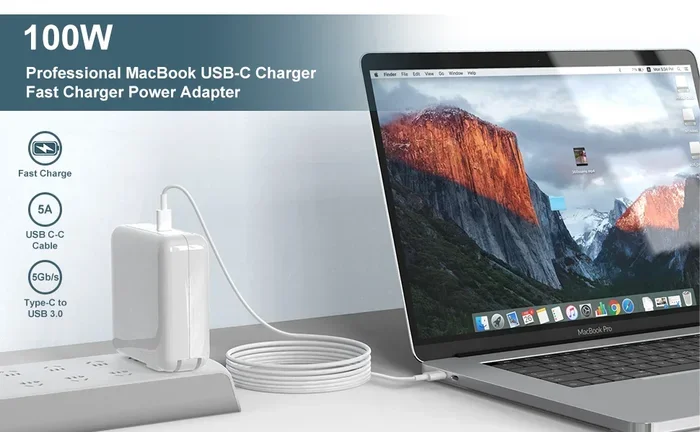
- USB PD 2.0 supports up to 100W at 20V and 5A.
- USB PD 3.1 extends this to 240W, which is enough for even gaming laptops.
If your laptop has a USB-C charging port that supports USB PD, you can use a single charger for your laptop, phone, and tablet. This is incredibly convenient. Just make sure your charger supports the right wattage for your laptop.
A quick tip. Always use a USB-C cable that supports USB PD if you want fast charging. Many cheap cables only support 5V and will charge your laptop very slowly or not at all.
Alternate Modes: Video Output Through USB-C
One of the coolest features of USB-C is alternate modes. These let you send video signals through the USB-C port without needing a separate video output. The two most common alternate modes are DisplayPort and HDMI.
DisplayPort Alternate Mode
DisplayPort over USB-C is the most common video output on modern laptops. It supports resolutions up to 4K and even 8K on the latest standards. If your laptop supports DisplayPort Alt Mode, you can connect it directly to a monitor using a USB-C to DisplayPort cable or a USB-C to HDMI adapter.
HDMI Alternate Mode
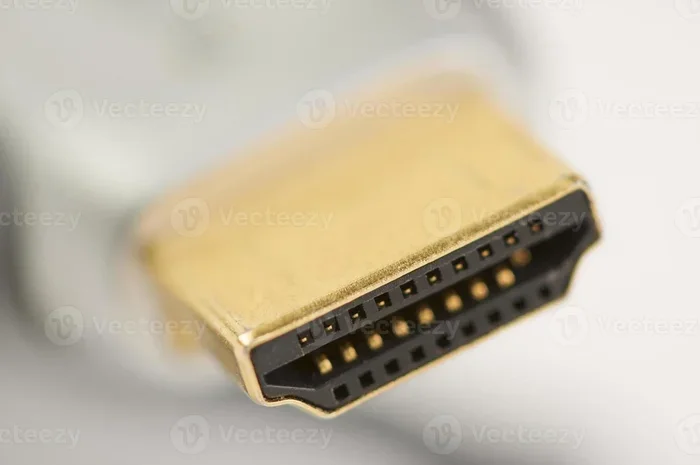
Some laptops also support HDMI over USB-C. This is less common but very useful if your monitor or TV has an HDMI input. You can plug a USB-C cable directly into an HDMI display without an adapter. Check your laptop specs to see if HDMI Alt Mode is supported.
Not all USB-C ports support video output. Some ports are charge-only and cannot send a video signal. This is a common mistake people make when buying a USB-C hub or docking station. Always verify that your port supports an alternate mode before you buy.
Thunderbolt vs USB-C: What Is the Difference
This is one of the most confusing topics when it comes to USB-C. People use Thunderbolt and USB-C like they are the same thing. But they are not. Thunderbolt is a technology that uses the USB-C connector. Every Thunderbolt port is a USB-C port, but not every USB-C port is a Thunderbolt port.
Here is a simple way to think about it. USB-C is the shape of the plug. Thunderbolt is a technology built into the port. Thunderbolt 3 and Thunderbolt 4 both use the USB-C connector and offer the same maximum speeds of 40 Gbps. Thunderbolt 4 adds some extra requirements like mandatory support for external displays and wake-from-sleep features.
If you want the best performance from your laptop, look for a Thunderbolt 4 or USB4 port. These give you the most flexibility and the fastest speeds for data, video, and charging.
Common Mistakes When Buying USB-C Accessories
Buying the wrong USB-C accessory is easy to do. Here are some mistakes to avoid:
- Buying a cable based on shape alone: Just because it fits does not mean it supports the features you need.
- Ignoring power ratings: A 60W charger will not charge a laptop that needs 100W.
- Assuming all USB-C hubs are the same: Some hubs only support data and charging, not video output.
- Using cheap, uncertified cables: These can damage your laptop or fail to deliver promised speeds.
- Not checking for Thunderbolt certification: Look for the Thunderbolt logo or check your laptop specs.
To avoid these mistakes, always check your laptop’s USB-C specifications before buying any accessory. A few minutes of research can save you a lot of frustration and money.
Quick Tips for Getting the Most From Your USB-C Port
Here are some quick tips to help you get the best performance from your laptop’s USB-C port:
- Use certified cables: Look for USB-IF certification or Thunderbolt certification on the cable packaging.
- Check your cable’s specs: Good cables list their maximum speed and power rating right on the label.
- Keep cables in good condition: Damaged cables can cause slow speeds, charging issues, or even safety hazards.
- Update your laptop drivers: Sometimes USB-C issues are caused by outdated drivers. Check for updates regularly.
- Use a docking station for desk setups: A quality USB-C docking station gives you multiple ports and easy connectivity.
- Stay secure when using public USB-C ports: Public charging stations can be a security risk. Consider using a data-blocking USB-C adapter and make sure your VPN settings are properly configured to protect your data on public networks.
Conclusion
Checking what your laptop’s USB-C port supports is one of the smartest things you can do. It saves you money, prevents frustration, and helps you get the most from your device. Whether you need fast data transfer, quick charging, or video output to an external monitor, the right USB-C setup makes all the difference.
Start by checking your laptop’s manual or specs page. Look for Thunderbolt logos, USB Power Delivery support, and alternate modes. Then match your cables and accessories to those capabilities. Once you know what your port can do, you will never buy the wrong accessory again.
The world of USB-C can feel confusing at first. But with this guide, you now have the knowledge to navigate it with confidence. Take a few minutes today to check your laptop’s USB-C port. You will be glad you did.
Frequently Asked Questions
How do I know if my USB-C port supports Thunderbolt?
Look for the lightning bolt icon next to the port on your laptop. You can also check your laptop’s specifications page on the manufacturer’s website. If it lists Thunderbolt 3 or Thunderbolt 4, your port supports Thunderbolt technology.
Can I use any USB-C cable for charging my laptop?
Not all USB-C cables support the same power levels. Check that your cable supports USB Power Delivery and matches the wattage your laptop requires. Using the wrong cable can result in very slow charging or no charging at all.
What is the difference between USB 3.2 and USB4?
USB 3.2 offers speeds up to 10 or 20 Gbps depending on the generation. USB4 supports speeds up to 40 Gbps and is fully compatible with Thunderbolt 3 and Thunderbolt 4 devices. USB4 is the newer and faster standard.
Why does my USB-C port not output video?
Your port may not support an alternate mode for video output. Some USB-C ports are charge-only and cannot send video signals. Check your laptop specs to confirm if DisplayPort or HDMI Alt Mode is supported.
Is USB-C the same as USB 3.0?
No. USB-C refers to the shape of the connector. USB 3.0 (now called USB 3.2 Gen 1) is a data transfer standard. A USB-C port can support USB 3.0, USB 3.2, Thunderbolt, or USB4 depending on your laptop’s hardware.
Can I charge my laptop and connect a monitor at the same time through USB-C?
Yes, if your USB-C port supports both USB Power Delivery and an alternate mode for video. Thunderbolt 3, Thunderbolt 4, and USB4 ports can do this simultaneously with the right cable or docking station.