How Can You Get 144hz With Hdmi On Your Laptop Screen
You can absolutely get 144hz with HDMI on your laptop screen, but it depends on your laptop model, HDMI port version, and cable quality. This guide walks you through every step, from checking your hardware to tweaking display settings for the best gaming experience. Whether you have an older laptop or a modern gaming rig, you will find clear, practical advice here.
So you want to know if you can get 144hz with HDMI on your laptop screen. Maybe you just bought a shiny new monitor and want to push it to the max. Or perhaps you are tired of laggy gameplay and smooth visuals sound like a dream. Either way, you are in the right place.
The short answer is yes, you can get 144hz over HDMI on a laptop. But the full answer depends on a few things. Your laptop model, your HDMI port version, your graphics card, and the cable you use all play a role. Let us break it all down so you can get started.
Key Takeaways
- HDMI version matters: HDMI 2.0 or higher is needed for 144hz at 1080p.
- Check your laptop GPU: Not all graphics cards support 144hz over HDMI.
- The right cable is essential: Use a high-speed HDMI cable rated for 144hz.
- Display settings must be adjusted: Your operating system needs to be configured correctly.
- External monitors work best: Most laptops cannot push 144hz on their built-in screens via HDMI.
- Alternative ports exist: DisplayPort or USB-C may offer better 144hz support.
📑 Table of Contents
- What Does 144hz Mean and Why Does It Matter
- Can Your Laptop Support 144hz Over HDMI
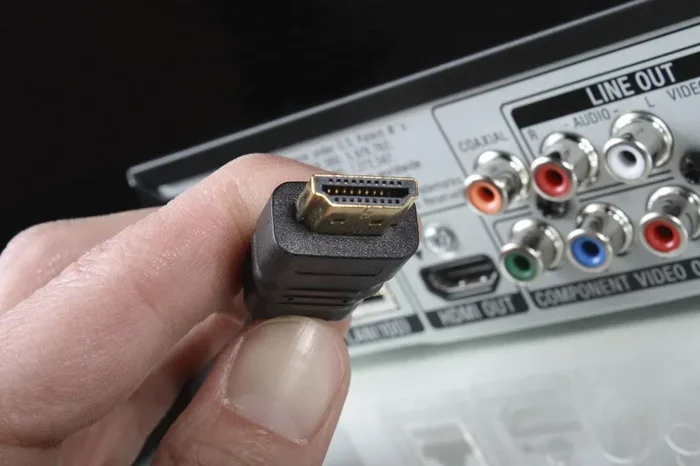
- Choosing the Right HDMI Cable for 144hz
- Step-by-Step Setup Guide for 144hz Over HDMI
- Common Problems and How to Fix Them
- Quick Tips for the Best 144hz Experience
- Expert Insights: HDMI vs Other Ports for 144hz
- Key Takeaways
- Conclusion
What Does 144hz Mean and Why Does It Matter
Refresh rate is how many times your screen updates per second. A standard 60hz display refreshes 60 times per second. A 144hz display refreshes 144 times per second. That is more than double the smoothness. When you move your mouse or play a fast-paced game, everything feels buttery and fluid.
For gamers, this difference is huge. You can spot enemies faster and react quicker. Even for everyday use, scrolling through web pages or watching videos feels much smoother at 144hz. It is one of those upgrades that you never want to go back from once you try it.
How HDMI Carries the Signal
HDMI stands for High-Definition Multimedia Interface. It carries both video and audio through a single cable. But not all HDMI ports are created equal. The version of HDMI your laptop has determines what resolutions and refresh rates it can support.
Here is a quick look at the main versions:
- HDMI 1.4: Supports up to 1080p at 144hz, but with limitations.
- HDMI 2.0: Handles 1080p at 144hz easily and even 1440p at 75hz.
- HDMI 2.1: The newest standard. It can push 1080p, 1440p, and even 4K at high refresh rates.
If your laptop has HDMI 2.0 or newer, you are in good shape for 144hz gaming. Older versions may still work but could require lowering the resolution.
Can Your Laptop Support 144hz Over HDMI
This is the big question. The answer is not always a simple yes or no. Several factors determine whether your laptop can output 144hz through its HDMI port. Let us check each one.
Check Your HDMI Port Version
First, find out what HDMI version your laptop has. You can usually find this in your laptop specifications on the manufacturer website. Look for terms like “HDMI 2.0” or “HDMI 2.1.” If you only see “HDMI” without a version number, it is likely HDMI 1.4.
You can also check through your device manager on Windows. Go to Display Settings, then Advanced Display Settings. This will tell you some details, but for the exact HDMI version, the manufacturer specs are your best bet.
Check Your Graphics Card
Your GPU is the engine behind your display output. Both Intel and AMD integrated graphics can support 144hz in some cases. But dedicated GPUs like Nvidia and AMD Radeon handle this much better.
Here is a quick comparison:
| GPU Type | 144hz Over HDMI Support |
|---|---|
| Intel UHD (older) | Limited, often 60hz max |
| Intel Iris Xe | Yes, up to 144hz at 1080p |
| Nvidia GTX 10-series | Yes, with HDMI 2.0 |
| Nvidia RTX series | Yes, excellent support |
| AMD Radeon RX series | Yes, strong support |
If your laptop has a dedicated GPU from the last few years, 144hz over HDMI should be no problem. Older integrated graphics might struggle.
Built-In Laptop Screens vs External Monitors
Most laptop screens max out at 60hz. Even if your laptop has an HDMI 2.1 port, the built-in display might not support 144hz. This is a hardware limitation of the panel itself.
However, when you connect an external monitor via HDMI, the monitor’s refresh rate takes over. This is where 144hz really shines. You get the benefit of a high-refresh external display while still using your laptop as the main device.
Some gaming laptops do come with 144hz built-in screens. In those cases, you do not need an external monitor at all. But if your laptop screen is only 60hz, connecting a 144hz external monitor is the way to go.
Choosing the Right HDMI Cable for 144hz
Not all HDMI cables are the same. Using the wrong cable is one of the most common reasons people cannot get 144hz to work. It sounds simple, but it makes a huge difference.
What to Look For in an HDMI Cable
When shopping for an HDMI cable, look for these key features:
- High Speed HDMI Cable: This is the minimum for 144hz at 1080p.
- Premium High Speed: Better quality and more reliable performance.
- HDMI 2.0 Certified: Ensures the cable can handle the bandwidth needed.
- Cable Length: Keep it under 6 feet for best signal quality.
Avoid cheap, unbranded cables. They might claim to support high refresh rates but fail under load. A reliable brand like Cable Matters, Belkin, or Amazon Basics will serve you well.
Do You Need an HDMI 2.1 Cable for 144hz
For 1080p at 144hz, an HDMI 2.0 cable is more than enough. You only need an HDMI 2.1 cable if you plan to push higher resolutions or use features like Variable Refresh Rate at very high bandwidth.
For most gamers using a 144hz monitor at 1080p, a standard high-speed HDMI 2.0 cable will do the job perfectly. Save your money and skip the expensive HDMI 2.1 cables unless you need 4K at high refresh rates.
Step-by-Step Setup Guide for 144hz Over HDMI
Now that you know your hardware can handle it, let us set it up. Follow these steps carefully to get 144hz working on your laptop.
Step 1: Connect the Cable
Plug one end of your HDMI cable into your laptop and the other end into your monitor or display. Make sure the connection is firm and secure. A loose cable can cause signal drops or no signal at all.
Step 2: Open Display Settings
On Windows, right-click your desktop and select Display Settings. On a Mac, go to System Settings and then Displays. Make sure your external monitor is detected.
Step 3: Access Advanced Display Settings
Scroll down and click Advanced Display Settings. Here you will see the current refresh rate of your display. If 144hz is not listed, do not worry. We will fix that in the next step.
Step 4: Change the Refresh Rate
Click on the drop-down menu for Refresh Rate. Select 144hz or the highest option available. Click Apply and then Keep Changes.
If 144hz is not showing up, your cable or HDMI version might be the issue. Try a different cable or check that your HDMI port supports the needed bandwidth.
Step 5: Update Your Graphics Drivers
Outdated drivers can prevent 144hz from appearing as an option. Visit Nvidia, AMD, or Intel’s website and download the latest drivers for your GPU. Restart your laptop after installing and check the settings again.
Common Problems and How to Fix Them
Sometimes things do not go smoothly. Here are the most common issues and their solutions.
144hz Option Is Not Showing Up
This is the most frequent problem. It usually happens because of one of these reasons:
- Your HDMI cable does not support 144hz.
- Your HDMI port is version 1.4 or older.
- Your graphics drivers are out of date.
- The monitor itself does not support 144hz.
Work through this list one by one. Start with the cable, then the port version, then drivers. In most cases, updating the cable or drivers solves the problem.
Screen Flickering at 144hz
Flickering can happen if the cable is too long or of poor quality. Try a shorter cable or a different brand. Also make sure your HDMI port is clean and free of dust.
Resolution Drops When Switching to 144hz
Some laptops drop the resolution when you increase the refresh rate. This is a bandwidth limitation. Try lowering the resolution slightly or check if your HDMI port supports the resolution you want at 144hz.
Quick Tips for the Best 144hz Experience
Here are some extra tips to make sure you get the most out of your 144hz setup:
- Enable VRR: Variable Refresh Rate reduces screen tearing. Look for FreeSync or G-Sync in your display settings.
- Use Game Mode: Many monitors have a Game Mode that reduces input lag.
- Check Cable Placement: Keep HDMI cables away from power cables to avoid interference.
- Lower In-Game Settings: If your GPU struggles, lowering graphics settings helps maintain high frame rates.
- Monitor Your Temperatures: High refresh rates can heat up your laptop. Use a cooling pad if needed.
Expert Insights: HDMI vs Other Ports for 144hz
While HDMI works great for 144hz, it is not the only option. Let us compare HDMI with other common laptop output ports.
HDMI vs DisplayPort
DisplayPort is often considered the gold standard for high refresh rates. It offers more bandwidth than HDMI and is the preferred choice for gaming monitors. However, many modern laptops do not have a DisplayPort output, making HDMI the most convenient option.
HDMI vs USB-C
USB-C with Thunderbolt or DisplayPort Alt Mode can also deliver 144hz. In fact, USB-C often supports higher resolutions and refresh rates than HDMI. If your laptop has a USB-C port, check if it supports video output before reaching for an HDMI cable.
That said, HDMI is still the most widely available and easiest to use. Most monitors come with HDMI ports, and almost everyone has an HDMI cable lying around.
Key Takeaways
- HDMI version matters: HDMI 2.0 or higher is needed for 144hz at 1080p.
- Check your laptop GPU: Not all graphics cards support 144hz over HDMI.
- The right cable is essential: Use a high-speed HDMI cable rated for 144hz.
- Display settings must be adjusted: Your operating system needs to be configured correctly.
- External monitors work best: Most laptops cannot push 144hz on their built-in screens via HDMI.
- Alternative ports exist: DisplayPort or USB-C may offer better 144hz support.
Conclusion
Getting 144hz with HDMI on your laptop screen is absolutely doable. You just need the right combination of hardware, cable, and settings. Start by checking your HDMI port version and graphics card. Then grab a high-quality HDMI cable and follow the setup steps we covered.
Do not let the technical details scare you away. The process is simpler than it seems, and the payoff is huge. Smooth gameplay, buttery cursor movement, and a much more enjoyable computing experience await you. Once you make the switch to 144hz, you will wonder how you ever lived without it.
Take action today. Check your laptop specs, get the right cable, and start enjoying the difference that a 144hz display makes. Your eyes and your gameplay will thank you.
Frequently Asked Questions
Can all laptops output 144hz over HDMI?
No, not all laptops can. Your laptop needs an HDMI 2.0 or newer port and a graphics card that supports 144hz output. Check your laptop specifications to confirm compatibility before purchasing a 144hz monitor.
Do I need a special HDMI cable for 144hz?
You need a High Speed HDMI cable rated for 144hz. Standard HDMI cables may not have enough bandwidth. Look for cables labeled “High Speed” or “Premium High Speed” to ensure reliable 144hz performance.
Can I get 144hz on a 4K resolution over HDMI?
Getting 144hz at 4K over HDMI is very difficult. HDMI 2.0 can handle 4K at 60hz, and HDMI 2.1 can push 4K at 120hz or higher. For 144hz, 1080p or 1440p are the most practical resolutions over HDMI.
Why does my laptop only show 60hz even with a 144hz monitor?
This usually happens because of an outdated driver, a low-quality HDMI cable, or incorrect display settings. Update your graphics drivers, try a different cable, and manually select 144hz in your display settings to fix the issue.
Is it better to use HDMI or USB-C for 144hz on a laptop?
USB-C with DisplayPort Alt Mode or Thunderbolt often provides better bandwidth and higher refresh rates than HDMI. However, HDMI is more widely available and compatible with most monitors. Choose based on the ports your laptop and monitor support.
Can I use an HDMI adapter to get 144hz on my laptop?
Yes, but the adapter must support the bandwidth needed for 144hz. Cheap or passive adapters may limit your output to 60hz. Look for active adapters that are specifically rated for high refresh rates and high resolutions.