Can You Use Any Logitech USB Receiver For Your Devices
Many people wonder if they can use any Logitech USB receiver with their devices. The short answer is that it depends on the receiver type and your device. Logitech makes two main kinds of receivers: the Unifying receiver and the proprietary receiver. Each one works differently, and not all receivers fit all devices. In this guide, we will break down everything you need to know about Logitech USB receiver compatibility, pairing, and troubleshooting.
Have you ever grabbed a Logitech USB receiver from an old device and wondered if it would work with something new? Maybe you bought a used wireless mouse or keyboard and the tiny USB plug came with it. Or perhaps you have multiple Logitech devices lying around and want to consolidate them onto one receiver. Whatever your situation is, this question comes up more often than you might think.
The truth is, Logitech USB receivers are not all the same. Some are universal and can connect to many different devices. Others are locked to a specific product. Understanding the difference saves you time, money, and a lot of headache. In this article, we will walk you through everything you need to know about Logitech USB receiver compatibility.
We will cover how these little USB dongles work, which ones are interchangeable, and how to set them up correctly. By the end, you will know exactly whether your Logitech USB receiver can be used with your devices. Let us dive right in.
Key Takeaways
- Not all Logitech USB receivers work interchangeably: The Unifying receiver is universal, but proprietary receivers are device-specific.
- You can pair up to six devices: A single Logitech Unifying receiver supports multiple peripherals at once.
- Check compatibility before buying: Always verify your device model and receiver type to avoid frustration.
- Use Logitech Unifying Software for easy setup: This free tool helps you manage and pair receivers with ease.
- Bluetooth models skip the receiver entirely: Some Logitech devices connect directly via Bluetooth, no USB dongle needed.
- Troubleshooting is simple: Most issues with a Logitech USB receiver can be fixed with a few quick steps.
📑 Table of Contents
- Understanding How Logitech USB Receivers Work
- Can You Use Any Logitech USB Receiver? The Short Answer
- How to Check if a Logitech USB Receiver Is Compatible
- Step-by-Step Guide to Pairing Your Logitech USB Receiver
- Common Problems with Logitech USB Receivers and How to Fix Them
- Logitech USB Receiver vs. Bluetooth: Which Is Better?
- Expert Tips for Getting the Most Out of Your Logitech USB Receiver
- Final Thoughts
Understanding How Logitech USB Receivers Work
A Logitech USB receiver is a small USB dongle that plugs into your computer or laptop. It acts as a bridge between your wireless peripheral and your device. Without it, your wireless mouse or keyboard would have no way to communicate with the computer.
Think of the receiver as a translator. Your mouse sends out a wireless signal, and the receiver picks it up and passes the information to your device. This is what allows you to move the cursor, click, and type without any wires getting in the way.
Logitech has been making wireless peripherals for decades. Over time, they have developed different receiver technologies. Each generation brings better range, faster response, and improved battery life. But not all of these technologies work together. That is where the confusion starts for most users.
What Is a Logitech Unifying Receiver?
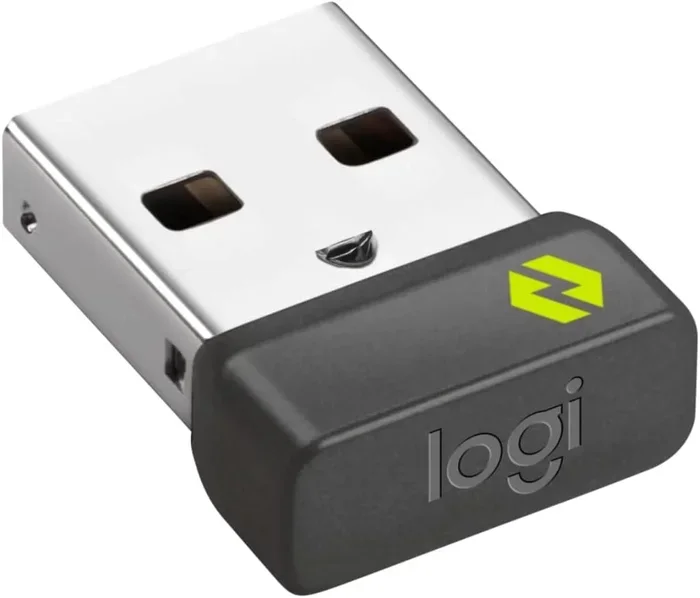
The Logitech Unifying receiver is the most common type. It is a small, black USB dongle that looks like a tiny thumb drive. Logitech designed it to be universal across many of their devices. This means one Unifying receiver can connect to multiple peripherals at the same time.
You can pair up to six Logitech devices to a single Unifying receiver. This includes wireless mice, wireless keyboards, trackballs, and even some presentation remotes. The Logitech Unifying receiver uses a proprietary radio frequency to communicate with your devices. It is not Bluetooth, and it does not work like a standard Bluetooth connection.
The Unifying receiver is backward compatible too. If you have an older Logitech keyboard and a newer Logitech mouse, both can connect to the same Unifying receiver, as long as they support the Unifying standard.
How Does the Receiver Connect to Your Device?
When you plug a Logitech USB receiver into a USB port, your device should recognize it almost instantly. Windows and macOS both have built-in support for most Logitech receivers. You usually do not need to download anything extra right away.
However, for the full experience, Logitech recommends using their official software. This software lets you customize button mappings, adjust DPI settings, and manage multiple paired devices. It also helps you troubleshoot connection issues if something goes wrong.
The connection between the receiver and the peripheral is encrypted and secure. This means no one else can hijack your wireless mouse or keyboard just because they are nearby. Logitech uses a unique pairing ID that links your specific receiver to your specific device.
Can You Use Any Logitech USB Receiver? The Short Answer
Here is the big question: can you use any Logitech USB receiver with any Logitech device? The answer is both yes and no. It depends entirely on the type of receiver you have and the type of device you are trying to connect.
Logitech makes two main categories of wireless receivers. The first is the Logitech Unifying receiver, which we talked about above. The second is the proprietary or device-specific receiver. These are the small, often nano-sized receivers that come with individual Logitech products.
The Unifying receiver is the one that offers true cross-device compatibility. If you have a Unifying receiver, you can pair it with many different Logitech peripherals. But if you have a proprietary receiver, it likely only works with the specific device it came with.
The Unifying Receiver and Its Compatibility
The Logitech Unifying receiver is your best friend when it comes to flexibility. It works with a wide range of Logitech wireless devices. You can find a list of compatible devices on the Logitech website. Just search for “Logitech Unifying compatible devices” and you will get a full list.
Most Logitech wireless mice and keyboards released after 2007 support the Unifying standard. This includes popular lines like the Logitech MX series, the Logitech M series, and the Logitech K series keyboards. If your device has the Unifying logo on it or in its manual, you can pair it with any Unifying receiver.
This is great news if you have multiple Logitech devices at home or in the office. Instead of using a separate USB dongle for each device, you can use one Logitech USB receiver to control them all. This frees up USB ports and reduces clutter on your desk.
When Receivers Are NOT Interchangeable
Now for the bad news. Not every Logitech USB receiver is interchangeable. Some Logitech devices come with their own custom receiver. These receivers are designed to work only with that specific product or product line.
For example, some older Logitech wireless devices use a proprietary nano receiver. You cannot pair that receiver with a different Logitech device. The receiver and the device are matched at the factory, and they are locked together.
Another case where interchangeability fails is with Bluetooth-enabled devices. Some newer Logitech peripherals connect directly via Bluetooth. These devices do not need a USB receiver at all. If you try to use a Unifying receiver with a Bluetooth device, it simply will not work.
The Logitech Lightspeed technology is another example. This is a premium wireless technology used in high-end gaming mice and keyboards. The receiver for Lightspeed devices is specifically designed for that ecosystem. You cannot use a Lightspeed receiver with a standard Unifying device, and vice versa.
How to Check if a Logitech USB Receiver Is Compatible
Before you try to pair a Logitech USB receiver with a new device, it is smart to check compatibility first. Spending five minutes on this step can save you hours of frustration later.
Check the Device Model Number
Every Logitech wireless device has a model number printed on it or on its original packaging. Look for a number that starts with “Logitech” followed by letters and numbers, like “M720” or “MK345.” This model number is your key to finding compatibility information.
Once you have the model number, visit the Logitech support website. Search for your device and look under the “Specifications” section. It will tell you whether the device uses a Unifying receiver, a proprietary receiver, or Bluetooth.
Use the Logitech Unifying Software
The Logitech Unifying Software is a free tool that makes checking compatibility easy. You download it to your computer, plug in your Unifying receiver, and the software scans for compatible devices.
The software will show you a list of all the devices currently paired to your receiver. It also lets you add new devices to the receiver. If a device does not show up in the software, it is likely not compatible with the Unifying system.
Look for the Unifying Logo
Many Logitech devices that support the Unifying standard have a small Unifying logo on the bottom or back of the device. The logo looks like a little USB plug with curved lines. If you see this logo, your device should work with any Logitech USB receiver that supports Unifying.
This is a quick visual check you can do without turning on your computer. Flip your mouse or keyboard over and look for the logo. It is a simple way to confirm compatibility before you even buy a receiver.
Step-by-Step Guide to Pairing Your Logitech USB Receiver
Once you have confirmed compatibility, pairing your Logitech USB receiver is straightforward. Follow these steps for a smooth setup.
Step 1: Prepare Your Device
Start by plugging your Logitech USB receiver into an available USB port on your computer. Use a USB 2.0 or USB 3.0 port for the best connection. Avoid USB hubs or extension cables if possible, as they can sometimes weaken the signal.
Next, turn on your wireless device. For a mouse, flip the switch on the bottom to the “On” position. For a keyboard, press any key to wake it up. Make sure the device has fresh batteries or is fully charged. Low power can cause pairing problems.
Step 2: Open the Logitech Software
If you are using a Unifying receiver, open the Logitech Unifying Software or the Logitech Options software. Both tools serve the same purpose and help you manage your paired devices.
Click on the option to “Add a Device” or “Pair a New Device.” The software will start searching for nearby Logitech peripherals. This usually takes just a few seconds.
Step 3: Complete the Pairing Process
When your device appears in the software, click on it to select it. Follow the on-screen prompts to complete the pairing. You may need to press a specific button on the bottom of your mouse or keyboard during this step.
Once pairing is complete, you should see a confirmation message. Your Logitech USB receiver is now connected to your device. Test the mouse or keyboard to make sure everything is working correctly. Move the cursor around and type a few keys to verify the connection is stable.
Quick Tips for a Successful Pairing
- Keep your device close to the receiver during pairing. Within three feet is ideal.
- Remove other wireless devices from the area temporarily. This reduces interference.
- Restart your computer if the software does not detect the device right away.
- Use fresh batteries or a fully charged device for the best signal strength.
- Try a different USB port if the receiver is not recognized by your computer.
Common Problems with Logitech USB Receivers and How to Fix Them
Even when everything is set up correctly, you might run into issues with your Logitech USB receiver. Here are the most common problems and their solutions.
Receiver Not Recognized by the Computer
If you plug in your Logitech USB receiver and nothing happens, do not panic. The first thing to check is the USB port itself. Try plugging the receiver into a different port. A faulty or damaged port can prevent the computer from detecting the dongle.
Next, check if the receiver is physically damaged. Look for any bent pins or cracks in the plastic housing. A damaged receiver will not work and needs to be replaced. You can order a replacement Unifying receiver directly from Logitech.
Sometimes, outdated USB drivers are the culprit. Go to your device manager and check for any yellow warning signs next to USB entries. Updating your USB drivers often fixes this problem quickly.
Device Keeps Disconnecting
A Logitech USB receiver that keeps losing connection is frustrating. The most common cause is interference from other wireless devices. USB 3.0 ports, for example, can sometimes interfere with 2.4 GHz wireless signals. Try plugging your receiver into a USB 2.0 port instead.
Another cause is low battery power. When your wireless mouse or keyboard runs low on battery, the signal weakens. This leads to intermittent disconnections. Replace the batteries or charge your device and see if the problem goes away.
Distance also matters. The Unifying receiver works best within about 33 feet of the connected device. If you move too far away, the connection drops. Bring your device closer to the receiver and check if the connection stabilizes.
Pairing Fails or Device Does Not Appear in Software
If your device does not show up in the Logitech Unifying Software, there are a few things to try. First, make sure the device is turned on and has power. Second, make sure you are using the correct software for your receiver type. Third, remove all other paired devices from the receiver and try pairing again with just the one device.
If none of these steps work, the receiver may need to be reset. You can do this by plugging the receiver into the computer, opening the Logitech software, and selecting the “Reset Receiver” option. This clears all paired devices and starts fresh.
Logitech USB Receiver vs. Bluetooth: Which Is Better?
Many modern Logitech devices offer both a USB receiver connection and a Bluetooth connection. This gives you flexibility, but it also raises a question: which connection type is better?
A Logitech USB receiver connection is generally more stable and has lower latency. This makes it ideal for gaming and tasks that require precise, instant response. The Unifying receiver uses a dedicated radio frequency, which means it does not share bandwidth with other Bluetooth devices in your home.
Bluetooth, on the other hand, is more convenient. You do not need a USB dongle at all. This is great for laptops with limited USB ports or for users who want a cleaner desk setup. Bluetooth also allows you to switch between multiple devices more easily, as many modern Logitech peripherals support multi-device Bluetooth pairing.
The trade-off is that Bluetooth connections can be slightly slower and more prone to interference from other wireless devices. For everyday tasks like browsing, word processing, and media consumption, Bluetooth works great. For gaming or professional work that demands precision, a Logitech USB receiver is the better choice.
| Feature | USB Receiver | Bluetooth |
|---|---|---|
| Latency | Very low | Slightly higher |
| Stability | Very stable | Good, but can vary |
| USB Ports Needed | Yes | No |
| Multi-Device Support | Up to 6 via Unifying | Varies by device |
| Range | Up to 33 feet | Up to 30 feet |
| Best For | Gaming, precision work | Everyday use, clean setup |
Expert Tips for Getting the Most Out of Your Logitech USB Receiver
Now that you understand how Logitech USB receivers work and how to troubleshoot them, here are some expert tips to help you get the best performance.
Keep Your Software Updated
Logitech regularly releases firmware updates for both their receivers and their peripherals. These updates can improve connection stability, fix bugs, and add new features. Check for updates through the Logitech Options or Logitech G HUB software regularly.
Use a USB Extension Cable
If your receiver is not getting a strong signal, try using a short USB extension cable. This lets you place the receiver closer to your mouse or keyboard. A better signal means fewer disconnections and a smoother experience. Just make sure the cable is short, as long cables can weaken the signal.
Do Not Mix Receiver Types
Never try to pair a Unifying device with a proprietary receiver or a Lightspeed receiver. They use different communication protocols. Mixing them will not work and could cause software conflicts. Always match your receiver type to your device type for the best results.
Store Your Receiver Safely
Many Logitech devices come with a slot to store the receiver when not in use. Use it. The receiver is small and easy to lose, and losing it means you need a replacement. Some Logitech devices also come with a spare receiver in the box, so keep it in a safe place.
Final Thoughts
The question Can You Use Any Logitech USB Receiver does not have a one-size-fits-all answer. As we have explored, the answer depends on the type of receiver you have and the type of device you want to connect. The Logitech Unifying receiver offers the most flexibility and can work with a wide range of Logitech peripherals. Proprietary receivers and Bluetooth devices, however, are more limited in their compatibility.
By following the steps in this guide, you can confidently determine whether your Logitech USB receiver will work with your devices. You also know how to pair them correctly and troubleshoot common issues. The key is to check compatibility first, use the right software, and follow the pairing steps carefully.
Whether you are setting up a home office, a gaming station, or a presentation remote, understanding your Logitech USB receiver makes all the difference. Take a few minutes to verify your setup, and you will enjoy a seamless wireless experience every time. Happy connecting!
Frequently Asked Questions
Can I use a Logitech Unifying receiver with any Logitech wireless device?
Most Logitech wireless devices released after 2007 that support the Unifying standard can be paired with any Unifying receiver. However, some older or specialized devices may use proprietary receivers and will not work with a Unifying receiver. Always check the device specifications before purchasing.
How do I know if my Logitech device uses a Unifying receiver?
Look for the Unifying logo on the device or its packaging. You can also check the product specifications on the Logitech website or in the user manual. The Logitech Unifying Software can also scan and confirm compatibility.
Can I use a Bluetooth Logitech device without a USB receiver?
Yes, Bluetooth-enabled Logitech devices do not need a USB receiver. They connect directly to your computer or device via Bluetooth. Make sure Bluetooth is turned on and your device is in pairing mode for a successful connection.
What should I do if my Logitech USB receiver stops working?
First, try plugging the receiver into a different USB port. If that does not work, restart your computer and reinstall the Logitech software. You can also try resetting the receiver through the software. If none of these steps work, the receiver may need to be replaced.
Can I pair more than one Logitech USB receiver to the same computer?
Yes, you can use multiple Logitech USB receivers on the same computer. Each receiver can support up to six paired devices. This is useful if you have several wireless peripherals and want to keep them all connected simultaneously.
Is it possible to replace a lost Logitech USB receiver?
Yes, Logitech sells replacement Unifying receivers on their official website and through authorized retailers. Make sure to purchase the correct type for your device. A replacement Unifying receiver will work with all your previously paired Unifying devices.
=== CONCLUSION ===
Understanding Logitech USB receiver compatibility is essential for anyone who uses wireless Logitech peripherals. The Unifying receiver offers the most flexibility, allowing you to connect multiple devices to a single USB dongle. Proprietary receivers and Bluetooth models have their own use cases, but they are not interchangeable. Always verify compatibility before pairing, use the Logitech software for easy management, and follow the pairing steps carefully for the best results.
With the knowledge you have gained from this guide, you can confidently answer the question Can You Use Any Logitech USB Receiver and make the most of your Logitech accessories. Keep your devices paired, your software updated, and your setup clean for the best wireless experience possible.