Can You Use A Tv Without Hdmi Port Yes You Absolutely Can
Yes, you absolutely can use a TV without an HDMI port. There are several simple and effective methods to connect your devices and enjoy your favorite content. From VGA cables to wireless screen mirroring, modern solutions make it easy to bridge the gap between older TVs and newer technology.
Have you ever found yourself staring at a TV with no HDMI port and wondered if there is any way to connect your devices? The good news is that you can absolutely still use a tv without hdmi port. Whether you have an older CRT television, a vintage monitor, or a modern flat screen that just lacks the latest port, plenty of options exist to get things working. You do not need to rush out and buy a new TV just because it does not have the newest connection type.
In this guide, we will walk you through every method you can use to connect your devices to a television that does not support HDMI. We will cover cables, adapters, wireless options, and even smart TV features that work independently of HDMI. By the end, you will feel confident about setting up your display using whatever ports are available on your television.
Using a tv without hdmi port is more common than you might think. Many households still have older televisions sitting in bedrooms, garages, or basements. These TVs can be repurposed perfectly with the right approach. Perhaps you want to use an old TV as a second monitor for work, or maybe you found a great deal at a thrift store on a television that lacks modern ports. Either way, you are in the right place. Let us dive into the details and explore every option available to you.
Key Takeaways
- Multiple Connection Options: You can use VGA, composite, component, and USB-C adapters to connect devices to a tv without hdmi port.
- Wireless Solutions Work Great: Screen mirroring and streaming devices let you go completely cable-free.
- Older TVs Still Have Value: A tv without hdmi port can still serve as a great display for computers, gaming consoles, and media players.
- Adapters Are Affordable: Most converter cables cost between $10 and $30 and solve the connection problem instantly.
- Smart TVs Offer Built-In Alternatives: Even without HDMI, many smart TVs connect to the internet and run apps directly.
- Check Your TV’s Inputs First: Knowing what ports your TV has makes choosing the right adapter much easier.
📑 Table of Contents
Why Do TVs Still Have Non-HDMI Ports?
Before we get into the solutions, it helps to understand why some TVs do not come with HDMI ports in the first place. Technology evolves fast, and not everyone upgrades their television at the same pace. Many people still rely on older models that were built years ago. These televisions were designed for a different era of audio and video technology, and they continue to function perfectly well for everyday use.
The Legacy of Older TV Models
Televisions manufactured before the mid-2000s often used different connection standards. HDMI became popular around the early 2000s, but it took several more years to become the universal standard. If your TV was made before 2005, there is a good chance it uses older connection types instead of the slim HDMI port you see on modern sets.
These older ports were designed for a different era of technology. They still work perfectly fine for basic tasks like watching cable TV, playing VHS tapes, or connecting a DVD player. The fact that a tv without hdmi port exists does not mean the TV is obsolete. It simply means you need a different approach to connect modern devices. Many people intentionally keep older TVs in guest rooms or secondary spaces where the latest features are not necessary.
The transition from older standards to HDMI happened gradually. Manufacturers introduced new TVs with HDMI while keeping older ports to maintain backward compatibility. This means that even TVs manufactured well into the 2010s might include a mix of HDMI and legacy ports. Understanding this history helps you appreciate why a tv without hdmi port is not a defect. It is simply a reflection of the television’s age and the technology available when it was manufactured.
Common Non-HDMI Ports You Might Find
Here are the most common alternative ports you may encounter on an older television:
- VGA (Video Graphics Array): A 15-pin connector commonly found on computer monitors and older TVs. It carries video signals but not audio.
- Composite Video (RCA): The classic yellow, red, and white RCA jacks that were the standard connection method for decades.
- Component Video: Similar to composite but uses three separate cables for better video quality and sharper images.
- S-Video: A round connector that offered better quality than composite but worse than component. Common on TVs from the late 1990s and early 2000s.
- USB Ports: Some newer TVs include USB ports that can serve as alternative inputs for certain devices or media playback.
Knowing which ports your TV has is the first step in figuring out how to connect your devices. Each port type opens up different possibilities for a tv without hdmi port setup. Take a moment to look at the back of your television and identify what connections are available. This simple step saves a lot of frustration later.
The Best Alternatives To HDMI
Now that you know what ports might be available, let us explore the best alternatives to HDMI. Each option has its own strengths and limitations, but all of them can deliver a solid viewing experience. The right choice depends on what devices you want to connect and what ports your TV supports.
VGA Connections for Video
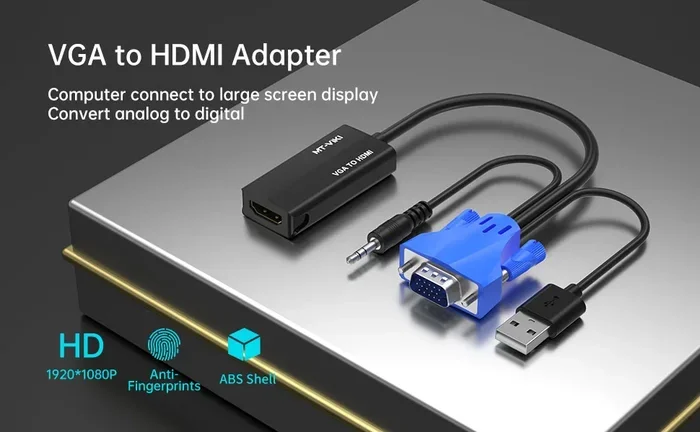
A VGA cable is one of the most popular alternatives for connecting a computer to a TV without HDMI. The 15-pin connector carries a video signal from your laptop or desktop to the television screen. You will need a VGA cable and possibly a small adapter depending on the outputs available on your device. These cables are widely available and inexpensive, making them a practical first choice.
One thing to keep in mind is that VGA only carries video, not audio. You will need a separate cable or connection for sound. Many people pair a VGA connection with a 3.5mm audio cable running from their computer to the TV or to a separate speaker system. This two-cable setup is a small inconvenience compared to the single HDMI cable solution, but it works reliably.
If you plan to use a tv without hdmi port for computer work, a VGA connection can work surprisingly well. The image quality is decent for everyday tasks like browsing the web, writing documents, or even using a computer mouse to navigate your desktop. It is not ideal for high-end gaming or 4K video playback, but for general use, it gets the job done with minimal fuss.
Composite and Component Video Cables
Composite cables use the familiar yellow, red, and white RCA connectors. The yellow cable carries the video signal, while the red and white cables handle audio. These cables were the standard connection method for DVD players, VCRs, and early gaming consoles for many years. Almost everyone has seen these cables before, and they are easy to identify.
Component video cables offer a step up in quality. They use three separate cables (green, blue, and red) for the video signal, plus red and white for audio. The result is a clearer picture with better color accuracy compared to composite cables. Component connections were common on DVDs, early Blu-ray players, and gaming consoles like the PlayStation 2 and Nintendo Wii.
Both composite and component connections work well for a tv without hdmi port when you want to watch movies, play games, or display content from older devices. The video quality is lower than HDMI, but it is perfectly acceptable for casual viewing. If you are connecting a retro gaming console or an older media player, these cables are often the most straightforward option.
Here is a quick comparison of these cable types for easy reference:
- Composite Video: Basic quality, easy to find everywhere, works with almost any older device. Best for standard definition content and casual viewing.
- Component Video: Better quality than composite, supports higher resolutions up to 1080p. Great for DVDs and older gaming consoles that need sharper images.
- VGA: Good quality for computer displays, does not carry audio on its own. Ideal for using a TV as a second computer monitor for work or study.
USB-C and DisplayPort Adapters
If your laptop or device has a USB-C or DisplayPort output, you can use an adapter to connect to a TV without HDMI. USB-C to HDMI adapters are widely available and affordable. But what if your TV does not have HDMI either? In that case, you can use a USB-C to VGA adapter or a USB-C to composite converter. These adapters take the digital signal from your device and convert it to the analog format your TV can read.
The quality depends on the adapter, but most modern adapters provide a clear and stable picture. Look for adapters that support the resolution you need. If you only need standard definition for basic viewing, a budget adapter works fine. For higher quality, invest in a converter that supports 1080p or higher.
DisplayPort to VGA adapters work similarly. Many desktop computers use DisplayPort outputs, and these adapters let you connect to a tv without hdmi port using a VGA cable. This is a great option for office setups or home workstations where you want a big screen for presentations or multitasking. The adapter is small, portable, and easy to set up in seconds.
How To Connect Devices Without HDMI
Now let us get practical. Here is a step-by-step look at how you can actually connect your devices to a TV that does not have an HDMI port. Follow these steps and you will be watching your favorite content in no time.
Using Adapters and Converters
The simplest approach is to use an adapter or converter cable. These small devices plug into your source device on one end and connect to your TV on the other end. They handle the signal conversion automatically, so you do not need any technical expertise or special knowledge. Just plug and play.
Here are the most common adapter setups you can try at home:
- Laptop to VGA: Use a USB-C to VGA adapter or a DisplayPort to VGA cable. Plug the adapter into your laptop, connect the VGA cable to the TV, and you are ready to go. Make sure to also connect the audio cable separately for sound.
- Streaming Stick to Composite: Some streaming devices like Roku or Amazon Fire Stick can work with composite adapters. You plug the adapter into the streaming stick and connect the RCA cables to the TV. This gives you access to all your favorite streaming apps on an older TV.
- Gaming Console to Component: Many older gaming consoles like the Wii or PS2 use component cables. You can connect them directly to a TV with component inputs for a great retro gaming experience.
When setting up a tv without hdmi port for work purposes, you might find yourself displaying spreadsheets or documents on the big screen. If you have ever struggled with formatting issues in Microsoft Excel, you know how frustrating display problems can be. A reliable adapter ensures your presentations look clean and professional, whether you are in a boardroom or working from home.
Wireless Screen Mirroring Options
Going wireless is another excellent option for connecting to a tv without hdmi port. Many modern TVs support screen mirroring through Wi-Fi, even if they lack HDMI inputs. This is a great solution if you want a clean setup with no cables running across the room.
Here are the main wireless methods available today:
- Miracast: A wireless display standard built into many Windows PCs and smart TVs. It lets you mirror your screen without any cables at all. Simply select the wireless display option on your PC and connect to your TV.
- Chromecast: Google’s streaming technology can cast content from your phone or computer to a TV. Some Chromecast models work with TVs that have HDMI, but you can also use them with certain setups that do not through compatible adapters.
- Apple AirPlay: If you have an Apple TV or a compatible smart TV, AirPlay lets you wirelessly mirror your iPhone or iPad screen to the big display.
- DLNA: A protocol that lets devices share media over a home network. Great for streaming videos and photos to a TV without a direct cable connection at all.
Wireless options are especially convenient when you want flexibility. The trade-off is that wireless connections can have slight delays or lower image quality compared to wired connections. For most everyday uses like browsing, presentations, or casual movie watching, the difference is barely noticeable. A strong Wi-Fi signal makes all the difference, so position your router close to the TV for the best experience.
Using a Streaming Device with Non-HDMI TVs
Streaming devices have become a popular way to access online content on any TV. But can you use a streaming device with a tv without hdmi port? The answer is yes, with the right accessories. Many streaming sticks come with composite or RCA adapters included in the box. You simply plug the adapter into the streaming device, connect the RCA cables to your TV, and you can access Netflix, YouTube, and other apps directly.
The streaming device connects to your Wi-Fi network and downloads content directly, so the TV does not need any smart features of its own. This is a fantastic way to breathe new life into an old television. Even a 15-year-old CRT TV can become a smart TV with a streaming device and the right adapter. The picture quality will not match a modern flat screen, but for watching your favorite shows and movies, it works perfectly well.
Some streaming devices also support casting from your phone, which means you can control what plays on the TV from your handheld device. This adds a layer of convenience that makes the whole experience much more enjoyable. You can browse content on your phone and send it to the TV with a single tap.
Using A Smart TV Without HDMI
Smart TVs come with built-in internet connectivity and app support. But what happens when your smart TV does not have an HDMI port? Can you still use all the smart features? The good news is that many smart TVs connect to your home network through Wi-Fi or Ethernet, regardless of whether they have HDMI ports. This means you can still access built-in streaming apps, update the TV’s software, and use smart features without ever plugging in an HDMI cable.
Built-In Apps and Internet Connectivity
Most smart TVs allow you to connect to your home Wi-Fi network through the settings menu. Once connected, you can browse the TV’s app store and download streaming apps directly to the television. Popular apps include Netflix, Hulu, Disney+, YouTube, and Amazon Prime Video. You can control these apps using the TV’s remote control. No external device is needed for basic streaming.
This makes a tv without hdmi port still very capable for watching online content. You can browse the internet, check the weather, or even use the TV as a digital photo frame for family pictures. The smart features work through your internet connection, not through HDMI cables. So your TV remains smart and functional even without the latest port technology.
Some smart TVs also support screen mirroring through their built-in wireless protocols. You can cast content from your phone or tablet directly to the TV without any cables. This feature works independently of HDMI and relies solely on your home Wi-Fi network. It is a wonderful option for sharing photos, videos, or presentations with family and friends on the big screen.
Connecting External Devices Through Alternative Ports
Even smart TVs without HDMI can connect to external devices through their other ports. USB ports can sometimes be used to play media files directly from a flash drive or external hard drive. Ethernet ports provide a wired internet connection for more stable streaming and faster download speeds. These alternative ports give you more ways to use your TV without relying on HDMI at all.
If your smart TV has a built-in web browser, you can even browse the internet directly on the big screen. This is a handy feature for checking news, reading recipes while cooking, or looking up information during a movie night. The possibilities are wider than many people realize when they first discover their TV lacks an HDMI port.
The key takeaway is that a tv without hdmi port does not mean your smart TV loses its intelligence. The smart features work through your internet connection, not through HDMI cables. You can still enjoy all the benefits of a smart TV even with older connection types. Simply connect to your Wi-Fi network and explore the built-in features that come with your television.
Common Problems And How To Fix Them
Setting up a TV without HDMI can come with a few challenges. Most of these issues are easy to solve with a little troubleshooting. Here are the most common problems you might encounter and how to fix them quickly.
No Sound or Video
If you connect a device and get no picture or sound, do not panic. Start by checking each cable connection. Make sure the cables are firmly plugged into both the source device and the TV. A loose connection is the most common cause of no signal. Sometimes cables look connected but are not fully seated in the port.
Next, check your TV’s input source. Most TVs have multiple input options, and you need to select the correct one to see the signal. Use your TV remote to cycle through the inputs until you find the right one. It might take a few tries, but you will find the correct input.
If you are using a VGA connection, remember that audio is not carried through the VGA cable. You need to connect a separate 3.5mm audio cable from your computer to the TV or to external speakers. Check your TV’s audio settings to make sure the correct input is selected for sound output. This simple step resolves the issue in most cases.
Resolution and Display Issues
Sometimes the picture looks blurry, stretched, or cut off when connecting to a tv without hdmi port. This usually happens because the resolution settings on your source device do not match what the TV can display. Your device might be trying to output a resolution that the TV cannot handle.
To fix this, go into your device’s display settings and adjust the resolution. Start with a lower resolution like 720p or 480p and gradually increase until the picture looks clear. Older TVs with composite or component inputs typically work best with standard definition or 720p resolution. Pushing the resolution too high can cause display problems.
For VGA connections, the TV may not support the same resolutions as an HDMI display. Check your TV’s user manual or settings menu for the supported resolutions and adjust your computer’s output accordingly. A simple resolution change can make a huge difference in picture quality.
Slow or Laggy Wireless Connections
If you are using wireless screen mirroring, you might experience delays or lag. This is usually caused by a weak Wi-Fi signal or network congestion. Other devices on the same network can slow things down, especially if many people are streaming at the same time.
To improve your wireless experience, move your router closer to the TV or use a Wi-Fi extender to boost the signal. For the best results, use a dual-band router that supports both 2.4GHz and 5GHz frequencies. The 5GHz band offers faster speeds and less interference, which reduces lag during screen mirroring significantly.
Expert Tips For Getting The Most From Your TV
Here are some expert tips to help you get the best experience when using a tv without hdmi port. These practical suggestions come from years of helping people set up their displays with older technology.
- Invest in Quality Adapters: Cheap adapters can cause signal loss and poor image quality. Spending a little extra on a well-reviewed adapter pays off in the long run with a clearer picture and more reliable connection.
- Check Your TV’s Maximum Resolution: Before buying an adapter, find out what resolution your TV supports. This helps you choose the right equipment and avoid disappointment with blurry or distorted images.
- Keep Your Cables Organized: Use cable ties or a cable management box to keep your setup neat. This prevents accidental disconnections and makes it easier to switch between devices when needed.
- Update Your Device Drivers: If you are connecting a computer, make sure your graphics card drivers are up to date. Updated drivers improve compatibility and display quality across all connection types.
- Test Before Committing: Try your setup before mounting the TV on the wall or setting it up permanently. This gives you a chance to troubleshoot any issues in a flexible setup where you can easily make changes.
- Use a computer mouse for Better Control: When using your TV as a computer monitor, a mouse makes navigation much easier and more precise than using a keyboard alone.
Using a tv without hdmi port does not have to be frustrating. With the right cables, adapters, and a little patience, you can connect almost any device to almost any television. The key is understanding what ports your TV has and choosing the right connection method for your specific needs. Take the time to explore your options and you will find a solution that works perfectly.
Remember that older connection standards like VGA, composite, and component still carry useful signals. They may not offer the same crisp quality as HDMI, but they get the job done for most everyday purposes. Whether you are watching movies, working from home, or gaming, there is a way to make it work with the equipment you already have or can pick up affordably.
Wireless options add even more flexibility to your setup. Screen mirroring and streaming devices let you go cable-free while still enjoying big-screen content. These technologies continue to improve every year, making it easier than ever to connect to any TV regardless of its port options. The future of connectivity is wireless, and even older TVs can benefit from these advances.
The bottom line is simple. A tv without hdmi port is not a dead end. It is just a different path to the same destination: enjoying your favorite content on the big screen. With the tips and methods in this guide, you are fully equipped to make it work. So go ahead, plug in your device, and enjoy your favorite shows and movies on the television you already own.
Frequently Asked Questions
Can I connect a laptop to a TV without HDMI?
Yes, you can connect a laptop to a TV without HDMI using a VGA cable, composite adapter, or USB-C to VGA adapter. The method you choose depends on the ports available on both your laptop and TV. Most adapters cost between $10 and $30 and are easy to set up in just a few minutes.
Will I lose picture quality without HDMI?
You may notice a slight difference in quality compared to HDMI, especially with older cable types like composite or S-Video. VGA and component connections offer much better quality and are often nearly indistinguishable from HDMI for everyday use. The quality depends on the adapter and cable you choose, so investing in a good one matters.
Can I use a streaming device with a TV that has no HDMI?
Yes, many streaming devices come with composite or RCA adapters that work with non-HDMI TVs. You can also use a streaming stick with a composite converter to access apps like Netflix and YouTube on older televisions. Check the product specifications before purchasing to ensure full compatibility with your setup.
How do I get sound when using a VGA connection?
VGA cables carry video only, not audio. To get sound, you need to connect a separate 3.5mm audio cable from your computer to the TV or to external speakers. Most TVs have a 3.5mm headphone jack or RCA audio inputs that work perfectly with this simple setup.
Can I use screen mirroring on any TV without HDMI?
Screen mirroring works on smart TVs that support Wi-Fi, even if they do not have HDMI ports. Look for Miracast, Chromecast, or AirPlay support in your TV’s settings menu. If your TV does not support wireless mirroring natively, you can use a streaming device that connects via composite or VGA to enable casting functionality.
What is the best adapter for connecting a PC to a TV without HDMI?
A USB-C to VGA adapter is often the best choice for connecting a modern PC to a TV without HDMI. It provides good image quality and is widely available online and in electronics stores. If your PC has a DisplayPort output, a DisplayPort to VGA adapter works equally well. Both options are affordable and easy to set up without any technical expertise.
=== CONCLUSION ===
Using a tv without hdmi port is entirely possible, and you have many options to choose from. Whether you prefer wired connections with VGA, composite, or component cables, or you want to go wireless with screen mirroring and streaming devices, there is a solution that fits your needs. The key is knowing what ports your TV has and choosing the right adapter or connection method for your situation.
Do not let the absence of an HDMI port stop you from enjoying your TV. With the right setup, even an older television can deliver a great viewing experience for movies, games, work presentations, and everyday streaming. The methods in this guide give you everything you need to get started. You do not need expensive equipment or technical skills to make it work.
Take some time to explore your options, pick the method that works best for your devices, and enjoy your TV once again. A tv without hdmi port is not a limitation. It is simply a different way to connect and enjoy your favorite content on the big screen. With a little effort and the right accessories, you will be watching your favorite shows and movies in no time.