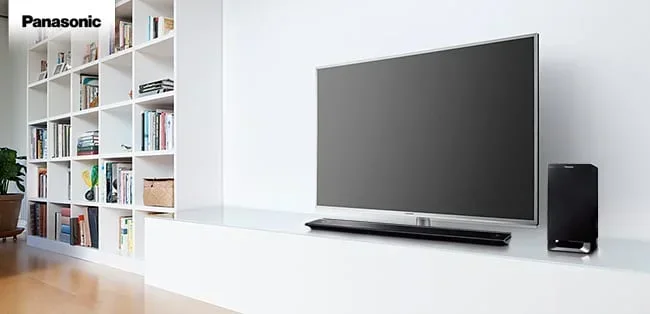
Can You Hook Up A Panasonic Viera To A Sound Bar Easily
Yes, you can hook up a Panasonic Viera to a sound bar using several simple methods including HDMI ARC, optical audio cable, or Bluetooth wireless connection. This guide walks you through every connection option so you can choose the best one for your setup. You will learn the steps, settings, and tips to get the best audio from your Viera TV and sound bar combo.
## Can You Hook Up A Panasonic Viera To A Sound Bar Easily
So you just bought a Panasonic Viera TV and a shiny new sound bar. Great choice! But now you are staring at the back of your TV wondering how to connect everything. The good news is that hooking up a Panasonic Viera to a sound bar is much easier than most people think. You do not need to be a tech expert to get it done.
In this guide, I will walk you through every connection method step by step. Whether you prefer a wired setup or want to go wireless, there is an option that works for you. I will also share tips on settings, troubleshooting, and getting the best sound quality from your setup. Let us dive right in.
## What You Need Before You Start Connecting
Before you plug anything in, it helps to know what you are working with. A little preparation saves a lot of frustration later.
### Check Your Viera Model And Ports
Every Panasonic Viera model is slightly different. Some newer models come with multiple HDMI ports and built-in Bluetooth. Older models might only have optical audio outputs. Look at the back or side of your TV and make a list of the ports you see.
Common ports on a Panasonic Viera include HDMI ARC, optical digital audio, and 3.5mm headphone jacks. If you are not sure which model you own, check the label on the back of the TV or look up the model number in your user manual. This small step makes the whole process smoother.
### Gather Your Cables And Equipment
Here is a quick checklist of what you might need:
- HDMI cable (preferably an HDMI ARC compatible cable)
- Optical audio cable (also called TOSLINK)
- 3.5mm aux cable (for older setups)
- Bluetooth capability (built in or via a transmitter)
- Your sound bar remote and power cord
Most of these cables are cheap and easy to find. If you already have an HDMI cable from your cable box or gaming console, there is a good chance it will work for this connection too.
## Connecting Via HDMI ARC (The Easiest Method)
HDMI ARC stands for Audio Return Channel. It is the simplest and most popular way to connect a sound bar to a Panasonic Viera TV. With HDMI ARC, you only need one cable to carry both video and audio signals. Your TV remote can even control the sound bar volume.
### Step By Step HDMI ARC Setup
Follow these steps to get your sound bar connected via HDMI ARC:
- Turn off both your Viera TV and sound bar. This prevents any electrical issues during setup.
- Plug one end of the HDMI cable into the HDMI ARC port on your TV. This port is usually labeled “ARC” or “eARC” on the back of the TV.
- Plug the other end into the HDMI OUT (ARC) port on your sound bar. Make sure it clicks into place.
- Turn on both devices. Your Viera TV should automatically detect the sound bar.
- Go to your TV settings and select the sound output as HDMI ARC. This tells the TV to send audio through the HDMI connection.
That is it! You should now hear sound coming from your sound bar. If you do not hear anything right away, do not worry. We will cover troubleshooting later in this guide.
### Why HDMI ARC Is The Best Choice
HDMI ARC has several big advantages over other methods. First, it uses just one cable for both audio and video. Second, it allows you to use your Viera remote to control the sound bar. Third, it supports high quality audio formats like Dolby Digital and DTS. If your Viera and sound bar both support it, HDMI ARC is the way to go.
## Using An Optical Audio Cable Instead
Not every Panasonic Viera has HDMI ARC. Some older models or budget versions might not include it. In that case, an optical audio cable is your next best option. It uses a digital light signal to carry audio from the TV to the sound bar.
### When Optical Audio Is Your Best Option
An optical cable works well when:
- Your Viera TV does not have an HDMI ARC port
- You want a reliable wired connection without worrying about Bluetooth interference
- Your sound bar has an optical input but no HDMI ARC
### Step By Step Optical Cable Setup
Here is how to connect your Panasonic Viera to a sound bar using an optical cable:
- Locate the optical digital audio output on your Viera TV. It is a small square port with a red light inside.
- Connect one end of the optical cable to the TV. Push it in gently until it fits snugly.
- Connect the other end to the optical input on your sound bar. Again, make sure it clicks in place.
- Turn on both devices and go to your Viera audio settings. Change the audio output to “Optical” or “Digital Audio Out.”
- Test the sound by playing any content on your TV. You should hear audio from the sound bar now.
One thing to keep in mind is that optical cables do not support the same high end audio formats as HDMI ARC. But for most people, the sound quality is still a huge upgrade over the built in TV speakers.
## Bluetooth Wireless Connection Options
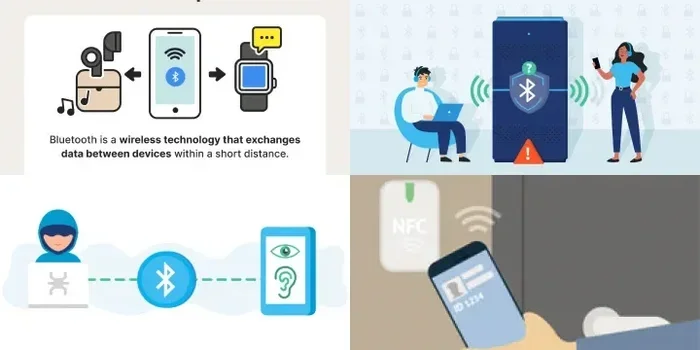
If you want to avoid cables altogether, Bluetooth is a great option. Many modern Panasonic Viera models come with built-in Bluetooth. This lets you pair your sound bar to the TV wirelessly. It is especially helpful if your sound bar is far from the TV or if you want a clean, cable free setup.
### Pairing Your Sound Bar Without Wires
Here is how to connect a sound bar to your Panasonic Viera using Bluetooth:
- Turn on your sound bar and put it in pairing mode. Check your sound bar manual for the exact steps. Usually you hold down a Bluetooth or Source button.
- On your Viera TV, go to Settings and then Bluetooth. Look for “Bluetooth Audio” or “Bluetooth Devices.”
- Select your sound bar from the list of available devices. The name of your sound bar should appear on screen.
- Wait for the connection to complete. You may hear a confirmation tone from the sound bar.
- Set the sound bar as your audio output in the Viera settings. Your TV audio will now stream wirelessly.
### Tips For A Stable Bluetooth Connection
Bluetooth is convenient but it can sometimes be finicky. Here are a few tips to keep things running smoothly:
- Keep the sound bar within 10 feet of the TV for the best signal strength.
- Avoid placing the sound bar near microwaves or wireless routers. These can cause interference.
- Update both your Viera TV and sound bar firmware. Updates often fix Bluetooth connectivity issues.
- If the connection drops, turn Bluetooth off and on again on both devices.
## Adjusting Audio Settings On Your Viera
Once your sound bar is connected, you need to make sure the audio settings on your Panasonic Viera are correct. Wrong settings are the number one reason people think their connection is not working when it actually is.
### Getting The Best Sound Quality
Go to your Viera settings and look for the audio or sound section. Here are the key settings to check:
- Audio Output: Set this to match your connection type (HDMI ARC, Optical, or Bluetooth).
- Digital Audio Out: Set this to “Auto” or “PCM” depending on your sound bar’s capabilities.
- Surround Sound: Enable this if your sound bar supports it for a more immersive experience.
- Volume Leveling: Turn this on so the volume stays consistent across different channels.
### Using Your Viera Remote To Control The Sound Bar
One of the best perks of using HDMI ARC is that your Viera remote can control the sound bar volume. You do not need a separate remote for the sound bar. Just make sure the HDMI CEC setting is enabled on your TV. This feature is called “VIERA Link” on Panasonic Viera models. It lets your TV and connected devices talk to each other seamlessly.
## Troubleshooting Common Connection Issues
Even with the best setup, things can go wrong sometimes. Here are the most common issues people face when connecting a sound bar to a Panasonic Viera and how to fix them.
### No Sound Coming From The Sound Bar
If you have connected everything but hear no sound, try these steps:
- Check that the sound bar is turned on and set to the right input source.
- Go to your Viera audio settings and confirm the output is set correctly.
- Unplug the HDMI or optical cable and plug it back in. Sometimes a loose connection causes this problem.
- Restart both the TV and the sound bar. A simple reboot fixes many issues.
### Audio Sync Issues (Sound And Video Are Out Of Step)
Audio sync problems happen when the sound reaches your ears a split second after you see the action on screen. This is annoying but fixable.
- On your Viera TV, look for an “Audio Delay” or “Lip Sync” setting. Adjust it until the sound matches the video.
- If using Bluetooth, try reducing the Bluetooth quality setting. Lower quality often means less delay.
- Check if your sound bar has a built in delay adjustment. Many sound bars have this feature in their own settings menu.
### Sound Bar Not Showing Up In The Device List
If your Viera TV cannot find the sound bar during setup, try this:
- Make sure the sound bar is in discovery or pairing mode.
- Turn Bluetooth off and back on from both devices.
- Move the sound bar closer to the TV temporarily to rule out distance issues.
- Check for firmware updates on both devices. Outdated software can cause compatibility problems.
## Why A Sound Bar Makes A Big Difference On A Panasonic Viera
A Panasonic Viera TV looks amazing and sounds decent on its own. But the built in speakers are small and flat. They cannot deliver the rich, deep sound that movies and music deserve. A sound bar fills that gap completely.
Adding a sound bar gives you deeper bass, clearer dialogue, and a more cinematic experience right in your living room. Whether you are watching a thriller, a sports game, or your favorite show, the audio quality jumps to a whole new level. It is one of the best upgrades you can make to any home entertainment setup.
If you are looking for other ways to improve your home setup, check out our guide on 10 Gadgets To Make Moms Life Easier. Many of those gadgets pair perfectly with a sound bar and Viera TV to create a smarter, more enjoyable home.
## Expert Tips For The Best Experience
Here are some extra tips from my own experience that will help you get the most out of your Panasonic Viera and sound bar setup:
- Place your sound bar directly below or above the TV. This creates the best surround sound effect.
- Use an HDMI cable that supports ARC or eARC for the highest quality audio transfer.
- Experiment with the sound bar’s EQ settings. Most sound bars let you adjust bass, treble, and balance to match your room.
- Keep your Viera TV software updated. Panasonic regularly releases updates that improve audio compatibility.
- If you use multiple devices like a game console or streaming stick, connect them to the sound bar first and then run HDMI to the TV. This simplifies your setup and improves audio quality.
## Common Mistakes To Avoid
Avoid these common mistakes that can cause problems with your Panasonic Viera and sound bar connection:
- Plugging the HDMI cable into the wrong port. Always use the port labeled ARC or eARC.
- Forgetting to change the audio output setting on the TV. The TV defaults to its own speakers until you change this.
- Ignoring firmware updates. These often fix bugs and improve compatibility.
- Placing the sound bar behind furniture. This blocks the sound and can interfere with Bluetooth signals.
- Using a damaged or low quality cable. A cheap HDMI cable can cause audio dropouts and sync issues.
## Final Thoughts
Hooking up a Panasonic Viera to a sound bar is a straightforward process that anyone can do. Whether you choose HDMI ARC, an optical cable, or Bluetooth, the steps are simple and the results are worth it. You will notice the difference in sound quality right away.
Take your time with the setup, double check your cable connections, and adjust the audio settings on your Viera TV. If you run into any issues, the troubleshooting steps above should help you get back on track. A good sound bar paired with a Panasonic Viera TV turns your living room into a mini theater. Enjoy the upgrade!
If you are also dealing with other tech challenges around the house, you might find our article on adding prefixes to numbers on iPhone helpful for managing your phone contacts more efficiently.
And if you ever run into display issues like strange lines on your screen, check out our guide on why a line wont delete in Microsoft Excel for some useful troubleshooting tips that apply beyond just Excel.
Key Takeaways
- HDMI ARC is the easiest and best method to connect a Panasonic Viera to a sound bar with just one cable.
- Optical audio cables work great when your TV does not support HDMI ARC or you need a backup option.
- Bluetooth pairing offers wireless freedom so you can place your sound bar anywhere in the room.
- Adjusting Viera audio settings is key to getting clear sound and fixing common sync issues.
- Troubleshooting steps can solve most problems like no sound, audio lag, or detection failures.
- Adding a sound bar transforms your home entertainment experience on a Panasonic Viera TV.
Frequently Asked Questions
Can I Connect Any Sound Bar To A Panasonic Viera TV?
Most sound bars will work with a Panasonic Viera TV as long as they share a common connection type. Look for HDMI ARC, optical audio, or Bluetooth compatibility. Nearly all modern sound bars support at least one of these methods. Check the ports on both your TV and sound bar before purchasing.
What Is The Difference Between HDMI ARC And Optical Audio?
HDMI ARC carries both audio and video through one cable and supports higher quality audio formats. Optical audio only carries sound and uses a light signal through a fiber cable. HDMI ARC also lets you control the sound bar with your TV remote. For most users, HDMI ARC is the better option.
Why Is There No Sound After Connecting My Sound Bar?
This usually happens because the TV audio output is not set to the correct source. Go to your Viera settings and make sure the audio output matches your connection type. Also check that the sound bar is powered on and set to the right input. Restarting both devices often fixes this issue.
Can I Use Bluetooth To Connect A Sound Bar To My Viera TV?
Yes, if both your Panasonic Viera TV and sound bar support Bluetooth. Go to your TV settings, enable Bluetooth, and pair the devices. Keep in mind that Bluetooth may have a slight audio delay compared to wired connections. It is best for casual listening and not ideal for gaming or fast action videos.
Do I Need A Special HDMI Cable For HDMI ARC?
You do not need a special cable, but it helps to use a high quality HDMI cable that supports ARC. Most standard HDMI cables made after 2009 will work fine. If you want the best results, look for a cable labeled “High Speed HDMI” or “Premium High Speed HDMI.”
How Do I Control The Volume Of My Sound Bar With The Viera Remote?
This works automatically when you use HDMI ARC with the CEC or VIERA Link feature enabled on your TV. Your Viera remote sends volume commands to the sound bar through the HDMI connection. If this does not work, check that HDMI CEC is turned on in your TV settings.
=== CONCLUSION ===
Setting up a sound bar with your Panasonic Viera TV is one of the simplest and most rewarding upgrades you can make. With HDMI ARC, optical audio, or Bluetooth, you have multiple easy ways to get started. The key is to match your connection method to the ports available on both devices and then adjust your audio settings accordingly.
Remember to troubleshoot patiently if anything does not work right away. A quick cable check or firmware update often solves the problem. Once everything is connected, you will enjoy richer sound, clearer dialogue, and a much more immersive viewing experience. Your Panasonic Viera deserves great audio to match its stunning picture. Take the time to set it up right and enjoy every movie, show, and game like never before.