Can You Get A Wireless USB Adapter That Actually Works
Yes, you can get a wireless USB adapter that actually works, and they have come a long way in recent years. These small devices plug into your USB port and give your computer wireless capabilities for Wi-Fi, Bluetooth, or even connecting wireless peripherals. Whether you need better range, faster speeds, or simply a clutter-free desk, a good wireless USB adapter makes a real difference.
Key Takeaways
- Wireless USB adapters are widely available: You can find them for Wi-Fi, Bluetooth, and wireless peripherals at various price points.
- They are easy to set up: Most options offer plug-and-play functionality with no complicated installation required.
- Speed and range vary by type: Choosing the right adapter depends on your specific needs, such as streaming, gaming, or office work.
- Quality matters: Cheap adapters may cause lag, disconnections, or poor performance, so investing in a reputable brand pays off.
- Compatibility is key: Always check that the adapter works with your operating system and device before buying.
- Wireless adapters improve desk setups: They eliminate cable clutter and give you more flexibility with device placement.
📑 Table of Contents
- Can You Get A Wireless USB Adapter That Actually Works?
- What Exactly Is a Wireless USB Adapter?
- How Does a Wireless USB Adapter Work?
- Benefits of Using a Wireless USB Adapter
- How to Choose the Right Wireless USB Adapter
- Common Problems with Wireless USB Adapters and How to Fix Them
- Expert Tips for Getting the Best Performance
- Final Thoughts
Can You Get A Wireless USB Adapter That Actually Works?
Let us answer this question right away. Yes, you can absolutely get a wireless USB adapter that actually works. These small gadgets have been around for years, but they have improved dramatically. Today, you can find adapters that handle Wi-Fi, Bluetooth, and even connect wireless mice and keyboards without any fuss.
The days of struggling with weak signals and constant disconnections are mostly behind us. Modern wireless USB adapters offer solid performance, easy setup, and affordable prices. Whether you are working from home, gaming, or just browsing the web, the right adapter can transform your experience. But not all adapters are created equal, and that is exactly why this guide exists.
We will walk you through everything you need to know. From understanding how these adapters work to picking the best one for your needs, we have you covered. You will learn about the different types, what to look for, and common mistakes to avoid. By the end, you will feel confident choosing a wireless USB adapter that delivers real results.
What Exactly Is a Wireless USB Adapter?
A wireless USB adapter is a small device you plug directly into a USB port on your computer. It acts as a bridge between your device and a wireless network or peripheral. Think of it as a tiny antenna that gives your computer the ability to connect without wires.
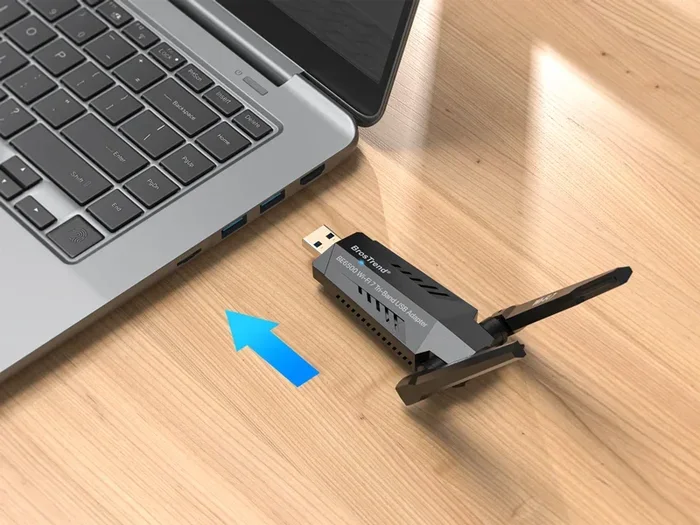
These adapters come in different shapes and sizes. Some look like tiny flash drives. Others are slightly larger and may include external antennas for better signal reception. The one you need depends on what you want to accomplish. Let us break down the main types.
Wi-Fi USB Adapters
A Wi-Fi USB adapter connects your computer to a wireless network. This is especially useful for laptops that have lost their built-in Wi-Fi capability or desktop computers that lack wireless support altogether. You simply plug it in, install the driver if needed, and you are online.
Most modern Wi-Fi adapters support the latest standards, such as Wi-Fi 5 or Wi-Fi 6. This means you can expect fast speeds and stable connections. For basic browsing and video calls, even an older adapter will do the job just fine.
Bluetooth USB Adapters
A Bluetooth USB adapter lets you connect wireless peripherals like headphones, speakers, and controllers to your computer. Many desktop PCs do not have built-in Bluetooth, so a small adapter solves this problem instantly.
Bluetooth adapters also come in different versions. Bluetooth 5.0 and newer offer better range and lower power consumption. If you want to connect multiple devices at once, look for an adapter that supports multipoint connections.
Wireless Peripheral Adapters
These adapters are designed specifically for wireless mice and keyboards. You may have noticed that many wireless mice come with a tiny USB receiver. That is a wireless peripheral adapter. It creates a direct, low-latency connection between your mouse or keyboard and your computer.
If you have ever wondered about the advantages and disadvantages of a computer mouse, you know that wireless options offer freedom but depend on a reliable receiver. These adapters make that possible without taking up a USB port all day.
How Does a Wireless USB Adapter Work?
Understanding how a wireless USB adapter works is simpler than you might think. When you plug the adapter into a USB port, it communicates with your computer through the USB connection. At the same time, it sends and receives wireless signals using radio frequencies.
Here is a simple breakdown of the process.
- Plug and detect: The computer recognizes the adapter as a new device.
- Driver installation: Most adapters install drivers automatically. Sometimes you need to download them from the manufacturer website.
- Signal transmission: The adapter sends and receives radio signals to and from a router, Bluetooth device, or wireless peripheral.
- Data conversion: The adapter converts wireless signals into data your computer can understand and vice versa.
The whole process happens in milliseconds. You barely notice it is happening. This is what makes wireless USB adapters so convenient. They work quietly in the background and keep you connected.
One thing to keep in mind is signal strength. The further you are from the router or the device you are connecting to, the weaker the signal becomes. This is why some adapters include external antennas. They boost the signal and improve range significantly.
Benefits of Using a Wireless USB Adapter
There are many reasons to use a wireless USB adapter. Let us look at the biggest benefits that make them worth your time and money.
1. Freedom From Cables
The most obvious benefit is ditching the cables. A wireless setup looks cleaner and feels more organized. You can move your mouse, keyboard, or even your entire computer around without worrying about unplugging anything.
This is especially helpful if you work at a desk where space is limited. Fewer cables mean less clutter and a more comfortable workspace. You can rearrange your setup anytime without fuss.
2. Portability
Most wireless USB adapters are small enough to carry in your laptop bag. If you travel often, taking your adapter with you means you can connect to Wi-Fi or Bluetooth devices anywhere. You do not need to rely on public computers or borrowed cables.
Some adapters are so small they barely stick out from the USB port. You can leave them plugged in all the time without blocking the port next to it.
3. Easy Setup
Gone are the days of complicated installations. Most wireless USB adapters today are truly plug and play. You insert the adapter, wait a few seconds, and it is ready to go. Even if you need to install drivers, the process is usually straightforward and fast.
This makes wireless adapters a great choice for people who are not tech-savvy. If you can plug in a USB cable, you can set up a wireless adapter.
4. Cost Effective
Wireless USB adapters are affordable. You do not need to spend a fortune to get a reliable one. Even budget options deliver solid performance for everyday tasks like browsing, streaming, and office work.
If you are on a tight budget and need wireless connectivity fast, an adapter is the most cost-effective solution. It is much cheaper than buying a new laptop or motherboard with built-in wireless support.
How to Choose the Right Wireless USB Adapter
Not all adapters are the same, and picking the wrong one can lead to frustration. Here is what you should consider before making a purchase.
Check Your Operating System
Before buying anything, make sure the adapter is compatible with your operating system. Most adapters support Windows, macOS, and sometimes Linux. Check the product specifications carefully. If you are using Microsoft Excel or any other office software on a Windows machine, you want an adapter that plays nicely with your system without causing conflicts.
Consider the Wireless Standard
Look for adapters that support the latest wireless standards. For Wi-Fi, Wi-Fi 5 (802.11ac) and Wi-Fi 6 (802.11ax) are the current standards. For Bluetooth, version 5.0 or newer is ideal. Newer standards mean faster speeds, better range, and improved stability.
If you only need basic connectivity, an older standard will still work. But if you stream a lot of video or play online games, investing in a newer standard makes a noticeable difference.
Think About Range
Range matters more than most people realize. If your router is in another room, you need an adapter with a strong signal. Adapters with external antennas generally perform better at longer distances.
For office use where the router is nearby, a basic adapter will suffice. For larger homes or apartments, consider a high-gain adapter that can reach farther without losing speed.
Read Reviews
Always check user reviews before buying. Look for feedback on speed, reliability, and ease of setup. Real-world experiences tell you a lot more than marketing claims. If an adapter has consistent complaints about disconnections, skip it.
Price vs. Performance
You do not always need the most expensive adapter. Set a budget based on your needs. For basic web browsing and email, a budget adapter works perfectly. For gaming or 4K streaming, spend a bit more for better performance.
| Use Case | Recommended Standard | Budget Range |
|---|---|---|
| Basic browsing and email | Wi-Fi 4 / Bluetooth 4.0 | $5 – $15 |
| Streaming and video calls | Wi-Fi 5 / Bluetooth 5.0 | $15 – $30 |
| Gaming and large file transfers | Wi-Fi 6 / Bluetooth 5.2 | $30 – $60 |
| Enterprise and heavy-duty use | Wi-Fi 6E / Bluetooth 5.3 | $60+ |
Common Problems with Wireless USB Adapters and How to Fix Them
Even the best wireless USB adapters can sometimes cause issues. Here are the most common problems and simple solutions.
Slow Speeds
If your adapter is running slowly, the first thing to check is the distance from your router. Moving closer often fixes the problem. Also, make sure your adapter supports the latest Wi-Fi standard. An older adapter on a modern router will bottleneck your speeds.
Another fix is to switch to a less crowded Wi-Fi channel. Most routers allow you to change channels in the settings. A less crowded channel can boost your speed significantly.
Disconnections
Frequent disconnections are annoying but usually easy to fix. Try updating the adapter drivers through your device manager. Outdated drivers are one of the most common causes of connection drops.
Also check for interference. Other USB devices, microwaves, and even baby monitors can interfere with wireless signals. Moving the adapter away from these devices can help stabilize your connection.
Adapter Not Recognized
If your computer does not recognize the adapter, try a different USB port. Some ports provide less power and may not work properly. Also, try installing the drivers manually from the manufacturer website instead of relying on automatic detection.
If none of that works, the adapter itself may be defective. Most reputable brands offer warranties, so do not hesitate to reach out for a replacement.
Expert Tips for Getting the Best Performance
Want to squeeze every bit of performance from your wireless USB adapter? Follow these expert tips.
- Keep your drivers updated: Manufacturers regularly release driver updates that improve performance and fix bugs. Check for updates once a month.
- Use a USB extension cable: If your adapter has external antennas, placing it higher and away from your desk can improve signal reception. A short USB extension cable helps with this.
- Avoid USB hubs: Plug the adapter directly into your computer. USB hubs can reduce power and cause instability.
- Restart your router regularly: A simple router reboot can improve your wireless connection and speed up your adapter.
- Position your router wisely: Place your router in a central location, away from walls and metal objects. This helps your adapter maintain a strong signal throughout your space.
These small changes can make a big difference. You will notice faster speeds, fewer disconnections, and a more reliable connection overall.
Final Thoughts
The answer to whether you can get a wireless USB adapter that actually works is a resounding yes. These small devices have evolved into reliable, affordable, and easy-to-use tools that solve real connectivity problems. Whether you need Wi-Fi for your desktop, Bluetooth for your peripherals, or a wireless receiver for your mouse, there is an adapter out there that fits your needs.
The key is to choose wisely. Consider your use case, check compatibility, and do not be afraid to spend a little extra for better quality. A good wireless USB adapter saves you time, reduces cable clutter, and keeps you connected wherever you go.
Start by identifying what you need most. Browse options, read reviews, and pick the adapter that matches your lifestyle. With the right choice, you will wonder how you ever managed without one.
Frequently Asked Questions
Do wireless USB adapters work with all computers?
Most wireless USB adapters work with any computer that has a USB port. However, you should always check compatibility with your operating system before buying. Nearly all adapters support Windows, and many also work with macOS and Linux.
Can a wireless USB adapter improve internet speed?
An adapter cannot make your internet plan faster than what your provider offers. However, a good adapter can help you reach the full speed of your plan by maintaining a strong and stable connection. Older or cheap adapters often bottleneck your speeds, so upgrading can make a real difference.
Is it safe to leave a wireless USB adapter plugged in all the time?
Yes, it is perfectly safe. Wireless USB adapters use very little power and generate minimal heat. Leaving one plugged in will not damage your USB port or cause any issues. Just make sure to keep it in a well-ventilated spot.
What is the difference between a Wi-Fi adapter and a Bluetooth adapter?
A Wi-Fi adapter connects your computer to a wireless network for internet access. A Bluetooth adapter connects your computer to wireless peripherals like headphones, speakers, and controllers. Some adapters support both Wi-Fi and Bluetooth in one device.
Why does my wireless USB adapter keep disconnecting?
Common causes include outdated drivers, USB port power issues, signal interference, or a faulty adapter. Try updating your drivers, switching USB ports, and moving away from potential sources of interference. If the problem persists, the adapter may need to be replaced.
Can I use a wireless USB adapter with a smart TV or gaming console?
Some wireless USB adapters are compatible with smart TVs and gaming consoles, but you need to check the specifications first. Not all adapters work with every device. Look for adapters that specifically list compatibility with your device or platform.