Can You Daisy Chain Two Monitors To A Laptop Find Out Now
So, can you daisy chain two monitors to a laptop? Yes, you absolutely can — but it depends on your laptop’s ports, the right cables, and a compatible docking solution. This guide covers everything you need to know about multi-monitor setup, including hardware requirements, step-by-step instructions, and expert tips to get your dual display running smoothly.
Key Takeaways
- Daisy chaining is possible: You can connect two monitors to a laptop using Thunderbolt, USB-C, or DisplayPort MST technology.
- Check your ports first: Not all laptops support daisy chaining. Make sure your device has the right output ports before buying any gear.
- The right cables matter: DisplayPort 1.2 or higher, Thunderbolt 3/4, and USB-C with video support are your best options for a successful daisy chain.
- Docking stations help: A good USB-C or Thunderbolt docking station makes connecting two monitors much easier and more reliable.
- Avoid common mistakes: Using the wrong cable version, ignoring GPU limitations, and skipping driver updates are frequent pitfalls.
- Setup is straightforward: With the right hardware and a little patience, you can have your extended display running in under 30 minutes.
- Productivity boost: A dual monitor setup significantly improves multitasking, workflow efficiency, and overall computing experience.
📑 Table of Contents
- What Is Daisy Chaining and Why Does It Matter?
- Can You Daisy Chain Two Monitors To A Laptop? The Full Answer
- How to Daisy Chain Two Monitors To A Laptop: Step-by-Step
- Best Monitors for a Daisy Chain Setup
- Common Mistakes When Daisy Chaining Monitors
- Troubleshooting Tips for Daisy Chain Problems
- The Productivity Benefits of a Dual Monitor Setup
- Final Thoughts
What Is Daisy Chaining and Why Does It Matter?
Before we dive into the nitty-gritty, let’s break down what daisy chaining actually means. In simple terms, daisy chaining is when you connect two or more devices in a series. The signal flows from one device to the next, like links in a chain.
When it comes to monitors, this means you plug your laptop into the first monitor, then connect a second monitor to the first one — instead of running two separate cables from your laptop. It’s a clean, organized way to expand your screen real estate.
Why does this matter? Well, think about your desk. You know how frustrating cable clutter can get. Daisy chaining cuts down on cables significantly. It also makes your setup more portable. You just unplug one chain and go. For anyone who works from different locations, this is a game changer.
More importantly, a multi-monitor setup boosts productivity. Studies show that people with dual displays complete tasks faster and make fewer errors. Whether you’re a coder, designer, video editor, or just someone who juggles dozens of browser tabs, more screen space means less stress.
How Daisy Chaining Works Technically
On a technical level, daisy chaining relies on a feature called Multi-Stream Transport (MST). This protocol allows a single video signal to split across multiple displays. The signal passes through each monitor and continues to the next one.
Think of it like a power strip. You plug one end into the wall and plug multiple devices into the strip. MST works the same way but for video. Your laptop sends one video stream. The first monitor receives it and passes a portion of the signal to the second monitor.
Not all video ports support MST though. Standard DisplayPort 1.1 doesn’t. You need DisplayPort 1.2 or higher. Similarly, not all HDMI ports support this feature. That’s why choosing the right hardware is so important.
Can You Daisy Chain Two Monitors To A Laptop? The Full Answer
The short answer is yes. You can daisy chain two monitors to a laptop in most cases. But the longer answer involves a few conditions. Your laptop needs specific hardware support. Your monitors need to be compatible. And you need the right cables and adapters.
Let’s break this down so you know exactly what you’re dealing with.
Hardware Requirements
First, your laptop must have a video output that supports daisy chaining. Here are the main options:
- Thunderbolt 3 or 4 ports: These are excellent for daisy chaining. They support multiple displays and offer high bandwidth.
- USB-C ports with video support: Not all USB-C ports are the same. You need one that supports DisplayPort Alt Mode or Thunderbolt.
- DisplayPort 1.2 or higher: This is the most common and affordable way to daisy chain monitors using MST technology.
If your laptop only has standard HDMI or older DisplayPort versions, you might be out of luck. HDMI doesn’t natively support daisy chaining. You’d need a splitter or a docking station instead.
Supported Ports and Connections
Here’s a quick comparison of common laptop ports and their daisy chain capabilities:
| Port Type | Daisy Chain Support | Max Displays | Notes |
|---|---|---|---|
| Thunderbolt 3 | Yes | 2+ | High bandwidth, very reliable |
| Thunderbolt 4 | Yes | 2+ | Guaranteed dual display support |
| USB-C (DP Alt Mode) | Yes | 2 | Check monitor compatibility |
| DisplayPort 1.2+ | Yes | 2+ | Most affordable option |
| HDMI | No | 1 | Requires docking station instead |
| DisplayPort 1.1 | No | 1 | No MST support |
As you can see, monitor connectivity depends heavily on your port types. Before buying anything, check your laptop’s specifications. Look for Thunderbolt or DisplayPort 1.2 support specifically.
How to Daisy Chain Two Monitors To A Laptop: Step-by-Step
Now let’s get practical. Here’s exactly how to set up your dual monitor configuration using the daisy chain method. I’ll cover two main approaches: using a docking station and using DisplayPort MST directly.
Method 1: Using a Thunderbolt or USB-C Docking Station
This is the easiest and most popular method. A good docking station handles all the heavy lifting for you.
- Check compatibility: Make sure your laptop has a Thunderbolt 3 or 4 port, or a USB-C port that supports video output.
- Choose a docking station: Look for one that explicitly supports dual monitor output. Popular options include the CalDigit TS4, Anker 568, and Dell D6000.
- Connect the dock: Plug the docking station into your laptop’s Thunderbolt or USB-C port using the included cable.
- Connect Monitor 1: Run a DisplayPort or HDMI cable from the dock to your first monitor.
- Connect Monitor 2: Now, connect a second cable from the first monitor’s output (if available) or directly to the dock’s second video port.
- Power on: Turn on both monitors. Your laptop should detect them automatically.
- Configure displays: Go to your display settings. On Windows, right-click the desktop and select “Display Settings.” On Mac, go to System Preferences > Displays. Arrange your screens as you like.
This method works beautifully because the docking station acts as a hub. It takes the single video output from your laptop and distributes it to two screens. No daisy chaining in the traditional sense, but it achieves the same result — two monitors from one laptop port.
Method 2: Using DisplayPort MST Directly
If you don’t want a docking station, you can daisy chain directly using DisplayPort MST. Here’s how:
- Verify MST support: Confirm both your laptop and monitors support DisplayPort 1.2 or higher with MST.
- Connect Monitor 1 to your laptop: Use a DisplayPort cable to connect your laptop’s DisplayPort output to Monitor 1’s DisplayPort input.
- Connect Monitor 2 to Monitor 1: Use another DisplayPort cable. Connect it from Monitor 1’s DisplayPort output (labeled “DP Out” or “Downstream”) to Monitor 2’s DisplayPort input.
- Power up: Turn on both monitors. They should appear in your display settings automatically.
- Adjust settings: Configure your screen arrangement and resolution in your operating system’s display settings.
This method is clean and cable-efficient. However, it requires that both monitors have DisplayPort outputs. Not all monitors do, especially budget models. Some monitors may have a USB-C port instead, which can work too if it supports video input.
Quick Tips for a Smooth Setup
- Always update your graphics card drivers before setting up dual displays. Outdated drivers cause detection issues.
- Use high-quality cables. Cheap cables often can’t handle high-resolution video at long lengths.
- If one monitor doesn’t detect, try swapping the cable connections.
- Keep your monitors within 3 feet of each other for the best daisy chain signal quality.
- Consider your laptop’s battery. Running two external drains power faster.
Best Monitors for a Daisy Chain Setup
Not all monitors are created equal when it comes to daisy chaining. You need displays that support MST or have the right output ports. Here’s what to look for.
What to Look For
- DisplayPort 1.2+ with MST: This is non-negotiable for direct daisy chaining. Look for the MST logo or “Multi-Stream Transport” in the specs.
- USB-C input with video support: Some modern monitors accept USB-C video input. This opens up more connection options.
- Resolution support: If you want 4K on both screens, make sure your GPU and the monitors can handle it simultaneously.
- Refresh rate: For gaming or video editing, look for 144Hz or higher. Note that running two high-refresh monitors demands a powerful laptop GPU.
- Size and ergonomics: Since both monitors will be in a chain, pick ones with adjustable stands for comfortable viewing.
Top Picks
Here are some popular monitors that work great for daisy chaining:
- Dell U2723QE: A 27-inch 4K display with excellent color accuracy. Supports DisplayPort MST and USB-C input.
- LG 27UK850-W: A versatile 4K monitor with USB-C and DisplayPort support. Great for mixed setups.
- ASUS ProArt PA278QV: A 27-inch QHD monitor ideal for creative work. Supports daisy chaining via DisplayPort.
- Acer SB272: A budget-friendly option with DisplayPort 1.2 support. Solid for everyday productivity.
Remember, the best screen mirroring and extended display experience depends on matching your monitors to your laptop’s capabilities. Don’t overspend on features you won’t use.
Common Mistakes When Daisy Chaining Monitors
Even with the right gear, things can go wrong. Here are the most frequent mistakes people make when trying to connect two monitors to a laptop.
Mistakes to Avoid
- Assuming all USB-C ports work: Many laptops have USB-C ports that only support data and charging. They don’t carry video signals. Always check your laptop specs for Thunderbolt or DisplayPort Alt Mode support.
- Using the wrong cable version: A DisplayPort 1.1 cable won’t support MST. You need a certified DisplayPort 1.2 or higher cable. The same goes for HDMI — standard HDMI can’t daisy chain.
- Ignoring GPU limitations: Your laptop’s integrated graphics card must power both displays. Older or weaker GPUs may struggle with two high-resolution screens. Check your GPU specs and make sure it supports dual external displays.
- Skipping driver updates: Graphics drivers control display detection. If your displays aren’t showing up, update your GPU drivers first. This solves more problems than you’d think.
- Overlooking power delivery: Some docking stations need their own power supply. If your dock isn’t powering properly, monitors may flicker or not detect at all.
- Forcing plug-and-play: Sometimes your system needs a restart after connecting new displays. Don’t assume it will work instantly. Restart if needed.
Expert Insights
Professional IT consultants often see the same issues repeatedly. “Most daisy chain problems come down to three things,” says Mark Henderson, a systems administrator with 15 years of experience. “Cable quality, driver issues, and people trying to force HDMI daisy chaining when it simply doesn’t support it.” His advice? Always verify port compatibility before troubleshooting further.
Another expert tip: If you’re on a tight budget, buy a single USB-C hub first. Test it with one monitor. Once that works reliably, add the second. This staged approach prevents confusion and helps isolate problems faster.
Troubleshooting Tips for Daisy Chain Problems
Even with a perfect setup, you might run into issues. Here’s how to fix the most common ones.
Quick Fixes
Monitor not detected: This is the most common complaint. Start by reseating all cables. Unplug and replug every connection. Then check your display settings. On Windows, press Windows + P and cycle through display modes. On Mac, go to Displays and hold Option while clicking “Detect Displays.”
Flickering or unstable signal: This usually points to a cable issue. Replace your DisplayPort or USB-C cable with a certified, high-quality one. Also check if the cable length exceeds 3 feet for DisplayPort. Longer cables may need active signal boosters.
Resolution problems: If one monitor shows a weird resolution, manually set it in display settings. Right-click the desktop, choose Display Settings, and select the monitor in question. Change the resolution to its native setting.
Audio not passing through: Sometimes audio gets stuck on one monitor. Right-click the sound icon in your taskbar. Go to Sound Settings and select the correct output device for each application.
When to Consider Alternatives
If daisy chaining just isn’t working for your setup, don’t force it. Here are some alternatives:
- Use a docking station: Even if your laptop doesn’t support MST natively, a Thunderbolt dock can drive two monitors easily.
- Use a USB video adapter: Affordable USB-to-HDMI adapters can add a second display. They use your USB port instead of relying on video output support.
- Wireless display solutions: Miracast or Apple AirPlay can extend your display wirelessly. Latency may be higher, but it works in a pinch.
- Upgrade your laptop: If your current device simply doesn’t support dual external displays, it might be time for an upgrade. Modern laptops with Thunderbolt 4 make this seamless.
The key is finding what works for your specific situation. Every laptop is different. Every use case is different. Monitor daisy chaining is just one path to a better setup.
The Productivity Benefits of a Dual Monitor Setup
Let’s talk about why you’d want this setup in the first place. A multi-monitor setup isn’t just about screen size. It’s about workflow.
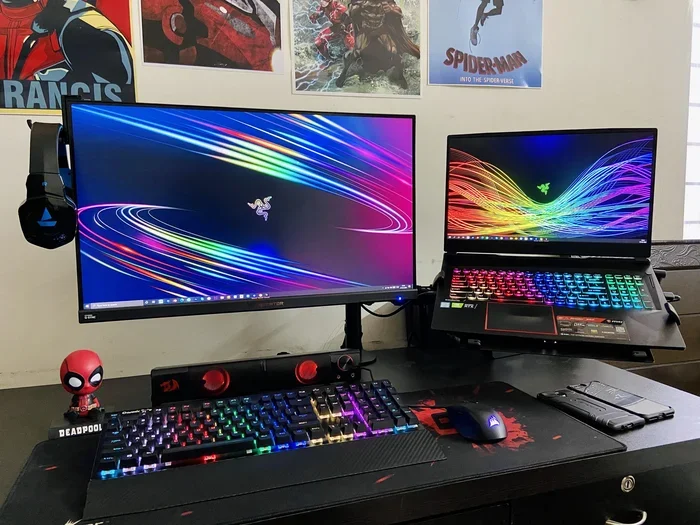
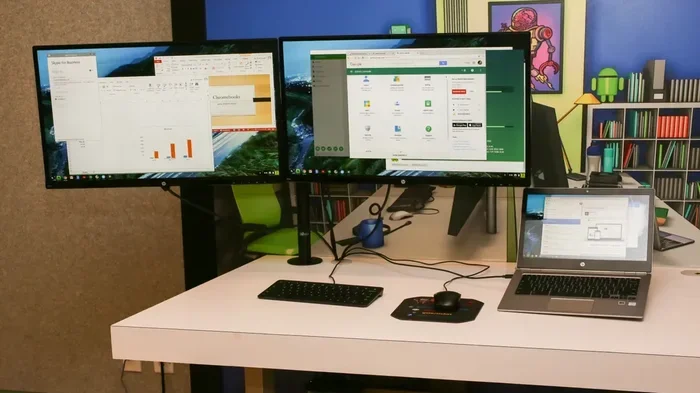
When you have two screens, you can keep your main work on one display and reference materials on the other. Coders can keep their IDE open on one screen and documentation on the other. Designers can work on their canvas while keeping tools and palettes accessible on a second display. Writers can draft on one screen and research on the other without constantly switching tabs.
This kind of extended display setup reduces context switching. And context switching is one of the biggest productivity killers. Research from Jon Peddie Research found that multi-monitor users are up to 42% more productive than single-display users. The improvement comes from reduced task-switching time and better information management.
For remote workers, this setup is especially valuable. It turns a small desk into an efficient workstation. It replicates the multi-screen experience of a traditional office. And with daisy chaining, it stays neat and portable.
Final Thoughts
So, can you daisy chain two monitors to a laptop? Absolutely — with the right hardware and a bit of know-how. The key is understanding your laptop’s ports, choosing compatible monitors, and using the correct cables. Whether you go the docking station route or the direct DisplayPort MST route, both methods work well.
Avoid the common mistakes we covered. Update your drivers. Use quality cables. Check your GPU capabilities. And if things don’t work on the first try, troubleshoot systematically before giving up.
A proper dual monitor configuration transforms how you work. It boosts productivity, reduces clutter, and makes your computing experience so much smoother. The investment in time and gear pays off quickly. Whether you’re a professional or a casual user, this setup is worth every minute you spend setting it up.
Now you have all the information you need. Go ahead, set up your screens, and enjoy the extra workspace. Your future self will thank you for it.
Frequently Asked Questions
Can you daisy chain two monitors to a laptop with HDMI?
No, HDMI does not support daisy chaining natively. You would need a docking station or a USB video adapter instead. If your laptop has Thunderbolt or DisplayPort, those are much better options for connecting two monitors.
Do I need a special docking station to connect two monitors to a laptop?
Not necessarily. If your laptop has a Thunderbolt 3/4 or DisplayPort 1.2+ output, you can daisy chain directly without a dock. However, a docking station simplifies the process and adds extra ports like USB, Ethernet, and charging capabilities.
Will daisy chaining two monitors affect my laptop’s performance?
It can use more GPU resources, especially if you’re running both displays at high resolutions. For everyday tasks like browsing and document editing, the impact is minimal. For gaming or heavy video work, make sure your laptop has a dedicated GPU that can handle dual outputs.
Can I use two different brand monitors in a daisy chain setup?
Yes, you can mix monitor brands as long as they both support the same daisy chaining method, like DisplayPort MST. However, matching the resolution and refresh rate across both screens gives you a more consistent viewing experience.
What’s the maximum distance between monitors in a daisy chain?
For passive DisplayPort cables, keeping each cable segment under 3 feet (about 1 meter) is recommended for best signal quality. You can use active DisplayPort cables or optical cables for longer runs. USB-C connections typically work well up to about 5 feet.
Does Windows 11 support daisy chain monitors?
Yes, Windows 11 fully supports daisy chaining through DisplayPort MST and Thunderbolt. You can configure your displays in Settings > System > Display. Make sure your graphics drivers are up to date for the best compatibility and detection.
=== CONCLUSION ===
Setting up a multi-monitor setup with a laptop is more accessible than most people think. Whether you’re running a dual display through a Thunderbolt docking station or daisy chaining two monitors directly via DisplayPort, the process is straightforward once you know what to look for. Check your ports, grab the right cables, and follow the steps we’ve outlined. Avoid the common pitfalls, keep your drivers updated, and you’ll be enjoying expanded screen space in no time. The productivity gains alone make it worth the effort. Happy setup!