Can I Use A Usb Drive As Storage For Files And Programs
Yes, you can absolutely use a USB drive as storage for both personal files and portable programs. A USB flash drive works as a handy portable storage device that lets you carry your data anywhere. You can store documents, photos, videos, and even run lightweight apps directly from the drive. The key is picking the right drive, setting up the correct file system, and understanding the limits of USB storage speed and capacity.
Key Takeaways
- USB drives work great for file storage: They are plug and play, portable, and perfect for everyday file management.
- Running programs from a USB drive is possible: Portable apps and bootable USB setups let you carry software with you.
- File system choice matters: FAT32, NTFS, and exFAT each have different limits and benefits for USB storage.
- USB 3.0 and USB 3.1 offer much faster transfer rates: Older USB 2.0 drives are significantly slower for large files.
- Watch out for common mistakes: Safe eject, proper backup, and avoiding cheap drives will protect your data.
- USB storage complements cloud storage: Use both for a strong data backup and file access strategy.
📑 Table of Contents
- Can I Use A USB Drive As Storage For Files And Programs
- How A USB Drive Works As Storage
- Storing Files On A USB Drive
- Can You Run Programs From A USB Drive
- USB Drive Storage Vs Other Storage Options
- Best Practices For Using A USB Drive As Storage
- Common Mistakes People Make With USB Storage
- Expert Tips For Maximizing USB Storage Performance
- How To Choose The Right USB Drive For Your Needs
- Conclusion
Can I Use A USB Drive As Storage For Files And Programs
The short answer is yes. You can use a USB drive as storage for both files and programs. A USB flash drive is one of the most convenient portable storage tools available today. Whether you need to move documents between computers or carry your favorite apps with you, a thumb drive gets the job done.
Using a USB drive as storage is simple. You plug it in, and your computer recognizes it almost instantly. This plug and play behavior makes USB drives popular for students, professionals, and anyone who needs quick file access on the go. In this guide, we will cover everything you need to know about using a USB drive as storage.
We will look at how USB flash drives work, what file systems to use, and whether you can actually run programs from them. We will also compare USB storage to other options like external hard drives and cloud storage. By the end, you will know exactly how to get the most out of your USB drive as storage.
Why USB Drives Make Great Portable Storage
USB drives are small, lightweight, and easy to carry. You can slip one into your pocket or hang it on a keychain. Unlike an external hard drive, a USB flash drive has no moving parts. This means it is more durable and less likely to break if you drop it.
The flash memory inside a USB drive stores your data without needing power. That is why your files stay safe even when you unplug the drive. Modern USB 3.0 and USB 3.1 drives offer fast transfer rates that make moving large files quick and painless.
Another big advantage is compatibility. Most computers, laptops, and even some smart TVs have USB ports. Your USB drive works across different devices without needing extra software. This universal compatibility is a major reason why people choose USB flash drives for portable storage.
How A USB Drive Works As Storage
When you plug a USB drive into your computer, the operating system detects it as a removable disk. Your computer assigns it a drive letter, just like it does with a hard drive or external storage device. From that moment, you can read and write files to the drive.
The USB drive uses flash memory to store data. This is the same type of memory found in smartphones and SD cards. Flash memory is non-volatile, which means it retains your data even without a power source. This is different from RAM, which loses everything when you turn off your computer.
The speed of your USB drive depends on several factors. The USB version (USB 2.0, USB 3.0, or USB 3.1) plays a big role. The quality of the flash memory chip matters too. Cheaper drives often use slower memory that limits your transfer rate. If speed matters to you, look for drives rated for USB 3.0 or higher.
Understanding USB Versions And Speeds
USB 2.0 is the oldest common standard. It offers a maximum transfer rate of about 480 Mbps. That sounds fast, but real-world speeds are usually much lower. You will notice slow file transfers, especially with large videos or backups.
USB 3.0 brought a huge improvement. It supports transfer rates up to 5 Gbps. That is more than ten times faster than USB 2.0. USB 3.1 pushes this even further to 10 Gbps. If you want quick file transfers, always choose a USB 3.0 or USB 3.1 drive.
USB-C is the newest connector type. It is smaller and reversible, which makes it easier to plug in. Many modern laptops now use USB-C ports. You can buy USB drives with USB-C connectors for the best compatibility with newer devices.
Storing Files On A USB Drive
Storing files on a USB drive is straightforward. You simply drag and drop files just like you would with any other folder. You can store documents, spreadsheets, photos, music, and videos. A USB drive works well for everyday file management tasks.
Before you start storing files, you need to know about storage capacity. USB drives come in many sizes, from 8 GB all the way up to 1 TB or more. For most people, a 32 GB or 64 GB drive is plenty. If you plan to store large video files, consider a 128 GB or 256 GB drive.
One important thing to keep in mind is the file system. The file system determines how your data is organized on the drive. It also sets limits on individual file sizes. Let us look at the three main file systems used for USB storage.
FAT32: The Universal Choice
FAT32 is the most compatible file system. It works on Windows, Mac, Linux, and even game consoles and smart TVs. If you need your USB drive to work across multiple devices, FAT32 is a solid choice.
The main limitation of FAT32 is the 4 GB file size limit. You cannot store a single file larger than 4 GB. This can be a problem if you want to store large video files or disk images. For most everyday files like documents and photos, FAT32 works perfectly fine.
NTFS: Best For Windows Users
NTFS is the default file system for Windows. It supports very large files and offers advanced features like file permissions and encryption. If you only use your USB drive with Windows computers, NTFS is a great option.
The downside is that Mac computers can read NTFS drives but cannot write to them without extra software. If you need to use your drive on both Windows and Mac, NTFS may not be the best choice.
exFAT: The Best Of Both Worlds
exFAT is a modern file system designed for removable storage. It works on both Windows and Mac without any extra software. It also removes the 4 GB file size limit that FAT32 has.
For most users, exFAT is the best choice for a USB drive used as storage. It gives you cross-platform compatibility and supports large files. If you are unsure which file system to pick, go with exFAT.
Can You Run Programs From A USB Drive
Yes, you can run programs from a USB drive. This is one of the most powerful uses of USB storage. You can carry your favorite software with you and use it on any computer without installing it on the host machine.
This concept is called portable computing. Portable apps are specially designed to run from external storage without leaving traces on the computer. They store all their settings and data in a single folder on the USB drive.
Portable Apps: Your Software On The Go
Portable apps are versions of popular programs that do not require installation. You can find portable versions of browsers like Firefox, office suites like LibreOffice, and media players like VLC. Simply copy the portable app folder to your USB drive and run it from there.
The biggest advantage is that you do not need admin rights on the computer. You can use your software on public computers, work machines, or school labs. Everything stays on your USB drive, so you leave no personal data behind.
Websites like PortableApps.com offer a huge library of free portable software. You can build a complete portable workspace on your USB drive. This turns your flash drive into a portable office that fits in your pocket.
Running Full Programs And Even Operating Systems
You can also run heavier programs from a USB drive, though performance depends on the drive speed. A fast USB 3.0 drive will handle most tasks smoothly. But keep in mind that the USB connection is slower than an internal solid state drive or hard drive. Programs that need constant disk access may feel a bit slower.
Some advanced users create a bootable USB drive. This lets you run a full operating system like Windows or Linux directly from the USB drive. A bootable USB is incredibly useful for system recovery, troubleshooting, or using a clean OS on any computer. You will need at least a 16 GB drive and a tool like Rufus or the Windows Media Creation Tool to create one.
Limitations Of Running Programs From USB
There are some limitations to be aware of. Not all programs are designed to run from portable storage. Some apps write settings to the Windows registry, which stays on the host computer. These programs will not work properly from a USB drive.
Also, the read and write speed of your USB drive affects performance. If you run a program that needs to access the drive constantly, a slow USB 2.0 drive will feel sluggish. Always use a USB 3.0 or USB 3.1 drive for running programs. And remember that frequent read and write cycles can wear out flash memory over time.
USB Drive Storage Vs Other Storage Options
USB drives are not the only option for portable storage. Let us compare them to other common storage solutions so you can make the best choice for your needs.
| Feature | USB Flash Drive | External Hard Drive | Cloud Storage |
|---|---|---|---|
| Portability | Excellent | Good | Anywhere with internet |
| Storage Capacity | Up to 1 TB | Up to 4 TB+ | Usually 100 GB to 2 TB |
| Speed | Fast (USB 3.0+) | Moderate to Fast | Depends on internet speed |
| Durability | High (no moving parts) | Lower (moving parts) | N/A (server-based) |
| Cost Per GB | Moderate | Low | Subscription-based |
| Internet Required | No | No | Yes |
| Best For | Quick file transfer | Large backups | Sharing and collaboration |
Each option has its strengths. A USB flash drive is unbeatable for quick file transfers and portability. An external hard drive offers more storage capacity at a lower cost per GB. Cloud storage lets you access your files from any device with an internet connection.
For most people, the best approach is to use multiple storage solutions together. Keep your USB drive for daily file transfers and quick access. Use an external drive for full backups. And use cloud storage for sharing files and accessing them from anywhere.
Best Practices For Using A USB Drive As Storage
To get the most out of your USB drive and keep your data safe, follow these best practices.
Always Safely Eject Your Drive
Never just pull the USB drive out of the port. Always use the safely eject option in your operating system. This ensures that all read and write operations are finished before you remove the drive. Pulling it out too early can corrupt your files.
Keep A Backup Of Your USB Data
A USB drive is portable, but it is also easy to lose. Always keep a backup of important files on your computer or in the cloud. Think of your USB drive as a way to carry copies of your data, not as the only copy.
Use Quality Drives From Trusted Brands
Cheap no-name USB drives often use low-quality flash memory. They may fail sooner or corrupt your data. Stick with reputable brands that offer warranties. A reliable drive is worth the extra cost for peace of mind.
Encrypt Sensitive Files
If you store personal or sensitive files on your USB drive, consider encrypting them. Both Windows and Mac offer built-in encryption tools. BitLocker in Windows and FileVault on Mac can protect your data if the drive is lost or stolen.
Organize Your Files With Folders
Keep your USB drive organized. Create folders for different types of files like documents, photos, and programs. Good file management makes it easier to find what you need and keeps your drive running smoothly.
Avoid Leaving Your Drive Plugged In During Storms
Power surges can travel through the USB port and damage your drive. It is a small risk, but it is worth unplugging your drive during electrical storms or when you are not using it.
Common Mistakes People Make With USB Storage
Many people make avoidable mistakes when using a USB drive as storage. Here are the most common ones and how to prevent them.
Mistake 1: Using a FAT32 drive for large files. As we discussed, FAT32 has a 4 GB file limit. If you try to copy a 5 GB video file, it will fail. Switch to exFAT or NTFS to avoid this problem.
Mistake 2: Ignoring the safe eject warning. Clicking the eject icon takes two seconds. Skipping it can lead to data corruption. Always wait for the confirmation before pulling the drive out.
Mistake 3: Buying the cheapest drive available. A $5 USB drive from an unknown brand may seem like a deal. But it could fail after a few months. Your data is worth more than a few dollars saved.
Mistake 4: Storing the only copy of important files on a USB drive. USB drives are small and easy to misplace. Always keep at least one other copy of your important files somewhere else.
Mistake 5: Using the drive on infected computers. If you plug your USB drive into a computer with malware, your files could get infected. Use antivirus software and be careful when using your drive on unfamiliar computers.
Expert Tips For Maximizing USB Storage Performance
Here are some pro tips that will help you get the best performance from your USB drive as storage.
First, format your new USB drive before you use it. A fresh format ensures the drive is clean and optimized for your chosen file system. Use exFAT for the best all-around compatibility.
Second, defragment your USB drive occasionally if you use it heavily. This helps the drive read and write files more efficiently. Windows has a built-in defragmentation tool that works on USB drives.
Third, keep your USB drive clean. Delete files you no longer need. A less cluttered drive performs better. Think of it like cleaning out your closet. When there is less clutter, everything is easier to find.
Fourth, consider using a USB hub with its own power supply if you need to connect multiple USB drives at once. This provides a more stable power connection and can improve transfer speeds.
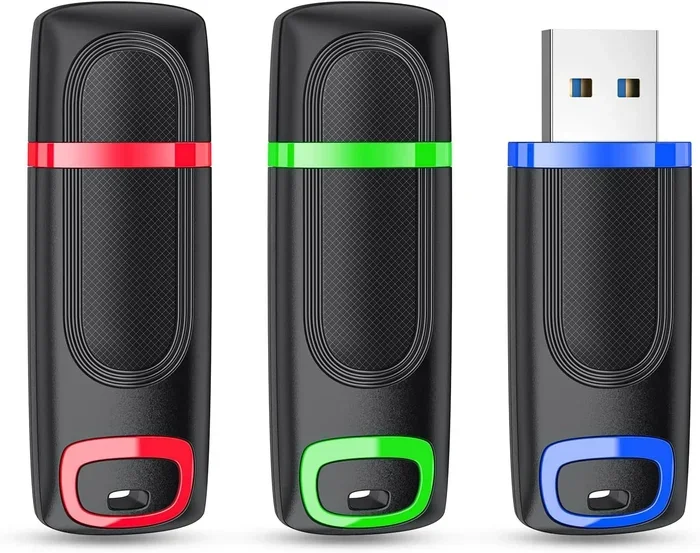
Fifth, label your USB drives. If you carry more than one, it is easy to mix them up. A simple label or color-coded cap helps you tell them apart at a glance.
How To Choose The Right USB Drive For Your Needs
Not all USB drives are the same. Here is a quick guide to help you pick the right one.
For basic file storage and transfer, a 32 GB USB 3.0 drive is perfect. It is affordable and fast enough for documents, photos, and small videos.
For running portable apps, look for a drive with at least 64 GB and USB 3.0 speeds. The faster transfer rate makes a noticeable difference when launching programs.
For creating a bootable USB or storing large files, go for 128 GB or more with USB 3.1 support. You need the space and speed for bigger tasks.
Look for drives with a warranty of at least five years. Brands like SanDisk, Samsung, Kingston, and Corsair offer reliable options with good customer support.
Also consider the build quality. Metal-bodied drives are more durable than plastic ones. They can survive drops and rough handling better. If you carry your USB drive everywhere, a rugged design is a smart investment.
Conclusion
So, can you use a USB drive as storage for files and programs? Absolutely. A USB flash drive is a versatile, portable, and convenient way to store your data and carry your favorite software with you. Whether you need quick file transfer, a portable office, or a bootable recovery drive, USB storage delivers.
The key is to choose the right drive, set up the correct file system, and follow best practices for data safety. Use exFAT for the best compatibility, always safely eject your drive, and keep backups of your important files.
USB drives are not meant to replace your main hard drive or cloud storage. But they are an excellent complement to these solutions. They fill the gap between local storage and online storage. A USB drive gives you the freedom to access your files and programs anywhere, anytime.
Start using your USB drive as storage the right way today. Pick a quality drive, organize your files, and enjoy the convenience of having your data right at your fingertips.
Frequently Asked Questions
Can I use a USB drive as storage for a full operating system?
Yes, you can create a bootable USB drive and run a full operating system from it. This is called a portable OS. You will need a USB drive with at least 16 GB of storage and a USB 3.0 connection for acceptable performance. Tools like Rufus or the Windows Media Creation Tool make this process simple.
Is it safe to store important files on a USB drive?
It is safe as long as you take precautions. USB drives can be lost or damaged, so always keep a backup of important files elsewhere. Consider encrypting sensitive data and using a drive from a reputable brand. Think of your USB drive as a copy of your files, not the only copy.
What is the best file system for a USB drive used as storage?
exFAT is the best choice for most users. It works on both Windows and Mac computers, and it supports files larger than 4 GB. If you only use Windows, NTFS is also a good option. FAT32 works too, but it has a 4 GB file size limit that can be frustrating.
Can I run portable apps from a USB drive?
Yes, you can run portable apps from a USB drive. Portable apps are specially designed versions of software that do not require installation. You can find portable versions of browsers, office suites, media players, and more. Simply copy the app folder to your drive and run it from there.
How long does a USB drive last as storage?
A quality USB drive can last for many years with normal use. Flash memory has a limited number of write cycles, but for everyday file storage, this is rarely a concern. The biggest risks are physical damage and loss, not memory wear. Keep your drive in a safe case and handle it with care.
Do I need internet access to use a USB drive as storage?
No, you do not need internet access. USB drives are standalone storage devices that work without any internet connection. This is one of their biggest advantages. You can transfer files, run portable apps, and access your data anywhere, even in areas with no Wi-Fi or cellular service.