Can Usb Type A Connect To Hdmi With Simple Adapters
Yes, USB Type A can connect to HDMI with the right adapter. This simple setup lets you turn a standard USB port into a video output for monitors, projectors, and TVs. USB Type A to HDMI adapters are affordable, easy to use, and work with most laptops and desktops. You do not need technical skills to get this working. Keep reading to learn exactly how it works and which adapter to pick.
Key Takeaways
- USB Type A can connect to HDMI: You just need a simple adapter or converter to bridge the two connection types.
- Adapters are plug and play: Most USB to HDMI adapters work right out of the box with no extra software needed.
- Check compatibility first: Not every USB Type A port supports video output. Make sure your device can send a video signal through USB.
- Resolution matters: The right adapter supports Full HD or even 4K display output depending on your needs.
- Audio comes too: Many USB to HDMI adapters also transmit audio, so you get both sound and picture in one cable.
- Avoid common mistakes: Using the wrong adapter or a damaged cable can cause display issues. Always buy from trusted brands.
📑 Table of Contents
- Can USB Type A Connect to HDMI? The Short Answer
- How Does USB Type A to HDMI Work?
- Types of USB Type A to HDMI Adapters
- How to Choose the Right Adapter
- Step-by-Step Setup Guide
- Common Problems and How to Fix Them
- Expert Tips for Getting the Best Performance
- Who Benefits Most From USB Type A to HDMI Adapters?
- Final Thoughts
Can USB Type A Connect to HDMI? The Short Answer
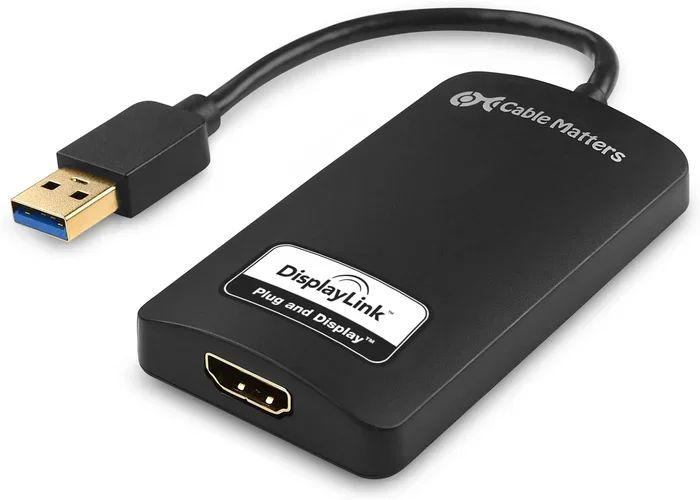
The short answer is yes. USB Type A can connect to HDMI with a simple adapter. You do not need expensive equipment or technical know-how. A basic USB to HDMI adapter bridges the gap between these two different connection types. It takes the video signal from your USB port and converts it into an HDMI signal that your monitor or TV can display.
This is great news for people who need an extra screen or want to hook up a laptop to a big TV. USB Type A ports are everywhere on laptops, desktops, and even some tablets. HDMI ports are standard on most monitors, TVs, and projectors. So the adapter fills the gap between them. Let us walk through exactly how this works and what you need to know.
Many people do not realize that a standard USB port can carry a video signal. It is not just for data transfer or charging your phone. With the right USB Type A to HDMI adapter, you can turn any USB port into a display output. This opens up a lot of possibilities for home office setups, presentations, and even gaming.
Why Would You Need This Connection?
There are many reasons you might want to connect a USB Type A port to an HDMI display. Maybe your laptop only has USB ports and no HDMI output. Or perhaps your HDMI port on the TV is already taken. A USB to HDMI adapter solves this problem fast and easy.
Here are some common situations where this connection comes in handy:
- Extra monitor at work: Plug in an adapter to add a second screen to your laptop.
- Presentations: Connect your laptop to a projector or big screen using HDMI.
- Home entertainment: Turn your TV into a computer monitor for movies or browsing.
- Travel setup: Use a USB adapter when your hotel room only has a TV with HDMI.
- Gaming on big screens: Send your PC display to a TV in the living room.
Each of these scenarios works best with a reliable USB Type A to HDMI adapter. They are small, portable, and easy to carry in your bag. You can set up a second display in seconds.
How Does USB Type A to HDMI Work?
Understanding how this connection works helps you pick the right adapter. A USB Type A to HDMI adapter acts as a converter. It takes the digital data from the USB port and turns it into a video signal that HDMI can read.
Here is how the process works step by step:
- Your computer sends a video signal through the USB Type A port.
- The adapter receives this signal and processes it internally.
- The adapter converts the signal into HDMI format.
- The HDMI cable carries the video and audio to your display.
- Your monitor or TV shows the image and plays the sound.
Most adapters handle all of this automatically. They are plug and play, which means you do not need to install software or drivers. Just plug the adapter into your USB port, connect an HDMI cable, and your display should show up right away.
USB Type A vs. USB Type C
It is important to know the difference between USB Type A and USB Type C. USB Type A is the classic rectangular port you see on older laptops and desktops. USB Type C is the smaller, oval-shaped port found on newer devices.
Both can connect to HDMI, but they use different adapters. USB Type C to HDMI adapters are very common and often built into laptops. USB Type A to HDMI adapters are separate devices you plug in. If your device has USB Type A ports, you need the Type A adapter specifically.
Some people confuse the two. Make sure you check which port your device has before buying an adapter. Using the wrong type will not work. If you are unsure about USB connections in general, you can read our guide on the advantages and disadvantages of a computer mouse to better understand how USB ports work with different peripherals.
Types of USB Type A to HDMI Adapters
Not all adapters are the same. There are a few different types you should know about. Each one serves a slightly different purpose and offers different features.
Basic USB to HDMI Adapters
These are the most common and affordable options. A basic USB Type A to HDMI adapter gives you one HDMI output from your USB port. They are simple and reliable. Most of them support Full HD (1080p) resolution.
Basic adapters work great for everyday tasks like browsing the web, watching videos, or giving presentations. They do not usually support 4K resolution, but for most uses, Full HD is more than enough.
USB to HDMI Adapters with Audio
Some adapters also handle audio. These USB to HDMI adapters send both video and sound through the HDMI cable. This means you do not need a separate audio connection to your display.
This is really useful when connecting to a TV or a monitor with built-in speakers. You get a complete audio and video experience from one single cable run. Look for adapters that specifically mention audio support in the product details.
USB to HDMI Docking Stations
For a more complete setup, consider a USB docking station. These are larger devices that connect to your USB port and offer multiple outputs. Many docking stations include HDMI, USB ports, Ethernet, and even SD card readers.
Docking stations are perfect for office setups. They turn your laptop into a full workstation with one plug. They cost more than basic adapters, but they offer much more flexibility and convenience.
How to Choose the Right Adapter
Picking the right USB Type A to HDMI adapter can feel overwhelming with so many options. Here are the key things to look for before you buy.
Check Your Device Compatibility
Not every USB Type A port can send video signals. Some ports are only for data transfer or charging. Before buying an adapter, check if your device supports video output through USB.
Here is how you can check:
- Look up your device model online and check the specs.
- Check your computer settings for display options.
- Look for a symbol next to the USB port that indicates video support.
- Contact the manufacturer if you are not sure.
Using an adapter with a port that does not support video will not work. Always verify compatibility first. If you are also looking at other USB accessories, check out our list of gadgets to make moms life easier for some great USB-powered tools that work with simple plug-and-play setups.
Resolution Support
Think about what resolution you need. Most basic adapters support 1080p (Full HD). If you need 4K resolution, you will need a more advanced adapter. Higher resolution adapters cost more but give you a sharper picture.
Here is a quick comparison of common resolution options:
| Adapter Type | Max Resolution | Best For |
|---|---|---|
| Basic USB to HDMI | 1080p (Full HD) | Everyday use, presentations |
| Advanced USB to HDMI | 4K (Ultra HD) | Gaming, video editing, design work |
| USB Docking Station | 4K or higher | Full workstation setup |
Build Quality and Brand
Cheap adapters can cause problems. They may overheat, drop the signal, or not support the resolution you need. Stick with trusted brands and read reviews before buying.
Good adapters usually have solid build quality and come with a warranty. They also tend to have better heat management, which means they work reliably for long hours. If you are on a budget, a mid-range adapter from a known brand is always better than the cheapest option on the shelf.
Step-by-Step Setup Guide
Setting up a USB Type A to HDMI connection is really simple. Follow these steps and you will be up and running in minutes.
What You Need
- A USB Type A to HDMI adapter
- An HDMI cable
- A display with an HDMI input (monitor, TV, or projector)
- A computer or laptop with a USB Type A port
Setup Steps
- Plug the adapter into your USB Type A port. Push it in firmly until it clicks into place.
- Connect the HDMI cable to the adapter. The HDMI port on the adapter is clearly labeled.
- Plug the other end of the HDMI cable into your display. Make sure it is snug and secure.
- Turn on your display and set it to the right HDMI input. Use the input button on your monitor or TV remote.
- Go to your computer display settings. Your computer should detect the new display automatically.
- Choose your display mode. You can mirror your screen or extend it as a second display.
That is it! Most systems recognize the adapter within seconds. If nothing shows up, try unplugging and plugging the adapter back in. You can also restart your computer to refresh the connection.
Quick Tips for a Smooth Setup
- Always use a high-quality HDMI cable for the best picture.
- Make sure your adapter is plugged directly into the computer. Avoid USB hubs if possible, as they can reduce power.
- If you get no signal, check that the display is set to the correct input source.
- Update your graphics drivers if the display does not appear right away.
Common Problems and How to Fix Them
Even with a simple setup, you might run into some issues. Here are the most common problems and easy fixes.
No Display Signal
If your screen stays blank, do not panic. This is the most common issue and usually easy to fix. First, check that all cables are firmly connected. A loose HDMI cable is the culprit most of the time.
Next, make sure your display is set to the correct HDMI input. Many monitors and TVs have multiple inputs, and they default to the wrong one sometimes. Finally, try a different USB port on your computer. Some ports may not support video output.
Flickering or Distorted Image
A flickering screen often means your adapter or cable is not getting enough power. Try plugging the adapter directly into a USB port on your computer instead of a hub. You can also try a shorter HDMI cable, as longer cables can sometimes lose signal quality.
If the image looks distorted, your adapter might not support the resolution your computer is trying to send. Lower the resolution in your display settings and see if the problem goes away.
No Audio Through HDMI
Some USB to HDMI adapters do not carry audio. If you are getting video but no sound, check your audio settings. Make sure your computer is set to output audio through the HDMI device, not the built-in speakers.
You can usually change this in your sound settings under Output devices. Select the HDMI display as your default audio output. If this option does not appear, your adapter may not support audio transmission.
Expert Tips for Getting the Best Performance
Once you have your USB Type A to HDMI setup working, here are some tips to get the best experience every time.
- Keep your adapter cool: Adapters can get warm during long use. Do not block the vents and give them space to breathe.
- Update drivers regularly: Even plug and play adapters work better with updated graphics drivers. Check your computer manufacturer website for updates.
- Use certified adapters: Look for adapters that are certified by the HDMI Licensing Authority. This ensures they meet quality standards.
- Avoid cheap no-name brands: They may save you a few dollars but can cause frustrating display issues and compatibility problems.
- Test with different displays: If you have trouble with one monitor, try connecting to a different display. This helps you figure out if the problem is with the adapter or the monitor.
Following these simple tips will help you get a reliable and high-quality connection every time. A good USB Type A to HDMI adapter can last you for years if you take care of it.
Who Benefits Most From USB Type A to HDMI Adapters?
These adapters are useful for a wide range of people. Here is who gets the most value from them:
- Remote workers: Set up a dual monitor system at home with just a USB port and an adapter.
- Students: Connect a laptop to a classroom projector or dorm TV for presentations and movie nights.
- Gamers: Play PC games on a big TV screen in the living room without buying a new graphics card.
- Business professionals: Give presentations on a large display at conferences and meetings.
- Home users: Use your TV as a second monitor for streaming, browsing, or working from home.
No matter who you are, a USB Type A to HDMI adapter can make your life easier. They are affordable, simple to use, and solve real display problems that many people face every day.
Final Thoughts
The answer to the question “Can USB Type A connect to HDMI” is a clear yes. With a simple and affordable adapter, you can turn any USB Type A port into a video output. This opens up new possibilities for work, entertainment, and everyday use.
USB Type A to HDMI adapters are plug and play, widely available, and compatible with most computers and displays. You do not need to be a tech expert to set one up. Just plug it in, connect the HDMI cable, and you are good to go.
Remember to check compatibility before buying, choose a trusted brand, and follow the setup steps carefully. With the right adapter, you can enjoy a second screen, a bigger display, or a home theater setup in just a few minutes. Start exploring your options today and make the most of your existing USB ports.
Frequently Asked Questions
Can I use any USB Type A to HDMI adapter?
Most USB Type A to HDMI adapters will work with standard devices. However, you should check that your computer supports video output through USB. Not all USB ports can carry a video signal. Always verify your device specifications before buying an adapter.
Do USB Type A to HDMI adapters support audio?
Many adapters do support audio transmission along with video. However, not all of them do. Check the product specifications to confirm if the adapter carries both audio and video signals. If audio is important to you, look for adapters that explicitly mention audio support.
What resolution can I expect from a USB Type A to HDMI adapter?
Basic adapters typically support Full HD (1080p) resolution. More advanced adapters can handle 4K resolution. The resolution you get depends on the adapter model and your computer graphics capabilities. Always check the adapter specs before purchasing.
Do I need to install drivers for a USB Type A to HDMI adapter?
Most adapters are plug and play and do not require any driver installation. Your operating system should recognize the adapter automatically. In some cases, updating your graphics drivers can improve performance and compatibility with the adapter.
Can I connect a USB Type A to HDMI adapter to a USB hub?
You can, but it is not always recommended. USB hubs may not provide enough power for the adapter to work reliably. For the best performance, plug the adapter directly into a USB port on your computer. This ensures stable power and a consistent video signal.
Are USB Type A to HDMI adapters expensive?
No, these adapters are quite affordable. Basic models cost between $10 and $30. More advanced adapters with 4K support or docking station features cost more. For the price, they offer great value and solve the problem of connecting devices with different port types easily.