Can Ps4 Controller Interfere With Your Wifi Connection
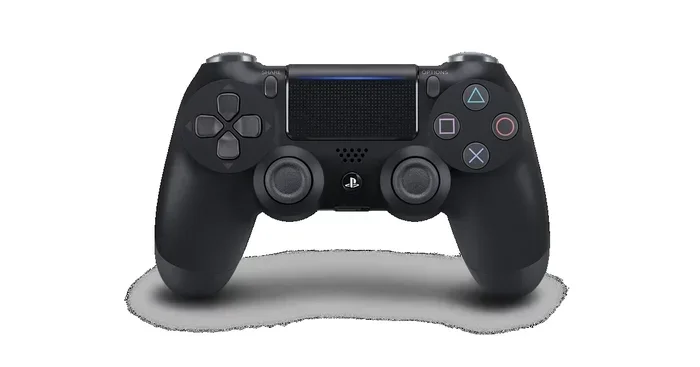
Can a Ps4 controller interfere with wifi? The short answer is yes, though it is not very common. Your DualShock 4 uses Bluetooth on the 2.4GHz band, which can cause wireless interference with your router, leading to connection drops or latency. This guide explains why this happens and how to stop it.
Have you ever been in the middle of an intense gaming session, and suddenly your Ps4 controller interfere with wifi? It is a frustrating moment. You are about to defeat a boss, and your screen freezes. You look at your controller, and the light bar is blinking. You wonder, “Is my controller killing my internet?”
The truth is, your Ps4 controller interfere with wifi more than you might think. It does not happen to everyone. But for many gamers, the connection between their DualShock 4 and their router creates problems. This guide will explain exactly how this happens. We will look at the science behind it. We will also share easy fixes to get you back online fast.
Understanding wireless interference is key to fixing your gaming setup. When you connect your controller, it talks to your console. But your console also talks to your router. Both use the same airwaves. Sometimes, they get in each other’s way. Let us break down why this happens and what you can do about it.
Key Takeaways
- Bluetooth shares the 2.4GHz band: This can cause wireless interference with your router.
- Connection drops happen: Your DualShock 4 might lose signal when the network is congested.
- Switching to 5GHz helps: Moving your router to a different frequency reduces latency.
- Other devices matter: Microwaves and baby monitors also cause network congestion.
- Router settings can fix it: Changing channels and updating firmware improves wireless connectivity.
📑 Table of Contents
Why Does a Ps4 Controller Interfere With Wifi?
Many people ask, “Can my Ps4 controller interfere with wifi?” The answer is yes. It comes down to how wireless devices talk to each other. Your home network is like a busy highway. When too many cars try to use the same lane, traffic jams happen. This is exactly what happens with your wireless interference issues.
The 2.4GHz Band Clash
Most home routers use the 2.4GHz frequency band. This band is very popular. Your microwave, baby monitor, and Bluetooth headset all use it. Your DualShock 4 controller also uses Bluetooth. Bluetooth operates on the 2.4GHz band. So, your controller and your router are fighting for the same space. This causes network congestion. When the network is congested, your internet speed drops. You might experience latency or lag. This makes your games feel slow and unresponsive.
The 2.4GHz band has only three non-overlapping channels. That is not a lot of room. Think of it like three lanes on a highway. If a truck blocks one lane, all the cars slow down. Your wireless connectivity suffers when this happens. The router tries to manage all the devices. It has to talk to your PS4, your phone, and your controller. When it has to split its attention, everyone loses.
Bluetooth vs. Wi-Fi Frequencies
Bluetooth and Wi-Fi are not the same. But they share the same home. Wi-Fi sends large amounts of data over long distances. Bluetooth sends small amounts of data over short distances. Your DualShock 4 uses Bluetooth to connect to the PS4. The PS4 uses Wi-Fi to connect to your router. When both are active, they create electromagnetic interference. This invisible noise messes with your Wi-Fi signal. You might not notice it when you are just browsing the web. But in a fast-paced game, the interference is obvious.
Sometimes, the interference is not from the controller itself. It is from the sheer number of devices. Modern homes have dozens of connected gadgets. Smart TVs, phones, tablets, and computers all compete for bandwidth. Adding a Bluetooth controller to the mix makes it worse. This is why network congestion is the real enemy here.
How the DualShock 4 Connects to Your Network
To understand the problem, you need to know how your DualShock 4 works. The controller is a marvel of modern tech. It connects wirelessly to your PlayStation 4. But how exactly does it do this? And why does it sometimes mess with your home network?
Understanding Bluetooth Technology
Bluetooth is a short-range wireless technology. It uses radio waves to send data. Your DualShock 4 has a tiny Bluetooth chip inside. When you pair the controller to your PS4, they create a personal area network. This is called a piconet. The controller talks directly to the console. It does not usually talk to your router directly. However, the Bluetooth radio still broadcasts into the air. This broadcast takes up space on the 2.4GHz band.
Because Bluetooth uses frequency hopping, it jumps between different channels. It does this to avoid staying on a busy channel. But when your Wi-Fi router is also on the 2.4GHz band, the hopping can land on the same channel as your router. When this happens, your router drops the data packet. Your connection drops momentarily. This might feel like a brief freeze in your game. It is incredibly annoying for gamers who need smooth wireless connectivity.
When the Controller Needs Wi-Fi
Sometimes, your DualShock 4 does use Wi-Fi. This happens with the DualShock 4 controller when you use it on a PC or with the PS4 Remote Play feature. Remote Play lets you stream your PS4 games to another device. For this to work, the controller must connect to your router. It uses your home Wi-Fi network to talk to the PS4. When the controller uses Wi-Fi, it adds another device to your network. This increases the load on your router. More devices mean more network congestion. This is when you will really see your internet speed suffer.
Also, some advanced controller features use Wi-Fi. If you are using a controller with a microphone or chat headset, the data traffic increases. The controller is sending audio and input data at the same time. This heavy data load can overwhelm a weak router. The result is laggy controls and choppy audio. If you want smooth wireless connectivity, you need a strong router.
Common Signs of Wireless Interference
How do you know if your Ps4 controller interfere with wifi? You cannot see radio waves. But you can see the effects. Your devices will tell you when something is wrong. You just have to know what to look for.
Lag and Latency Spikes
Lag is the biggest sign of wireless interference. Latency is the delay between your button press and the action on screen. In a fighting game or a shooter, even a tiny delay can ruin your experience. If you press a button and your character jumps a second later, you have a latency problem. This often happens when your controller and router are fighting for the same 2.4GHz channel. The signal strength drops, and the data takes longer to travel.
You might also notice input lag when you are not moving your character. The controller seems to drift or hesitate. This is because the router is busy handling other network traffic. It cannot process your controller inputs fast enough. The wireless connectivity is stable, but the bandwidth is too low to handle everything smoothly.
Random Disconnects
Another common sign is random disconnects. Your DualShock 4 suddenly stops talking to the PS4. The light bar on the controller starts flashing. You have to reconnect it manually. This is a clear sign of connection drops. These drops happen when the interference is too strong. The controller cannot find the router or the console through the noise. If this happens often, your network congestion is severe.
Random disconnects are not just annoying. They can also cost you a game. If you are in an online match, a disconnect means you are out. You might even lose the match. Fixing your wireless interference is not just about comfort. It is about winning.
Other Devices Causing Network Congestion
Your DualShock 4 is not the only culprit. Many other devices in your home can cause network congestion. If you want to fix your Ps4 controller interfere with wifi problem, you need to look at the whole picture.
Microwaves and Cordless Phones
Did you know your microwave oven emits radiation on the 2.4GHz band? That is right. When you heat up your pizza, your Wi-Fi signal suffers. The microwave creates a lot of electromagnetic noise. This noise blocks your Wi-Fi signal. Cordless phones also use this frequency. If you have an older cordless phone system, it can wreak havoc on your network. These devices are often the hidden cause of your wireless interference.
Baby Monitors and Smart Home Gadgets
Baby monitors are another common offender. Many baby monitors use the 2.4GHz frequency to transmit video and audio. Smart home gadgets also use this band. Your smart thermostat, smart plugs, and smart speakers all compete for space. If you have a lot of smart home devices, your network congestion is likely high. Each device adds to the load on your router. This leaves less room for your PS4 and controller.
Even your neighbors can affect your wireless connectivity. If you live in an apartment, your neighbor’s router might be using the same channel as yours. This is called co-channel interference. It is like two people trying to talk at the same time. Nobody can hear either one. Moving your router to a different channel can fix this.
How to Fix Ps4 Controller Wifi Interference
Now that you know the cause, let us fix it. You do not have to live with lag and disconnects. There are several simple steps you can take to stop your Ps4 controller interfere with wifi issues. Most of these fixes are free and easy to do.
Switch to the 5GHz Band
The easiest fix is to switch your router to the 5GHz band. Most modern routers are dual-band. This means they broadcast two networks. One is the 2.4GHz network. The other is the 5GHz network. The 5GHz band has more channels. It is also faster and less crowded. Your DualShock 4 cannot connect to 5GHz directly. But your PS4 can. If your PS4 is on 5GHz, the controller and the console will not fight for the same 2.4GHz space. This greatly reduces electromagnetic interference and improves your internet speed.
To switch to 5GHz, log into your router settings. Look for the wireless settings page. Find the 5GHz network and enable it. Then, connect your PS4 to the 5GHz network. You will notice an immediate improvement. Your wireless connectivity will be much more stable. Your latency will drop significantly.
Change Your Router Channel
If you must stay on the 2.4GHz band, change your router channel. Routers broadcast on specific channels. Channel 1, 6, and 11 are the best ones. They do not overlap. If your router is on a bad channel, it will interfere with other devices. You can use a free Wi-Fi analyzer app on your phone. This app shows you which channels are crowded. Pick the least crowded channel for your router. This simple change can fix a lot of network congestion.
Changing the channel helps your signal strength improve. It also helps your DualShock 4 maintain a steady connection. When the airwaves are clear, your controller and router can communicate without problems. This is one of the best ways to stop connection drops.
Update Your Router Firmware
Router manufacturers release firmware updates regularly. These updates fix bugs and improve performance. An outdated router might have poor channel bonding algorithms. This means it cannot manage multiple devices well. Updating your firmware can improve how your router handles wireless interference. Check your router manufacturer’s website for the latest update. The process is usually simple. You just log into your router admin panel and click update.
Expert Tips to Keep Your Network Stable
Fixing the problem is great. But preventing it is even better. If you want a rock-solid gaming setup, you need to follow some expert tips. These tips will keep your wireless connectivity strong and your latency low.
Using a Gaming Router
A standard router is okay for browsing. But for gaming, you need a gaming router. Gaming routers are designed to handle heavy data loads. They prioritize gaming traffic over other devices. This is called Quality of Service, or QoS. With QoS, your PS4 gets the bandwidth it needs. Your controller gets the attention it deserves. A gaming router can completely eliminate network congestion. It is the best long-term solution for serious gamers.
Positioning Your Router Correctly
Where you put your router matters a lot. Do not hide it behind a TV or in a closet. Walls and metal objects block Wi-Fi signals. Place your router in a central location. Keep it high up. This helps the signal travel evenly around your room. Better signal strength means less wireless interference. It also means your DualShock 4 stays connected longer.
You should also keep your router away from other electronics. Do not put it next to your microwave or baby monitor. Give it space. A clear path between your router and your PS4 makes a big difference. This small change can boost your internet speed and reduce lag.
Using a Wired Connection
For the absolute best performance, use an Ethernet cable. A wired connection removes Wi-Fi from the equation entirely. Your PS4 will have a direct, stable link to the router. This eliminates network congestion completely. You will never experience connection drops from wireless interference again. If you cannot use a cable, at least make sure your controller is fully charged. A low battery can cause the controller to transmit weaker signals. This makes it more susceptible to wireless interference.
If you use a wired connection for your PS4, your DualShock 4 controller will still use Bluetooth. But the PS4 itself will not be competing for Wi-Fi bandwidth. This takes a huge load off your network. Your games will run smoother. Your online matches will feel more responsive. It is the ultimate fix for latency issues.
Conclusion
So, can a Ps4 controller interfere with wifi? Yes, it can. But now you know why. The DualShock 4 uses Bluetooth on the crowded 2.4GHz band. This causes wireless interference with your router. You might experience lag, latency, or connection drops. These issues ruin your gaming experience. But you do not have to live with them.
By switching to the 5GHz band, changing your router channel, and updating your firmware, you can fix the problem. You can also reduce network congestion by moving other devices away. A little troubleshooting goes a long way. Your wireless connectivity will be much better. Your games will run smoother. You will win more matches.
Remember, your internet speed and signal strength depend on how well your devices share the airwaves. Take control of your network settings today. Try the fixes we talked about. You will be amazed at the difference. Happy gaming, and may your connection always be strong.
Frequently Asked Questions
Does a DualShock 4 controller use a lot of Wi-Fi data?
No, the DualShock 4 controller uses very little data. It mostly uses Bluetooth to connect to the PS4. However, if you are using Remote Play, the controller will use your Wi-Fi network. Even then, the data usage is very small. The real issue is not the data amount. It is the frequency band the controller uses. The Bluetooth signal on the 2.4GHz band causes the wireless interference.
Can I use a wired controller to avoid interference?
Yes, absolutely. Using a wired USB controller is the best way to avoid wireless interference. A wired controller does not use Bluetooth. It does not use Wi-Fi. It connects directly to your PS4 with a cable. This removes it from the 2.4GHz band completely. You will never have connection drops or latency from a wired controller. It is the most reliable option for competitive gaming.
Why does my wifi disconnect when I connect my PS4 controller?
This happens because of network congestion. When you connect your controller, its Bluetooth radio turns on. It starts searching for the PS4. This broadcast takes up space on the 2.4GHz band. If your router is also on 2.4GHz, the two signals clash. The router drops the Wi-Fi connection to handle the Bluetooth noise. Switching to the 5GHz band or changing your router channel fixes this.
Is it normal for a Ps4 controller to interfere with wifi?
It is common, but not normal in the sense that it should not happen all the time. Wireless interference is a natural result of sharing the 2.4GHz band. Many devices use this frequency. Your controller is just one of them. If the interference is severe and constant, it means your network is too crowded. You need to optimize your network settings to fix it.
Will a new router fix my Ps4 controller wifi problems?
A new router can definitely help. Older routers have weaker signal strength and poor handling of multiple devices. A modern gaming router has better antennas and smarter software. It can manage network congestion much better. It also supports the 5GHz band efficiently. If your router is more than five years old, upgrading is a great step toward fixing your wireless connectivity issues.
Can I change the Bluetooth channel on my PS4 controller?
No, you cannot change the Bluetooth channel directly on the DualShock 4. The controller uses a fixed Bluetooth protocol. However, you can change the Wi-Fi channel on your router. The router manages the 2.4GHz and 5GHz bands. By changing the router channel, you reduce the overlap with the controller’s Bluetooth frequency. This stops the electromagnetic interference and restores smooth wireless connectivity.