Can My HP Printer Print On Card Everything You Need To Know
Yes, your HP printer can print on card stock, but you need the right settings and paper type. Whether you are making greeting cards, business cards, or invitations, understanding your printer’s capabilities makes all the difference. This guide walks you through every step to get professional results at home.
Have you ever wanted to print beautiful cards at home but wondered if your HP printer could handle the job? Maybe you are planning a wedding and need custom invitations. Or perhaps you want to create stunning greeting cards for the holidays. Whatever your reason, the good news is that most HP printers can absolutely print on card stock. But doing it right requires a few key adjustments.
Printing on card stock is different from printing on regular paper. The paper is thicker, heavier, and sometimes coated with a glossy or matte finish. These differences affect how the paper moves through your printer and how the ink adheres to the surface. In this guide, we will walk you through everything you need to know about getting your HP printer to print on card like a pro.
We will cover printer settings, paper tray adjustments, the best types of card stock to use, common problems and fixes, and expert tips that will save you time and frustration. By the end of this article, you will feel confident printing cards at home. Let us get started.
Key Takeaways
- HP printers support card stock printing: Most models handle various paper weights with the right tray and settings.
- Correct settings are essential: Switching to the thick paper or cardstock mode prevents jams and ensures quality.
- Card stock weight matters: Choose the right GSM (grams per square meter) for your project type.
- Glossy and matte options both work: Each gives a different finish, so pick based on your card purpose.
- Common issues are fixable: Paper jams and ink smudging can be solved with simple adjustments.
- Practice makes perfect: Test print on scrap card stock before committing to your final design.
📑 Table of Contents
- Understanding Card Stock and Your HP Printer
- How to Set Up Your HP Printer for Card Stock Printing
- Types of Card Stock You Can Print On
- Common Problems When Printing on Card Stock
- Best Practices for Printing Cards at Home
- Expert Insights and Pro Tips
- Can My HP Printer Print on Card? Final Thoughts
- Frequently Asked Questions
Understanding Card Stock and Your HP Printer
Before you start printing, it helps to understand what card stock is and how your printer handles it. Card stock is thicker than regular printer paper. It usually ranges from 65 GSM to 110 GSM or even heavier. Regular printer paper is about 20 to 24 GSM, so you can see the difference is significant.
What Is Card Stock?
Card stock, also called cardstock, is a thick paper product used for cards, invitations, bookmarks, and craft projects. It comes in many textures, finishes, and weights. Some common types include:
- Glossy card stock: Has a shiny, reflective surface. Great for photo cards and invitations.
- Matte card stock: Has a smooth, non-reflective finish. Ideal for formal cards and stationery.
- Textured card stock: Has a raised or patterned surface. Perfect for handmade greeting cards.
- Linen card stock: Has a subtle woven texture. Popular for business cards and elegant events.
- Recycled card stock: Eco-friendly option with a natural, rustic look.
Why HP Printers Can Handle Card Stock
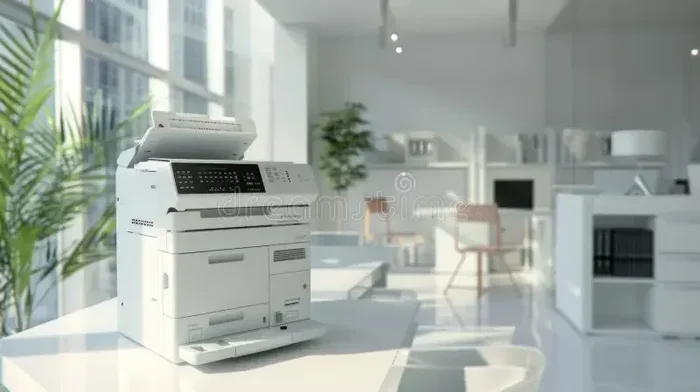
Most modern HP printers are designed to handle more than just standard paper. Whether you have an inkjet or a laser model, HP has built in features for thicker paper. The key is knowing where to adjust your settings. Inkjet printers like the HP Envy and HP OfficeJet series handle card stock well. Laser printers from HP also work great with cardstock, especially for bulk printing tasks.
The important thing to remember is that your printer needs to feed the paper correctly. Thick paper moves through the rollers differently than thin paper. If you do not adjust the settings, you risk paper jams, smudging, or poor print quality. But with the right setup, your HP printer print on card projects will look amazing.
How to Set Up Your HP Printer for Card Stock Printing
Setting up your printer correctly is the most important step. Without the right configuration, even the best card stock will not look its best. Follow these steps to prepare your HP printer for card printing.
Step 1: Choose the Right Paper Tray
Most HP printers have a rear tray or a straight-through paper path designed for thicker media. The rear tray allows the printer to pull card stock in without bending it too much. Here is what to do:
- Open the rear tray of your printer.
- Adjust the guides to fit the size of your card stock.
- Load the card stock with the print side facing the correct direction.
- Slide the tray back into the printer until it clicks into place.
If your printer does not have a rear tray, you can use the main input tray. However, you may need to adjust the paper guides to prevent multiple sheets from feeding at once.
Step 2: Adjust the Printer Settings
Now it is time to tell your computer and printer that you are using thicker paper. Here is how:
- On Windows: Go to Control Panel > Devices and Printers. Right-click your HP printer and select Printing Preferences.
- On Mac: Open the document you want to print. Click File > Print. Then click Show Details.
In the paper settings, look for options like “Thick Paper,” “Cardstock,” or “Heavyweight.” Select the option that matches your card stock weight. If your printer has a specific cardstock setting, choose that. This tells the printer to slow down the feed speed and apply the correct amount of ink.
Step 3: Set the Paper Weight
Many HP printers let you manually set the paper weight in grams per square meter (GSM). If your card stock is 80 GSM, enter that number in the paper settings. This helps the printer adjust the roller pressure and print quality automatically. Getting this step right makes a big difference in your final output.
Types of Card Stock You Can Print On
Not all card stock is the same. Different types work better for different projects. Here is a closer look at the options available for your HP printer.
Glossy vs Matte Card Stock
The finish of your card stock affects how the ink looks and feels. Glossy card stock gives your prints a vibrant, shiny appearance. It is perfect for photo cards and event invitations where you want colors to pop. Matte card stock gives a more sophisticated, elegant look. It is ideal for wedding invitations, thank you cards, and formal stationery.
Both finishes work well with HP inkjet printers. However, glossy card stock may take slightly longer to dry because the ink sits on top of the coating. If you handle glossy prints right away, you might smudge them. Let them dry for a few minutes before stacking or handling.
Heavyweight vs Lightweight Card Stock
Card stock weight is measured in GSM or pounds (lb). Here is a quick comparison:
| Type | Weight (GSM) | Best For |
|---|---|---|
| Lightweight Card Stock | 65-80 GSM | Casual greeting cards, craft projects |
| Medium Card Stock | 80-100 GSM | Business cards, standard invitations |
| Heavyweight Card Stock | 100-130 GSM | Premium invitations, wedding cards |
| Extra Heavy Card Stock | 130+ GSM | Postcards, luxury greeting cards |
For most home printing projects, 80 to 110 GSM card stock works perfectly. If you go heavier than 130 GSM, check your printer manual to make sure it can handle the thickness. Some HP printers have a maximum card stock weight limit.
Common Problems When Printing on Card Stock
Even with the right settings, you may run into issues. Here are the most common problems and how to solve them.
Paper Jams
Paper jams are the number one issue when printing on card stock. Thick paper can bunch up in the rollers if it is not fed correctly. To prevent jams:
- Fan the card stock before loading it to separate the sheets.
- Do not overfill the paper tray.
- Make sure the paper guides are snug against the paper edges.
- Use the rear tray for heavier card stock.
If you get a jam, turn off the printer and gently pull the paper out in the direction of the paper path. Never pull against the grain of the paper path, as this can damage the rollers.
Ink Smudging
Ink smudging happens when the wet ink transfers to your fingers or other sheets. This is more common with glossy card stock. To reduce smudging:
- Let the printed sheets dry for at least 5 minutes before handling.
- Print on the matte side of glossy card stock.
- Use the highest print quality setting for better ink adhesion.
- Consider using HP card stock that is specifically designed for your printer model.
Print Quality Issues
If your prints look faded or blurry on card stock, try these fixes:
- Run a printer cleaning cycle from the printer settings.
- Make sure you are using the correct paper type setting.
- Check that the card stock is loaded correctly in the tray.
- Replace any low or empty ink cartridges.
Best Practices for Printing Cards at Home
Follow these tips to get the best results every time you print on card stock with your HP printer.
Always Do a Test Print
Before you print your final batch, always do a test print on a scrap piece of card stock. This lets you check the colors, alignment, and overall look. It saves you from wasting expensive card stock on mistakes. Keep a few sheets of scrap card stock handy for every project.
Store Card Stock Properly
Card stock can absorb moisture from the air, which causes jams and poor print quality. Store your card stock in a cool, dry place. Keep it in its original packaging or a sealed plastic bag. If you live in a humid climate, consider storing card stock with silica gel packets to absorb excess moisture.
Use the Right Ink for Your Project
HP inkjet printers use dye-based or pigment-based inks. Dye-based inks produce vibrant colors but may smear on glossy card stock. Pigment-based inks dry faster and resist water better. Check your printer manual to see which ink type your model uses. You can also look into HP high-yield cartridges for better value on larger print jobs.
Organize Your Print Jobs Efficiently
If you are printing multiple batches of cards, keep them organized. Number your print runs so you can track which batch used which settings. For example, if you are printing numbered event cards, you might want to add sequential numbers to keep track. If you use your iPhone to manage your print queue or organize card designs, adding prefixes to your numbered files can help you stay organized and avoid confusion during large print runs.
Clean Your Printer Regularly
Card stock leaves more residue than regular paper. Dust and paper fibers can build up inside your printer over time. Clean the rollers and the print head regularly to maintain consistent print quality. Most HP printers have a built-in cleaning tool accessible through the printer software on your computer.
Expert Insights and Pro Tips
Here are some insider tips from experienced home printers that will elevate your card printing game.
- Use HP-certified card stock: HP tests its card stock with specific printer models for the best results. Using certified supplies reduces the risk of jams and quality issues.
- Print on the coated side: Most glossy and matte card stock has a coated side and an uncoated side. The coated side accepts ink better and produces sharper images.
- Adjust the print speed: Slower print speeds give the ink more time to absorb into the card stock. Choose the “Best” or “High Quality” mode for card printing.
- Do not stack freshly printed cards: Fresh ink can transfer to the back of the sheet above it. Lay printed cards flat on a drying rack or clean surface.
- Check your printer manual: Every HP printer model has different capabilities. Your manual will list the supported paper sizes and weights for your specific model.
These small adjustments can make a huge difference in the quality of your printed cards. Taking a few extra minutes to set up properly saves you time and materials in the long run.
Can My HP Printer Print on Card? Final Thoughts
So, can your HP printer print on card? Absolutely. With the right settings, the correct tray, and quality card stock, you can create beautiful cards at home. Whether you are making birthday invitations, business cards, or holiday greetings, your HP printer is up to the task.
Remember to always adjust your paper settings before printing. Choose the right card stock weight for your project. And do not skip the test print. These simple steps will save you from frustration and wasted materials.
Printing on card stock is a rewarding experience. It gives you creative control and saves money compared to professional printing services. With practice, you will develop a workflow that produces stunning results every time. So go ahead, load up your card stock, and start creating. Your HP printer is ready for the challenge.
Frequently Asked Questions
Can any HP printer print on card stock?
Most HP printers can handle card stock, but the maximum weight varies by model. Check your printer manual or the HP website for your specific model’s supported paper weights. Inkjet and laser models from HP both support cardstock printing with the correct settings.
What is the best card stock weight for HP printers?
For most HP printers, card stock between 80 and 110 GSM works best. This range is thick enough to feel premium but thin enough to feed through the printer smoothly. If you are unsure, start with 80 GSM and work your way up.
Why does my HP printer keep jamming when I print on card stock?
Jams usually happen because the paper is not loaded correctly or the tray guides are too loose. Fan the card stock before loading it, make sure the guides are snug, and use the rear tray if your printer has one. Also, check that the paper weight setting in your printer software matches the actual card stock you are using.
Can I print double-sided cards on my HP printer?
Yes, many HP printers support double-sided printing. However, card stock can be more challenging to flip for the second side. Make sure the card stock is loaded straight and flat. You may want to print one side, let it dry, and then flip it manually for the best results.
Is glossy or matte card stock better for HP inkjet printers?
Both work well. Glossy card stock produces vibrant, photo-quality prints. Matte card stock gives a more refined, non-reflective finish. Choose glossy for photos and colorful designs. Choose matte for formal cards and documents where you do not want glare.
How do I prevent ink from smearing on card stock?
Use the highest print quality setting available. Let the printed sheets dry for at least five minutes before handling. Print on the coated side of glossy card stock. And consider using pigment-based inks if your HP printer supports them, as they dry faster and resist smudging better than dye-based inks.