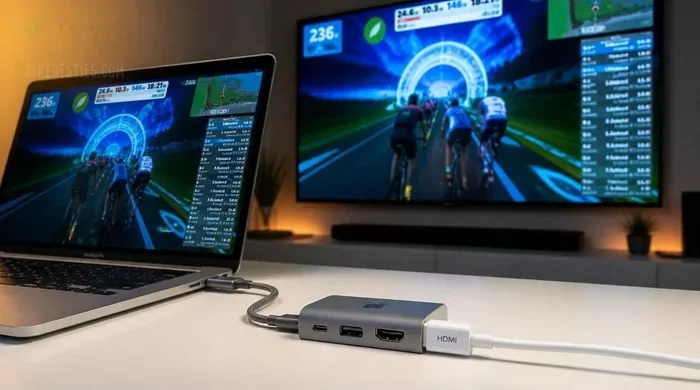
Can Apple Connect To Hdmi Here Is Everything You Need
Can Apple Connect To HDMI? Absolutely. Whether you own an iPhone, iPad, or Mac, there is a reliable way to mirror or extend your screen to any HDMI display. From Lightning and USB-C adapters to Apple TV and AirPlay, this guide covers every option you need to know.
Can Apple Connect To HDMI? If you have ever sat in front of your TV or monitor and wondered whether your iPhone, iPad, or MacBook can plug right in, you are not alone. The short answer is yes. Apple devices can absolutely connect to HDMI displays. But the “how” depends on your device model, the port it uses, and the kind of adapter or cable you pick.
In this guide, we walk through every method, every adapter, and every tip you need to get your Apple device hooked up to an HDMI screen. Whether you want to stream movies, give a presentation, or just browse the web on a bigger display, this article has you covered. We also share common mistakes to avoid and quick tips that save time.
Let us dive right in. No fluff. Just clear, practical advice that works.
Key Takeaways
- Apple devices support HDMI output through adapters, cables, and wireless methods like AirPlay.
- Lightning to HDMI adapters work with older iPhones and iPads for direct wired connections.
- USB-C to HDMI cables are the go-to solution for newer MacBooks and iPads with USB-C ports.
- Apple TV offers wireless HDMI-free streaming using AirPlay to mirror content to your TV.
- Not all adapters are equal — compatibility depends on your specific Apple device model and port type.
- Resolution and audio quality vary by adapter type, so choosing the right one matters for your setup.
📑 Table of Contents
- Why Would You Connect Apple Devices To HDMI?
- Which Apple Devices Support HDMI Output?
- Types of HDMI Adapters and Cables for Apple
- Step-by-Step: How to Connect Apple Devices to HDMI
- Common Problems and How to Fix Them
- Choosing the Right HDMI Adapter for Your Apple Device
- Apple HDMI Accessories Worth Looking At
- Apple HDMI vs. Wireless Alternatives
- Expert Tips for the Best HDMI Experience with Apple
- Key Takeaways
- Conclusion
Why Would You Connect Apple Devices To HDMI?
There are many reasons people want to connect Apple devices to HDMI. Some want a bigger screen for watching videos. Others need to present slides at work or school. A few just want to play mobile games on a television. Whatever your reason, the connection process is simpler than most people think.
Here are the most common reasons users look for HDMI connectivity with Apple gear:
- Streaming movies and shows from your iPhone or iPad to your living room TV.
- Presenting slides or documents during meetings or classroom sessions.
- Gaming on a larger display for a more immersive experience.
- Extending your workspace by using a TV or monitor as a second screen.
- Sharing photos or videos with a group on a big screen.
Each of these use cases requires a slightly different setup. We will break them all down below.
Which Apple Devices Support HDMI Output?
Not every Apple device connects to HDMI the same way. The method depends on the port your device has. Let us go through the main device categories.
iPhone Models and HDMI
Most iPhones do not have a built-in HDMI port. Instead, they use a Lightning connector or, in newer models, a USB-C port. To connect an iPhone to HDMI, you need an adapter. Apple sells a Lightning to Digital AV Adapter that works with most iPhone models. For newer iPhones with USB-C, a simple USB-C to HDMI cable does the job.
Here is a quick look at which iPhones need which adapter:
- iPhone 14 and older (Lightning): Requires a Lightning to HDMI adapter.
- iPhone 15 and newer (USB-C): Works with a USB-C to HDMI cable or adapter.
One thing to keep in mind: if you use your iPhone for work and manage a lot of contacts or numbers, you may want to check how to add prefixes to numbers on iPhone for better organization before you set up your display connection.
iPad Models and HDMI
iPads are a bit more varied. Older iPads with a Lightning port use the same Lightning to Digital AV Adapter as iPhones. Newer iPad Pro and iPad Air models with USB-C can use a direct USB-C to HDMI cable. The iPad Mini and standard iPad fall somewhere in between, depending on the generation.
Quick breakdown:
- Lightning iPads: Use the Lightning to HDMI adapter.
- USB-C iPads: Use a USB-C to HDMI cable or adapter.
MacBook and HDMI
MacBooks are the easiest Apple devices to connect to HDMI. Most newer MacBooks come with USB-C or Thunderbolt ports that support video output. You can use a USB-C to HDMI cable or a Thunderbolt to HDMI adapter. Some older MacBooks even have a built-in HDMI port, which makes things even simpler.
Here is how it breaks down by MacBook type:
- MacBook Pro (2016 and newer): USB-C or Thunderbolt to HDMI.
- MacBook Air (2018 and newer): USB-C to HDMI cable works perfectly.
- Older MacBooks with HDMI port: Just plug in a standard HDMI cable.
Types of HDMI Adapters and Cables for Apple
Choosing the right adapter or cable is the most important step. Using the wrong one leads to frustration. Let us go through the options clearly.
Lightning to HDMI Adapter
This is the official Apple adapter for devices with a Lightning port. It costs around $49 and works reliably with most iPhones and older iPads. It supports 1080p video output and carries audio through the HDMI cable. You plug the Lightning end into your Apple device and the HDMI end into your TV or monitor.
Quick tips for using this adapter:
- Make sure your adapter is MFi certified (Made for iPhone/iPad).
- Use a high-quality HDMI cable to avoid signal issues.
- Some third-party adapters work but may not support audio.
USB-C to HDMI Cable
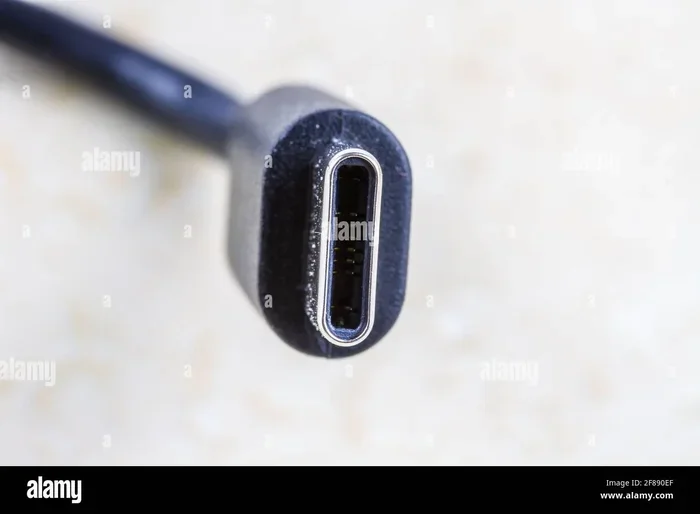
This is the simplest option for newer Apple devices. A USB-C to HDMI cable has a USB-C connector on one end and an HDMI connector on the other. No adapter box needed. Just plug and play. These cables support 4K resolution on compatible devices, which makes them ideal for MacBooks and newer iPads.
When shopping for a USB-C to HDMI cable, look for these features:
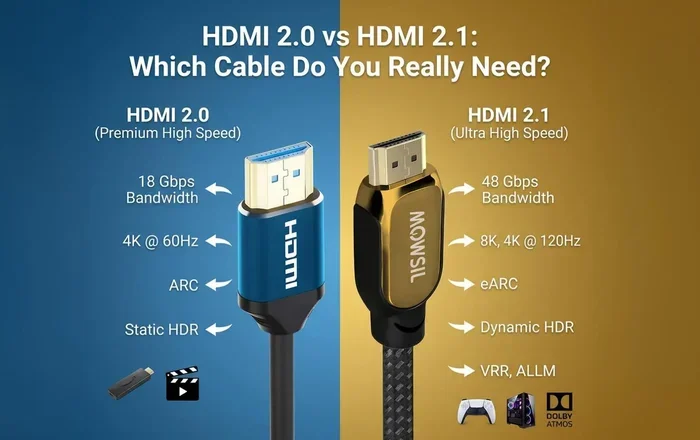
- 4K@60Hz support for smooth, high-resolution output.
- Gold-plated connectors for better signal quality.
- Braided cable design for durability.
Thunderbolt to HDMI Adapter
Thunderbolt adapters offer the fastest data transfer and the best video quality. They work with MacBook Pro and MacBook Air models that have Thunderbolt ports. These adapters can support 4K and even 8K resolution depending on the model. They cost more than basic USB-C adapters but deliver superior performance.
Apple TV and AirPlay (Wireless Option)
Not everyone wants to deal with cables. Apple TV lets you stream content wirelessly from any Apple device using AirPlay. You do not need an HDMI adapter at all. Just make sure your Apple device and Apple TV are on the same Wi-Fi network, open Control Center, tap Screen Mirroring, and select your Apple TV.
This is a great option if you want to keep things simple and cable-free. It works with iPhones, iPads, and MacBooks. The video quality is excellent, and you can even control playback from your device.
Step-by-Step: How to Connect Apple Devices to HDMI
Now that you know the options, let us walk through the actual setup process. Each method is straightforward, but following the right steps makes a big difference.
Method 1: Connecting an iPhone with a Lightning Adapter
- Get a Lightning to Digital AV Adapter (Apple official or MFi certified).
- Plug the adapter into your iPhone’s Lightning port.
- Connect an HDMI cable to the adapter.
- Plug the other end of the HDMI cable into your TV or monitor.
- Switch your TV to the correct HDMI input.
- Your iPhone screen should now appear on the TV.
If nothing shows up, try unplugging the adapter and plugging it back in. Sometimes the connection needs a fresh start.
Method 2: Connecting a USB-C iPad or MacBook
- Get a USB-C to HDMI cable or adapter.
- Plug the USB-C end into your Apple device.
- Connect the HDMI end to your TV or monitor.
- Switch your display to the right HDMI input.
- Your screen should mirror automatically.
On MacBooks, you can also go to System Settings > Displays to choose between mirroring and extending your desktop. This is a great feature for people who want to use their TV as a second monitor.
Method 3: Using Apple TV with AirPlay
- Make sure your Apple device and Apple TV are on the same Wi-Fi network.
- Open Control Center on your iPhone or iPad (swipe down from the top right).
- Tap Screen Mirroring.
- Select your Apple TV from the list.
- Your screen is now mirrored wirelessly.
AirPlay is incredibly convenient, but it does need a strong Wi-Fi connection. If your video stutters, try moving closer to your router or reducing the number of devices on your network.
Common Problems and How to Fix Them
Even with the right adapter, things can go wrong. Here are the most common issues people face when trying to connect Apple devices to HDMI and how to solve them.
No Signal on the TV
This is the most common problem. Usually, it means the TV is on the wrong input. Try switching your TV to the correct HDMI port. Also, check that the cable is firmly connected on both ends. If you are using an adapter, unplug it and plug it back in.
No Audio Through HDMI
Sometimes the video shows up but there is no sound. This often happens with third-party adapters. Make sure you are using an MFi certified adapter for Lightning devices. You can also check your iPhone or iPad audio settings to make sure the output is set to HDMI.
Black Screen or Flickering
A black screen or flickering usually means the cable or adapter is low quality. Try a different HDMI cable first. If that does not work, try a different adapter. Cheap adapters from unknown brands often cause these issues.
Resolution Is Not Right
If your display looks blurry or stretched, your resolution settings may be off. On a Mac, go to System Settings > Displays and adjust the resolution. On an iPhone or iPad, the resolution usually matches the TV automatically, but restarting both devices can help.
Quick Tip: Always keep a spare USB-C to HDMI cable in your bag. You never know when you will need to hook up to a display in a hurry. Having the right cable on hand saves so much stress.
Choosing the Right HDMI Adapter for Your Apple Device
With so many adapters on the market, picking the right one can feel overwhelming. Let us simplify it. Here are the key factors to consider.
Check Your Device Port Type
First, figure out what port your Apple device has. Is it Lightning or USB-C? This single detail determines everything. If you buy the wrong type of adapter, it simply will not work.
Look for MFi Certification
For Lightning devices, always choose an MFi certified adapter. This means Apple has approved it to work with your device. Non-certified adapters may not support audio or could stop working after a software update.
Consider Your Resolution Needs
Do you need 1080p or 4K? Most adapters support 1080p easily. For 4K output, you need a USB-C to HDMI cable that explicitly supports 4K. Check the product specifications before buying.
Think About Portability
If you travel often, a compact USB-C to HDMI cable is your best friend. It takes up almost no space and works with most modern Apple devices. For home use, a Thunderbolt to HDMI adapter gives you the best performance.
Apple HDMI Accessories Worth Looking At
If you are building a complete setup, you might want to explore some accessories that complement your HDMI connection. From cable organizers to portable adapters, the right add-ons make a huge difference. If you are looking for gift ideas or want to upgrade your whole setup, check out this helpful list of gadgets that make life easier — many of these work great alongside your Apple HDMI setup.
Some accessories worth considering include:
- HDMI cable organizers to keep your setup tidy.
- Portable adapter hubs that combine HDMI, USB, and charging in one device.
- High-speed HDMI cables rated for 4K and 8K output.
- Wall-mounted cable plates for a clean home theater setup.
These small additions might seem minor, but they improve your daily experience significantly. A clean, organized setup is also easier to troubleshoot when something goes wrong.
Apple HDMI vs. Wireless Alternatives
You do not always need a physical HDMI connection. Apple offers wireless options that work well in many situations. Let us compare the two approaches.
| Feature | HDMI (Wired) | AirPlay (Wireless) |
|---|---|---|
| Setup | Plug in adapter and cable | Connect via Wi-Fi and Screen Mirroring |
| Latency | Near zero | Slight delay possible |
| Video Quality | Up to 4K or 8K | Up to 1080p (AirPlay 2 supports 4K) |
| Audio Quality | Lossless through HDMI | Compressed over Wi-Fi |
| Mobility | Limited by cable length | Full freedom of movement |
| Reliability | Very stable | Depends on Wi-Fi strength |
| Best For | Presentations, gaming, high-quality video | Casual streaming, quick sharing |
For most people, both options work great. If you need zero latency and the best quality, go with a wired HDMI connection. If you value convenience and mobility, AirPlay is the way to go.
Expert Tips for the Best HDMI Experience with Apple
After testing dozens of adapters and cables, here are the tips that make the biggest difference.
Always update your software. Apple regularly improves display compatibility through iOS, iPadOS, and macOS updates. Keeping your device updated ensures the best HDMI performance.
Use high-quality cables. A cheap HDMI cable can ruin even the best adapter. Look for cables that are rated for the resolution you need. A well-made cable lasts longer and delivers a cleaner signal.
Restart both devices if you get stuck. This sounds basic, but it solves the majority of connection issues. A quick restart refreshes the display output and clears temporary glitches.
Check your TV settings. Some TVs have specific HDMI mode settings (like HDMI 1.4 vs HDMI 2.0). Make sure your TV is set to the right mode for the resolution you want. This is especially important for 4K content.
Avoid cheap unbranded adapters. They might work for a few days, but they often fail or lose audio support. Stick with Apple’s official adapter or reputable third-party brands that are MFi certified.
Keep your adapter cool. Adapters can get warm during extended use. If your adapter feels hot, give it a break. Overheating can cause connection drops and reduce the lifespan of the adapter.
Expert Insight: The USB-C to HDMI cable is the future of Apple HDMI connectivity. As Apple moves away from Lightning and toward USB-C across all devices, a single cable will work for everything. If you are buying an adapter today, invest in a USB-C option for long-term compatibility.
Key Takeaways
- Apple devices can connect to HDMI through adapters, cables, or wireless AirPlay.
- Lightning to HDMI adapters are needed for older iPhones and iPads.
- USB-C to HDMI cables are the simplest solution for newer Apple devices.
- Thunderbolt adapters offer the best performance for MacBook users.
- Apple TV with AirPlay provides a wireless alternative to all wired methods.
- MFi certification matters — always choose certified adapters for reliability.
- Quality cables and adapters make a noticeable difference in video and audio output.
Conclusion
So, can Apple connect to HDMI? The answer is a clear and definitive yes. Whether you use an iPhone, iPad, or MacBook, there is a straightforward way to get your content on a bigger screen. The key is choosing the right adapter or cable for your specific device.
Wired connections through adapters give you the best quality and zero latency. Wireless options like AirPlay offer convenience and flexibility. Both approaches work beautifully, and many people use a combination of both depending on the situation.
Now that you know everything about connecting Apple devices to HDMI, you are ready to set up your display. Pick the right adapter, grab a good cable, and enjoy your content on the big screen. It is easier than you think, and once you set it up, you will wonder how you ever lived without it.
Start with the method that fits your device and your needs. You will be streaming, presenting, or gaming on a larger display in just a few minutes.
Frequently Asked Questions
Can I connect any Apple device to an HDMI TV?
Most Apple devices can connect to HDMI with the right adapter or cable. iPhones and iPads with Lightning need a Lightning to HDMI adapter. Newer devices with USB-C work with a USB-C to HDMI cable. MacBooks are the easiest to connect since most models support direct HDMI output through USB-C or have a built-in HDMI port.
Do I need an Apple-branded adapter to connect to HDMI?
No, you do not need an Apple-branded adapter. However, using an MFi certified adapter ensures compatibility and reliability. Third-party adapters can work well too, but cheap unbranded ones may lose audio support or stop working after a software update. Investing in a quality adapter saves frustration in the long run.
Can I use HDMI with Apple TV without any cables?
Yes, Apple TV connects to your TV using an HDMI cable, but once it is set up, you can stream content wirelessly from your iPhone, iPad, or MacBook using AirPlay. The Apple TV itself does need a wired HDMI connection to your TV, but your Apple device connects to it without any cables over Wi-Fi.
Why is there no sound when I connect my iPhone to HDMI?
No sound usually means the adapter is not properly transmitting audio. Try using an MFi certified Lightning to HDMI adapter. Also check that your TV is set to the correct HDMI input and that your iPhone volume is not muted. Restarting both devices often fixes this issue quickly.
Can I extend my MacBook screen to an HDMI monitor?
Yes, you can extend your MacBook display to an HDMI monitor. Connect your MacBook to the monitor using a USB-C to HDMI cable or adapter. Then go to System Settings > Displays on your MacBook and choose “Extend Display” instead of mirroring. This gives you a second screen for multitasking.
What resolution can I get when connecting Apple devices to HDMI?
The resolution depends on your device and adapter. Most Lightning adapters support up to 1080p. USB-C to HDMI cables can support 4K resolution on compatible devices. Thunderbolt adapters can handle 4K and even 8K on the latest MacBooks. Always check the adapter specifications to confirm the supported resolution before purchasing.