How Do I Check My Real Time Wi Fi Speed In Seconds
Checking your real time Wi-Fi speed takes just a few seconds and costs nothing. You can use free online tools, mobile apps, or your router’s dashboard to get instant results. This guide shows you every method, explains what the numbers mean, and helps you fix slow speeds fast.
Key Takeaways
- Fast Testing: You can check your real time Wi-Fi speed in seconds using free online tools or apps on any device.
- Multiple Methods: Speedtest by Ookla, Google’s built-in test, and router dashboards all give reliable and accurate results.
- Know the Numbers: Download speed, upload speed, and ping rate each tell you something different about your connection quality.
- Common Issues: Router placement, too many connected devices, and ISP throttling are the top reasons your Wi-Fi speed drops.
- Quick Fixes: Simple steps like restarting your router or moving it closer can boost your real time Wi-Fi speed instantly.
- Hardware Matters: Old routers or weak Wi-Fi adapters can limit your speeds no matter what your plan promises.
📑 Table of Contents
- Understanding What Real Time Wi-Fi Speed Means
- Top Free Tools to Check Your Wi-Fi Speed in Seconds
- How to Test Your Wi-Fi Speed on Different Devices
- Why Does Your Wi-Fi Speed Drop?
- How to Improve Your Real Time Wi-Fi Speed
- Common Mistakes People Make When Testing Wi-Fi Speed
- When to Call a Professional
- Final Thoughts
Understanding What Real Time Wi-Fi Speed Means
Before you start testing, it helps to know what you are actually measuring. Your real time Wi-Fi speed is how fast data moves between your device and the internet right now. It changes constantly based on many factors.
Think of it like traffic on a highway. At 3 AM, the road is clear and you drive fast. At rush hour, everything slows down. Your Wi-Fi works the same way. The speed you get at 8 AM may be very different from what you see at 8 PM.
When people talk about Wi-Fi speed, they usually mean three things. Each one tells a different story about your connection. Let us break them down.
Download Speed vs Upload Speed
Download speed is how fast your device pulls data from the internet. This is what matters when you stream movies, browse websites, or scroll through social media. Most internet plans focus heavily on download speed because that is what most people use every day.
Upload speed is the opposite. It measures how fast your device sends data out. You need good upload speed for video calls, uploading photos, or streaming gameplay. Many plans have much lower upload speeds than download speeds, and that is normal.
Here is a simple way to remember it. Download brings things to you. Upload sends things from you. Both matter, but they serve different purposes.
What Is Ping and Why It Matters
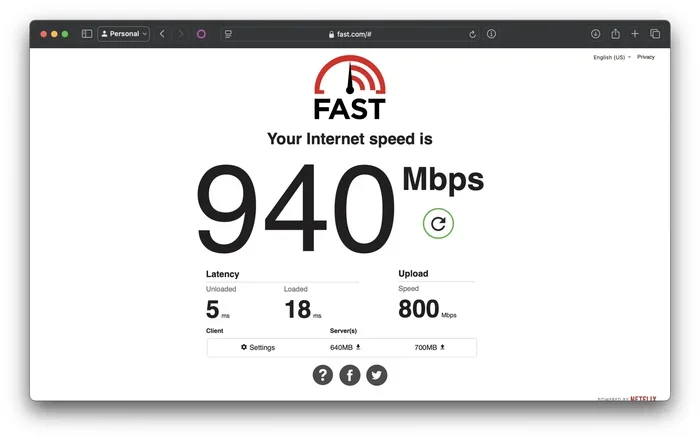
Ping, also called latency, measures the delay between your device and the server. It is measured in milliseconds (ms). Lower ping means less delay. Higher ping means more lag.
If you have ever noticed a delay when talking to someone on a video call, high ping might be the cause. Gamers care a lot about ping because even a small delay can affect gameplay. A good ping for most activities is under 50 ms. Anything under 20 ms is excellent.
Top Free Tools to Check Your Wi-Fi Speed in Seconds
You do not need to pay for anything to test your real time Wi-Fi speed. Several free tools give you accurate results in seconds. Here are the best options.
Speedtest by Ookla
Speedtest by Ookla is the most popular speed test tool online. It has been around for years and is trusted by millions. You can use it on any browser or download the app on your phone.
To use it, simply go to speedtest.net and click the big button. The test takes about 30 seconds. It measures your download speed, upload speed, and ping. The results are easy to read and understand.
One great thing about Ookla is that it saves your past results. This lets you track your speed over time. If you notice your speeds dropping, you can look back and see when the problem started.
Google Speed Test
You can also just search for “speed test” on Google. Google has a built-in speed test that runs right in the search results. No downloads needed. No websites to visit.
Just type “speed test” into Google and click “Run Speed Test.” It is fast, simple, and gives you the same basic measurements. This is perfect for a quick check when you do not want to leave your browser.
Built-In Router Tools
Many modern routers have built-in speed test features. You can access these by typing your router’s IP address into your browser. The exact address depends on your router brand, but common ones are 192.168.1.1 or 192.168.0.1.
Once you log in, look for a “Speed Test” or “Diagnostics” section. Your router tests the speed of the connection between itself and the internet. This is useful because it tests your full connection, not just one device.
If you have Can I Add Wi Fi To My Pc, using your router’s built-in tool can help you see if the issue is with your Wi-Fi or your internet plan.
How to Test Your Wi-Fi Speed on Different Devices
The method you use to test your real time Wi-Fi speed can vary depending on your device. Here is how to do it on the most common ones.
Testing on Windows PC
On a Windows PC, you have several options. You can use the browser-based Speedtest tool, or you can use the built-in Network troubleshooter. To find it, go to Settings > Network & Internet > Status > Network troubleshooter.
For the most accurate results, connect to your Wi-Fi network and close any apps that use the internet. Streaming services, downloads, and cloud backups can all slow down your test results. You want a clean test with no background activity.
If you are using a laptop and your speeds are consistently low, it might be time to look at your hardware. Check out our guide on Before Replacing Your Laptop S Wi Fi Card to learn what to check first.
Testing on Mac
Mac users can use the same browser-based tools. Safari, Chrome, and Firefox all work well with Speedtest by Ookla. You can also hold the Option key and click the Wi-Fi icon in your menu bar to see your current connection details.
Macs also have a built-in network utility. Go to Applications > Utilities > Network Utility. From there, you can run a ping test to check your latency to specific servers.
Testing on Phone or Tablet
Testing on your phone is the easiest method. Both iPhone and Android have speed test options built in or available as free apps. Speedtest by Ookla has a dedicated app for both platforms.
Make sure you are connected to your Wi-Fi network and not using mobile data. You can turn off mobile data temporarily to avoid confusion. Run the test and compare the results to what your internet plan promises.
If you are having trouble connecting to Wi-Fi in the first place, you might want to read Can I Connect My PC To Wi Fi Without Ethernet for helpful troubleshooting tips.
Why Does Your Wi-Fi Speed Drop?
You just ran a speed test and the numbers are lower than expected. This happens to everyone. Understanding why your real time Wi-Fi speed drops can help you fix the problem.
Router Placement Issues
Where your router sits matters a lot. Walls, floors, furniture, and even large appliances can block your Wi-Fi signal. If your router is tucked away in a closet or behind a TV, the signal has to work harder to reach you.
Place your router in a central, open location. Elevate it on a shelf if possible. Keep it away from microwaves, baby monitors, and other electronics that can cause interference. A small change in placement can make a big difference.
Too Many Connected Devices
Every device connected to your Wi-Fi shares the available bandwidth. If you have a smart TV streaming, a phone downloading updates, a laptop on a video call, and a tablet playing games, your router is working hard.
Some routers handle many devices better than others. Older routers may struggle with more than 5 or 6 devices at once. If you have a lot of smart home gadgets, consider upgrading to a router designed for heavy use.
Also, check if any devices you do not recognize are using your network. If you suspect someone is using your Wi-Fi without permission, you can take steps to secure it. Learn more in our article on Can I Block A Device From Using My Wifi Xfinity.
ISP Throttling
Sometimes the problem is not your Wi-Fi at all. Your Internet Service Provider (ISP) might be slowing down your connection. This is called throttling. ISPs may throttle your speed during peak hours or if you use a lot of data.
To check if throttling is the issue, run a speed test with a wired Ethernet connection. If the wired speed is much faster than your Wi-Fi speed, your router or signal might be the problem. If both speeds are slow, your ISP might be throttling your connection.
How to Improve Your Real Time Wi-Fi Speed
Once you know your speed and why it might be slow, you can take action. Here are practical steps to boost your real time Wi-Fi speed right now.
Quick Fixes That Work Fast
Before you buy anything, try these simple fixes. Many people skip these steps and jump straight to expensive solutions.
- Restart your router. Unplug it for 30 seconds, then plug it back in. This clears the cache and refreshes the connection.
- Move closer to the router. Distance is one of the biggest factors in Wi-Fi speed. Even moving to the next room can help.
- Switch Wi-Fi bands. Most modern routers use both 2.4 GHz and 5 GHz bands. The 5 GHz band is faster but has shorter range. Try switching to see if it helps.
- Change the Wi-Fi channel. Your neighbors’ routers might be using the same channel as yours. This causes interference. You can change your channel in your router settings.
- Update your router’s firmware. Manufacturers release updates that fix bugs and improve performance. Check your router’s admin panel for updates.
When to Upgrade Your Hardware
If quick fixes do not help, it might be time for new equipment. Routers have a lifespan of about 4 to 5 years. Older routers may not support the latest Wi-Fi standards like Wi-Fi 6 or Wi-Fi 6E.
A new router can make a huge difference, especially if you have many devices or live in a larger home. Look for routers with strong range and good reviews. If you have a laptop with an old Wi-Fi card, consider upgrading the card itself.
Your internet plan also matters. If you are paying for 50 Mbps but only getting 20 Mbps, contact your ISP. They can run line tests and troubleshoot from their end.
Common Mistakes People Make When Testing Wi-Fi Speed
Even with the best tools, people often make mistakes that give inaccurate results. Avoid these common errors to get the most reliable real time Wi-Fi speed readings.
- Testing while downloading something. Any active download or upload will skew your results. Pause all downloads and background apps first.
- Testing at the wrong time. Internet speeds can vary throughout the day. Test at different times to get a true picture of your average speed.
- Running only one test. A single test is just a snapshot. Run at least three tests and take the average for a more accurate reading.
- Ignoring the difference between Wi-Fi and wired speeds. A wired connection will almost always be faster and more stable than Wi-Fi. This does not mean your Wi-Fi is broken; it just means Wi-Fi has more variables.
- Not checking your plan speed. If you do not know what speed your plan promises, you cannot tell if you are getting what you pay for.
When to Call a Professional
Most Wi-Fi speed issues can be fixed at home with the tips above. But sometimes, the problem needs expert help. If you have tried everything and your speeds are still slow, it is time to call in a pro.
Call your ISP first. They can run diagnostics from their end and check for line issues. If your ISP says everything looks fine, consider hiring a network technician. They can evaluate your home setup, check for interference, and recommend the best equipment for your needs.
This is especially important if you work from home and need a reliable, fast connection every day. A professional setup can save you hours of frustration and lost productivity.
Final Thoughts
Checking your real time Wi-Fi speed is something everyone should do regularly. It takes seconds, costs nothing, and gives you valuable insight into your connection. Once you know your speeds, you can take action to improve them.
Start with a free speed test tool. Understand what the numbers mean. Try the quick fixes. And if those do not work, consider upgrading your equipment or calling your ISP. Your internet experience will be better for it.
Remember, your Wi-Fi speed is not static. It changes throughout the day based on usage, time, and many other factors. The best approach is to stay informed and take action when something feels off. A few minutes of testing can save you hours of slow loading and frustrating buffering.
Keep this guide handy. The next time your Wi-Fi feels slow, you will know exactly what to do and how to do it. Take control of your connection today and enjoy faster, more reliable internet starting right now.
Frequently Asked Questions
How long does a Wi-Fi speed test take?
Most speed tests take between 10 and 30 seconds to complete. The Ookla Speedtest is one of the fastest options available. You can run multiple tests in under two minutes total.
What is a good Wi-Fi speed for most households?
A good Wi-Fi speed is at least 25 Mbps for download speed. This handles streaming, browsing, and video calls comfortably. Larger households with many devices may need 50 Mbps or more for smooth performance.
Why is my Wi-Fi fast on my phone but slow on my laptop?
This usually means your laptop’s Wi-Fi adapter is older or weaker than your phone’s. It can also mean your laptop is farther from the router. Try moving closer to the router and see if the speed improves.
Can I use my phone hotspot to test Wi-Fi speed?
No, a phone hotspot test measures your mobile data speed, not your Wi-Fi speed. To test Wi-Fi, make sure you are connected to your Wi-Fi network and that mobile data is turned off on your device.
Does restarting my router really improve Wi-Fi speed?
Yes, restarting your router can improve speed temporarily. It clears the router’s memory and refreshes the connection. However, if the underlying issue is hardware or ISP-related, a restart will only help for a short time.
How often should I check my Wi-Fi speed?
Checking your Wi-Fi speed once a month is a good habit. If you notice slow performance, run a test right away. Also test after making any changes to your router or network setup to see if the changes helped.
=== CONCLUSION ===
Knowing your real time Wi-Fi speed puts you in control of your internet experience. With the free tools and simple methods covered in this guide, you can test your connection in seconds and understand exactly what is happening. Do not let slow Wi-Fi slow you down. Take a few minutes today to run a speed test, identify any issues, and apply the fixes that work for your setup.