How Do I Change Wi Fi On My Iphone Quick Steps Inside
Changing your Wi-Fi on an iPhone is quick and easy when you know the right steps. Whether you need to switch to a new network, forget an old one, or troubleshoot a connection issue, this guide covers everything you need. Follow our simple instructions to get your iPhone Wi-Fi settings updated in minutes.
So you need to change the Wi-Fi on your iPhone. Maybe you moved to a new house, got a new internet plan, or just want to connect to a different network. Whatever the reason, switching your iPhone Wi-Fi connection is something you should be able to do in seconds. The good news is that it really is that simple. You don’t need to be a tech expert. You just need to know where to look on your phone.
This guide walks you through every step you need. From connecting to a brand-new wireless network to forgetting an old one and fixing common problems, we’ve got you covered. We’ll also share some iPhone Wi-Fi troubleshooting tips that can save you a lot of frustration. Let’s dive right in.
Key Takeaways
- Changing Wi-Fi on iPhone takes just a few taps: Go to Settings, tap Wi-Fi, and select a new network.
- Forgetting a network removes saved credentials: This is useful when switching networks or troubleshooting connection problems.
- Restart your iPhone if Wi-Fi won’t connect: A simple reboot often fixes most wireless connection issues.
- You can change your Wi-Fi name too: Visit your router settings or check if your iPhone Wi-Fi name can be customized.
- Resetting network settings is a powerful fix: It clears all saved Wi-Fi networks and Bluetooth pairings.
- Keep your iOS updated: Software updates often include fixes for Wi-Fi connectivity bugs.
- Use these tips for better signal strength: Move closer to your router and avoid interference from other devices.
📑 Table of Contents
How to Change Wi-Fi on Your iPhone
Changing your Wi-Fi network on an iPhone is a straightforward process. You don’t need any special tools or technical knowledge. Just follow these simple steps and you’ll be connected to your new network in no time.
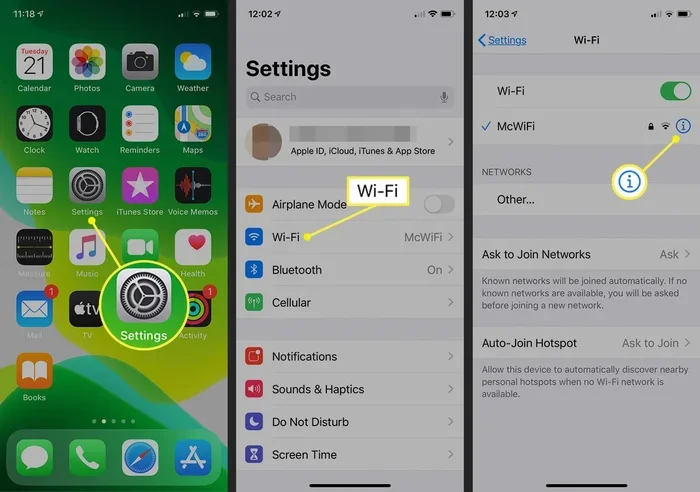
Step 1: Open Your Settings
Unlock your iPhone and find the Settings app. It looks like a gray gear icon on your home screen. Tap on it to open the main settings menu. This is where you control almost everything on your phone, including your wireless network settings.
If you can’t find the Settings app, try swiping down from the middle of your home screen. Type “Settings” in the search bar that appears. Tap the Settings app when it shows up.
Step 2: Tap on Wi-Fi
Once you’re in Settings, look for the Wi-Fi option. It’s usually near the top of the list. The icon looks like a fan shape with curved lines. Tap on it and you’ll see all the available wireless networks nearby.
Make sure the Wi-Fi toggle at the top is turned on. If it’s grayed out, it means Wi-Fi is currently off. Tap the toggle to turn it green. Your iPhone will immediately start scanning for available networks.
Step 3: Select Your New Network
You’ll see a list of Wi-Fi networks in the area. Look for the one you want to join. Tap on the network name. If it’s a protected network, you’ll be asked to enter a password. Type it in carefully and tap “Join.”
Within a few seconds, your iPhone should connect. You’ll see a checkmark next to the network name. The Wi-Fi icon in the top right corner of your screen will also appear. That means you’re online!
Step 4: Verify Your Connection
After connecting, open a web browser or any app that needs internet. Try loading a webpage or streaming a video. If it works, you’re all set. If not, don’t worry. We’ll cover troubleshooting steps below.
Getting Wi-Fi on your own is easy once you know these steps. You don’t need anyone else to set it up for you. Your iPhone handles most of the work automatically.
Forgetting a Wi-Fi Network on iPhone
Sometimes you need to remove a saved Wi-Fi network from your iPhone. Maybe you’re no longer using that network, or the connection keeps dropping. Forgetting a network clears its saved password and settings. This can help you start fresh when connecting to a new one.
How to Forget a Network
Go to Settings and tap Wi-Fi. Find the network you want to remove in the list. Tap the blue “i” icon next to the network name. Scroll down and tap “Forget This Network.” Confirm your choice when prompted.
That’s it! The network is now removed from your list. You’ll need to reconnect from scratch the next time you want to use it. This includes entering the password again.
When Should You Forget a Network?
There are several good reasons to forget a Wi-Fi network. Here are some common situations:
- You moved to a new home: The old network is no longer available or relevant.
- The connection is unstable: Forgetting and reconnecting can sometimes fix persistent issues.
- You changed your password: The old saved password won’t work anymore.
- You want better security: Removing old networks reduces your digital footprint.
- Your iPhone won’t connect properly: Starting fresh often resolves stubborn connection problems.
Forgetting a network is also useful when you’re trying to connect to Wi-Fi without a password. Removing the old network first ensures your iPhone doesn’t try to auto-connect to a network that might be causing issues.
Connecting to a New Wi-Fi Network
Once you’ve forgotten the old network or simply want to join a new one, the process is just as easy. Here’s a closer look at what to do.
Finding Available Networks
When you open the Wi-Fi settings, your iPhone scans for all nearby networks. The list shows both open networks and those that need a password. Networks with a lock icon require a password. Networks without a lock icon are open and free to join.
Your most recently used networks appear at the top of the list. Below those are the networks discovered in your current scan. If you don’t see the network you want, try moving closer to your router.
Entering the Password
When you tap on a password-protected network, a prompt appears. Type in the password carefully. Wi-Fi passwords are case-sensitive, so check your capitalization. You can tap the “Show Password” toggle to see what you’re typing. This helps avoid typos.
After entering the password, tap “Join” in the top right corner. Your iPhone will take a moment to connect. You’ll see a spinning wheel while it authenticates. Once connected, the checkmark appears and the spinning stops.
Saving the Network for Future Use
Your iPhone automatically saves the network and password once you connect. This means you won’t need to enter the password again the next time you’re in range. Your phone will connect automatically whenever that network is available.
If you want to change your iPhone Wi-Fi name for display purposes, you might need to adjust settings on your router instead. Check if you can change your iPhone Wi-Fi name through your router’s admin panel.
Troubleshooting Common Wi-Fi Issues on iPhone
Sometimes things don’t go as smoothly as we’d like. Your iPhone might refuse to connect, keep dropping the signal, or show a password error. Don’t panic. Most Wi-Fi problems have simple fixes.
iPhone Won’t Connect to Wi-Fi
This is one of the most common issues iPhone users face. Before trying anything else, make sure Wi-Fi is turned on. Check that Airplane Mode is off. Then try these steps:
- Toggle Wi-Fi off and on: Go to Settings, tap Wi-Fi, turn it off, wait 10 seconds, and turn it back on.
- Restart your iPhone: Power it off completely, wait 30 seconds, and turn it back on.
- Move closer to the router: Distance and walls can weaken your signal significantly.
- Check if other devices connect: This helps determine if the problem is with your iPhone or the router.
If none of these work, try resetting your network settings. Go to Settings, tap General, then iPhone Reset, and choose “Reset Network Settings.” This clears all saved Wi-Fi networks and Bluetooth pairings. You’ll need to reconnect to your networks afterward.
Wrong Password Error
Getting a password error even though you’re sure the password is correct? Try these fixes:
- Double-check the password: Look for typos or accidental capitalization.
- Ask the network owner: The password may have been changed recently.
- Forget the network and reconnect: This forces your iPhone to ask for the password again.
- Check your router: Some routers have the password printed on a sticker on the back.
Slow Wi-Fi Speeds
If your connection is slow, it might not be an iPhone issue. Try these troubleshooting tips:
- Move closer to your router: Walls and furniture can block or weaken signals.
- Restart your router: Unplug it for 30 seconds, then plug it back in.
- Check for network congestion: Too many devices on one network can slow things down.
- Update your iPhone software: Go to Settings, tap General, then Software Update.
For more advanced troubleshooting, you might want to compare how your iPhone handles Wi-Fi versus other devices. Adding Wi-Fi to a PC can sometimes reveal whether the issue is with your network or your specific device.
Wi-Fi Keeps Disconnecting
If your iPhone keeps dropping the Wi-Fi connection, it can be very annoying. Here’s what you can do:
- Disable Auto-Join for problematic networks: Go to Settings, tap Wi-Fi, tap the “i” next to the network, and turn off “Auto-Join.”
- Check for router firmware updates: Old firmware can cause compatibility issues.
- Reduce interference: Other electronic devices like microwaves and baby monitors can interfere with Wi-Fi signals.
- Change your Wi-Fi channel: Log into your router and switch to a less crowded channel.
Tips for Better Wi-Fi Performance on iPhone
Once you’ve got your Wi-Fi working, you want it to stay fast and reliable. Here are some simple tips to keep your connection strong.
Keep Your iPhone Updated
Apple regularly releases iOS updates that fix bugs and improve performance. Many of these updates include Wi-Fi enhancements. Go to Settings, tap General, then Software Update, and install any available updates. Keeping your phone updated is one of the easiest ways to maintain a strong wireless network connection.
Position Your Router Wisely
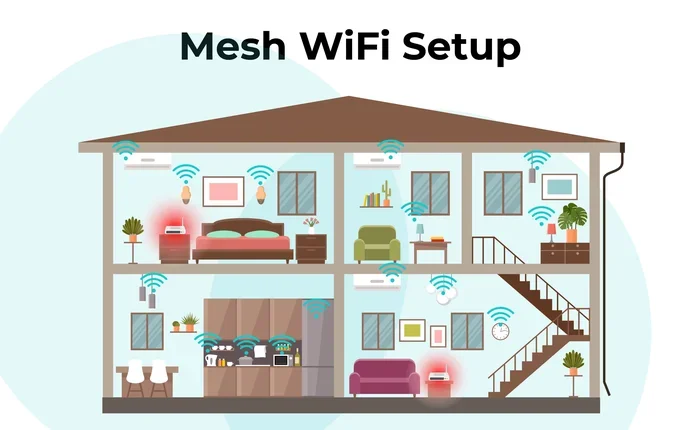
The location of your router matters a lot. Place it in a central location in your home. Avoid putting it in closets, behind TVs, or near thick walls. The more open space around the router, the better the signal spreads. Keeping it elevated on a shelf also helps.
Limit the Number of Connected Devices
Every device connected to your network uses bandwidth. If too many devices are connected at once, your speeds can drop. Consider disconnecting devices you’re not using. You can also set up a guest network for visitors so your main network stays fast.
Use the 5GHz Band When Possible
Most modern routers broadcast on two frequencies: 2.4GHz and 5GHz. The 5GHz band is faster but has a shorter range. If your iPhone is close to the router, connect to the 5GHz network for the best speeds. The 2.4GHz band travels farther but is slower and more prone to interference.
Clear Your DNS Cache
Sometimes your iPhone stores old DNS information that can slow down your connection. You can clear this by toggling Wi-Fi off and on, or by resetting your network settings. This is a quick fix that often improves browsing speed.
When to Contact Support
If you’ve tried everything and your Wi-Fi still isn’t working, it might be time to seek help. Here are some signs you should contact support:
- No networks appear in your Wi-Fi list: This could indicate a hardware issue with your iPhone’s wireless card.
- Your iPhone keeps restarting when connecting to Wi-Fi: This is a known issue that Apple has addressed in some updates.
- You get a “No Internet Connection” message on every network: The problem might be with your internet service provider.
- Wi-Fi works on other devices but not your iPhone: This points to an iPhone-specific issue.
You can contact Apple Support through the Apple Support app, by phone, or by visiting an Apple Store. They can run diagnostics on your iPhone and help identify the root cause. In some cases, a hardware issue might require repair or replacement.
Remember that changing your iPhone Wi-Fi settings is something most people can do on their own. With the steps in this guide, you should be able to handle most situations. Don’t hesitate to reach out for help if you need it.
Conclusion
Changing the Wi-Fi on your iPhone doesn’t have to be complicated. You now know how to connect to a new network, forget an old one, and troubleshoot common problems. These skills will serve you well every day. Whether you’re at home, at work, or traveling, you can manage your iPhone wireless connection with confidence.
Keep these tips handy. You never know when you’ll need them. A strong, reliable Wi-Fi connection makes everything on your iPhone better. From streaming videos to browsing the web, you’ll enjoy a smoother experience. Take a few minutes today to review your Wi-Fi settings. Make sure everything is set up the way you want it. Your future self will thank you.
Stay connected, stay informed, and enjoy the freedom of a well-managed iPhone Wi-Fi setup. You’ve got this!
Frequently Asked Questions
How do I change my Wi-Fi network on iPhone?
Go to Settings, tap Wi-Fi, turn it on, and select a new network from the list. If the network is password-protected, enter the password and tap Join. Your iPhone will connect within seconds.
Why can’t my iPhone connect to Wi-Fi?
Several things can cause this. Make sure Wi-Fi is turned on and Airplane Mode is off. Try restarting your iPhone or toggling Wi-Fi off and on. If the problem persists, forget the network and reconnect, or reset your network settings.
How do I forget a Wi-Fi network on my iPhone?
Go to Settings, tap Wi-Fi, tap the blue “i” icon next to the network, and select “Forget This Network.” This removes the saved password and settings for that network.
Can I change my Wi-Fi password on my iPhone?
You can’t change your Wi-Fi password directly from your iPhone. You need to log into your router’s admin panel to change the password. Once changed, you’ll need to enter the new password on your iPhone and any other devices.
Why does my iPhone keep disconnecting from Wi-Fi?
This can happen due to signal interference, router issues, or software bugs. Try moving closer to your router, restarting your router, or resetting your iPhone’s network settings. Updating your iOS can also fix this issue.
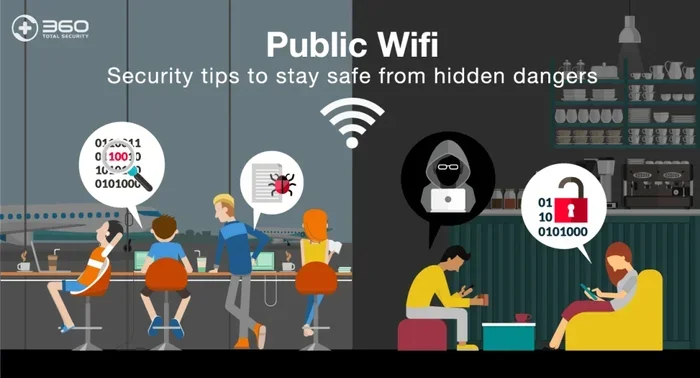
Is it safe to connect to public Wi-Fi on my iPhone?
Public Wi-Fi can be risky. Avoid accessing sensitive accounts or entering passwords on public networks. Use a VPN if possible, and make sure your iPhone’s software is up to date for the latest security patches.