How Do I Change My Wifi Password On Windows Quickly
Changing your wifi password on Windows is simple and takes just a few minutes. Whether you use Windows 10 or Windows 11, you can update your wireless network key through your router settings or Windows network panel. This guide walks you through every method with clear, easy-to-follow steps so you can keep your network secure today.
Your wifi password is the first line of defense for your home network. Over time, you may need to change it for security reasons or because you’ve shared it with too many people. The good news is that you can change your wifi password on Windows in just a few simple steps. This guide covers everything you need to know, whether you use Windows 10 or the latest Windows 11.
Many people put off changing their wireless network password because they think it’s complicated. But it really isn’t. You have several options, and none of them require advanced technical skills. In this article, we’ll walk you through each method so you can pick the one that works best for you. Let’s get started and make your network security a priority today.
Key Takeaways
- You can change your wifi password through your router admin page for the most complete control over your network settings.
- Windows Settings and Control Panel offer quick ways to forget and reconnect to your network with a new password.
- Updating your password regularly improves network security and keeps unauthorized users off your wireless connection.
- You can also use QR codes to share your new wifi password with devices easily after changing it.
- Remembering to update all connected devices after changing your password prevents connectivity issues.
📑 Table of Contents
- Why You Should Change Your Wifi Password Regularly
- Method 1: Change Your Wifi Password Through Router Settings
- Method 2: Change Your Wifi Password Using Windows Settings
- Method 3: Change Your Password Using the Command Prompt
- How to Share Your New Wifi Password Safely
- Common Mistakes to Avoid When Changing Your Wifi Password
- When to Call a Professional for Help
- Expert Insights on Network Security
- Conclusion
Why You Should Change Your Wifi Password Regularly
Changing your wifi password isn’t just a good habit. It’s an essential part of keeping your home network safe. Here are some reasons why you should update your wireless network key on a regular basis.
Protect Your Network from Unauthorized Users
When too many people know your wifi password, your internet speed can suffer. More importantly, strangers could access your personal files and devices. Changing your network security key kicks off anyone who shouldn’t be on your network. This is especially important if you’ve had guests over or moved into a new place.
Stay Ahead of Security Threats
Hackers constantly look for weak wifi networks to exploit. An outdated password makes your wireless router an easy target. By updating your password regularly, you reduce the risk of data theft and malware. Think of it like changing the locks on your front door.
Keep Your Internet Speed Consistent
Neighbors or strangers using your wifi connection can slow down your browsing. When you change your wifi password on Windows, you ensure that only your devices get the full speed of your broadband plan. No more buffering during movie nights or lag during video calls.
Method 1: Change Your Wifi Password Through Router Settings
The most reliable way to change your wifi password is through your router’s admin page. This method works regardless of your operating system and gives you full control over your wireless network settings. Here’s how to do it step by step.
Step 1: Find Your Router’s IP Address
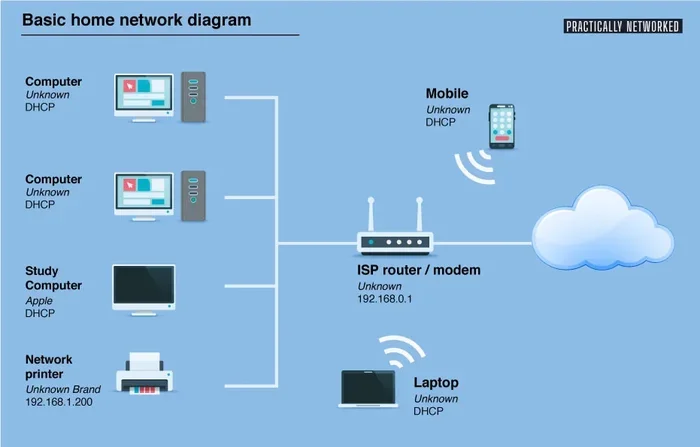
First, you need to access your router’s settings. Open your web browser and type your router’s IP address into the address bar. Most routers use either 192.168.1.1 or 192.168.0.1. You can also find this information on the back of your router or in your Windows network settings.
Step 2: Log In to Your Router Admin Page
Once you enter the IP address, you’ll see a login page. Enter your admin username and password. These are usually printed on a sticker on your router. If you’ve never changed them, the default login is often “admin” for both fields. After logging in, look for a section labeled Wireless Settings or Wifi Setup.
Step 3: Update Your Password
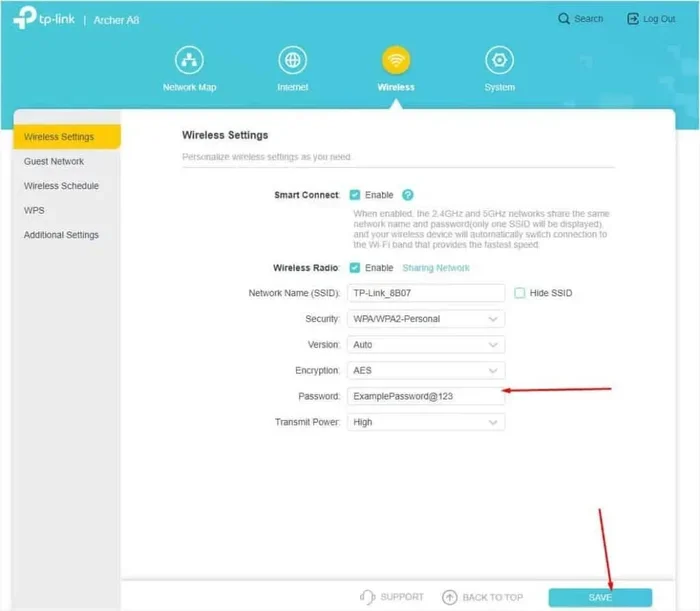
In the wireless settings section, find the field for your network security key or wifi password. Delete the old password and type in your new one. Make sure to select WPA2 or WPA3 encryption for the best security. Save your changes and exit the admin page. Your wifi password is now updated.
Quick Tips for Router Password Changes
- Write down your new password in a safe place before applying it.
- Use a strong password with at least 12 characters, mixing letters, numbers, and symbols.
- Restart your router after making changes to ensure they take effect.
- Update your router firmware while you’re in the settings for added protection.
Method 2: Change Your Wifi Password Using Windows Settings
Windows makes it easy to manage your wifi connection directly from your computer. You can use Windows Settings to forget your old network and reconnect with a new wifi password. This method works great if you’ve already changed your password on the router and need to update Windows.
For Windows 11 Users
Click the Start menu and select Settings. Go to Network and Internet, then click on Wi-Fi. Find your network name and click Forget. Now click the network name again and select Connect. Enter your new wifi password when prompted. Windows will save the new credentials, and you’re all set.
For Windows 10 Users
Open Settings by pressing the Windows key plus I. Click on Network and Internet, then select Wi-Fi. Click Manage Known Networks and choose your network. Click Forget, then reconnect by clicking on the network name. Type in your new network security key and hit Connect. That’s it!
Using the Control Panel Method
You can also use the Control Panel to change your wifi settings. Open Control Panel and go to Network and Sharing Center. Click on your wifi network name, then select Wireless Properties. Go to the Security tab and uncheck the box that shows the characters for your password. Delete the old password and type in the new one. Click OK to save your changes.
If you’re having trouble connecting after changing your password, you might want to learn how to add wifi to your PC to make sure your network adapter is working properly. Also, if you’ve forgotten your old password, you can scan a QR code to retrieve your wifi password before switching to a new one.
Method 3: Change Your Password Using the Command Prompt
For those who like a more technical approach, you can use the Command Prompt to manage your wifi password on Windows. This method is quick and doesn’t require you to open your router settings.
Using Netsh Commands
Open the Command Prompt as an administrator. Type netsh wlan show profiles to see all saved networks. Find your network name and type netsh wlan delete profile name=”Your Network Name”. This removes the old saved password. Now go to your wifi icon in the taskbar, click on your network, and connect using your new wifi password. Windows will save the new credentials automatically.
Resetting Network Settings
If you’re still having trouble, you can reset your entire network configuration. Go to Settings, then Network and Internet, and scroll down to find Network Reset. Click Reset Now. This clears all saved wifi networks and lets you start fresh with your new network security key. Just remember to reconnect all your devices afterward.
How to Share Your New Wifi Password Safely
Once you’ve changed your wifi password on Windows, you’ll need to share the new password with your devices and family members. Here are some safe ways to do that.
Use QR Codes for Easy Sharing
You can create a QR code for your new wifi password and let people scan it with their phones. This is much safer than telling someone your password out loud or writing it on a sticky note. There are many free QR code generators online that let you encode your wireless network name and password into a scannable image.
If you want to learn more about creating QR codes for your network, you can check out our guide on creating a QR code for your wifi. This is a great way to keep your network password secure while still sharing it easily.
Share Through a Password Manager
Another safe option is to use a password manager app. You can store your new wifi password and share it securely with family members. This way, you don’t have to worry about someone writing it down or forgetting it. Most password managers also let you update the password whenever you change it.
Common Mistakes to Avoid When Changing Your Wifi Password
Changing your wifi password is straightforward, but there are a few common mistakes that can cause problems. Here’s what to watch out for.
Forgetting to Update All Devices
After you change your network security key, every device that was connected will lose access. This includes phones, tablets, smart TVs, and smart home devices. Make sure you update the password on each device to avoid connectivity issues. Writing down your new password before applying it helps a lot here.
Choosing a Weak Password
It’s tempting to pick a simple password that’s easy to remember. But weak wifi passwords leave your network vulnerable. Avoid using names, birthdays, or common words. Instead, use a mix of uppercase letters, lowercase letters, numbers, and special characters. A strong network password keeps your wireless connection safe from intruders.
Not Changing Your Router Admin Password
Many people change their wifi password but forget to update the admin password for their router. If someone gains access to your router settings, they can change your password again and lock you out. Always update both passwords for complete network security.
Skipping the Restart Step
Some changes to your router settings don’t take effect until you restart the device. Always reboot your router after changing your wifi password to make sure the new settings are applied correctly. A quick restart can save you from a lot of troubleshooting later.
When to Call a Professional for Help
Most of the time, changing your wifi password on Windows is a simple task you can handle yourself. But sometimes you might run into issues that need expert help. If your internet connection stops working after a password change and none of the methods above fix it, it could be a deeper network problem. Similarly, if you can’t access your router admin page, your router firmware might need updating or your device drivers could be outdated.
You should also consider calling a professional if you’ve had multiple security breaches or if your wireless router is old and doesn’t support modern encryption standards like WPA2 or WPA3. Upgrading your equipment might be the best long-term solution for your home network.
Expert Insights on Network Security
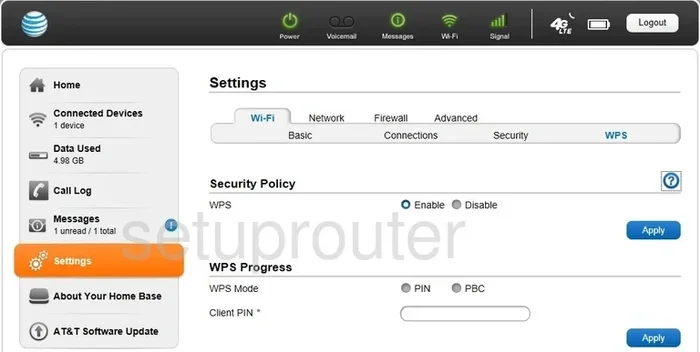
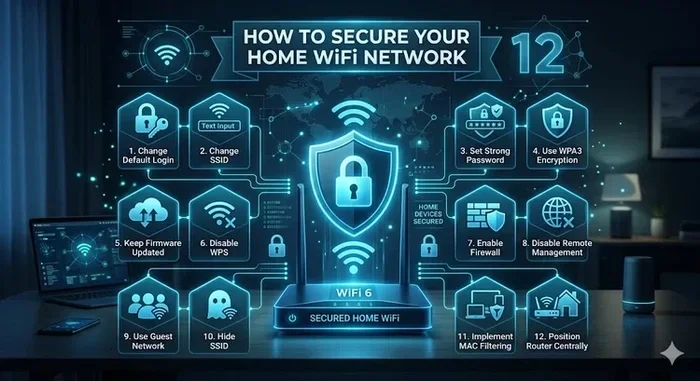
Keeping your wifi password secure is just one part of a broader network security strategy. Experts recommend changing your password every three to six months. You should also enable network encryption, disable WPS (Wi-Fi Protected Setup), and hide your network name from public view. These steps work together to create a strong defense against unauthorized access.
Another pro tip is to monitor your connected devices regularly. Most routers let you see a list of all devices currently using your wireless network. If you see something unfamiliar, it’s time to change your wifi password immediately. Staying proactive about your network security saves you from headaches down the road.
Conclusion
Changing your wifi password on Windows doesn’t have to be a complicated process. Whether you use router settings, Windows Settings, or the Command Prompt, you can update your wireless network key in just a few minutes. The key is to act quickly and choose a strong, unique password that keeps your network security intact.
Remember to update all your connected devices after changing the password, and always restart your router to apply the new settings. By following the steps in this guide, you’ll keep your wifi connection fast, secure, and free from unwanted users. Take a few minutes today to change your wifi password and enjoy peace of mind knowing your network is protected.
Frequently Asked Questions
Can I change my wifi password on Windows without accessing the router?
Yes, you can update your saved wifi password in Windows Settings by forgetting the network and reconnecting with a new password. However, to actually change the password that other devices use, you need to access your router admin page. The Windows method only updates your PC’s stored credentials.
How often should I change my wifi password?
Security experts recommend changing your wifi password every three to six months. You should also change it immediately if you suspect someone unauthorized is using your network or if you’ve shared the password with people who no longer need access.
What’s the difference between a wifi password and a network security key?
They are the same thing. The network security key is just the technical term for your wifi password. Windows sometimes uses one term while your router uses the other, but they both refer to the password that protects your wireless connection.
Will changing my wifi password disconnect all my devices?
Yes, changing your wifi password will disconnect all devices currently connected to the network. You’ll need to update the password on each device, including phones, tablets, smart TVs, and smart home gadgets, to restore connectivity.
Can I use the Command Prompt to directly change my wifi password?
The Command Prompt can help you remove saved network profiles, but you cannot directly change your wifi password through it. You’ll need to either access your router settings or use Windows Settings to forget and reconnect with the new password after updating it on the router.
What should I do if I forget my new wifi password after changing it?
If you forget your new wifi password, you can log back into your router admin page to retrieve or reset it. You can also check your Windows saved networks through the Network and Sharing Center. To avoid this in the future, write down your new password in a secure place or use a password manager.