How Do I Change My Asus Wi Fi Network Name and Password
Changing your Asus Wi Fi network name and password is easier than you think. With just a few steps, you can personalize your wireless network and keep it secure from unauthorized users. This guide walks you through logging into your router, updating your network settings, and choosing a strong password that protects your home connection.
So you want to change your Asus Wi Fi network name and password. Maybe you just moved into a new place, or maybe the default name your router came with is a bit too generic. Either way, you are in the right place. This guide will show you exactly how to do it, step by step, without any confusing tech talk.
Your Asus Wi Fi router comes with a default network name and password out of the box. These defaults are easy to guess, which is a security risk. Changing both the network name (also called the SSID) and the password takes just a few minutes. You do not need to be a tech expert. All you need is a computer or phone connected to your router and about ten minutes of your time.
Think of it like changing the locks on your front door. It is a small effort that makes a big difference. Whether you want to personalize your wireless connection or boost your network security, updating your Asus Wi Fi settings is the first smart step. Let us walk through the whole process together.
Key Takeaways
- Easy Access: You can change your Asus Wi Fi name and password through the router admin panel using a web browser.
- Default Login Details: Most Asus routers use 192.168.1.1 or router.asus.com as the default gateway for settings.
- Strong Passwords Matter: A unique password with WPA2 encryption keeps your wireless network safe from intruders.
- Custom SSID: A personalized network name makes it easy to identify your connection among others nearby.
- Save Before You Reset: Always note down your current settings before making changes, just like you would before changing your router with Spectrum.
📑 Table of Contents
- Why You Should Change Your Asus Wi Fi Name and Password
- What You Need Before You Start
- Step-by-Step Guide to Change Your Asus Wi Fi Name
- Step-by-Step Guide to Change Your Asus Wi Fi Password
- Common Problems and How to Fix Them
- How Often Should You Change Your Asus Wi Fi Password?
- Tips for a Smooth Transition
- Key Takeaways
Why You Should Change Your Asus Wi Fi Name and Password
Most people never touch their router settings after the initial setup. That is a mistake. Leaving the default network name and password on your Asus Wi Fi router leaves your connection vulnerable. Here is why making this change matters so much.
Personalize Your Wireless Network
When you look at the list of available networks on your phone or laptop, you want to easily spot yours. A default name like “ASUS_XXXX” does not help. By changing your Asus Wi Fi network name, you can pick something recognizable and fun. Maybe your family name, your street name, or a clever nickname. Whatever you choose, it makes connecting devices faster and more intuitive.
Boost Your Network Security
Default passwords are public knowledge. Anyone can look up the default login credentials for most Asus router models online. Once you change your password, you take control of who can access your Asus Wi Fi network. This protects your personal data, your browsing habits, and every device connected to your home internet.
Prevent Unauthorized Users
Your neighbors might be using your Wi-Fi without you knowing. A weak or default password invites strangers to piggyback on your connection. This slows down your internet speed and creates privacy risks. Changing your Asus Wi Fi password regularly keeps unwanted users out and your bandwidth all yours.
What You Need Before You Start
Before you dive into changing your Asus Wi Fi settings, gather a few things. This preparation step saves you time and prevents frustration later on.
- A computer or smartphone connected to your Asus router, either through Wi-Fi or an Ethernet cable.
- A web browser like Chrome, Firefox, Safari, or Edge.
- Your router model number, which you can find on the label on the back or bottom of the device.
- A notepad or phone to jot down your new network name and password.
- Your current admin password, if you have changed it before. If not, you will use the default one.
Pro tip: If you are setting up a new device and need to connect to Wi-Fi without a wired connection, check out how to connect your PC to Wi-Fi without Ethernet for helpful background info.
Step-by-Step Guide to Change Your Asus Wi Fi Name
Now for the fun part. Let us walk through changing your Asus Wi Fi network name, also known as the SSID. This process works for most Asus router models, including the RT-AX series, RT-AC series, and ZenWiFi systems.
Step 1: Connect to Your Asus Router
First, make sure your device is connected to the Asus Wi Fi network. You can connect via Wi-Fi using the current network name and password. Alternatively, plug your computer directly into the router using an Ethernet cable for a more stable connection during setup.
Step 2: Open Your Web Browser
Open any web browser on your connected device. You can use Chrome, Firefox, Safari, or Edge. It does not matter which one you pick. The important thing is that you are connected to the router before you start.
Step 3: Access the Router Admin Panel
Type one of these addresses into your browser’s address bar and press Enter:
- 192.168.1.1 (most common for Asus routers)
- router.asus.com (works for most newer models)
You will see a login screen. Enter the admin username and password. For most Asus routers, the default username is “admin” and the default password is also “admin.” If you have changed these before but forgot, you can reset the router to factory defaults.
Step 4: Navigate to Wireless Settings
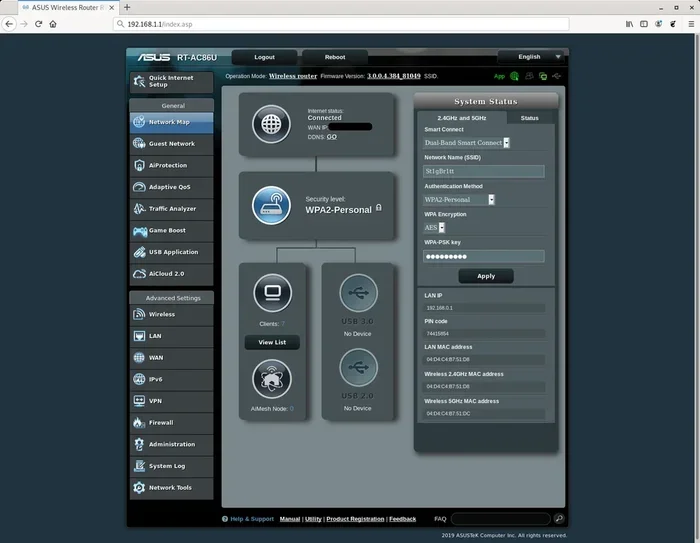
Once logged in, look for the “Wireless” tab or section in the admin panel. On newer Asus firmware, this might be under “General” or “Network.” Click on “Wireless Settings” or “General Setup.” You will see the current SSID field, which is your network name.
Step 5: Enter Your New Network Name
Delete the old network name and type in your new one. Keep it under 32 characters. Avoid using personal information like your full name or address. Pick something unique that you and your family will recognize easily. Click “Apply” or “Save” to confirm the change.
Step-by-Step Guide to Change Your Asus Wi Fi Password
Changing your Asus Wi Fi password is just as important as changing the name. A strong password keeps your network safe. Here is how to do it.
Step 1: Stay in the Wireless Settings Section
You should still be in the wireless settings area of your router admin panel. If you navigated away, go back to the wireless settings page. You need to be in this section to change the password.
Step 2: Find the Password Field
Look for a field labeled “WPA Pre-Shared Key,” “Password,” or “Network Key.” This is where your current Wi-Fi password is stored. On some Asus models, you might see separate fields for WPA and WPA2. Always fill in both if prompted.
Step 3: Create a Strong Password
Your new password should be at least 12 characters long. Mix uppercase letters, lowercase letters, numbers, and special characters. Avoid common words like “password123” or your birthday. Here are some quick tips:
- Use a passphrase instead of a single word, like “BlueCoffee@Mountain42!”
- Do not reuse passwords from other accounts.
- Write it down and keep it in a safe place.
Step 4: Choose the Right Security Type
Make sure your Asus Wi Fi router is set to WPA2-Personal or WPA3-Personal. These are the most secure encryption types available for home networks. Avoid using WEP or WPA, as they are outdated and easy to crack.
Step 5: Save and Reconnect
Click “Apply” or “Save” to confirm your new password. All your connected devices will disconnect and need to reconnect using the new credentials. Go to each device, find your Asus Wi Fi network, and enter the new password to get back online.
Common Problems and How to Fix Them
Sometimes things do not go smoothly when you change your Asus Wi Fi settings. Here are the most common issues and how to solve them.
You Cannot Log Into the Admin Panel
If 192.168.1.1 or router.asus.com does not work, try these fixes. Make sure your device is connected to the router. Check that you are typing the address correctly. Try a different browser. If nothing works, reset the router by pressing and holding the reset button on the back for about 10 seconds. This restores the default settings, including the default login credentials.
Your Devices Will Not Connect After the Change
This is normal. After changing your Asus Wi Fi name or password, every device needs to be reconnected. Go to your device’s Wi-Fi settings, find the new network name, and enter the new password. If a device refuses to connect, forget the old network first and then add the new one.
The New Settings Do Not Save
Make sure you clicked “Apply” or “Save” after making changes. Some Asus routers require you to wait 30 seconds for changes to take effect. If the settings still do not stick, try logging out and back in. You can also update your router firmware to the latest version for the best performance.
For more tips on managing your home network, you might also want to learn about getting Wi-Fi without a password or setting up your own personal Wi-Fi router.
How Often Should You Change Your Asus Wi Fi Password?
There is no hard rule, but changing your Asus Wi Fi password every three to six months is a good practice. You should also change it immediately if:
- You suspect someone unauthorized is using your network.
- You have shared your password with a guest and no longer want them to have access.
- You moved to a new home and the previous owner might know the password.
- A connected device has been compromised by malware or a security breach.
Regular password changes are like brushing your teeth. They take a small amount of effort but save you from much bigger problems down the road. Think of it as routine maintenance for your home network.
Tips for a Smooth Transition
Changing your Asus Wi Fi settings can go smoothly with a little planning. Here are some practical tips to make the process easy.
- Change the name first, then the password. This way, you can still connect to the old network while you prepare the new password.
- Update all connected devices at once. Make a list of every device that uses your Wi-Fi, including smart TVs, tablets, phones, and smart home gadgets.
- Use a password manager. Tools like Google Password Manager or Apple Keychain can store your new Asus Wi Fi password safely.
- Restart your router after changes. A quick reboot helps apply all settings properly and clears any cached connection data.
- Check your signal strength after reconnecting. Make sure all devices get a good connection in every room of your home.
Remember, setting up your wireless network properly from the start pays off. Whether you are connecting a new device or managing your home setup, taking a few extra minutes to configure things right saves headaches later. If you ever need to add Wi-Fi capabilities to a device that does not have built-in support, check out how to add Wi-Fi to your PC for additional guidance.
Key Takeaways
- Easy Access: You can change your Asus Wi Fi name and password through the router admin panel using a web browser.
- Default Login Details: Most Asus routers use 192.168.1.1 or router.asus.com as the default gateway for settings.
- Strong Passwords Matter: A unique password with WPA2 encryption keeps your wireless network safe from intruders.
- Custom SSID: A personalized network name makes it easy to identify your connection among others nearby.
- Save Before You Reset: Always note down your current settings before making changes, just like you would before changing your router with Spectrum.
- Regular Updates: Changing your password every three to six months keeps your home network secure and private.
- WPA2 or WPA3 Encryption: Always use the latest security protocol for the best protection on your Asus Wi Fi network.
Frequently Asked Questions
Can I change my Asus Wi Fi name without logging into the router?
No, you need to access the router admin panel to change the network name. The admin panel is accessed through a web browser using 192.168.1.1 or router.asus.com. This is the only way to modify the SSID and password settings on your Asus router.
What is the default password for Asus Wi Fi routers?
Most Asus routers use “admin” as both the username and password for the admin panel. The default Wi-Fi password is printed on a sticker on the back or bottom of the router. Once you log in, you can change both the admin password and the wireless password to something more secure.
Will changing my Asus Wi Fi name disconnect all my devices?
Yes, changing the network name will disconnect all devices temporarily. Each device will need to be reconnected using the new network name and password. This is normal and expected. Have your new credentials ready before making the change to minimize downtime.
Can I use special characters in my Asus Wi Fi password?
Yes, you can use special characters like !, @, #, $, and & in your Wi-Fi password. In fact, including special characters makes your password stronger and harder to guess. Just make sure your password is at least 12 characters long and easy for you to remember.
How do I find my Asus router model number?
Look at the label on the back or bottom of your router. The model number is clearly printed there. You can also check the admin panel after logging in. The model number is usually displayed on the main dashboard or system info page.
Is it safe to use the same Wi-Fi password for years?
It is not recommended. Using the same password for years increases the risk of unauthorized access. If a neighbor or former guest still has your password, they can use your network without your knowledge. Changing your Asus Wi Fi password regularly keeps your network safe and your internet speed consistent.
=== CONCLUSION ===
Changing your Asus Wi Fi network name and password is one of the simplest and most effective things you can do for your home network security. It takes just a few minutes, and the peace of mind you get is well worth the effort. You now know how to log into your router, update your wireless settings, create a strong password, and troubleshoot common issues.
Make this a regular habit. Set a reminder every few months to review and refresh your Asus Wi Fi credentials. Your network, your devices, and your personal data will all be safer for it. Start today, and enjoy a faster, more secure, and more personalized wireless experience at home.