How Do I Access Local Wi Fi Networks From Anywhere
Accessing local Wi-Fi from anywhere is simpler than most people think. Whether you are traveling, working remotely, or just need internet outside your home, knowing how to find and connect to wireless networks gives you real freedom. This guide covers everything from basic connection steps to advanced tips for boosting range and staying secure.
Accessing local Wi-Fi networks from anywhere is a skill that everyone should have in their digital toolkit. Whether you are at a coffee shop, staying in a hotel, working in a park, or visiting a friend, knowing how to connect to wireless networks gives you freedom and flexibility. The good news is that it is much easier than most people think.
In this guide, we will walk you through everything you need to know about accessing local Wi-Fi from virtually anywhere. You will learn how networks work, how to find them, how to connect safely, and how to troubleshoot when things do not go as planned. We also share expert tips and practical advice that make the whole process smooth and stress-free.
Modern wireless networks are everywhere. From city centers to suburban neighborhoods, the ability to stay connected has never been more accessible. But knowing the right steps to take can make the difference between a frustrating experience and a quick, seamless connection. Let us break it all down for you.
Key Takeaways
- Know Your Settings: Understanding your device’s network settings makes finding and connecting to Wi-Fi much faster and easier.
- Use Multiple Methods: You can access local Wi-Fi through public hotspots, mobile hotspots, extenders, and portable routers depending on your needs.
- Security Matters: Always use a VPN and avoid sensitive transactions on open networks to protect your data.
- Extend Your Range: Wi-Fi extenders and Ethernet cables help you reach networks that are just out of range.
- Troubleshoot Smart: Restarting devices, checking settings, and updating drivers solve most Wi-Fi access problems quickly.
- Plan Ahead: Research available networks before you travel or work in a new location to save time and data.
📑 Table of Contents
Understanding How Local Wi-Fi Networks Work
Before you can connect to any network, it helps to understand what you are connecting to. A local Wi-Fi network is a wireless network that operates within a limited area. It is created by a Wi-Fi router that sends out a signal your devices can pick up. Think of it like a radio tower broadcasting a signal that your phone or laptop can tune into.
What Is a Wi-Fi Network?
A wireless network uses radio waves to transmit data between a router and your device. The router connects to the internet through a modem, and then it broadcasts that connection wirelessly. Your device picks up this signal and uses it to browse the web, stream videos, or send emails.
Every network has a name called an SSID. This is what you see when you scan for available networks on your phone or laptop. Some networks are open, meaning anyone can join them. Others are secured with a Wi-Fi password that you need to enter before connecting.
How Wi-Fi Signals Travel
Wi-Fi signals travel through the air using radio frequencies. The most common frequencies are 2.4 GHz and 5 GHz. The 2.4 GHz band covers a wider area but is slower. The 5 GHz band is faster but has a shorter range. Understanding this helps you know what to expect when you are trying to connect from a distance.
Walls, furniture, and even weather can weaken your Wi-Fi signal. This is why you might find a network easy to connect to in one room but struggle in another. The further you are from the router, the weaker the signal becomes.
How to Access Local Wi-Fi Networks From Anywhere
Now that you understand the basics, let us get into the practical steps. Accessing local Wi-Fi from anywhere involves a few simple actions that work on almost any device. Here is exactly how to do it.
Step 1: Turn on Your Wi-Fi
The first step is always the same. Make sure your device’s wireless feature is turned on. On most phones, you can swipe down from the top of the screen and tap the Wi-Fi icon. On a laptop, you can go to your network settings and toggle Wi-Fi on.
Once Wi-Fi is enabled, your device starts scanning for available networks in your area. This usually takes just a few seconds. You will see a list of networks appear on your screen.
Step 2: Find Available Networks
After turning on Wi-Fi, your device will display a list of available networks. Look for the network you want to join. If you are at home, it will likely be your personal network name. If you are in a public place, you might see several options.
Some networks show a lock icon, which means they are password-protected. Others are open and do not require a password. If you need to connect to Wi-Fi without a password, simply tap or click on the open network and follow any on-screen prompts.
Step 3: Enter the Password (If Needed)
For secured networks, you will need to enter the Wi-Fi password. This is usually provided by the network owner. In a coffee shop or hotel, you might find the password on a receipt, a sign, or by asking the staff.
Make sure you type the password carefully. Wi-Fi passwords are case-sensitive, so capital letters matter. If you make a mistake, you will get an error message and will need to try again.
Step 4: Connect and Verify
After entering the password, tap or click connect. Your device will take a few seconds to establish the connection. Once connected, you should see a Wi-Fi icon in your status bar or menu bar. Try opening a web page to confirm that your internet access is working.
If the page loads, you are all set. If not, try toggling Wi-Fi off and on again, or move closer to the router. Sometimes simply restarting your device also solves the problem.
Tips for Connecting to Wi-Fi Networks on the Go
Connecting to Wi-Fi when you are away from home requires a slightly different approach. Here are some practical tips that make the process smoother and more reliable.
Use a Mobile Hotspot as a Backup
If you cannot find a local Wi-Fi network you can trust, consider using your phone as a mobile hotspot. This turns your cellular data into a Wi-Fi signal that your other devices can connect to. It is not the same as accessing local Wi-Fi, but it gives you internet access wherever you have cell service.
Most modern smartphones have a built-in hotspot feature. You can find it in your settings under “Hotspot” or “Tethering.” Just set a password to keep your connection secure.
Look for Wi-Fi Alliance Certified Networks
When you are in a new place, look for networks that display the Wi-Fi Alliance certification. These networks meet certain standards for speed and security. They are generally more reliable than uncertified or unknown networks.
Save Your Favorite Networks
Most devices let you save networks you connect to frequently. This way, your phone or laptop will automatically connect when you are within range. It saves time and eliminates the need to enter the password every time.
Download Offline Content Before You Go
If you know you will be in an area with limited wireless access, download maps, documents, or entertainment ahead of time. This way, you can still get work done or stay entertained even without a strong Wi-Fi signal.
Extending Your Wi-Fi Range for Better Access
Sometimes the network you want to reach is just out of range. In these cases, you need a way to extend your Wi-Fi coverage. Here are the best methods for getting better access to distant networks.
Use a Wi-Fi Extender
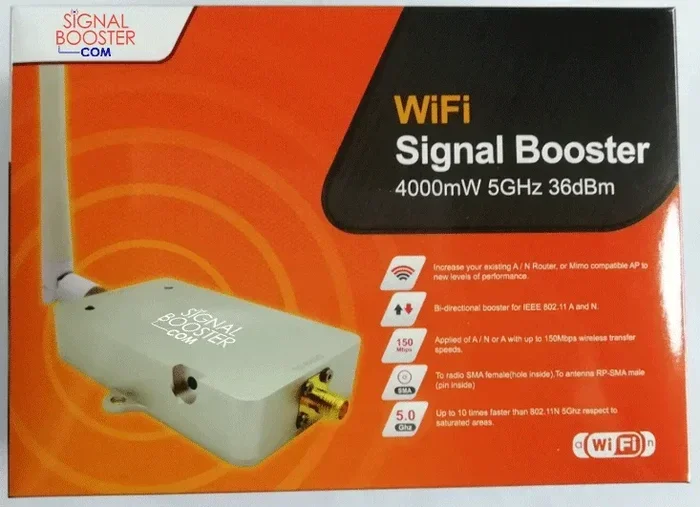
A Wi-Fi extender boosts your existing signal and pushes it further. You place the extender halfway between your router and the area where you need better coverage. It picks up the existing signal and rebroadcasts it at a stronger strength.
Extenders are affordable and easy to set up. They work well for homes and small offices. If you are having trouble reaching a network in a far room or on a different floor, an extender can make a big difference.
Use an Ethernet Cable to Extend Your Connection
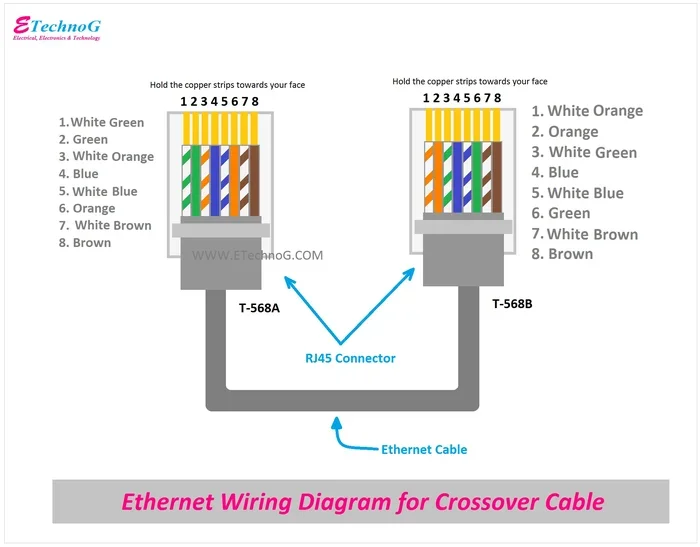
If you need a more stable connection, consider using an Ethernet cable to extend your reach. You can run a cable from your router to a distant room and plug in a second router or access point there. This gives you a wired backbone that supports strong wireless access throughout the space.
For those who want a simple way to add Wi-Fi to a device that does not have a built-in wireless adapter, you can add Wi-Fi to your PC using a USB adapter or by connecting via Ethernet. This is especially useful for older laptops or desktop computers.
Use a Portable Travel Router
A portable travel router is a small device you can carry with you. It connects to a wired internet source (like a hotel Ethernet port) and creates your own private Wi-Fi network. This is a great option for frequent travelers who want reliable, secure internet on the go.
Comparison of Wi-Fi Extension Methods
| Method | Best For | Cost | Ease of Setup |
|---|---|---|---|
| Wi-Fi Extender | Home use, extending range | Low | Very Easy |
| Ethernet Cable | Stable, high-speed connections | Low to Medium | Moderate |
| Portable Travel Router | Travel, hotel rooms | Medium | Easy |
| USB Wi-Fi Adapter | Devices without built-in Wi-Fi | Low | Very Easy |
Each method has its strengths. Choose the one that fits your situation best. For most home users, a Wi-Fi extender is the simplest and most cost-effective solution.
Keeping Your Wi-Fi Connection Secure
When you are connecting to networks outside your home, security becomes very important. Open networks and public hotspots can expose your data to risks. Here is how to stay safe while enjoying wireless access on the go.
Always Use a VPN
A Virtual Private Network (VPN) encrypts your internet traffic. This means that even if someone is monitoring the network, they cannot see what you are doing. A VPN is one of the best tools for protecting your privacy when you connect to unfamiliar networks.
Many VPN services are affordable and easy to use. You simply install the app, choose a server, and turn it on. Your connection stays private and secure no matter where you are.
Avoid Sensitive Transactions on Public Networks
Try to avoid banking or shopping on open public Wi-Fi networks. If you must do so, make sure your VPN is active and that the website uses HTTPS encryption. Look for the padlock icon in your browser’s address bar.
Turn Off Auto-Connect
Many devices automatically connect to open networks they have joined before. This can be a security risk because your device might connect to a fake network set up by a hacker. Turn off auto-connect and manually choose which networks to join.
Keep Your Device Updated
Software updates often include security patches that protect against known vulnerabilities. Keep your phone, laptop, and tablet updated to ensure you have the latest protections in place.
Troubleshooting Common Wi-Fi Access Problems
Even with the best setup, you will sometimes run into problems connecting to a local network. Here are the most common issues and how to fix them quickly.
Network Not Showing Up
If a network does not appear in your list, try moving closer to the router. Walls and obstacles can block the signal. You can also try refreshing the list by toggling Wi-Fi off and on again.
Make sure your Wi-Fi adapter is working properly. On a laptop, you can check this in your device manager. If the adapter is disabled or has a problem, you may need to update or reinstall its drivers.
Connected But No Internet
Sometimes your device shows a connection but you cannot access the internet. This usually means the network is not properly connected to the internet, or there is an IP address conflict.
Try forgetting the network and reconnecting. On most devices, you can do this by going to your network settings, selecting the network, and choosing “Forget.” Then scan for the network again and enter the password.
Slow Speeds
Slow internet speed on a Wi-Fi connection can be frustrating. This is often caused by distance from the router, interference from other devices, or too many users on the same network.
Moving closer to the router can help. Switching to the 5 GHz band (if available) also improves speed. If you are in a crowded area with many networks, changing your channel can reduce interference.
Password Not Working
If your password keeps failing, double-check for typos. Make sure caps lock is off. If you recently changed the password on the router, make sure you are using the updated one. You can also try resetting the router to factory settings if needed.
Quick Tips for Better Wi-Fi Access
- Restart your device and router when you experience connection issues.
- Keep your device’s network drivers up to date.
- Use a Wi-Fi analyzer app to find the least crowded channel in your area.
- Place your router in a central, elevated location for the best coverage.
- Avoid placing your router near microwaves, cordless phones, or other electronics that cause interference.
Common Mistakes to Avoid
- Connecting to any open network without checking if it is legitimate.
- Ignoring software updates that include security patches.
- Leaving your device set to auto-connect to unknown networks.
- Not using a VPN when connecting to public hotspots.
- Placing your router in a corner or behind furniture that blocks the signal.
Expert Insight
According to networking professionals, the biggest mistake people make is not understanding their own network settings. Taking five minutes to learn how your device finds and connects to networks can save you hours of frustration. Also, investing in a good Wi-Fi extender or travel router pays for itself many times over in convenience and reliability.
Conclusion
Accessing local Wi-Fi networks from anywhere is a skill that everyone can learn. With the right knowledge and a few simple tools, you can stay connected wherever you go. Whether you are using a public hotspot, extending your home network, or connecting on the road, the steps are straightforward and easy to follow.
Remember to always prioritize security. Use a VPN, avoid sensitive transactions on open networks, and keep your devices updated. These habits protect your data and give you peace of mind while you enjoy the convenience of wireless connectivity.
The world is full of wireless networks waiting to be used. Now that you know how to find them, connect to them, and troubleshoot when needed, you are ready to access the internet from almost anywhere. Put these tips into practice and enjoy seamless Wi-Fi connection wherever your day takes you.
Frequently Asked Questions
How do I find hidden Wi-Fi networks?
To find a hidden network, go to your Wi-Fi settings and select the option to add a network manually. You will need to enter the network name (SSID) and password. Hidden networks do not broadcast their name, so you must know the exact details to connect.
Can I access my home Wi-Fi while traveling?
Yes, you can access your home local Wi-Fi while traveling by using a VPN or a remote desktop tool. Some routers also allow remote access through a web interface. You will need to set up port forwarding on your router for the best results.
Is it safe to use free public Wi-Fi?
Free public Wi-Fi can be convenient, but it also carries risks. Always use a VPN when connecting to public networks. Avoid accessing banking or personal accounts unless you are sure the connection is secure and encrypted.
What is the difference between a Wi-Fi hotspot and a local network?
A Wi-Fi hotspot is a public access point that provides internet to anyone nearby. A local network is typically private and restricted to specific users. Your home network is a local network, while the Wi-Fi at a coffee shop is a hotspot.
How can I improve my Wi-Fi signal strength?
You can improve your signal by moving closer to the router, reducing interference from other electronics, using a Wi-Fi extender, or switching to the 5 GHz frequency band. Keeping your router’s firmware updated also helps maintain optimal performance.
Do I need special equipment to access Wi-Fi anywhere?
No special equipment is needed for basic access. Most modern devices have built-in Wi-Fi adapters. If you need better range or reliability, a portable travel router or a USB Wi-Fi adapter can be very helpful. You can also extend Wi-fi with an Ethernet cable for a more stable connection in areas with weak signals.
=== META DESCRIPTION ===
Learn how to access local Wi-Fi networks from anywhere with our complete guide. Get practical tips, troubleshooting advice, and expert insights for seamless wireless connectivity wherever you go.