How Can I Use My Phone As A Wi Fi Booster Effectively
Using your phone as a Wi-Fi booster is a smart and affordable way to improve weak signals and extend your network range. Whether you are dealing with dead zones at home or need better connectivity on the road, your smartphone can act as a powerful signal relay, hotspot, or range extender. This guide walks you through every method, from built-in features to third-party apps, so you can get stronger Wi-Fi coverage fast.
Have you ever walked into a room and your Wi-Fi signal just drops to nothing? It is one of the most frustrating things in modern life. You are trying to stream a show, join a video call, or just browse the web, and your connection stalls. The good news is that you do not always need to buy a new router or pay for expensive equipment.
Your phone can actually serve as a Wi-Fi booster in several clever ways. Whether you want to extend your wireless coverage to a far room or share your mobile data with other devices, your smartphone has more power than you might think. This guide covers every practical method, so you can improve your connection starting today.
We will walk through simple steps, share expert tips, and highlight common mistakes to avoid. By the end, you will know exactly how to use your phone to strengthen your wireless network and kill those annoying dead zones.
Key Takeaways
- Repurposing Your Phone: Your phone can work as a Wi-Fi range extender, signal relay, or portable hotspot to boost coverage in weak areas.
- Multiple Methods Available: You can use built-in hotspot features, Bluetooth tethering, USB sharing, or dedicated apps to extend your network.
- No Extra Gear Needed: Using your phone eliminates the need to buy expensive range extenders or repeaters in many cases.
- Apps Make It Easy: Wi-Fi booster apps can analyze signal strength, optimize channels, and improve your connection with minimal effort.
- Know the Limits: Phones have bandwidth and battery limitations, so understanding trade-offs helps you set realistic expectations.
📑 Table of Contents
- Understanding How Wi-Fi Signals Work
- Method 1: Use Your Phone As a Mobile Hotspot
- Method 2: Use Wi-Fi Repeater Apps on Your Phone
- Method 3: Share Mobile Data With Another Device
- Method 4: Use Your Phone As a Bluetooth Signal Relay
- Method 5: Optimize Your Phone Settings for Better Signal
- When Should You Use a Dedicated Wi-Fi Booster Instead?
- Tips to Maximize Your Phone’s Booster Performance
- Frequently Asked Questions
- Conclusion
Understanding How Wi-Fi Signals Work
Before we dive into the methods, it helps to understand a bit about how your wireless signal travels. Your router sends out radio waves that carry internet data to your devices. These waves spread outward from the router in all directions, like ripples in a pond.
Several factors can weaken those ripples:
- Distance: The farther you are from the router, the weaker the signal becomes.
- Walls and obstacles: Thick walls, metal objects, and even water can block or absorb the signal.
- Interference: Other electronic devices, microwaves, and neighboring networks can cause interference.
- Router quality: Older or cheaper routers often have weaker range and slower speeds.
When your signal struggles to reach certain areas, those spots become dead zones. A Wi-Fi booster works by capturing a weak signal and amplifying it or rebroadcasting it to extend your network coverage. Your phone can do this in several ways, which we will explore below.
Method 1: Use Your Phone As a Mobile Hotspot
The most common way to use your phone as a network booster is by turning it into a mobile hotspot. This method shares your cellular data connection with other devices, giving them internet access even when your home Wi-Fi signal is too weak.
How to Set Up a Hotspot on Android
- Open your Settings app.
- Go to Network and Internet or Connections.
- Tap on Hotspot and Tethering.
- Turn on Wi-Fi Hotspot.
- Set a name and password for your hotspot.
- Connect your other devices to the new network.
How to Set Up a Hotspot on iPhone
- Open Settings.
- Tap on Personal Hotspot.
- Toggle Allow Others to Join on.
- Set a password if needed.
- Connect other devices using the Wi-Fi, Bluetooth, or USB option.
This method works great when your home router cannot reach a certain area. For example, if your garage or backyard has no signal, your phone can provide a reliable backup connection. You can also use this when you are traveling and need a stable connection for multiple devices.
Quick Tip: If you want a more permanent solution, check out how to add Wi-Fi to your PC using your phone’s hotspot. This is a great workaround for desktops or laptops that lack built-in wireless capability.
Pros and Cons of Using a Hotspot
| Pros | Cons |
|---|---|
| Easy to set up | Uses cellular data quickly |
| Works anywhere with cell service | Can drain your battery fast |
| No extra equipment needed | Speeds depend on your cell signal |
| Great for temporary needs | Not ideal for long-term daily use |
Method 2: Use Wi-Fi Repeater Apps on Your Phone
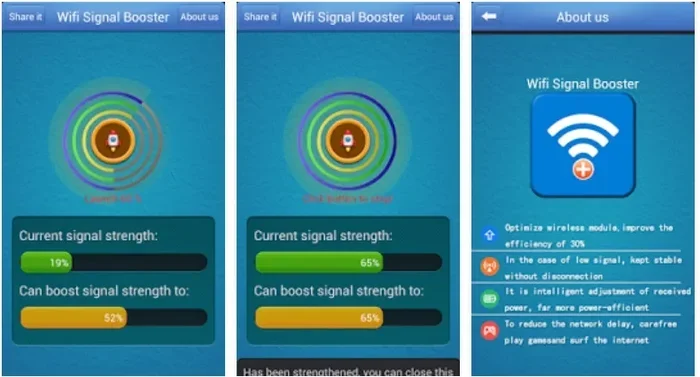
Did you know there are apps designed to turn your phone into a Wi-Fi range extender? These apps analyze your current signal, find the best channel, and rebroadcast the network to extend your wireless coverage. They work by connecting to your existing Wi-Fi and creating a new extended network.
Top Wi-Fi Booster Apps
- Wi-Fi Analyzer: Shows signal strength and helps you pick the least crowded channel.
- Wi-Fi Extender: Rebroadcasts your network to cover more area.
- NetSpot: Creates a visual map of your Wi-Fi coverage so you can see weak spots.
- WiFi Master Key: Helps optimize your connection and find open networks nearby.
These apps work best when your phone is placed in an area with a moderate signal. The app then boosts and extends that signal to areas where the original Wi-Fi signal is too weak.
Expert Insight: According to networking experts, using a Wi-Fi analyzer app helps you understand why your signal is weak. Once you know the problem, you can fix it more effectively, whether by repositioning your router or using your phone as a repeater.
How to Use a Repeater App Step by Step
- Download a Wi-Fi booster app from your app store.
- Place your phone in an area with a decent signal.
- Connect the app to your existing Wi-Fi network.
- Enable the repeater or extender mode in the app.
- Connect your other devices to the extended network.
- Monitor the signal strength and adjust your phone’s position if needed.
Keep in mind that repeater apps can reduce your internet speed slightly because the signal is being received and then retransmitted. However, for most everyday tasks like browsing, streaming, and video calls, the difference is barely noticeable.
Method 3: Share Mobile Data With Another Device
Sometimes the best way to boost connectivity is simply to share your mobile data directly. This is especially useful when your home Wi-Fi network is struggling but your cell signal is strong.
You can share data through Bluetooth, USB, or Wi-Fi hotspot. Bluetooth sharing uses less battery but is slower. USB sharing gives the fastest speeds but requires a cable. Wi-Fi hotspot is the most convenient option for most people.
Quick Tip: If you want to share your mobile data with a friend’s phone, check out how to share your mobile data with another phone. It is a simple process and works in just a few taps.
Sharing mobile data is also a great solution when you are at a location with poor Wi-Fi coverage but good cell reception. You can set up your phone as a personal network booster for your laptop, tablet, or any other device that needs internet.
Method 4: Use Your Phone As a Bluetooth Signal Relay
While Bluetooth is not the same as Wi-Fi, it can still help extend connectivity in certain situations. Bluetooth uses a different frequency and has a shorter range, but it works well for specific tasks like audio streaming and file transfers.
Some people use their phone as a Bluetooth relay to connect devices that are too far from the main source. For example, if your speaker is too far from your laptop, you can use your phone as a bridge between the two devices.
This method is not a full Wi-Fi signal extender, but it does help improve connectivity in specific scenarios. It uses very little battery and works well for short-range tasks.
Method 5: Optimize Your Phone Settings for Better Signal
Your phone has built-in settings that can help improve your wireless connection without any extra apps. These tweaks can make a real difference in how well your phone boosts and maintains a strong signal.
Switch to the 5GHz Band
If your router supports dual-band Wi-Fi, switching to the 5GHz band can give you faster speeds and a more stable connection. The 5GHz band is less crowded than the 2.4GHz band, which means fewer interruptions from neighboring networks.
Disable Battery Saver Mode
Battery saver mode can limit your phone’s wireless performance. When you are using your phone as a Wi-Fi booster, turn off battery saver to ensure your phone can maintain a strong and consistent signal.
Keep Your Phone Updated
Software updates often include improvements to wireless connectivity and signal handling. Keeping your phone updated ensures you are getting the best performance possible from your device.
Reset Network Settings
If your connection is acting up, resetting your network settings can help. This clears saved networks, Bluetooth pairings, and cellular settings, giving you a fresh start. You can find this option in your phone’s Settings under Network and Reset.
Common Mistake: Many people forget to restart their phone after changing network settings. Always reboot your device after making changes to ensure they take full effect. A simple restart can solve many connectivity issues.
When Should You Use a Dedicated Wi-Fi Booster Instead?
While using your phone as a Wi-Fi booster works well in many situations, it is not always the best long-term solution. Here are some scenarios where a dedicated range extender or mesh system makes more sense:
- Large homes: If you have a big house with many rooms, a dedicated booster covers more area than a phone can.
- Multiple users: When many people need internet at the same time, a phone hotspot will slow down quickly.
- High-bandwidth activities: Gaming and 4K streaming need more bandwidth than a phone can reliably provide.
- Permanent setups: If you need better coverage all the time, a fixed extender is more convenient.
Using your phone works best as a temporary or supplemental solution. It is perfect for quick fixes, travel, and situations where you cannot install new equipment right away.
Quick Tip: If you are dealing with weak Wi-Fi at home, consider getting a mesh Wi-Fi system for a permanent fix. These systems use multiple nodes to blanket your entire home with strong, reliable coverage.
Tips to Maximize Your Phone’s Booster Performance
Want to get the most out of using your phone as a network booster? Follow these practical tips to improve your results:
- Place your phone strategically: Position it halfway between your router and the area with weak signal. This gives it the best source signal to rebroadcast.
- Keep your phone plugged in: Using your phone as a booster drains the battery quickly. A power bank or wall charger keeps it running longer.
- Close unnecessary apps: Background apps use bandwidth and processing power. Close them to free up resources for boosting your connection.
- Use a Wi-Fi analyzer: Finding the best channel reduces interference and improves speed for all connected devices.
- Update your apps regularly: App updates often include performance improvements and bug fixes for connectivity features.
- Monitor your data usage: If you are using mobile data, keep an eye on your plan limits to avoid extra charges.
Expert Insight: Networking professionals recommend testing your signal strength before and after setting up your phone as a booster. This helps you measure the improvement and adjust your setup for the best results. Even a small improvement in signal strength can make a big difference in your daily use.
Frequently Asked Questions
Can any phone be used as a Wi-Fi booster?
Most smartphones from the last five years can work as a Wi-Fi booster in some form. Both Android and iPhone devices support hotspot and tethering features. However, older phones may have slower speeds or limited range compared to newer models.
Does using your phone as a Wi-Fi booster slow down your internet?
It can cause a slight speed reduction because the signal is being received and then retransmitted. For most everyday tasks like browsing, emailing, and streaming, the difference is minimal. Heavy activities like gaming or 4K streaming may notice a small drop.
Is it safe to use Wi-Fi booster apps?
Most reputable apps from trusted developers are safe to use. Always download apps from official stores like Google Play or the Apple App Store. Check reviews and permissions before installing any app on your device.
How much battery does a phone use as a Wi-Fi booster?
Using your phone as a hotspot or repeater drains battery significantly faster than normal use. You can reduce battery drain by keeping your phone plugged in, using airplane mode with Wi-Fi on, and closing background apps.
Can I use my phone as a Wi-Fi booster without an internet plan?
If you are only rebroadcasting your existing home Wi-Fi, you do not need a separate data plan. However, if you are using your phone’s mobile data as a hotspot, you will need an active cellular plan with sufficient data.
What is the difference between a Wi-Fi booster and a mobile hotspot?
A Wi-Fi booster extends an existing wireless network, while a mobile hotspot creates a new network using cellular data. A booster works with your home router, whereas a hotspot works with your cell service provider. Both can improve your connectivity in different situations.
Conclusion
Using your phone as a Wi-Fi booster is one of the simplest and most affordable ways to improve your wireless connection. Whether you choose to use a mobile hotspot, a repeater app, Bluetooth relay, or just optimize your settings, your smartphone has the tools to help you get better coverage.
Start with the method that fits your needs best. Try a Wi-Fi analyzer app to understand your signal, set up a hotspot for quick coverage, or share mobile data when your home network falls short. With the right approach, you can eliminate dead zones and enjoy a stronger, more reliable connection everywhere.
The key is to experiment and find what works best for your space and situation. Your phone is a versatile tool that can do much more than make calls and send messages. It can be a powerful network booster that keeps you connected when you need it most. So go ahead, try these methods today, and say goodbye to weak signals for good.