How Can I Get Better Wifi On My Spectrum Connection
Getting better WiFi on your Spectrum connection is easier than you think. You can boost your signal, eliminate dead zones, and speed up your internet with a few simple changes. This guide walks you through router placement, settings tweaks, hardware upgrades, and more — all proven to improve your Spectrum WiFi performance at home.
Slow WiFi is one of the most frustrating things in modern life. You are trying to stream a movie, join a video call, or game online — and your connection just crawls. If you are a Spectrum internet subscriber, you are not alone. Many people struggle with weak signals and slow speeds. But the good news is that you can fix this. There are plenty of practical steps you can take right now to get better WiFi on your Spectrum connection.
In this guide, I will walk you through everything you need to know. We will cover simple fixes like router placement and channel selection. We will also look at hardware upgrades like mesh systems and WiFi extenders. By the end, you will have a clear action plan to speed up your home network. Let us get started.
Key Takeaways
- Router placement matters: Centralizing your router can dramatically improve your WiFi signal strength.
- Update your firmware: Keeping your Spectrum router software current fixes bugs and boosts speed.
- Use a WiFi extender or mesh system: These devices eliminate dead zones and extend coverage throughout your home.
- Switch to the 5GHz band: It offers faster speeds and less interference than the 2.4GHz band.
- Change your WiFi channel: Reducing congestion on crowded channels can significantly improve your connection.
- Consider a wired Ethernet connection: For critical devices, Ethernet delivers the most stable and fastest speeds.
- Upgrade your Spectrum plan or equipment: Sometimes the best fix is a faster internet plan or a newer modem.
📑 Table of Contents
Why Is My Spectrum WiFi So Slow?
Before we fix the problem, it helps to understand what causes it. Several factors can slow down your Spectrum WiFi. Sometimes it is something simple like interference from other devices. Other times, it is a hardware or plan limitation.
Common Causes of Slow WiFi
- Router placement: Walls, floors, and distance weaken your signal.
- Network congestion: Too many devices on the same network slows things down.
- Outdated firmware: Old router software can cause performance issues.
- WiFi interference: Microwaves, baby monitors, and neighboring networks can disrupt your signal.
- Old equipment: An outdated modem or router limits your speeds.
- Wrong WiFi band: Using the 2.4GHz band when you need 5GHz can bottleneck your connection.
Once you identify the cause, you can apply the right fix. Let us dive into the solutions.
Optimize Your Router Placement
Where you put your router has a huge impact on your WiFi performance. Many people hide their router in a closet or behind a TV. This is a big mistake. Your router needs a clear path to send signals to your devices.
Best Practices for Router Placement
- Place it in a central location: This gives even coverage to every room in your home.
- Keep it elevated: Put it on a shelf or mount it on a wall. Signals spread downward better than upward.
- Avoid walls and metal objects: Concrete, brick, and metal block WiFi signals.
- Keep it away from other electronics: TVs, microwaves, and cordless phones can cause interference.
- Do not hide it: Your router needs open air around it to stay cool and perform well.
Try moving your router to a more central spot and see if your speeds improve. This is the easiest and cheapest fix you can make. Sometimes just a few feet of movement makes a big difference.
Adjust Your Spectrum Router Settings
Your Spectrum router has settings you can tweak to improve performance. You do not need to be a tech expert to do this. A few simple changes can make a noticeable difference.
Switch to the 5GHz Band
Most modern Spectrum routers broadcast on two bands: 2.4GHz and 5GHz. The 2.4GHz band covers more distance but is slower and more crowded. The 5GHz band is faster and less congested but has a shorter range.
If you are close to your router, switch to the 5GHz band. You will get faster speeds for streaming, gaming, and video calls. Go to your router’s admin page to change this setting. Look for the wireless settings and select the 5GHz network.
Change Your WiFi Channel
Your neighbors also use WiFi. If everyone is on the same channel, there is congestion. Think of it like a highway — too many cars causes traffic. You can change your WiFi channel to find a less crowded one.
Use a free WiFi analyzer app on your phone to see which channels are busiest. Then log into your router settings and switch to a less crowded channel. Channels 1, 6, and 11 are usually the best options for the 2.4GHz band.
Update Your Router Firmware
Firmware is the software that runs your router. Spectrum releases updates to fix bugs and improve performance. An outdated router can slow down your connection without you even knowing it.
Check your router settings for a firmware update option. You can also call Spectrum support to ask if there is a recent update available. This is a quick fix that often solves mysterious speed issues.
Use WiFi Extenders and Mesh Systems
If your home is large or has multiple floors, your router alone may not cover every room. WiFi dead zones are a common problem. The good news is that you have several options to extend your coverage.
WiFi Extenders
A WiFi extender plugs into a wall outlet and rebroadcasts your existing signal. It is a simple and affordable solution. You place the extender halfway between your router and the dead zone. This fills in the gap and gives you better coverage.
WiFi extenders work well for smaller homes. They are easy to set up and do not require any wiring. However, they can sometimes reduce your speeds slightly because they use the same radio to receive and send signals.
Mesh WiFi Systems
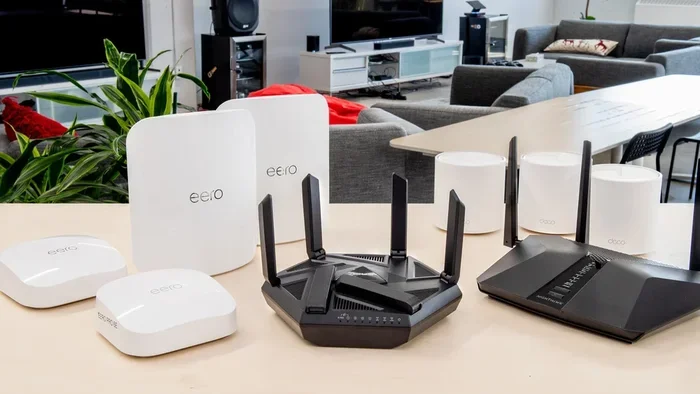
A mesh system is a more advanced solution. It uses multiple nodes placed around your home to create a seamless WiFi network. Unlike extenders, mesh systems use a dedicated backhaul channel, so your speeds stay fast.
Mesh systems are ideal for larger homes or homes with thick walls. They are easy to manage through a phone app. If you want the best coverage possible, a mesh system is the way to go. You can also add mesh WiFi to your existing router in many cases.
Ethernet Backhaul for Mesh Systems
If you have ethernet ports in your walls, use them for your mesh system. Wired backhaul is always faster and more stable than wireless backhaul. This setup gives you the best possible performance throughout your home.
Upgrade Your Spectrum Equipment
Sometimes the problem is your equipment. Spectrum provides a modem and router as part of your service. But that equipment may be outdated or not suited for your needs. Upgrading can make a big difference.
Can You Use Your Own Router With Spectrum?
Yes, you can buy your own router and use it with Spectrum. This gives you more control over your settings and often better performance. Look for a router that supports WiFi 6 or WiFi 6E for the fastest speeds.
Before you buy, check Spectrum’s list of compatible routers. You can also buy your own WiFi box and connect it to your Spectrum modem. Just make sure your new router is compatible with Spectrum’s network.
When to Upgrade Your Modem
Your modem connects your home to the internet. If it is old, it may not support the speeds you are paying for. For example, if you have a 400 Mbps plan but your modem only supports 100 Mbps, you will never get the full speed.
Check your modem’s specs against your Spectrum plan speed. If your modem is several years old, it is probably time for an upgrade. You can rent a newer modem from Spectrum or buy a compatible one yourself.
Reduce Network Congestion
Every device connected to your network uses bandwidth. If you have too many devices streaming, gaming, or downloading at the same time, your WiFi slows down. Managing your network can help you get better performance.
Tips to Reduce Congestion
- Limit the number of connected devices: Disconnect devices you are not using.
- Use QoS settings: Quality of Service lets you prioritize certain devices or activities.
- Schedule heavy downloads: Run large downloads during off-peak hours.
- Use Ethernet for stationary devices: PCs, smart TVs, and gaming consoles perform best on wired connections.
- Check for unauthorized users: Make sure your WiFi password is strong and unique.
You can also block unauthorized devices from using your network. This is especially important if you live in an apartment building with many nearby networks competing for space.
Run a Speed Test
Before and after making changes, run a speed test. This tells you whether your adjustments are working. Use a tool like Speedtest.net or the Spectrum app. Test from different rooms in your home to see where your signal is strongest and weakest.
Write down your results. This helps you track progress and identify which changes made the biggest difference. It also gives you useful information if you need to contact Spectrum support.
Quick Tips for Better Spectrum WiFi
Here are some quick wins you can try right now:
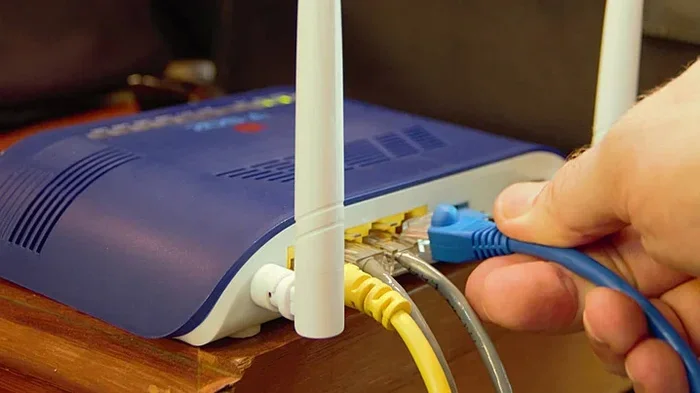
- Restart your router and modem: A simple reboot can fix many connection issues. Unplug both devices, wait 30 seconds, and plug them back in.
- Use a WiFi analyzer app: These apps show you which channels are least crowded in your area.
- Keep your devices updated: Outdated WiFi adapters on your phone or laptop can limit your speeds.
- Clear your browser cache: Sometimes slow internet feels like a WiFi problem when it is actually a browser issue.
- Turn off unused features: Disable guest networks or Bluetooth if you are not using them.
When to Contact Spectrum Support
If you have tried everything and your WiFi is still slow, it is time to call Spectrum. There may be an issue with your line, your account, or their equipment. Before you call, gather your speed test results and a list of the steps you have already taken.
Spectrum support can run diagnostics on your line and check for outages in your area. They can also send a technician to your home if needed. Sometimes the issue is on their end, and you just need a refresh on your service or a new line installation.
Conclusion
Getting better WiFi on your Spectrum connection is absolutely achievable. You do not need to be a tech expert. Start with the basics: optimize your router placement, update your settings, and reduce network congestion. If those steps are not enough, consider a WiFi extender or mesh system. And if your equipment is old, upgrading your modem or router can unlock the speeds you are paying for.
Take action today. Try one or two of the tips in this guide and see the difference. Better WiFi means faster downloads, smoother streaming, and fewer frustrating disconnections. Your Spectrum connection has the potential to deliver great speeds — you just need to make sure your setup is working for you.
Frequently Asked Questions
Why is my Spectrum WiFi slow even with a good plan?
Slow WiFi is often caused by router placement, interference, or outdated equipment — not your internet plan. Try moving your router to a central location and updating its firmware. If the problem persists, your modem or router may need an upgrade.
Can I use my own router with Spectrum internet?
Yes, you can use a compatible third-party router with Spectrum. Just make sure the router supports your internet speed tier and is on Spectrum’s approved device list. Using your own router often gives you better performance and more control over settings.
What is the difference between 2.4GHz and 5GHz WiFi bands?
The 2.4GHz band covers a wider area but is slower and more prone to interference. The 5GHz band is faster and less crowded but has a shorter range. For the best speeds, use the 5GHz band when you are close to your router.
How can I extend my WiFi coverage to other floors or rooms?
You can use a WiFi extender, a mesh system, or run an ethernet cable to a second router. Mesh systems are the most seamless option because they create one unified network with multiple nodes placed around your home.
How often should I update my router firmware?
Check for firmware updates at least once a month. Spectrum also pushes automatic updates in many cases, but it is good to verify manually. Updated firmware fixes bugs, improves security, and can boost your WiFi performance.
Does restarting my router really help with WiFi speed?
Yes, a simple restart can clear temporary glitches and refresh your connection. Unplug your router and modem, wait 30 seconds, and plug them back in. This is one of the easiest and most effective troubleshooting steps you can take.