How Can I Tell If Wi Fi 6 Is Working On My Network
You can confirm Wi-Fi 6 is working by checking your router settings, running a speed test, and looking for the Wi-Fi 6 or 802.11ax label on your connected devices. This guide walks you through every method to verify your network is running the latest wireless standard and getting the best performance.
Wi-Fi 6 is the latest wireless standard, and it brings faster speeds, better range, and improved performance for all your wireless devices. But here is the thing many people miss: just having a Wi-Fi 6 router does not mean your network is actually running on Wi-Fi 6. You need to verify it. This article shows you exactly how to tell if Wi-Fi 6 is working on your network, step by step.
Whether you just bought a new router or upgraded your internet plan, knowing how to check your wireless performance saves time and frustration. You will learn how to read your router settings, use your computer to check the connection type, and run simple tests that confirm everything is working as it should. Let us get started.
Key Takeaways
- Check your router settings: The admin panel is the first place to confirm if Wi-Fi 6 is active on your network.
- Look for the 802.11ax label: Your connected devices should display Wi-Fi 6 or 802.11ax in their network details.
- Run a speed test: Comparing results against expected Wi-Fi 6 speeds helps confirm proper operation.
- Use built-in Windows and Mac tools: Both operating systems let you see the wireless standard your connection is using.
- Check for WPA3 security: Wi-Fi 6 networks often use WPA3 encryption, which is a strong indicator of the newer standard.
- Router LED indicators: Many modern routers have lights that show the active wireless standard.
📑 Table of Contents
- What Is Wi-Fi 6 and Why Does It Matter?
- Check Your Router Settings
- Verify Wi-Fi 6 on Your Connected Devices
- Run a Network Speed Test
- Look for the Wi-Fi 6 Label on Your Router
- Check Your Network Security Protocol
- Common Mistakes That Prevent Wi-Fi 6 From Working
- Expert Tips to Maximize Your Wi-Fi 6 Performance
- When to Upgrade Your Equipment
- Conclusion
What Is Wi-Fi 6 and Why Does It Matter?
Wi-Fi 6, also known as 802.11ax, is the sixth generation of Wi-Fi technology. It offers faster wireless speeds, lower latency, and better handling of multiple devices compared to older standards. If you have a smart home full of wireless devices or you game online, Wi-Fi 6 makes a real difference.
The key improvements include higher bandwidth, better efficiency with OFDMA technology, and support for MU-MIMO, which lets your router talk to multiple devices at once. These features mean smoother streaming, faster downloads, and less lag. But none of these benefits matter if your network is not actually using Wi-Fi 6.
How Wi-Fi 6 Differs from Older Standards
Wi-Fi 5 (802.11ac) was a great standard, but Wi-Fi 6 pushes performance further. Here is a quick comparison:
- Wi-Fi 5 (802.11ac): Max speed of 3.5 Gbps, good for most homes but struggles with many devices.
- Wi-Fi 6 (802.11ax): Max speed of 9.6 Gbps, handles more devices efficiently, and uses less power.
- Wi-Fi 4 (802.11n): Older standard with much slower speeds and limited device handling.
If your router supports Wi-Fi 6, you want to make sure your devices are actually connecting using the new standard. Otherwise, you are leaving speed and performance on the table.
Check Your Router Settings
The first and most reliable way to confirm Wi-Fi 6 is working is to check your router settings. Every router has an admin panel where you can view the current wireless configuration. This works whether you have a standalone router or a gateway provided by your internet service provider.
Step-by-Step: Accessing Your Router Admin Panel
- Open a web browser on a device connected to your network.
- Type your router IP address into the address bar. Common addresses are 192.168.1.1 or 192.168.0.1.
- Enter your admin username and password. These are often printed on a sticker on the back of your router.
- Look for a section labeled Wireless Settings, Wi-Fi Settings, or Network Status.
- Find the wireless standard or mode. It should say 802.11ax or Wi-Fi 6 if the feature is active.
If the setting shows 802.11ac or Wi-Fi 5, your router may be set to backward compatibility mode. Go into the wireless settings and switch the mode to Wi-Fi 6 or 802.11ax. Save your changes and restart the router.
Having your own personal wifi router gives you full control over these settings. If you are using a provider-supplied gateway, you may still have access to these settings, but the options might be limited. Check your provider’s app or website for additional controls.
Verify Wi-Fi 6 on Your Connected Devices
Your router might support Wi-Fi 6, but your device also needs to support it. A laptop, phone, or tablet that only supports Wi-Fi 5 will connect at Wi-Fi 5 speeds, even if the router is broadcasting Wi-Fi 6. Here is how to check on different devices.
On Windows PC
Windows 10 and 11 make it easy to see your wireless standard. Click the Wi-Fi icon in your taskbar, then click on the network you are connected to. Look for the connection details. You should see a line that mentions the wireless standard. If it says 802.11ax, you are connected to Wi-Fi 6. If it says 802.11ac, you are on Wi-Fi 5.
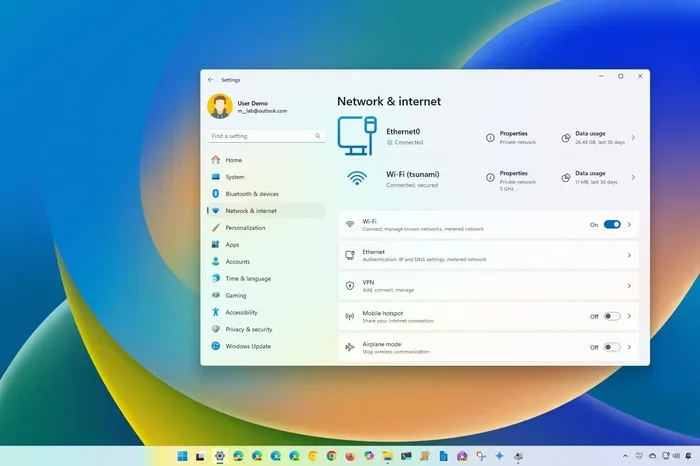
You can also go to Settings, then Network and Internet, then click on your Wi-Fi connection. Scroll down to find the connection type. This method works whether you connect your PC to Wi-Fi without ethernet or use a wired connection as a backup.
On Mac
On a Mac, hold the Option key and click the Wi-Fi icon in the menu bar. A detailed window opens showing your connection information. Look for the “Link Speed” or “Standard” field. Wi-Fi 6 connections typically show speeds of 1200 Mbps or higher on a single stream.
On Mobile Devices
On Android phones, go to Settings, then Network and Internet, then Wi-Fi. Tap on your connected network and look for the standard type. On iPhones, the standard information is not always clearly displayed, but if your iPhone supports Wi-Fi 6 (iPhone 11 or later), it will connect to Wi-Fi 6 networks automatically when available.
Run a Network Speed Test
A speed test is one of the most practical ways to tell if Wi-Fi 6 is working properly. If your speeds are significantly higher than what Wi-Fi 5 could deliver, there is a good chance Wi-Fi 6 is active. But speed alone is not a perfect indicator, so use this method alongside the others.
What Speed Should You Expect?
Wi-Fi 6 offers real-world speeds that are noticeably faster than older standards. Here are some general benchmarks:
- Wi-Fi 5 (802.11ac): Typical real-world speeds range from 200 to 900 Mbps depending on distance and conditions.
- Wi-Fi 6 (802.11ax): Typical real-world speeds range from 400 to 1200 Mbps or higher in ideal conditions.
Run a speed test at speedtest.net or a similar service. Test from different rooms in your house to see how the wireless performance holds up over distance. Wi-Fi 6 generally maintains better speeds farther from the router compared to older standards.
Keep in mind that your internet plan speed also matters. If your ISP plan only delivers 100 Mbps, a Wi-Fi 6 speed test showing 900 Mbps on your local network is great, but your internet speed will still cap at 100 Mbps. The local network speed and your ISP speed are two different things.
Look for the Wi-Fi 6 Label on Your Router
Most modern routers that support Wi-Fi 6 display the Wi-Fi 6 logo or the 802.11ax designation on the device itself. Check the top, back, or bottom of your router for any labels or stickers. If you see the Wi-Fi 6 symbol, your router supports the standard.
However, seeing the logo does not always mean Wi-Fi 6 is turned on. Some routers ship with backward compatibility enabled by default, meaning they broadcast both Wi-Fi 5 and Wi-Fi 6 networks. Check your settings to confirm the feature is active, as we covered in the router settings section above.
Router LED Indicators
Many newer routers have LED lights that indicate the active wireless standard. A solid white or blue light might mean Wi-Fi 6 is active, while a different color could indicate an older standard. Check your router’s manual or the manufacturer’s website for your specific model. This is a quick visual check that takes just a few seconds.
Check Your Network Security Protocol
Wi-Fi 6 networks typically use WPA3 security, which is the latest encryption standard. If your network is using WPA3, it is a strong hint that Wi-Fi 6 is active. Older standards like WPA2 are still common, but WPA3 is designed to work best with Wi-Fi 6 networks.
To check your security protocol, go to your router admin panel and look at the wireless security settings. If it shows WPA3-Personal or WPA3-Enterprise, your network is likely running Wi-Fi 6. Some routers support WPA3 in mixed mode with WPA2 for backward compatibility with older devices.
Common Mistakes That Prevent Wi-Fi 6 From Working
Even if you have a Wi-Fi 6 router, several common mistakes can stop it from working properly. Here are the ones to watch out for.
- Using an outdated device: Older laptops and phones that do not support 802.11ax will not connect to Wi-Fi 6, no matter what your router does.
- Wrong channel width: Wi-Fi 6 works best with wider channel widths. Check that your router is set to use 80 MHz or 160 MHz channels where supported.
- Firmware is outdated: Router manufacturers release updates that improve Wi-Fi 6 performance. Log into your admin panel and check for firmware updates regularly.
- Interference from other devices: Microwaves, baby monitors, and other electronics can interfere with your wireless network. Place your router in a central, open location.
- Using extenders that do not support Wi-Fi 6: If you use a range extender, make sure it also supports Wi-Fi 6. Otherwise, it will slow down your network to the older standard.
For the best results, consider extending your network with an ethernet cable where possible. You can extend Wi-Fi with an ethernet cable to get the most reliable backhaul for your Wi-Fi 6 router, ensuring every part of your home gets the full benefit of the new standard.
Expert Tips to Maximize Your Wi-Fi 6 Performance
Once you confirm Wi-Fi 6 is working, you can take steps to get the most out of it. Here are some expert tips that make a real difference.
- Place your router centrally: Wi-Fi 6 handles distance better than older standards, but central placement still gives the best coverage throughout your home.
- Keep firmware updated: Manufacturers regularly improve performance and fix bugs through firmware updates. Check monthly.
- Use the 6 GHz band if available: Some Wi-Fi 6 routers also support Wi-Fi 6E, which adds the 6 GHz band. This band is less crowded and offers even faster speeds.
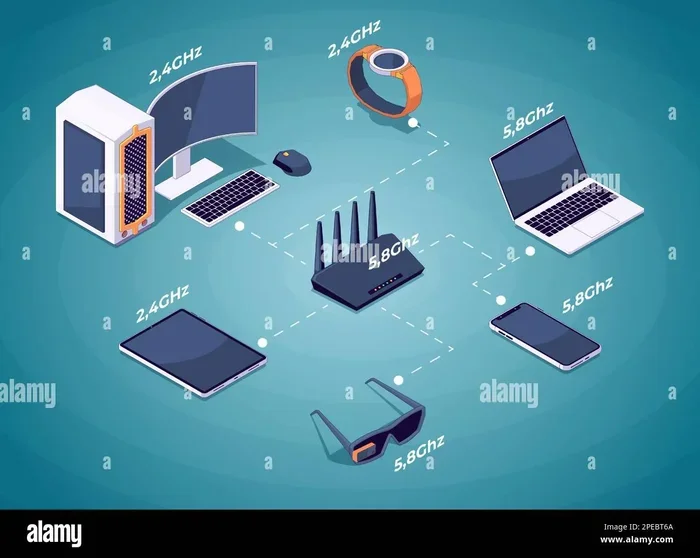
- Separate bands for different devices: Use the 5 GHz band for gaming and streaming, and the 2.4 GHz band for smart home devices that do not need high speed.
- Restart your router regularly: A simple restart clears the cache and refreshes connections, which keeps your wireless network running smoothly.
If you want to set up a dedicated network for your home, you can get just Wi-Fi at home by configuring your router to focus on wireless performance without unnecessary features that may slow things down.
When to Upgrade Your Equipment
If you have checked all the steps above and Wi-Fi 6 is not working as expected, it might be time to consider upgrading. Older routers that do not support 802.11ax will not deliver Wi-Fi 6 speeds no matter what you do. Similarly, if your internet plan is much faster than what your router can handle, upgrading the router is a smart move.
Also consider upgrading devices that connect to your network. A laptop that only supports Wi-Fi 5 will hold back your entire network’s potential when connecting to a Wi-Fi 6 router. Look for devices that list Wi-Fi 6 or 802.11ax in their specifications.
Setting up a personal wifi router with Wi-Fi 6 support gives you the foundation for a fast, reliable home network. When you pair a Wi-Fi 6 router with Wi-Fi 6 capable devices, the difference in wireless performance is noticeable immediately.
Conclusion
Telling if Wi-Fi 6 is working on your network comes down to a few simple checks. Look at your router settings, verify the standard on your connected devices, run a speed test, and check the security protocol. Each of these steps gives you a clear picture of whether your network is using the latest wireless standard.
Wi-Fi 6 brings real benefits to your home network, but only if it is actually active. By following the steps in this guide, you can confirm everything is set up correctly and enjoy the faster speeds, lower latency, and better device handling that Wi-Fi 6 offers. Take a few minutes today to run through these checks, and you will know exactly where your network stands.
Remember that your wireless network performance depends on both your router and your devices. Keep everything updated, place your router wisely, and enjoy the best that modern wireless technology has to offer.
Frequently Asked Questions
How do I know if my router supports Wi-Fi 6?
Check the router for a Wi-Fi 6 logo or the 802.11ax label on the device itself. You can also log into the router admin panel and look at the wireless settings. If the model number is listed on the manufacturer’s website with 802.11ax support, your router is Wi-Fi 6 compatible.
Can I use Wi-Fi 6 with older devices?
Yes, Wi-Fi 6 routers are backward compatible with older devices. However, older devices that only support Wi-Fi 5 or Wi-Fi 4 will connect at their maximum supported speed, not Wi-Fi 6 speeds. Your Wi-Fi 6 router will automatically negotiate the best speed each device can handle.
What is the difference between Wi-Fi 6 and Wi-Fi 6E?
Wi-Fi 6E is an extension of Wi-Fi 6 that adds support for the 6 GHz frequency band. This band is less crowded than the 2.4 GHz and 5 GHz bands, offering faster speeds and less interference. Wi-Fi 6E requires both a Wi-Fi 6E router and Wi-Fi 6E capable devices to take advantage of the 6 GHz band.
Do I need a special internet plan for Wi-Fi 6?
No, Wi-Fi 6 is a wireless standard, not an internet service. Your internet plan from your ISP provides the raw speed, and Wi-Fi 6 determines how efficiently that speed reaches your devices over the air. You can have a basic internet plan and still benefit from Wi-Fi 6’s improved device handling and lower latency.
Why is my Wi-Fi 6 speed slower than expected?
Several factors can slow down Wi-Fi 6 speeds, including distance from the router, interference from other electronics, outdated firmware, or connecting to the 2.4 GHz band instead of 5 GHz. Make sure your devices support Wi-Fi 6, your router firmware is updated, and you are using the right frequency band for your needs.
How can I extend my Wi-Fi 6 coverage throughout my home?
You can extend coverage by using Wi-Fi 6 compatible mesh systems or range extenders. Another effective method is running an ethernet cable to key areas and placing access points there. You can also extend your Wi-Fi with an ethernet cable to create a strong wired backbone for your wireless network.