Does Eero Work Through Walls Here Is What You Need To Know
Does Eero work through walls? Yes, Eero mesh Wi-Fi systems can penetrate most household walls, but the signal strength depends on wall material, thickness, and distance. Eero uses a smart mesh network to relay signals across your home, reducing dead zones and keeping your devices connected. Whether you have drywall, brick, or concrete barriers, understanding how Eero handles wall penetration helps you set up the best home network for full coverage.
Wi-Fi connectivity is something we all take for granted until it stops working. You are streaming your favorite show, joining a video call, or browsing the web, and suddenly the signal drops. This happens a lot when thick walls stand between your device and the router. So, does Eero work through walls? The short answer is yes, but there is more to the story. Eero mesh Wi-Fi systems are designed to push signals through obstacles, but the real-world results depend on several factors. In this guide, we will break down exactly how Eero handles wall penetration, what affects its performance, and how you can get the best results in your home.
Many people switch to mesh systems like Eero because traditional routers struggle with whole-home coverage. Walls, floors, and furniture all weaken Wi-Fi signals over distance. Eero solves this problem by using multiple nodes that work together as one unified network. Each node shares the Wi-Fi load, so your devices stay connected even when far from the main router. But does that mean every wall is no match for Eero? Not exactly. Let us dig deeper into how Eero handles wall penetration and what you can do to maximize your signal.
Key Takeaways
- Eero mesh Wi-Fi can work through most walls: Drywall and thin barriers cause minimal signal loss.
- Thick or dense materials reduce signal strength: Brick, concrete, and metal significantly weaken Wi-Fi signals.
- Adding Eero beacons improves coverage: Extra nodes help relay signals through tough obstacles.
- Placement matters a lot: Central positioning of your main Eero unit boosts whole-home performance.
- Eero uses smart mesh routing: The system automatically finds the best path for your data.
- Wi-Fi 6 support helps with wall penetration: Newer Eero models handle interference better than older routers.
- Testing your signal is easy: Use the Eero app to map coverage and find weak spots.
📑 Table of Contents
- How Does Eero Work Through Walls?
- Wall Types and Their Impact on Eero Signal
- How Many Eero Nodes Do You Need?
- Tips to Improve Eero Performance Through Walls
- Does Eero Work Through Walls Compared to Other Mesh Systems?
- Common Mistakes That Hurt Eero Wall Penetration
- Expert Insights on Eero and Wall Penetration
- Key Takeaways
- Conclusion
How Does Eero Work Through Walls?
Eero is a mesh Wi-Fi system built by Amazon. It uses multiple small units called nodes or beacons to spread Wi-Fi coverage across your home. Instead of relying on one single router to push signals everywhere, Eero creates a web of connections. Each node talks to the others, forming a smart network that routes data through the best available path.
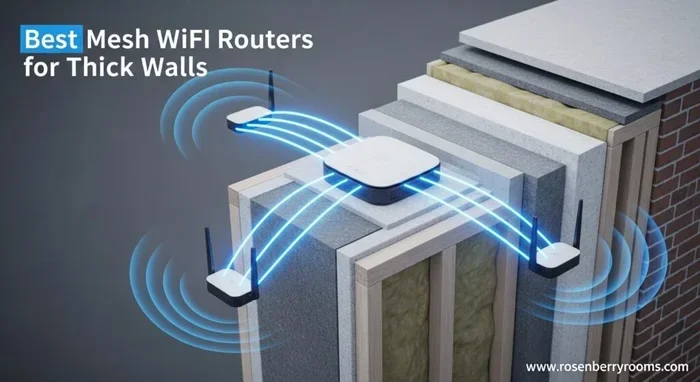
When a Wi-Fi signal hits a wall, it loses some strength. This is called signal attenuation. Eero works through walls by using its mesh architecture to bounce signals from node to node. If one path through a thick wall is weak, Eero can route your data through another node instead. This is a big advantage over traditional single-router setups.
Think of it like water flowing through pipes. If one pipe is blocked, the water finds another route. Eero does the same thing with your data. It constantly checks which path is fastest and strongest, then sends your traffic that way. This smart routing is what makes mesh systems so effective for homes with multiple rooms and obstacles.
What Makes Eero Different From a Regular Router?
A regular router sends Wi-Fi from one point. If that point is far from your bedroom or basement, the signal weakens. Walls make it worse. Eero changes the game by placing nodes in different rooms. Each node acts like a mini router, rebroadcasting the signal and extending coverage. This means fewer dead zones and stronger connections in every corner of your home.
Another difference is that Eero uses a single network name (SSID). Your phone or laptop does not need to switch between networks as you move around the house. The system handles that seamlessly in the background. This smooth handoff is one reason mesh systems like Eero are so popular for whole-home Wi-Fi.
Wall Types and Their Impact on Eero Signal
Not all walls are created equal. The type of wall in your home plays a huge role in how well Eero Wi-Fi penetrates. Some walls barely affect the signal, while others can block it almost completely. Let us look at the most common wall materials and how they interact with Eero mesh signals.
Drywall (Gypsum Board)
Drywall is the most common wall material in modern homes. It is thin and light, which means Wi-Fi signals pass through it with very little loss. If your home has mostly drywall, Eero will work through walls easily. You can expect strong signals in every room, even on different floors. Drywall is the best-case scenario for any mesh Wi-Fi system, including Eero.
Wood and Plywood Partitions
Wooden stud walls are also fairly friendly to Wi-Fi signals. The wood does not block signals as much as denser materials. However, if the wood is thick or layered with insulation, you may notice some signal drop. Overall, wood partitions are manageable for Eero mesh systems, and you will likely get good coverage throughout.
Brick Walls
Brick is a much tougher opponent for Wi-Fi signals. Brick walls are dense and thick, which means they absorb and reflect a lot of the wireless signal. If you have brick interior walls, Eero can still work through them, but the signal will be weaker on the other side. You may need to place an Eero node on both sides of the brick wall to maintain strong connectivity.
Concrete and Cinder Blocks
Concrete and cinder block walls are the hardest for Wi-Fi signals to penetrate. These materials are thick, heavy, and often contain metal rebar. Eero will struggle more with concrete walls, and signal strength can drop significantly. If your home has concrete barriers, adding extra Eero beacons becomes even more important. Placing nodes strategically can help you overcome the signal loss from concrete walls.
Metal Walls and Mesh Panels
Metal is the worst material for Wi-Fi signals. It reflects and blocks wireless energy almost entirely. Some homes have metal studs, metal lath, or wire mesh behind walls. These can seriously interfere with Eero performance. If you suspect metal is causing issues, try moving your Eero node away from metal surfaces or adding a beacon on the other side of the wall.
| Wall Material | Signal Impact | Eero Performance |
|---|---|---|
| Drywall | Minimal loss | Excellent |
| Wood/Plywood | Low to moderate loss | Very Good |
| Brick | Moderate to high loss | Good with extra nodes |
| Concrete/Cinder Block | High loss | Fair, needs beacons |
| Metal/Mesh | Severe loss | Poor, reposition needed |
How Many Eero Nodes Do You Need?
The number of Eero nodes you need depends on your home size, layout, and wall types. A single Eero unit works well for small apartments or open floor plans. But for larger homes with thick walls, you will benefit from adding more nodes. Each additional Eero beacon extends your coverage and helps the signal travel through obstacles.
As a general rule, place one Eero node every 1,000 to 1,500 square feet. If your home has many interior walls or dense materials, lean toward the closer end of that range. The Eero app makes it easy to add new nodes and test your coverage after each addition.
Eero Beacon vs. Eero Pro
Eero offers different models to fit different needs. The standard Eero is great for most homes. The Eero Pro adds more power and better range, which helps when signals need to travel through thick walls. The Eero Beacon is a smaller, more affordable option designed to extend coverage in tricky spots. If you have a lot of walls between your router and your devices, the Eero Pro or Beacon combo can make a big difference.
For homes with concrete or brick walls, the Eero Pro is a solid choice. Its stronger radio output helps push signals through dense materials. Pair it with a couple of Eero Beacons in key rooms, and you will have strong coverage almost everywhere.
Tips to Improve Eero Performance Through Walls
Getting the best Eero performance through walls is not just about buying the right equipment. It also comes down to how you set up and position your nodes. Here are some practical tips to help you maximize your Eero mesh Wi-Fi coverage.
Place Your Main Eero Unit Centrally
The location of your main Eero unit matters a lot. Put it in a central spot in your home, ideally on the main floor. Avoid hiding it in a closet or behind furniture. The more open the space around your main node, the better it can broadcast signals to all the other Eero units in your home.
Elevate Your Nodes
Wi-Fi signals spread outward and downward. Placing your Eero node on a shelf or table works better than setting it on the floor. Elevating the node helps the signal travel more evenly across rooms and through walls. Try to keep nodes at about chest or head height for the best results.
Avoid Obstacles Near Eero Units
Large furniture, appliances, and even fish tanks can block Wi-Fi signals. Keep your Eero nodes away from these obstacles. A clear line of sight between nodes is ideal, but Eero can still work well with some obstructions. Just keep the nodes in open spaces whenever possible.
Use the Eero App to Map Your Coverage
The Eero app has a built-in feature to help you check signal strength in different parts of your home. Walk around with your phone and test the signal in each room. If you find weak spots, add an Eero beacon in that area. The app makes it easy to see where your coverage is strong and where it needs help.
Update Your Eero Firmware Regularly
Eero releases firmware updates that improve performance and fix bugs. Keeping your system up to date ensures you get the best possible signal through walls. The Eero app will notify you when updates are available, and installing them takes just a few minutes.
Consider Your Internet Speed Plan
Sometimes slow Wi-Fi is not about walls at all. If your internet plan does not provide enough speed, even the best Eero setup will feel sluggish. Check your internet speed with a tool like Google’s speed testing tools to make sure your plan matches your household needs. A fast internet plan paired with Eero mesh gives you the best overall experience.
Does Eero Work Through Walls Compared to Other Mesh Systems?
Eero is not the only mesh Wi-Fi system on the market. Google Nest Wi-Fi, Netgear Orbi, and TP-Link Deco are popular alternatives. Each system handles wall penetration a bit differently. Eero is known for its simplicity and ease of setup, which makes it a top choice for most households.
Google Mesh systems, like Google Nest Wi-Fi, also use mesh technology to spread signals through walls. However, Eero tends to have a slight edge in ease of use and app experience. If you are comparing options, it is worth looking at how each system handles dense walls and larger homes.
For those dealing with connectivity challenges similar to other wireless devices, it helps to understand how different technologies handle obstacles. For instance, Wi-Fi thermostats can work without an AC wire using alternative power methods, showing how smart home devices adapt to wiring limitations. Similarly, hidden cameras can work without internet using local storage, which is relevant when considering how wireless devices maintain function despite connectivity barriers. These examples show how modern wireless devices handle real-world obstacles.
When it comes to Wi-Fi adapters and compatibility, not all adapters work with every system. Not every Wi-Fi adapter works on any PC, so choosing the right hardware matters for overall network performance. And just as projectors can work wirelessly using Wi-Fi or Bluetooth, Eero nodes communicate wirelessly with each other to create a seamless mesh network throughout your home.
Common Mistakes That Hurt Eero Wall Penetration
Even with a great mesh system, poor setup choices can hurt your Wi-Fi performance. Avoiding these common mistakes helps you get the most out of your Eero network.
- Placing the main node too close to a window: Signals escape outside instead of covering your home.
- Hiding the router behind metal objects: Metal blocks Wi-Fi signals and weakens your entire network.
- Skipping extra nodes for large homes: One Eero unit cannot cover a large house with many walls.
- Ignoring firmware updates: Outdated software can cause performance issues and connectivity drops.
- Putting nodes too far apart: If nodes are too distant, the mesh connection weakens and speeds drop.
- Not testing signal strength in each room: Without testing, you will not know where coverage is weak.
Expert Insights on Eero and Wall Penetration
Networking experts agree that mesh systems like Eero are the best solution for homes with thick or multiple walls. The key is understanding that no Wi-Fi system can completely eliminate signal loss through dense materials. But Eero comes close by using intelligent mesh routing and multiple nodes to maintain strong connections.
Experts recommend starting with a two- or three-pack Eero setup for homes with more than one bathroom or interior wall. This gives you enough nodes to place beacons in strategic locations. The result is a home network that handles walls gracefully and keeps your devices connected no matter where you are.
One thing experts stress is the importance of the 2.4 GHz and 5 GHz bands. Eero automatically switches between these bands based on your device and distance. The 2.4 GHz band travels farther and penetrates walls better, while the 5 GHz band offers faster speeds but shorter range. Understanding this balance helps you get the best performance from your Eero system.
Key Takeaways
- Eero mesh Wi-Fi works through most household walls: Drywall and wood are no problem, but concrete and brick need extra nodes.
- Wall material determines signal loss: The denser the wall, the more signal strength is reduced.
- Adding Eero beacons boosts coverage through tough walls: Extra nodes create more paths for your data to travel.
- Central placement of your main Eero unit is critical: It ensures the signal reaches all nodes with minimal loss.
- The Eero app helps you optimize placement: Use it to test signal strength and find the best node positions.
- Eero handles wall penetration better than most single routers: Its mesh architecture is designed for real-world home layouts.
- Regular firmware updates keep performance at its best: Always keep your Eero system up to date.
Conclusion
So, does Eero work through walls? The answer is a clear yes. Eero mesh Wi-Fi systems are built to handle the challenges of modern home layouts, including thick walls, multiple floors, and tricky layouts. While no system can make signals completely immune to wall interference, Eero comes remarkably close. Its smart mesh routing, easy setup, and flexible node placement make it one of the best choices for whole-home Wi-Fi coverage.
The key to success with Eero is understanding your home’s unique layout. Know what walls you are dealing with, place your nodes strategically, and add beacons where needed. With the right setup, you will enjoy strong, reliable Wi-Fi in every room. Whether you live in a small apartment or a large house with brick and concrete walls, Eero has the tools to keep you connected. Start with a solid plan, follow the tips in this guide, and you will see the difference in your home network performance.
Frequently Asked Questions
Can Eero penetrate concrete walls?
Eero can penetrate concrete walls, but signal strength will be reduced. Adding an extra Eero beacon on the other side of the concrete wall helps maintain strong connectivity. Concrete is one of the toughest materials for Wi-Fi, so strategic node placement is essential.
How many Eero nodes do I need for a two-story home?
For a two-story home, a three-node Eero setup is usually ideal. Place one node centrally on each floor and add a third in a high-traffic area. This ensures strong signal penetration through floors and walls across both levels.
Does Eero automatically switch between 2.4 GHz and 5 GHz bands?
Yes, Eero uses band steering to automatically switch your devices between 2.4 GHz and 5 GHz. The 2.4 GHz band penetrates walls better, while the 5 GHz band offers faster speeds. Eero handles this transition seamlessly in the background.
Will adding more Eero nodes slow down my network?
No, adding more Eero nodes does not slow down your network. In fact, extra nodes improve coverage and help distribute the Wi-Fi load. Each node adds capacity and creates more efficient paths for your data.
Can I place my Eero node in a closet or cabinet?
It is best not to place Eero nodes inside closets or cabinets. Enclosed spaces block Wi-Fi signals and reduce performance. Keep nodes in open, elevated spaces for the best wall penetration and coverage.
How does Eero compare to a traditional router for wall penetration?
Eero significantly outperforms traditional routers for wall penetration. Its mesh design lets signals bounce between nodes, finding the best path through obstacles. A single router cannot do this and will lose more signal strength through walls.