Do I Need A Wi Fi Card For Ethernet Connection Guide
Do you need a Wi-Fi card for Ethernet? The short answer is no. An Ethernet connection works independently through your network interface card or motherboard. A Wi-Fi card handles wireless signals, while an Ethernet port handles wired connections. You can use both at the same time, and having one does not require the other. This guide walks you through everything you need to know about wired vs wireless networking, setup steps, and when each option makes sense for your home or office.
Have you ever stared at the back of your computer and wondered whether you need a Wi-Fi card for Ethernet? It is a common question, especially if you are setting up a new desktop, fixing an old laptop, or trying to understand your networking options. The truth is simpler than most people think.
A Wi-Fi card and an Ethernet connection are two different pieces of hardware that handle two different types of internet access. One sends data through radio waves. The other sends data through a cable. They do not depend on each other to work. Understanding this difference saves you time, money, and frustration.
In this guide, we will break down everything you need to know. We will cover what each component does, when you need one, when you need both, and how to set up your network the right way. Whether you are a casual user or a tech enthusiast, this article has practical advice you can use right away.
Key Takeaways
- No Wi-Fi card needed: Ethernet works through a separate wired network interface and does not depend on a wireless adapter.
- Built-in Ethernet is common: Most modern motherboards and laptops already include an Ethernet port without extra hardware.
- Wi-Fi and Ethernet serve different purposes: Wired connections offer speed and stability, while wireless offers mobility and convenience.
- You can use both simultaneously: Having a Wi-Fi card and an Ethernet port at the same time is perfectly normal and useful.
- USB adapters are an easy fix: If your computer lacks an Ethernet port, a USB-to-Ethernet adapter solves the problem quickly.
- Speed matters: Ethernet typically delivers faster and more consistent speeds than most Wi-Fi connections.
- Check your hardware first: Before buying anything, confirm what networking ports and cards your device already has.
📑 Table of Contents
- What Is an Ethernet Connection?
- What Is a Wi-Fi Card?
- Do You Need a Wi-Fi Card for Ethernet?
- Wired vs Wireless: Speed and Stability Comparison
- How to Check If Your Computer Has Ethernet Built In
- Common Networking Mistakes and How to Avoid Them
- Setting Up Ethernet: A Simple Step-by-Step Guide
- Can You Use Ethernet and Wi-Fi at the Same Time?
- Expert Tips for the Best Network Setup
- Frequently Asked Questions
- Final Thoughts
What Is an Ethernet Connection?
An Ethernet connection is a wired way to connect your device to a network. You plug an Ethernet cable directly from your computer into a router or a switch. This creates a physical link that transmits data at high speeds with very little interference.
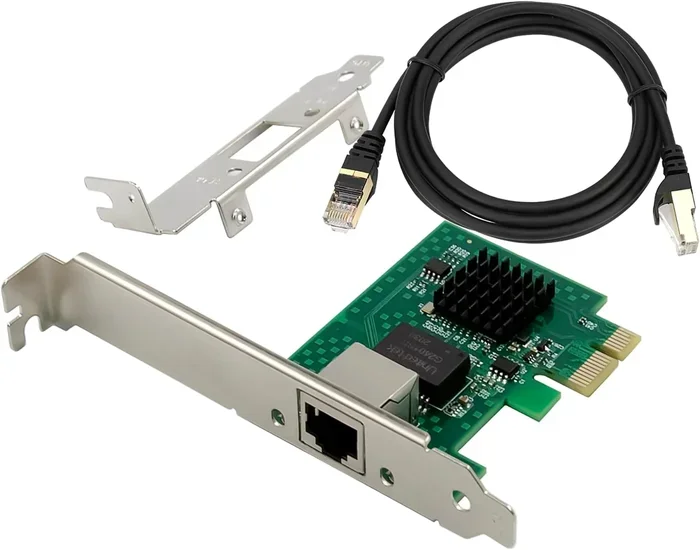
Most people know the little rectangular port on their computer or laptop. That is the Ethernet port, also called a RJ45 jack. It looks different from a phone port. It is wider and has a small clip that holds the cable in place.
How Does Ethernet Work?
When you plug in an Ethernet cable, your computer sends data packets through the wire to the router. The router then forwards those packets to the internet or to other devices on your local network. This process happens almost instantly.
The key component inside your computer that makes this possible is the Network Interface Card, or NIC. Every device that connects to a network has one. Some NICs are wired only. Some support both wired and wireless connections. It all depends on your hardware.
Here is what happens step by step:
- You plug an Ethernet cable into your computer.
- The cable carries electrical signals representing data.
- The NIC on your motherboard receives those signals.
- The data is processed and sent to your operating system.
- Your device connects to the internet or local network.
What Is a Wi-Fi Card?
A Wi-Fi card, also called a wireless adapter or WLAN card, is a piece of hardware that lets your device connect to a network without cables. It communicates with a wireless router using radio frequencies, typically on the 2.4 GHz or 5 GHz bands.
Many modern laptops come with built-in Wi-Fi cards. Desktop computers often do not. If you have a desktop tower and want wireless internet, you will likely need to add one.
Types of Wi-Fi Cards
Not all wireless adapters are the same. Here are the main types you will encounter:
- Internal PCIe Wi-Fi cards: These install inside your desktop tower on a PCIe slot. They offer strong signal reception and good performance. Popular brands include Intel and TP-Link.
- USB Wi-Fi adapters: These plug into a USB port. They are portable and easy to set up. Great for laptops or desktops without internal card slots.
- M.2 Wi-Fi cards: These are small cards that fit into M.2 slots on newer motherboards. They combine Wi-Fi and Bluetooth in one compact module.
- Built-in mobile Wi-Fi: Smartphones and tablets have Wi-Fi chips soldered directly onto the circuit board. You cannot remove or upgrade them easily.
Do You Need a Wi-Fi Card for Ethernet?
This is the big question. And the answer is straightforward. No, you do not need a Wi-Fi card to use Ethernet. The two technologies operate independently. Your Ethernet port uses a wired NIC, and your Wi-Fi card uses a wireless adapter. They are separate components.
Think of it like this. A car does not need a bicycle to function. Both are transportation methods, but they work on their own. Similarly, Ethernet and Wi-Fi are two separate ways to access a network. One does not require the other.
When Ethernet Works Without Wi-Fi
You can use a pure wired connection in many situations:
- You have a desktop computer with a built-in Ethernet port on the motherboard.
- You connect your PC to the router using a Cat5e or Cat6 cable.
- Your internet service provider gives you a modem with Ethernet output.
- You are setting up a gaming PC where stable, fast speeds matter more than wireless freedom.
In all of these cases, a Wi-Fi card is completely unnecessary. The wired connection handles everything your device needs.
When You Might Want Both
Even though you do not need Wi-Fi for Ethernet, having both can be useful. Here are some situations where running both makes sense:
- Failover backup: If your Wi-Fi drops, your Ethernet connection keeps you online.
- Streaming and gaming: Use Ethernet for your gaming PC or streaming setup for the best speeds. Use Wi-Fi for phones and tablets.
- Network testing: IT professionals often test both connections to compare speed, latency, and stability.
- Smart home setups: Some devices work better on Wi-Fi, while others like smart TVs or consoles benefit from Ethernet.
Wired vs Wireless: Speed and Stability Comparison
One of the biggest reasons people choose Ethernet over Wi-Fi is speed and stability. Let us look at how they compare in real-world use.
| Feature | Ethernet (Wired) | Wi-Fi (Wireless) |
|---|---|---|
| Typical Speed | 100 Mbps to 10 Gbps | 50 Mbps to 2.4 Gbps (Wi-Fi 6) |
| Latency | Very low (1 ms or less) | Higher (2-50 ms depending on signal) |
| Interference | Almost none | Susceptible to walls, devices, signals |
| Mobility | None (cable required) | Full mobility within range |
| Setup Difficulty | Plug in a cable | Enter password and connect |
| Security | Very hard to intercept | Depends on encryption (WPA3 is best) |
| Hardware Needed | Ethernet port + cable | Wi-Fi card + router |
As you can see, Ethernet wins in almost every performance category. But Wi-Fi wins in convenience. The right choice depends on what you need from your network.
When to Choose Ethernet
Choose a wired connection when:
- You need the fastest possible speeds for large file transfers.
- You are playing competitive online games where every millisecond counts.
- You are streaming high-quality video and cannot afford buffering.
- Your work requires a rock-solid, uninterrupted connection.
When to Choose Wi-Fi
Choose a wireless connection when:
- You need to move around freely with your device.
- Running a cable is impractical or impossible in your space.
- You are connecting mobile devices like phones or tablets.
- Your internet usage is light, such as browsing and email.
How to Check If Your Computer Has Ethernet Built In
Before you buy anything, check whether your device already has an Ethernet port. Most modern computers do, but older or budget models sometimes skip it.
On Windows
- Open the Device Manager by right-clicking the Start button.
- Expand the Network adapters section.
- Look for any entry that says Ethernet, Gigabit LAN, or Realtek PCIe GbE.
- If you see one, your computer has a built-in wired connection.
On macOS
- Click the Apple menu and select About This Mac.
- Click System Report.
- Go to the Network section in the sidebar.
- Look for Ethernet under the hardware list.
On Linux
Open a terminal and type lspci | grep Ethernet. If your system returns a result, you have a wired network card installed.
Common Networking Mistakes and How to Avoid Them
Many people run into problems with their network setup. Here are the most common mistakes and how to fix them.
Mistake 1: Buying a Wi-Fi Card When You Only Need Ethernet
This is the most obvious waste of money. If your desktop already has an Ethernet port, you do not need a wireless adapter. Check your hardware first before spending any cash.
Mistake 2: Using a Damaged Ethernet Cable
A frayed or bent cable can cause slow speeds, dropped connections, and frustration. Always inspect your cable before blaming your network. Replace old cables with a quality Cat5e or Cat6 cable for best results.
Mistake 3: Ignoring Driver Updates
Even if your hardware is fine, outdated network drivers can cause slow speeds and connection drops. Visit your motherboard or adapter manufacturer’s website and download the latest drivers regularly.
Mistake 4: Placing the Router in a Bad Spot
If you rely on Wi-Fi, your router placement matters a lot. Walls, metal objects, and electronics can weaken your wireless signal. Keep your router in a central, open location for the best coverage.
Mistake 5: Mixing Up Ethernet and Wi-Fi Speeds
Your internet speed is only as fast as your weakest link. If you have a 500 Mbps plan but use a Cat5 cable, you will not get the full speed. Make sure your cable, port, and router all support your internet plan’s speed tier.
Setting Up Ethernet: A Simple Step-by-Step Guide
Setting up a wired connection is one of the easiest things you can do. Here is how to do it in minutes.
- Get an Ethernet cable. Any standard Cat5e or Cat6 cable works for most home setups.
- Plug one end into your computer. Insert it firmly into the Ethernet port. You should hear a click.
- Plug the other end into your router. Use any of the numbered LAN ports on the back of your router.
- Wait for the connection light. Most routers and NICs have a green or orange light that blinks when data is flowing.
- Check your connection. On Windows, look at the network icon in your taskbar. It should show a small computer and cable symbol.
- Test your speed. Visit a speed test site like Speedtest.net to confirm you are getting the speeds you expect.
That is it. No drivers to install, no Wi-Fi passwords to remember. The cable does all the work for you.
Do You Need to Install Drivers?
Most of the time, no. Modern operating systems like Windows 10, Windows 11, macOS, and most Linux distributions recognize Ethernet hardware automatically. The drivers come pre-installed or are built into the OS. However, if you experience issues, visiting the motherboard manufacturer’s website for the latest LAN driver can help resolve them.
Can You Use Ethernet and Wi-Fi at the Same Time?
Yes, you absolutely can. Most computers support running both connections simultaneously. Your device can use Ethernet as the primary connection and Wi-Fi as a secondary one. This is called dual-homing, and it is a great way to ensure you stay connected no matter what.
Some advanced users even configure their systems to use both connections for increased bandwidth. However, this requires specific software and network configuration. For most home users, simply having both active as a backup is more than enough.
Benefits of Running Both
- Redundancy: If one connection fails, the other keeps you online.
- Better performance: Your wired devices get stable speeds, while wireless devices enjoy mobility.
- Reduced network congestion: Offloading heavy traffic to Ethernet frees up your Wi-Fi for other devices.
Expert Tips for the Best Network Setup
Whether you use Ethernet, Wi-Fi, or both, these tips will help you get the most out of your network.
- Use Cat6 cables for future-proofing. They support speeds up to 10 Gbps over short distances, so they will serve you well for years.
- Keep your router firmware updated. Manufacturers release updates that improve speed, security, and stability.
- Use a wired connection for your main devices. Desktop PCs, gaming consoles, and smart TVs benefit greatly from Ethernet.
- Place your Wi-Fi router away from microwaves and cordless phones. These devices emit signals on the 2.4 GHz band and can interfere with your wireless connection.
- Consider a mesh Wi-Fi system if your home is large. A single router may not cover every room, and mesh systems solve this problem easily.
- Restart your router regularly. A simple reboot can fix many common connection issues and improve performance.
Frequently Asked Questions
Can I use Ethernet without a Wi-Fi card installed?
Yes, absolutely. Ethernet and Wi-Fi are completely separate technologies. As long as your computer has an Ethernet port and a cable, you can connect to a wired network without any wireless hardware at all.
Do I need a special Ethernet card for my desktop?
Most modern desktop motherboards come with a built-in Ethernet port. You do not need a separate card unless your motherboard lacks one. In that case, a simple PCIe Ethernet card or a USB-to-Ethernet adapter will work perfectly.
Is Ethernet faster than Wi-Fi?
In most cases, yes. Ethernet provides a direct, wired connection that is faster and more stable than Wi-Fi. However, the latest Wi-Fi standards like Wi-Fi 6 and Wi-Fi 6E have narrowed the gap significantly for most everyday tasks.
Can I add Wi-Fi to a computer that only has Ethernet?
Yes. You can add a USB Wi-Fi adapter, a PCIe wireless card, or an M.2 Wi-Fi module. These are affordable and easy to install. They give your wired-only computer the ability to connect to wireless networks too.
Does having both Ethernet and Wi-Fi slow down my internet?
No. Having both connections active does not slow down your internet. Your device simply uses the active connection that is best suited for each task. In fact, having both can improve your overall reliability.
What cable should I use for Ethernet?
For most home users, a Cat5e or Cat6 Ethernet cable is the best choice. Cat5e supports speeds up to 1 Gbps, and Cat6 supports up to 10 Gbps over shorter distances. Both are widely available and affordable.
Final Thoughts
The question of whether you need a Wi-Fi card for Ethernet comes down to understanding what each technology does. Ethernet gives you a fast, stable, wired connection through a cable and a network interface card. Wi-Fi gives you wireless freedom through a radio adapter. They work independently, and you do not need one to use the other.
If all you need is a solid internet connection for your desktop or laptop, a simple Ethernet cable is all you need. No extra cards, no extra hardware. Just plug in and go. But if you also want wireless access for your phone, tablet, or guest devices, adding a Wi-Fi card or router makes perfect sense.
The best network setup is the one that fits your needs. Take a look at your hardware, think about how you use the internet, and choose the connection type that works best for you. With the right setup, you will enjoy fast, reliable internet every single day.
Now that you know the difference between wired and wireless networking, you can make smart decisions about your home or office setup. Do not let confusing jargon stop you. The technology is simpler than it seems, and you are now equipped with the knowledge to set it up right.