Can You Put An M 2 Wifi Card In Any M 2 Slot Explained
Can You Put An M 2 Wifi Card In Any M 2 Slot? The short answer is no. Not every M.2 slot accepts a WiFi card, because M.2 slots use different keying notches and support different interfaces. This guide explains exactly how to check compatibility and avoid costly mistakes.
So, can you put an M.2 WiFi card in any M.2 slot? The answer is no, not every slot will work. M.2 slots come in different sizes and keying types. They also support different data protocols. If you buy the wrong card, it simply won’t fit or it won’t function.
Many people assume all M.2 slots are identical. They see the small connector and think any M.2 device will work. That’s a common mistake. An M.2 slot can host SSDs, WiFi cards, Bluetooth modules, and even 4G/5G modems. Each device needs a specific slot configuration.
This guide will walk you through the differences. You’ll learn how to identify your slot’s keying. You’ll understand PCIe lanes versus SATA. By the end, you’ll know exactly what to buy for your laptop or desktop. Let’s get started.
Key Takeaways
- M.2 slots are not universal: Keying (B, M, B+M) determines which cards physically fit.
- PCIe lanes are mandatory: WiFi cards need PCIe, not SATA-only slots, to function.
- Match the notch: The physical notch on the card and slot must align perfectly.
- Antenna connections vary: Check that your laptop or motherboard has the correct U.FL connectors.
- Driver support matters: A card may fit but lack Windows or Linux drivers for your system.
- Never force a card: If it doesn’t slide in easily, stop and recheck compatibility.
📑 Table of Contents
What Is an M.2 Slot and Why Does It Matter?
The M.2 form factor is a small, versatile connector used in modern computers. It’s a single slot that can handle many types of devices. You’ll find it on laptop motherboards, desktops, and even some mini-PCs.
M.2 slots support different protocols. The most common are PCIe and SATA. PCIe offers much higher speeds. SATA is slower but still useful for storage. WiFi cards always use PCIe lanes. They never use SATA.
Understanding the M.2 slot’s capabilities is essential. You can’t just insert any M.2 device and expect it to work. The slot’s keying and the card’s keying must match. The key is the physical notch in the slot and the card.
Understanding M.2 Keying
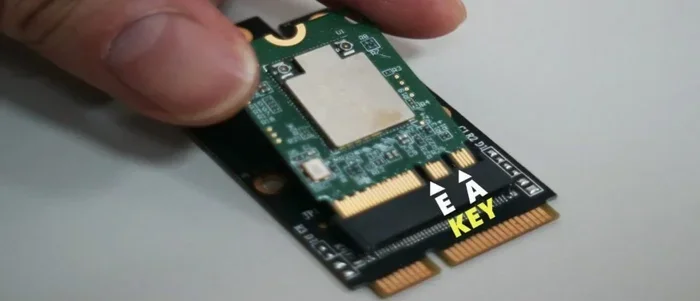
M.2 keying refers to the position of the notch. The notch prevents you from inserting a card the wrong way. There are several key types:
- B key (Socket 2): Has a notch on the left side. It supports PCIe x2 and SATA. Common for WiFi cards and SATA SSDs.
- M key (Socket 3): Has a notch on the right side. It supports PCIe x4 and SATA. Often used for NVMe SSDs.
- B+M key (Socket 2+3): Has notches on both sides. It’s compatible with both B and M key cards. Very common for WiFi cards.
Not all slots have the same keying. A laptop might have only a B+M slot. A desktop motherboard might have both B and M slots. You must match the card to the slot.
| Key Type | Notch Position | PCIe Lanes | Common Uses |
|---|---|---|---|
| B Key | Left side | PCIe x2, SATA | WiFi cards, SATA SSDs |
| M Key | Right side | PCIe x4, SATA | NVMe SSDs, some WiFi cards |
| B+M Key | Both sides | PCIe x2, SATA | Most WiFi cards, SATA SSDs |
Quick Tips for Slot Identification
Use a flashlight to see the notch clearly. If you’re unsure, look up your motherboard model online. The manufacturer’s website lists the M.2 slot specifications. You can also use a tool like CPU-Z to read your slot details directly from Windows.
Can You Put An M 2 Wifi Card In Any M 2 Slot?
The direct answer to “Can You Put An M 2 Wifi Card In Any M 2 Slot” is no. The slot must support the card’s keying and provide PCIe lanes. A WiFi card needs a PCIe connection. It cannot work in a SATA-only slot, even if it physically fits.
Keying Compatibility
First, the keying must match. If your slot is B key, you need a B key or B+M key card. If your slot is M key, you need an M key card. A B+M key card can fit in both B and M slots, but it will only use PCIe x2 lanes. That’s fine for most WiFi cards.
Some WiFi cards are only B+M key. Others are M key only. You must check the card’s specifications. The box or product page will list the keying.
PCIe vs. SATA Lanes
WiFi cards require PCIe lanes. They use the PCIe bus to communicate with the CPU. Some M.2 slots are SATA-only. Those slots cannot run a WiFi card, even if the keying matches. You’ll need to check your motherboard manual to see which M.2 slots share PCIe lanes and which share SATA lanes.
For example, a motherboard might have two M.2 slots. Slot 1 uses PCIe x4 from the CPU. Slot 2 uses the chipset’s SATA lanes. If Slot 2 is SATA-only, a WiFi card won’t work there. It needs a PCIe slot.
Expert Insights on Slot Compatibility
Expert Insight: “Many users assume an M.2 slot is universal. Always verify the PCIe lane assignment in the motherboard manual. A WiFi card in a SATA slot will not function, even if it physically fits.” This simple check saves hours of frustration.
Common Mistake: Forcing the Card
Common Mistake: Forcing a card into a slot that doesn’t have the right keying. This can damage the slot and the card. Never use force. If it doesn’t slide in easily, stop and recheck the keying and lane type.
Types of M.2 WiFi Cards You Can Buy
Not all WiFi cards are the same. You’ll find different brands, standards, and form factors. Knowing the types helps you choose the right one for your needs.
Intel vs. Qualcomm vs. MediaTek
Intel is the most common WiFi card manufacturer for laptops and desktops. Their cards are widely supported in Windows and Linux. Qualcomm (formerly Atheros) also makes popular cards. MediaTek cards are common in budget laptops.
When buying, check for driver support. Intel cards usually have excellent driver support. Qualcomm cards work well too. MediaTek cards sometimes lack Linux drivers, so check if that matters to you.
Wi-Fi 6 vs. Wi-Fi 6E vs. Wi-Fi 7
WiFi standards have evolved. Wi-Fi 6 (802.11ax) is the current standard. Wi-Fi 6E adds the 6GHz band. Wi-Fi 7 (802.11be) is the newest, offering even higher speeds.
- Wi-Fi 6: Great for most users. Supports 2.4GHz and 5GHz bands. Speeds up to 2.4Gbps.
- Wi-Fi 6E: Adds the 6GHz band. Less interference. Requires a router that supports 6E.
- Wi-Fi 7: The fastest. Still emerging. Needs a compatible router.
For most people, a Wi-Fi 6 card is plenty. Wi-Fi 6E is a nice upgrade if your router supports it. Wi-Fi 7 is overkill for now unless you need the absolute fastest speeds.
Quick Tips for Choosing the Right Card
Check your router’s capabilities first. Buying a Wi-Fi 7 card when your router only supports Wi-Fi 5 is a waste of money. Also, consider the card’s size. Some cards are double-length and may not fit in a laptop’s limited M.2 space. Always verify the card’s length against your slot’s available space.
How to Check Your M.2 Slot Compatibility
Before you buy a WiFi card, you must verify your slot’s compatibility. You don’t need to be a technician. A few simple checks will tell you everything.
The Notch Test
Open your computer case or laptop access panel. Locate the M.2 slot. Look at the slot’s connector. You’ll see a small notch. That notch indicates the keying.
- If the notch is on the left, it’s a B key slot.
- If the notch is on the right, it’s an M key slot.
- If there are notches on both sides, it’s a B+M key slot.
Now look at the WiFi card you want to buy. Check its keying. The card’s edge connector will have a matching notch. The notches must align for the card to fit.
Reading the Motherboard Manual
The physical notch tells you the keying, but it doesn’t tell you the interface. You need to know if the slot provides PCIe lanes or SATA lanes. The motherboard manual is your best resource.
Find the M.2 slot section in the manual. It will list the slot’s keying and the PCIe lanes it uses. For example, it might say “M.2_1: B+M key, PCIe Gen 3 x2, SATA 6Gb/s”. This means the slot supports both PCIe and SATA, and the WiFi card can use the PCIe lanes.
If the manual says “SATA only” for a slot, do not install a WiFi card there. It won’t work.
Expert Insights on Manual Reading
Expert Insight: “I always recommend checking the motherboard’s QVL (Qualified Vendor List) before buying a WiFi card. It lists tested and compatible cards. This saves you from buying something that doesn’t work.” A few minutes of research can prevent a failed upgrade.
Common Mistake: Assuming PCIe is Universal
Common Mistake: Assuming the M.2 slot is PCIe just because it’s labeled M.2. Many M.2 slots are SATA-only, especially on older motherboards. Always confirm the interface type before purchasing.
Installing Your M.2 WiFi Card: A Simple Walkthrough
Once you’ve confirmed compatibility, installation is straightforward. You’ll need a screwdriver and about 10 minutes.
Physical Installation Steps
- Power off the computer. Unplug the power cord. Remove the battery if it’s a laptop.
- Locate the M.2 slot. Find the slot where you’ll install the card. It may have a heatsink or a cover.
- Remove the cover or heatsink. Unscrew the mounting screw. Carefully lift the heatsink if present.
- Insert the card. Hold the WiFi card at a 30-degree angle. Align the notch with the slot’s key. Gently push the card down into the slot.
- Secure the card. Press the card flat. Screw the mounting screw back in. Don’t overtighten.
- Reconnect antennas. Most WiFi cards have two or three antenna connectors. They look like tiny white or black plugs. Attach them to the card’s U.FL connectors. Press firmly until they click.
- Replace the cover. Put the heatsink or case panel back on. Reconnect the power.
Driver and Software Setup
After physical installation, you need to install drivers. Windows 10 and 11 often install drivers automatically. But it’s best to download the latest driver from the manufacturer’s website.
- Go to Intel’s download center or Qualcomm’s support page.
- Find your exact card model.
- Download the latest driver for your operating system.
- Run the installer and restart the computer.
Linux users may need to install firmware packages. Check your distribution’s documentation for M.2 WiFi card support.
Quick Tips for a Smooth Installation
Before you remove the old WiFi card, note the antenna connections. Take a photo with your phone. This helps you reconnect the new card correctly. Also, keep the old card’s mounting screw. You might need it for the new card. Finally, ground yourself by touching a metal part of the case to prevent static damage.
Common Mistake: Forgetting the Antennas
Common Mistake: Forgetting to connect the antennas. Without them, your WiFi signal will be extremely weak or non-existent. Always connect all antenna cables. Double-check that they are fully seated in the U.FL connectors.
Common Mistakes That Cause Problems
Even with the right card, mistakes can happen. Here are the most common ones and how to avoid them.
Forcing the Card
If the card doesn’t slide in easily, don’t force it. The notches must align. Forcing it can bend the pins or break the slot. Double-check the keying. Try a different card if needed.
Using a SATA-Only Slot
This is the number one reason a WiFi card fails to work. The card physically fits, but the slot provides no PCIe lanes. Always confirm the slot supports PCIe. Refer to the motherboard manual.
Ignoring Antenna Connections
Some WiFi cards come with low-profile antennas. Others need external antennas connected via U.FL cables. If your laptop has internal antennas, the card must have the correct connectors. Missing antennas mean poor signal.
Overlooking BIOS Settings
Some motherboards have M.2 slot settings in the BIOS. You might need to enable the slot or choose between PCIe and SATA mode. Enter the BIOS during boot and check the M.2 configuration.
Common Mistake: Buying the Wrong Antenna Type
Common Mistake: Buying a card without checking the antenna type. Your laptop might have U.FL connectors, but the new card might need a different connector. Check the card’s specifications for antenna compatibility before you buy.
Conclusion
So, can you put an M.2 WiFi card in any M.2 slot? The answer is clear: it depends on the slot’s keying and its PCIe lane support. Can You Put An M 2 Wifi Card In Any M 2 Slot is a question with a nuanced answer. You must match the keying (B, M, or B+M) and ensure the slot provides PCIe lanes, not just SATA.
By following the steps in this guide, you can confidently choose and install the right WiFi card. Check the notch, read the manual, and install the drivers. A little preparation prevents costly mistakes and ensures a strong wireless connection.
Take your time. Verify compatibility before you buy. Your computer’s wireless performance will thank you. Happy upgrading!
Frequently Asked Questions
What happens if I put a WiFi card in a SATA-only M.2 slot?
The card will not work. SATA-only slots do not provide the PCIe lanes that WiFi cards need. The card might physically fit, but it will be invisible to the operating system and won’t connect to any network.
Can I use a B+M key WiFi card in an M key slot?
Yes, a B+M key card will fit into an M key slot. However, it will only use PCIe x2 lanes instead of x4. For most WiFi cards, this is perfectly fine and won’t affect wireless performance.
Do I need to install drivers for a new M.2 WiFi card?
Windows 10 and 11 often install basic drivers automatically. However, you should still download the latest driver from the manufacturer’s website. This ensures you get the best performance, stability, and security updates.
Are all M.2 WiFi cards the same size?
No. M.2 WiFi cards come in different lengths, such as 30mm, 42mm, and 60mm. You must check the available space in your slot and case. A card that is too long will not fit or may block other components.
Can I install a WiFi card myself, or do I need a professional?
You can absolutely install it yourself. The process is simple: remove the cover, insert the card at an angle, secure it, and connect the antennas. Just follow the steps carefully and you’ll be done in under 15 minutes.
Will an M.2 WiFi card work on Linux?
Most M.2 WiFi cards work on Linux, but driver support varies. Intel and Qualcomm cards usually have excellent Linux support. MediaTek cards may require additional firmware packages. Check the card’s Linux compatibility before purchasing if you use Linux.