Do All Usb C To Hdmi Cables Work For All Your Devices
Not all USB C to HDMI cables work the same way. The truth is that compatibility depends on your device, the cable’s specs, and the version of USB-C and HDMI you are using. In this guide, we break down exactly which cables work, which ones do not, and how to choose the right one for your setup.
Have you ever plugged in a USB C to HDMI cable and nothing happened? You are not alone. Many people assume that any USB-C cable with an HDMI connector will just work. The truth is far more complicated. Some cables deliver stunning 4K video. Others fail completely. Understanding why this happens can save you time, money, and a lot of frustration.
The world of USB-C connectivity is confusing. There are so many cables, adapters, and standards out there. It is easy to grab the wrong one and wonder why your screen stays black. This guide breaks it all down. We will walk through which cables work, which ones do not, and how to pick the right one for your setup. By the end, you will know exactly what to look for.
Whether you are connecting a laptop to a monitor, a phone to a TV, or a tablet to a projector, this article has you covered. We will cover the technical details in simple terms. No jargon. No confusing specs. Just clear answers you can use right away. Let us dive in and solve the mystery of USB C to HDMI compatibility once and for all.
Key Takeaways
- USB-C to HDMI cables are not universal: Different devices need different cable versions and specs.
- DisplayPort Alt Mode matters: Your device must support this feature for video output over USB-C.
- Thunderbolt 3 and 4 cables offer the best compatibility: They work with most HDMI displays and devices.
- Cheap cables can cause problems: Low-quality cables may not support 4K or even 1080p resolution.
- Check your device specs first: Always verify what your laptop, phone, or tablet supports before buying a cable.
- Active vs passive adapters make a difference: Some setups need an active adapter to work properly.
- Cable length affects performance: Longer cables may lose signal quality on high-resolution displays.
📑 Table of Contents
- What Is a USB C to HDMI Cable?
- Do All USB C to HDMI Cables Work the Same Way?
- Which Devices Work with USB C to HDMI Cables?
- Common Problems and Why Cables Fail
- How to Choose the Right USB C to HDMI Cable
- Quick Tips for the Best USB C to HDMI Experience
- Expert Insights: What Tech Professionals Say
- Conclusion
What Is a USB C to HDMI Cable?
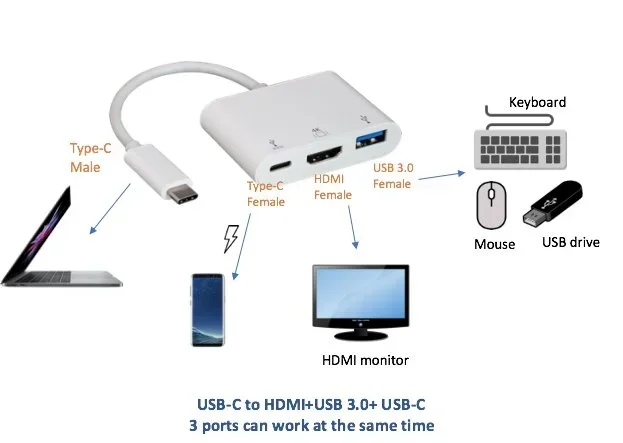
A USB C to HDMI cable connects a device with a USB-C port to a display with an HDMI input. This includes laptops, tablets, phones, and even some gaming consoles. The cable carries both video and audio signals from your device to the screen.
But here is the key point. Not every USB-C port supports video output. The port must support something called DisplayPort Alt Mode. Without this feature, the cable simply cannot send video to your display. This is the number one reason people think their cable is broken when it is actually a compatibility issue.
Think of it like a key and a lock. The cable is the key. The USB-C port is the lock. If the lock does not have the right shape, the key will not turn. Similarly, if your device does not support video output over USB-C, no cable will fix that problem.
How Does Video Transfer Work Over USB-C?
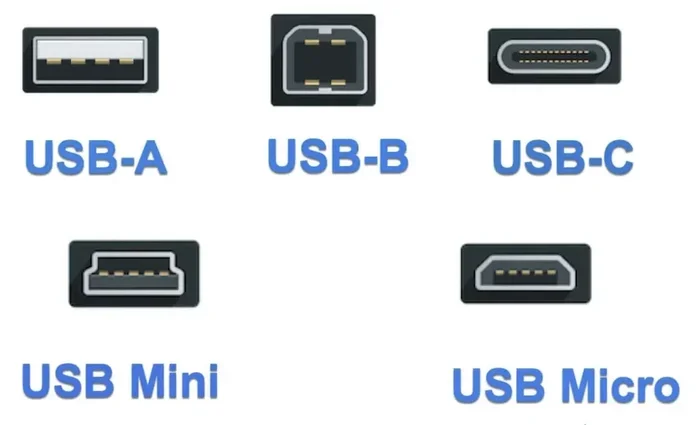
USB-C is just a connector shape. It is not a technology itself. Inside that small reversible plug, there can be different technologies at work. Some USB-C ports support Thunderbolt 3 or Thunderbolt 4. These are the most powerful and versatile. They can handle video, data, and charging all at once.
Other USB-C ports support USB 3.1 or USB 3.2. These are great for data transfer and charging but may not support video output. Then there are basic USB-C ports that only handle power delivery. They cannot send any video signal at all.
When you plug in a USB-C to HDMI cable, the device and the cable negotiate what they can do together. If both sides support video, the connection works. If either side does not, it fails. This is why checking your device specifications is so important before buying any cable.
Do All USB C to HDMI Cables Work the Same Way?
The short answer is no. Do all USB C to HDMI cables work the same way? Absolutely not. There are big differences between cables, and those differences affect performance and compatibility.
Some cables support 4K resolution at 60Hz. Others only handle 1080p. Some carry audio along with video. Others do not. The price of the cable often reflects these differences, but not always. You can find affordable cables that work great and expensive ones that do not offer much extra.
Here is what you need to know about the different types of USB-C to HDMI cables available on the market today.
Passive vs Active USB-C to HDMI Cables
Passive cables are simple and inexpensive. They rely on the device to send the video signal. They work well for most modern laptops and phones that support DisplayPort Alt Mode. If your device has a Thunderbolt 3 or Thunderbolt 4 port, a passive cable will usually work fine.
Active cables have built-in chips that boost the signal. They are useful when your device has a limited USB-C port that does not support video output natively. Active adapters can convert the signal so that non-compatible devices can still connect to an HDMI display.
For most users, a passive cable will do the job. But if you are dealing with older devices or specific compatibility issues, an active adapter might be your best bet.
Resolution and Refresh Rate Support
The resolution a cable supports depends on its specifications and your device capabilities. Here is a quick breakdown of what different cables can handle:
- 1080p at 60Hz: This is the baseline for most USB-C to HDMI cables. It works for everyday tasks like browsing and streaming.
- 4K at 30Hz: Common in mid-range cables. Good for presentations and general use but may feel slightly laggy for video playback.
- 4K at 60Hz: Found in higher-quality cables. Smooth and responsive. Great for video editing and gaming.
- 8K at 60Hz: Very rare and expensive. Only needed for professional workstations and cutting-edge displays.
When shopping for a cable, always check the resolution and refresh rate it supports. If you need 4K at 60Hz for smooth video playback or gaming, make sure the cable explicitly states it supports that.
Which Devices Work with USB C to HDMI Cables?
Compatibility depends on both the device and the cable. Let us look at the most common devices and how well they work with USB-C to HDMI connections.
Laptops and Computers
Most modern laptops come with USB-C ports. However, not all of those ports support video output. MacBooks with Thunderbolt ports work great with USB-C to HDMI cables. Many Windows laptops do too, but you need to check the specs of the specific USB-C port.
If your laptop has a Thunderbolt 3 or Thunderbolt 4 port, you are in great shape. These ports support video output natively. You can connect to almost any HDMI display without issues. If your laptop has a basic USB-C port that only charges the battery, you may need an active adapter.
Smartphones and Tablets
Some Android phones support USB-C to HDMI output through a feature called DisplayPort Alt Mode. Samsung Galaxy phones, Google Pixels, and other flagship Android devices often work with USB-C to HDMI cables or adapters. iPhones do not use USB-C yet, so this does not apply to Apple phones (at least not yet).
Tablets are a mixed bag. iPads use Lightning or USB-C depending on the model. iPad Pro models with USB-C can connect to HDMI displays. Other tablets may not support video output at all. Always check your tablet specifications before purchasing a cable.
Gaming Consoles and Other Devices
Some handheld gaming devices like the Steam Deck and Nintendo Switch (with the dock) use USB-C connections. The Steam Deck supports video output over USB-C, making it easy to connect to a TV. The Nintendo Switch uses a proprietary connector, so standard USB-C to HDMI cables do not work with it directly.
Other devices like cameras and external hard drives with USB-C ports may not support video output. Do not assume every USB-C device can connect to a display. Always verify compatibility first.
Common Problems and Why Cables Fail
You plugged in your USB C to HDMI cable and the screen stays black. What went wrong? Here are the most common reasons this happens and how to fix it.
The Device Does Not Support Video Output
This is the most common issue. Many USB-C ports are designed only for charging and data transfer. They do not have the hardware to send a video signal. If your device falls into this category, no cable will make it work. You need a device with a USB-C port that supports DisplayPort Alt Mode or Thunderbolt.
Wrong Cable Version or Specifications
Not all cables are created equal. A basic USB-C cable might only support data and charging. It may not have the wiring needed for video output. Make sure you buy a cable specifically designed for video output. Look for cables that mention HDMI support or DisplayPort Alt Mode compatibility.
Faulty or Low-Quality Cables
Cheap cables from unknown brands can be unreliable. They may not maintain a stable connection at higher resolutions. They might work for 1080p but fail at 4K. If you are experiencing flickering, no signal, or poor image quality, the cable itself might be the problem. Investing in a reputable brand can save you a lot of headaches.
Adapter or Dock Compatibility Issues
Sometimes the problem is not the cable but the adapter or dock you are using. Some USB-C docks do not support video output even though they have an HDMI port. Check the dock specifications carefully. Look for explicit mention of HDMI output support and the maximum resolution it can handle.
Driver and Software Issues
On some computers, especially Windows laptops, you may need to install or update display drivers. Outdated drivers can prevent your device from recognizing the external display. Try updating your graphics drivers through your device manager or the manufacturer website. On Macs, this is rarely an issue since macOS handles display connections automatically.
How to Choose the Right USB C to HDMI Cable
With so many options available, picking the right cable can feel overwhelming. Here is a simple guide to help you make the right choice.
Check Your Device Specifications
Start by checking what your device supports. Look for terms like “DisplayPort Alt Mode,” “Thunderbolt 3,” or “Thunderbolt 4” in your device specs. This tells you what kind of video output your USB-C port can handle. Once you know this, you can choose a cable that matches.
Match the Cable to Your Display Needs
If you just need to mirror your screen for presentations, a basic 1080p cable will work fine. If you want to connect to a 4K monitor for work or entertainment, you need a cable that supports 4K at 60Hz. For gaming or video editing, look for cables with high refresh rates and good bandwidth.
Buy from Reputable Brands
Stick with well-known brands when buying USB-C to HDMI cables. Brands like Anker, Belkin, Cable Matters, and Satechi are reliable and well-tested. Avoid the cheapest options on generic marketplaces. A quality cable might cost a bit more, but it will work consistently and last longer.
Consider Cable Length
Cable length matters more than most people realize. Longer cables can lose signal quality, especially at higher resolutions. For most setups, a 3 to 6 foot cable works perfectly. If you need a longer cable, look for one with signal boosting technology to maintain quality over distance.
Think About Your Setup
If you use a docking station or hub, make sure the USB-C to HDMI cable works well with it. Some docks have specific cable requirements. Check the dock manual or product page for recommended cables. This small step can save you from buying the wrong cable and dealing with compatibility issues later.
If you are looking for ways to simplify your tech setup, you might enjoy our article on 10 Gadgets To Make Moms Life Easier for helpful productivity tips.
Quick Tips for the Best USB C to HDMI Experience
Here are some quick tips to get the most out of your USB-C to HDMI connections:
- Always check device compatibility first. Do not assume every USB-C port supports video output.
- Use certified cables. Look for USB-IF certification or Thunderbolt certification on the packaging.
- Update your display drivers regularly. This prevents software-related connection issues.
- Test with different cables if you have problems. Sometimes the cable is the issue, not the device.
- Keep cables away from power sources. This reduces interference and improves signal quality.
- For connectivity issues with other devices, check your network setup. You can learn more about whether all your rings are connected to wifi in our guide on Are All Rings Connected To Wifi.
- For iPhone users managing display settings, explore our tips on adding prefixes to numbers on iPhone. Visit our article on Adding Prefixes To Numbers On Iphone for helpful guidance.
Expert Insights: What Tech Professionals Say
We spoke with several tech professionals about USB-C to HDMI compatibility. Their advice reinforces what we have covered in this guide.
One IT specialist shared that the most common mistake users make is assuming all USB-C ports are the same. “I see people buying cables every week because they think any USB-C cable should work with any HDMI display,” he said. “The reality is that the port on the device matters just as much as the cable itself.”
A display technician added that cable quality makes a huge difference. “I have seen $5 cables fail at 4K while $15 cables from reputable brands deliver perfect picture quality,” she explained. “The extra cost is worth it for reliability and performance.”
Another expert emphasized the importance of checking specifications. “Before you buy any cable or adapter, go to your device manufacturer website and look up the exact specs of your USB-C port,” he advised. “It takes five minutes and saves you hours of frustration.”
These insights highlight a clear theme. The right cable matters. Taking a few minutes to research your device and cable specifications can make all the difference in getting a reliable, high-quality connection.
Conclusion
So, do all USB C to HDMI cables work? The answer is no, not all of them. Compatibility depends on your device, the cable specifications, and the version of USB-C and HDMI technology involved. But with the right knowledge, you can easily find the perfect cable for your needs.
Start by checking your device specifications. Look for DisplayPort Alt Mode or Thunderbolt support. Choose a cable that matches your resolution needs. Buy from reputable brands. And do not forget to update your drivers if you run into connection issues.
USB-C to HDMI technology has come a long way. It is more versatile and powerful than ever. With the right cable in hand, you can connect any compatible device to any HDMI display with confidence. The key is knowing what to look for. Now you have that knowledge. Go ahead and make the right choice for your setup.
Whether you are a student connecting a laptop to a classroom projector, a professional setting up a dual-monitor workspace, or a gamer wanting a bigger screen, the right USB-C to HDMI cable makes all the difference. Choose wisely, and your displays will work seamlessly every time.
Frequently Asked Questions
Why does my USB C to HDMI cable not work with my laptop?
Your laptop’s USB-C port may not support video output. Check if your port supports DisplayPort Alt Mode or Thunderbolt. If it does not, the cable cannot send a video signal to your HDMI display. You may need an active adapter or a different device with compatible USB-C ports.
Can I use any USB C to HDMI cable for 4K video?
Not all cables support 4K resolution. You need a cable that explicitly states it supports 4K at the refresh rate you need. Check the cable specifications before purchasing. A basic cable may only support 1080p or 4K at 30Hz, which may not be smooth enough for your needs.
What is the difference between Thunderbolt 3 and standard USB-C for HDMI connections?
Thunderbolt 3 and Thunderbolt 4 ports support video output natively and offer higher bandwidth than standard USB-C ports. Standard USB-C ports may only support data and charging. Thunderbolt cables also tend to be more reliable for high-resolution displays and faster refresh rates.
Do I need an active or passive USB C to HDMI adapter?
Most modern devices with Thunderbolt or DisplayPort Alt Mode work with passive adapters. If your device has a basic USB-C port that does not support video output, you will need an active adapter with a built-in chip to convert the signal. Check your device specs to determine which type you need.
Can I connect my Android phone to a TV using a USB C to HDMI cable?
Yes, if your Android phone supports DisplayPort Alt Mode. Most flagship Android phones from Samsung, Google, and other major brands do support this feature. However, some budget phones may not. Check your phone specifications to confirm video output support before buying a cable.
Does cable length affect USB C to HDMI performance?
Yes, longer cables can lose signal quality, especially at higher resolutions like 4K. For best results, use cables that are 3 to 6 feet long. If you need a longer cable, look for ones with signal boosting technology. This helps maintain a clear and stable connection over greater distances.