Can You Use An HDMI Splitter For Dual Monitors Today
Yes, you can use an HDMI splitter for dual monitors, but it depends on your goals. A splitter mirrors the same screen on both displays, while a switch or adapter lets you extend your desktop. Understanding the difference is key to choosing the right setup for your needs. This guide covers everything you need to know about HDMI splitters and dual monitor configurations.
This is a comprehensive guide about Can You Use An Hdmi Splitter For Dual Monitors.
Key Takeaways
- HDMI splitters mirror content: They display the same image on both screens, not extend your desktop.
- You need an HDMI switch or adapter to extend: A splitter alone cannot create an expanded workspace.
- Resolution and refresh rate matter: Cheap splitters may downgrade your display quality.
- Setup is simple: Most configurations require just plugging in cables and adjusting display settings.
- Common mistakes include buying the wrong type: Always check whether you need a splitter, switch, or adapter.
- Not all graphics cards support dual output: Verify your PC or laptop capabilities before buying equipment.
[FEATURED_IMAGE_PLACEHOLDER]
Can You Use an HDMI Splitter for Dual Monitors Today?
Setting up two screens at your desk feels amazing. You get more space, better multitasking, and a workspace that just works. But not everyone knows the right way to connect two monitors to a single device. That is where an HDMI splitter comes into the picture.
The short answer is yes, you can use an HDMI splitter for dual monitors. But here is the catch. A splitter does not extend your desktop. It mirrors the same content on both screens. If you want to extend your display, you need a different solution. This guide will walk you through everything you need to know. We will cover how splitters work, what alternatives exist, and how to set things up the right way.
Whether you are a student, a remote worker, or a gamer, understanding your options saves time and money. You do not want to buy the wrong cable or adapter and end up frustrated. So let us dive in and explore the world of dual monitor setups and HDMI connectivity in simple terms.
What Is an HDMI Splitter and How Does It Work?
An HDMI splitter takes one HDMI signal and copies it to multiple outputs. Think of it like a water pipe that splits into two streams. The same video and audio signal goes to both screens. This is called screen mirroring. Both displays show the exact same content at the same time.
How a Basic HDMI Splitter Works
Here is a simple breakdown of the process:
- Your computer or laptop sends an HDMI signal out of its port.
- The splitter receives that single signal through its input port.
- The splitter duplicates the signal and sends it to two or more output ports.
- Each connected monitor displays the same image and audio.
Most HDMI splitters are small, plug-and-play devices. You do not need to install software or drivers. Just plug them in and go. This makes them very popular for people who want a quick and easy multi-display setup.
What You Need to Use an HDMI Splitter
Getting started is easy. Here is a short list of what you need:
- An HDMI splitter with at least two output ports.
- Two HDMI cables to connect the splitter to your monitors.
- A computer, laptop, or device with an HDMI output.
- Two monitors with HDMI input ports.
That is it. No fancy software. No complicated configurations. Just plug in the cables and your screens will mirror each other. But remember, mirroring is not the same as extending. If you want to spread your desktop across two screens, keep reading.
HDMI Splitter vs. HDMI Switch: What Is the Difference?
This is where many people get confused. An HDMI splitter and an HDMI switch look similar but do very different things. Understanding the difference is crucial before you buy anything.
What an HDMI Splitter Does
A splitter takes one input and sends it to multiple outputs. Every screen shows the same content. This is perfect for situations where you want to display the same video on two TVs in different rooms, or mirror your laptop screen during a presentation.
What an HDMI Switch Does
An HDMI switch does the opposite. It takes multiple inputs and sends them to a single output. This lets you connect several devices to one monitor or TV. You just press a button or use a remote to switch between inputs. For example, you might use a switch to connect your laptop, gaming console, and streaming stick to one display.
Which One Do You Need for Dual Monitors?
If you want to mirror content on two screens, buy a splitter. If you want to extend your desktop across two screens, you need something different. A splitter alone will not extend your display. You would need either a graphics card with dual outputs or a USB-to-HDMI adapter that supports display extension.
Here is a quick comparison:
- HDMI Splitter: One input, multiple outputs. Mirrors content.
- HDMI Switch: Multiple inputs, one output. Switches between devices.
- USB Display Adapter: Adds a second output to your PC for extending.
How to Set Up Dual Monitors with an HDMI Splitter
Setting up your dual monitor configuration with a splitter is straightforward. Follow these steps and you will be up and running in minutes.
Step-by-Step Setup Guide
- Connect the splitter to your computer. Plug one end of an HDMI cable into your laptop or PC’s HDMI port. Plug the other end into the input port on the splitter.
- Connect your monitors. Take two HDMI cables and plug one end into each output port on the splitter. Plug the other ends into your two monitors.
- Power on all devices. Turn on your computer and both monitors. Make sure the monitors are set to the correct input source.
- Adjust display settings. On Windows, go to Settings > System > Display. On macOS, go to System Settings > Displays. Choose the mirror display option.
- Test the setup. Open a video or slide a window across the screen. Both monitors should show the same content.
Tips for the Best Results
- Use high-quality HDMI cables to avoid signal loss.
- Make sure your resolution settings match your monitors’ native resolution.
- If you experience audio issues, check your sound output settings in your operating system.
- Keep the splitter close to your computer to reduce cable clutter.
Once your setup is complete, you can enjoy mirrored content on both screens. It is great for sharing presentations, watching movies with friends, or extending your workspace in a simple mirrored layout.
Why an HDMI Splitter Cannot Extend Your Desktop
This is the most important thing to understand. An HDMI splitter copies the same signal to every output. It does not create separate display spaces. So if you drag a window to the right on your laptop, it does not appear on the second monitor as a separate workspace. Both screens show the same thing.
When you want to extend your desktop, you need your computer to recognize two separate displays. This requires your graphics card or GPU to support multiple independent outputs. A splitter cannot do this because it sends identical signals to every connected screen.
How to Extend Your Desktop Instead
Here are the best ways to extend your display across two monitors:
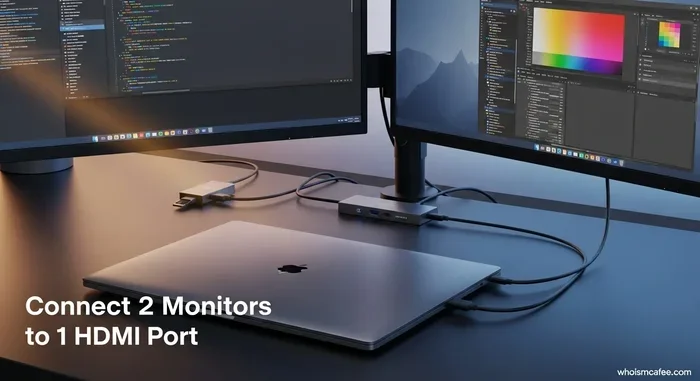
- Use a computer with dual HDMI ports. Many modern laptops and desktops come with two or more HDMI outputs built in.
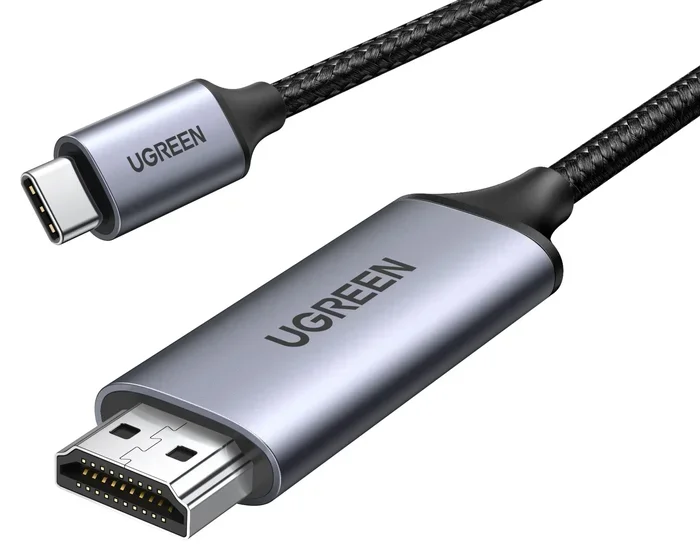
- Add a USB-to-HDMI adapter. These adapters plug into a USB port and add an extra HDMI output. They are affordable and work well for most users.
- Use a DisplayPort or USB-C dock. These docking stations offer multiple video outputs and are perfect for creating an expanded desktop workspace.
- Upgrade your graphics card. If you have a desktop PC, a new GPU with multiple outputs can support several monitors at once.
Each of these options lets you extend your desktop, not just mirror it. This means you can have different apps open on each screen. You can drag files between monitors. It is a much more productive setup for work or gaming.
Common Problems with HDMI Splitters for Dual Monitors
Like any tech accessory, HDMI splitters can come with issues. Here are the most common problems and how to fix them.
Low Resolution or Blurry Image
If your monitors look fuzzy after connecting a splitter, the splitter may be downscaling the signal. Cheap splitters often do this. They cannot pass through high-resolution signals. To fix this, buy a 4K-compatible HDMI splitter from a reputable brand. Also check that your display resolution settings match your monitors.
No Sound on One or Both Monitors
Sometimes the audio does not come through. This usually happens when the splitter does not support audio pass-through. Look for a splitter that explicitly supports HDMI audio along with video. You can also check your computer’s sound output settings to make sure the correct device is selected.
Signal Lag or Flickering
If the image flickers or lags, your cable may be too long or low quality. Long HDMI cables can weaken the signal. Try shorter cables or add an HDMI signal booster. Also make sure your refresh rate settings are compatible with the splitter.
Splitter Not Recognized by Your Computer
Occasionally, your PC may not detect the splitter. Try unplugging it and plugging it back in. Check that the HDMI port on your computer is working. You can also try a different splitter if the device is defective.
Quick Troubleshooting Tips
- Always use certified HDMI cables from trusted brands.
- Restart your computer after connecting the splitter.
- Update your graphics drivers to the latest version.
- Check the splitter’s firmware if the manufacturer provides an update tool.
Most issues with HDMI splitters are easy to fix. A little patience goes a long way.
Best HDMI Splitters for Dual Monitor Setups
Not all splitters are created equal. Some are cheap and unreliable. Others deliver excellent performance. Here are a few things to look for when shopping.
What to Look for in an HDMI Splitter
- Resolution support: Look for splitters that handle at least 1080p or 4K.
- Number of outputs: Most people need two outputs for dual monitors.
- Audio support: Make sure the splitter passes through audio without issues.
- Build quality: Metal housings and quality ports last longer than plastic ones.
- Brand reputation: Stick with well-known brands that offer warranties and customer support.
When shopping for HDMI accessories, always read reviews from real users. Pay attention to comments about resolution, reliability, and ease of setup. A good splitter can last for years and make your multi-monitor setup much more enjoyable.
Expert Tips for a Smooth Dual Monitor Experience
Once you have your setup running, a few expert tips can make a big difference. These small adjustments improve your daily workflow and protect your equipment.
Match Your Monitors
Try to use two monitors with the same size, resolution, and panel type. Mismatched screens can cause eye strain and make your workspace feel uneven. If you already have two different monitors, adjust the scaling and layout settings in your operating system to create a comfortable experience.
Use a Monitor Stand or Arm
A monitor arm or stand helps you position both screens at the right height and angle. This reduces neck strain and improves your posture. Many people find that an elevated setup with proper ergonomics makes them more productive throughout the day.
Keep Your Cables Organized
Cable management is often overlooked but matters more than you think. Use cable ties, clips, or a cable tray to keep your HDMI cables neat. This reduces clutter and prevents accidental disconnections. A clean desk also helps your mind stay focused.
Consider a KVM Switch for Multiple Devices
If you use more than one computer but want to share a single set of monitors, a KVM switch is a great option. It lets you control multiple PCs with one keyboard, mouse, and display setup. This is especially useful for professionals who work with different machines throughout the day.
Take Care of Your Equipment
Keep your HDMI splitter in a well-ventilated area. Avoid bending cables sharply. Unplug devices gently. These small habits extend the life of your accessories and keep your dual monitor setup running smoothly for years.
Final Thoughts
Using an HDMI splitter for dual monitors is a simple and affordable way to mirror content on two screens. It works great for presentations, media sharing, and basic display duplication. However, if your goal is to extend your desktop and create a larger workspace, a splitter alone will not cut it. You will need a different solution like a USB display adapter or a graphics card with dual outputs.
The right choice depends on what you want to achieve. Understand your needs before you buy any equipment. Check your computer’s capabilities. Read product reviews. And do not be afraid to ask for help if you get stuck during setup.
With the right tools and a little knowledge, you can build a dual monitor setup that boosts your productivity and makes your computer experience much more enjoyable. Start with the basics, explore your options, and enjoy the benefits of a multi-screen workspace.
Once you have your dual monitor display sorted out, you might also want to explore tools that boost your productivity, such as apps that work like Uber for finding dog walkers if you are looking for ways to manage your time better outside of work.
Frequently Asked Questions
Can an HDMI splitter be used to extend a desktop across two monitors?
No, an HDMI splitter only mirrors content. It sends the same signal to both screens. To extend your desktop, you need a graphics card with dual outputs, a USB-to-HDMI adapter, or a USB-C dock that supports display extension.
Do I need any special software to use an HDMI splitter?
No. Most HDMI splitters are plug-and-play devices. You do not need to install any software or drivers. Just connect the cables and your computer will recognize the displays automatically.
Will an HDMI splitter reduce the quality of my display?
Cheap splitters sometimes downgrade your resolution or refresh rate. To avoid this, buy a high-quality splitter that supports your monitor’s native resolution, such as 1080p or 4K. Always check the product specifications before purchasing.
Can I connect more than two monitors with an HDMI splitter?
Yes, if you buy a splitter with more than two output ports. However, all connected monitors will mirror the same content. For extended displays across multiple monitors, you need a different solution like a multi-output graphics card or a USB display adapter.
What is the difference between screen mirroring and screen extending?
Screen mirroring shows the same image on all connected displays. Screen extending creates separate workspaces on each monitor, allowing you to open different apps on each screen. A splitter handles mirroring, while adapters or multi-output graphics cards handle extending.
Are HDMI splitters expensive?
Basic HDMI splitters are very affordable, often costing under twenty dollars. Higher-end models with 4K support and better build quality may cost more. The price depends on the brand, features, and number of output ports.