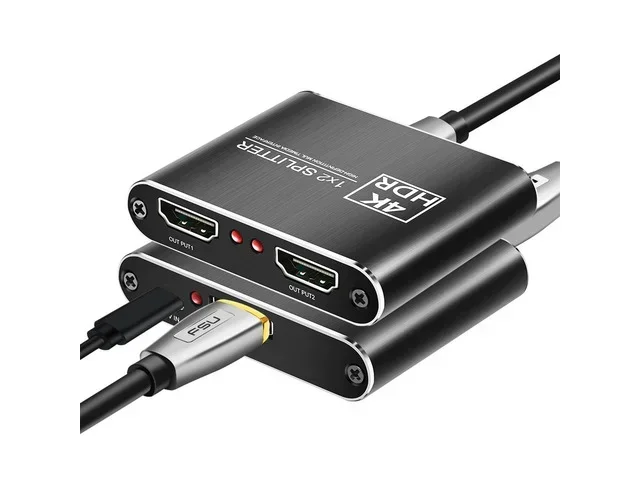
Can You Use A Hdmi Splitter For Dual Monitors Setup
Yes, you can use an HDMI splitter for dual monitors, but it mirrors the same display on both screens rather than extending your desktop. This means every pixel appears identically on both displays. If you want separate content on each screen, an HDMI switch or a dedicated GPU with multiple outputs is a better choice. Understanding the difference between splitting and extending is the key to a smooth setup.
This is a comprehensive guide about Can You Use A Hdmi Splitter For Dual Monitors.
Key Takeaways
- HDMI splitters mirror displays: They send the same signal to two screens, not extend your desktop across them.
- Resolution and refresh rate may drop: Some splitters reduce quality when driving two monitors simultaneously.
- An HDMI switch is better for extending: It lets you toggle between sources, not duplicate them.
- Check your GPU first: Most modern graphics cards support multiple outputs natively, making splitters unnecessary.
- Audio follows the splitter: Sound typically outputs through the splitter, but some setups need separate audio configuration.
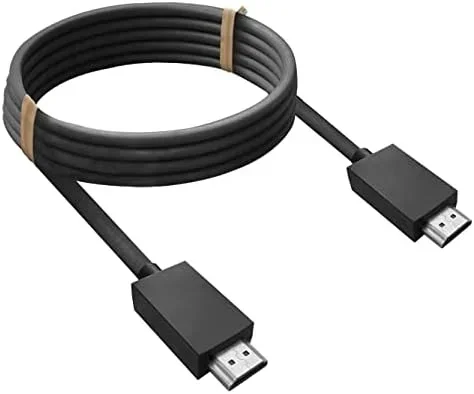
- Cable quality matters: Use high-speed HDMI cables rated for 4K or 1080p to avoid signal loss.
[FEATURED_IMAGE_PLACEHOLDER]
Can You Use An HDMI Splitter For Dual Monitors Setup?
You have two monitors sitting on your desk. You have one HDMI port on your laptop or PC. You want both screens working. So you Google it. And you find an HDMI splitter. But does it really work the way you want?
The short answer is yes, but with a big caveat. An HDMI splitter duplicates the same image on both screens. It does not extend your desktop. If you want to watch a movie on one screen and work on the other, a splitter will not help. But if you want both screens to show the exact same content, a splitter is a simple and affordable solution.
This guide walks you through everything you need to know. We cover how HDMI splitters work, when to use them, what to watch out for, and better alternatives. By the end, you will know exactly what to buy and how to set it up.
Let us dive in. No jargon. No fluff. Just clear, practical advice you can use today.
What Exactly Is An HDMI Splitter?
An HDMI splitter takes one HDMI signal and copies it to multiple outputs. Think of it like a water pipe splitter. One input. Two or more outputs. The same water flows through each pipe.
In tech terms, the splitter receives a video and audio signal from your computer or laptop. Then it sends that identical signal to two or more monitors. Both screens show the same thing at the same time.
Most HDMI splitters support 1080p or 4K resolution. Some cheaper models only handle 720p. The price varies a lot. You can find basic splitters for under twenty dollars. Higher-end models with better signal boosting cost more.
How Does Signal Splitting Work?
When you plug your device into the splitter, the signal gets duplicated. Each output port receives a full copy of the original signal. Your computer does not know there are two monitors. It thinks there is just one display connected.
This is different from a dual-GPU setup. With a graphics card that has two HDMI ports, your computer treats each monitor as a separate display. You can drag windows between them. You can extend your desktop. A splitter cannot do this.
If you are looking for the advantages and disadvantages of using a computer mouse across dual screens, you will find that mirroring with a splitter keeps your cursor movement simple. You only need one mouse, and it moves across a single shared screen space.
Can You Extend Your Desktop With An HDMI Splitter?
Here is the most important thing to understand. An HDMI splitter mirrors. It does not extend. These are two completely different things.
Mirroring means both screens show the same image. It is like looking in two mirrors facing each other. Everything is identical.
Extending means your desktop spans across both screens. You can open a browser on the left monitor and a document on the right. This is what most people want when they set up dual monitors for work.
Unfortunately, a basic HDMI splitter cannot extend your display. It only mirrors. If you need extending, you need a different solution. We will cover that below.
Why People Confuse Splitting With Extending
Many people buy an HDMI splitter expecting to extend their desktop. They set it up. Both screens light up. But they cannot drag a window from one screen to the other. That is because the splitter is mirroring, not extending.
This confusion happens a lot. Product descriptions sometimes use vague language. Words like “dual monitor support” can mean mirroring, not extending. Always read the fine print before buying.
If you are working with spreadsheets and run into issues like a line that won’t delete in Microsoft Excel, having a proper extended display setup makes a huge difference. You can keep your spreadsheet on one screen and your reference material on the other.
HDMI Splitter vs HDMI Switch: What Is The Difference?
People often mix up HDMI splitters and HDMI switches. They are not the same thing. Let us break it down clearly.
| Feature | HDMI Splitter | HDMI Switch |
|---|---|---|
| Inputs | One | Two or more |
| Outputs | Two or more | One |
| Function | Duplicates signal | Switches between sources |
| Use Case | Mirroring to multiple screens | Connecting multiple devices to one TV |
| Desktop Extension | No | No |
An HDMI splitter takes one input and sends it to many outputs. An HDMI switch takes many inputs and sends them to one output. They are basically opposites.
So if you want to connect a laptop, a gaming console, and a streaming stick to one monitor, you need a switch. If you want two screens to show the same thing, you need a splitter.
When To Use Each Device
Use a splitter when you want to display the same content on two screens. This works great for presentations, digital signage, or watching a movie with a friend sitting across the room.
Use a switch when you have multiple devices but only one display. It is perfect for a home entertainment setup where you toggle between a cable box, a Blu-ray player, and a game console.
Neither device extends your desktop. For that, you need a graphics card with multiple outputs or a USB-to-HDMI adapter that supports display extension.
How To Set Up Dual Monitors With An HDMI Splitter
Setting up an HDMI splitter is pretty straightforward. Here is a step-by-step guide you can follow right now.
- Buy the right splitter. Make sure it supports your desired resolution. If your monitors are 1080p, get a 1080p splitter. If they are 4K, get a 4K splitter.
- Connect the splitter to your PC. Plug the HDMI cable from your computer into the input port on the splitter.
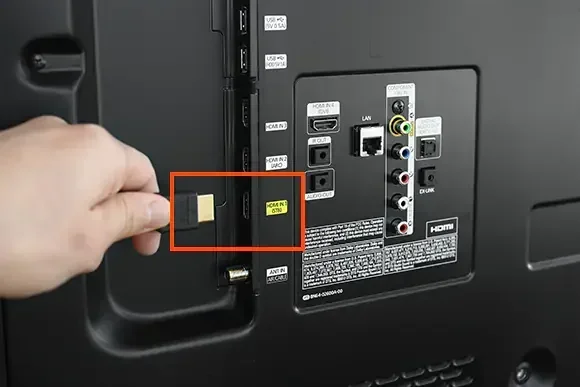
- Connect both monitors. Use two HDMI cables to connect the splitter’s output ports to each monitor.
- Power the splitter. Most splitters need a USB power cable. Plug it into your computer’s USB port or a wall adapter.
- Turn on both monitors. Set them to the correct HDMI input channel.
- Check the display settings. Go to your computer’s display settings. You should see one display detected.
That is it. Both screens should now show the same image. If one screen is black, check your cable connections. Try a different HDMI cable if needed.
Quick Tips For A Smooth Setup
- Use high-speed HDMI cables. Cheap cables can cause signal loss, especially at higher resolutions.
- Keep cables short. Longer cables weaken the signal. Stay under six feet if possible.
- Update your graphics drivers. Outdated drivers can cause detection issues with splitters.
- Test one monitor first. Get one screen working before connecting the second one.
- Check your splitter’s power requirements. Some need an external power source. Others draw power from the USB port.
If you are juggling productivity tasks, you might also appreciate tools that boost your workflow. Some freelancers who manage side tasks like finding apps like Uber for finding dog walkers rely on dual screen setups to keep their business apps and communication tools visible at the same time.
Limitations Of Using An HDMI Splitter For Dual Monitors
HDMI splitters are not perfect. They have real limitations that you should know about before buying one.
Resolution And Quality Loss
Some splitters reduce the output resolution. A 4K splitter might only push 1080p to each monitor. This depends on the quality of the splitter chip inside the device. Cheap splitters are more likely to downgrade your signal.
Always check the specifications before purchasing. Look for “4K@60Hz” or “1080p@144Hz” on the product label. If it does not specify, assume it will not support high refresh rates.
No Audio Separation
Most HDMI splitters pass audio through both outputs. But some setups need audio on only one monitor. For example, you might want video on both screens but sound only from your main monitor. Not all splitters support this kind of customization.
No Desktop Extension
This is the biggest limitation. As we covered earlier, a splitter mirrors your display. It does not let you extend your desktop. If your goal is to have different content on each screen, a splitter will not work for you.
Potential Signal Degradation
Every time a signal gets split, it loses some strength. With a two-way splitter, each output gets half the signal power. This can cause flickering, blank screens, or poor image quality. Better splitters include signal amplifiers to compensate. But even those have limits.
Limited Number Of Outputs
Most HDMI splitters support two or four outputs. If you need six or eight monitors, you will need a more advanced solution. A multi-output graphics card or a dedicated display controller is better for large setups.
Better Alternatives For Dual Monitor Setups
If an HDMI splitter does not meet your needs, what should you use instead? Here are the best alternatives.
1. Use Your GPU’s Multiple Outputs
Most modern graphics cards have two or more video outputs. These can be a mix of HDMI, DisplayPort, and DVI ports. You can connect one monitor to each port directly.
This is the best and simplest way to set up dual monitors. Your computer treats each monitor as a separate display. You can extend your desktop, drag windows between screens, and set different resolutions for each monitor.
Check the back of your PC or laptop. If you see two video ports, you probably do not need a splitter at all.
2. USB-to-HDMI Adapters
If your computer has only one HDMI port, a USB-to-HDMI adapter is a great alternative. These adapters add a second (or third) video output through a USB port.
They support display extension, not just mirroring. You get the full dual-monitor experience with separate desktops on each screen. Prices range from fifteen to fifty dollars depending on the resolution and refresh rate.
Look for adapters that support 4K resolution if you need high-quality output. Cheaper models may only support 1080p.
3. HDMI Switch For Source Management
If you need to connect multiple devices to one monitor, an HDMI switch is the right tool. It lets you toggle between your laptop, gaming console, and streaming device without unplugging cables.
Remember, an HDMI switch does not extend your desktop either. It just gives you more input options for a single display.
4. DisplayPort Daisy Chaining
If your monitors support DisplayPort, you can daisy chain them. This means connecting one monitor to the other in a chain. Both monitors receive the signal from your computer through a single cable connection.
This method supports desktop extension natively. It is clean, tidy, and avoids the need for extra hardware like splitters or switches.
Expert Insights And Common Mistakes
Let us share some real-world insights that most guides skip. These tips come from common problems people face when setting up dual monitors.
Common Mistakes To Avoid
- Buying a splitter when you need a switch. Check your goal first. Mirroring or extending? That determines which device you need.
- Ignoring cable quality. A bad HDMI cable can ruin even the best splitter. Invest in certified high-speed cables.
- Not checking power requirements. Some splitters need external power. If yours does and you skip the power adapter, you will get a blank screen.
- Assuming all splitters support 4K. Many budget splitters only handle 1080p. Read the specs carefully.
- Forgetting to update GPU drivers. Outdated drivers can prevent your computer from detecting the second monitor correctly.
Expert Tips For Best Performance
- Use a powered splitter. Active splitters with their own power supply deliver a stronger, more stable signal.
- Keep your setup simple. Too many adapters and cables in the chain can weaken the signal. Use the fewest connections possible.
- Test each output individually. If one monitor works and the other does not, the problem is usually the cable or the port, not the splitter.
- Match your monitor resolutions. If one monitor is 1080p and the other is 4K, the splitter may force both to the lower resolution.
- Consider your refresh rate needs. Gamers need at least 60Hz. Make sure your splitter and cables support the refresh rate you need.
Frequently Asked Questions
Can I extend my desktop using an HDMI splitter?
No. An HDMI splitter only mirrors the same display on both screens. To extend your desktop across two monitors, you need a graphics card with multiple outputs or a USB-to-HDMI adapter that supports display extension.
Will an HDMI splitter reduce my image quality?
It can. Some splitters reduce the resolution or refresh rate. Higher-quality splitters with signal amplifiers preserve better image quality. Always check the product specifications before buying.
Do I need a powered HDMI splitter?
For most setups, yes. A powered splitter uses an external power source to maintain signal strength. Passive splitters work for short cable runs but may lose signal quality over longer distances.
Can I connect more than two monitors with an HDMI splitter?
Some splitters support three or four outputs. However, each additional output weakens the signal. For more than two monitors, a multi-output graphics card is a more reliable choice.
Does an HDMI splitter pass audio?
Yes, most HDMI splitters pass audio through all outputs. However, some setups may require separate audio configuration, especially if your monitors have different built-in speakers or audio capabilities.
What is the difference between an HDMI splitter and an HDMI switch?
An HDMI splitter takes one input and sends it to multiple outputs. An HDMI switch takes multiple inputs and sends them to one output. They serve opposite purposes and are not interchangeable.
Final Thoughts
So, can you use an HDMI splitter for dual monitors? Yes, you can. But it mirrors your display, it does not extend it. If that works for your needs, a splitter is a simple and affordable solution. If you need separate content on each screen, look into using your GPU’s multiple outputs or a USB-to-HDMI adapter.
Understanding the difference between mirroring and extending is the most important step. Once you know what you want, picking the right device becomes easy. Avoid common mistakes like buying the wrong type of device or using cheap cables. Your setup will work smoothly and last longer.
Take what you learned here and put it into action. Check your current hardware, decide what you need, and make the right purchase. Your dual monitor setup is closer than you think.
Frequently Asked Questions
What is Can You Use A Hdmi Splitter For Dual Monitors?
Can You Use A Hdmi Splitter For Dual Monitors is an important topic with many practical applications.