Can You Run Usb A To Hdmi And Everything You Need To Know
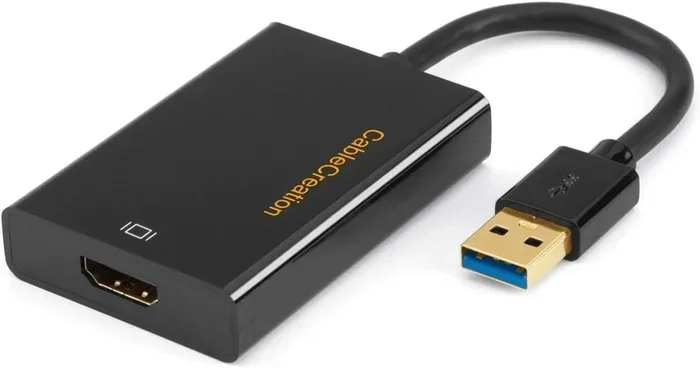
Yes, you can run USB A to HDMI using a USB to HDMI adapter or converter cable. This setup lets you connect a computer or laptop to an external display through a USB port. Whether you are presenting at work or extending your screen, a USB A to HDMI adapter makes it simple and affordable.
Have you ever looked at your computer and thought, “I wish I could just plug it straight into my TV or monitor”? You are not alone. Many people want a simple way to connect their devices to a bigger screen. The good news is that a USB A to HDMI setup can make this happen. But how does it work? Is it really that simple? Let us walk through everything you need to know about using a USB A to HDMI adapter to get your display up and running.
In this guide, we will cover what USB A to HDMI is, how it works, the different types of adapters available, and step by step setup instructions. We will also look at common problems and how to fix them. By the end, you will feel confident about making this connection yourself. No tech degree needed. Just a few minutes and the right adapter cable.
Key Takeaways
- USB A to HDMI works with the right adapter: You need a USB A to HDMI adapter or converter to bridge the connection between your device and a display.
- Active adapters do the heavy lifting: They have built-in chips that convert USB data into HDMI video and audio signals.
- Compatibility matters: Not all devices support USB to HDMI output. Check your system requirements before buying.
- Setup is simple: Most adapters are plug and play and require no extra software or drivers.
- Common issues are fixable: Driver updates and cable checks solve most problems you may face.
- USB A to HDMI has many uses: From presentations to gaming, this adapter opens up new display options for your devices.
📑 Table of Contents
What Is USB A To HDMI?
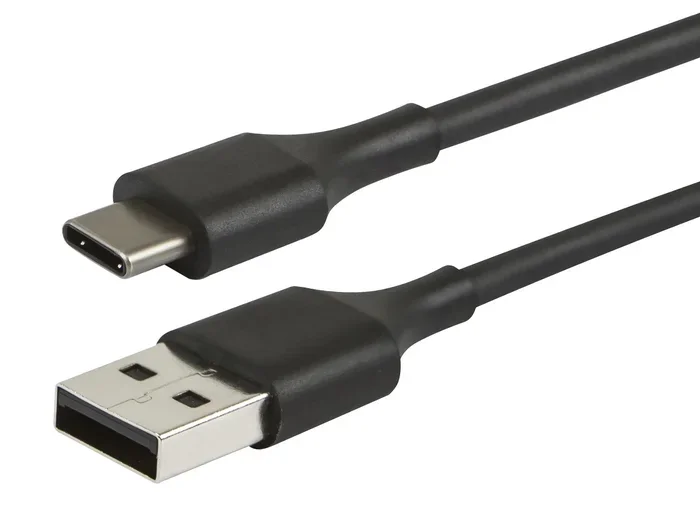
Let us start with the basics. USB A is one of the most common USB connector types. You probably have seen it on computers, chargers, and many computer peripherals. It is the flat, rectangular plug that goes into almost every device.
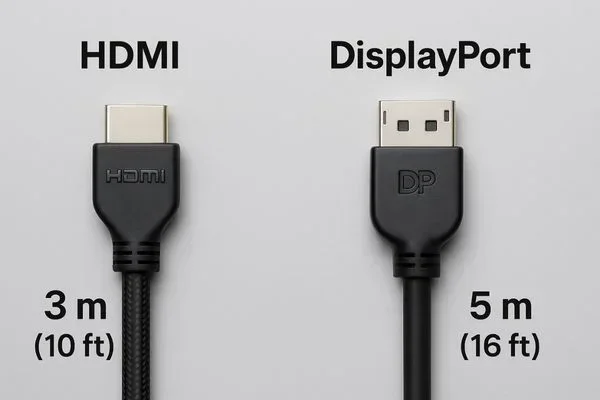
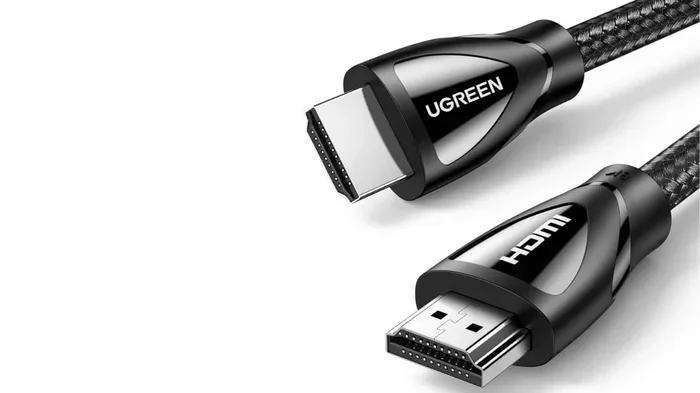
HDMI stands for High Definition Multimedia Interface. It is the cable standard that carries both audio and video to your TV, monitor, or projector. When you plug in a gaming console or a streaming device, you are likely using an HDMI cable.
So when we talk about USB A to HDMI, we are talking about bridging two different worlds. USB carries data. HDMI carries high quality audio and video signals. A USB A to HDMI adapter acts as a translator between these two technologies. It takes the data signal from a USB port and converts it into a video and audio output that an HDMI cable can carry to your display.
This is not magic. It is clever engineering inside a small adapter box. The chip inside the adapter handles the video conversion process. It takes what your computer sends through the USB port and turns it into a format your TV or monitor can understand.
Think of it like a language translator at a conference. Two people speak different languages, but the translator helps them communicate. The USB A to HDMI adapter does the same thing for your devices. It lets them “talk” to each other even though they use different connection types.
Can You Run USB A To HDMI?
The short answer is yes. You can run USB A to HDMI, but there are some important things to know. Not all USB ports are the same. Not all adapters work with every device. Let us break this down so you know exactly what to expect.
When you connect a USB A to HDMI adapter to your computer, the adapter needs your computer to recognize it as a display output device. This means your operating system must support this type of connection. Most modern computers running Windows or macOS can handle this just fine. But older systems might struggle.
Here is something important to keep in mind. The USB port matters a lot. A USB 2.0 port may work for basic display tasks, but it will limit your display resolution and frame rate. A USB 3.0 port gives you much better performance for streaming video and smoother visuals. If your computer has a USB C port, you might want to look for a USB C to HDMI adapter instead, as it offers even better results.
Many users wonder if they can just buy any adapter and expect it to work. The truth is that compatibility varies. Some adapters work only with specific operating systems. Others need special drivers installed. Always check the product details before you buy. Look for adapters that say “plug and play” on the box. These are the easiest to set up and use.
| Type | Pros | Cons | Best For |
|---|---|---|---|
| Adapter Cable | Simple, compact, affordable | Limited resolution support | Basic display extension |
| Active Adapter | Better performance, higher resolution | More expensive, bulkier | Streaming, gaming, presentations |
| Docking Station | Multiple ports, flexible setup | Expensive, needs power | Desk setups, office work |
| Passive Adapter | Cheap, no drivers needed | Limited functionality | Simple tasks only |
How To Set Up A USB A To HDMI Connection
Setting up a USB A to HDMI connection is easier than you might think. Most adapters work right out of the box. Here is a step by step guide to get you started.
Step 1: Check Your USB Port
First, look at the USB ports on your computer. You want to use a USB A port if your adapter has a USB A connector on one end. Make sure the port is clean and free of dust. A loose connection can cause display problems.
If your computer only has USB C ports, you may need a USB C to USB A adapter first. This adds an extra step but still gets the job done. Just be aware that each adapter in the chain can slightly reduce performance.
Step 2: Plug In the Adapter
Connect the USB A end of your adapter cable to your computer. If you are using an active adapter with its own power supply, plug that in now. Wait a few seconds for your computer to recognize the new device.
You should see a notification on your screen saying that a new display has been detected. If you do not see anything, do not worry. We will troubleshoot that in the next section.
Step 3: Connect the HDMI Cable
Take your HDMI cable and plug one end into the adapter. Plug the other end into your TV, monitor, or projector. Make sure the connection is firm and secure.
Once both ends are connected, turn on your display. Use your TV remote or monitor buttons to switch to the correct HDMI input. You should now see your computer screen mirrored or extended on the larger display.
Step 4: Adjust Display Settings
On Windows, go to Settings and then Display. You can choose to mirror your screen or extend it. On macOS, go to System Settings and then Displays. Both systems let you adjust the resolution, orientation, and primary display.
For the best experience, set the display resolution to match your monitor or TV. This gives you the sharpest picture and the most screen space. If you want to watch streaming video on the big screen, make sure the resolution is set to at least 1080p.
Some users find that the audio does not come through the HDMI connection at first. To fix this, go to your sound settings and select the HDMI output as your default audio device. This is a quick fix that solves the problem in most cases.
Common Problems And How To Fix Them
Even with the best USB A to HDMI adapter, you might run into some issues. This is normal. Most problems have simple solutions. Let us look at the most common ones and how to fix them.
No Display Signal
If your screen stays blank after connecting the adapter, try these steps. First, check that all cables are firmly plugged in. A loose HDMI cable is the most common cause of no signal. Unplug it and plug it back in firmly.
Next, make sure your display is set to the correct input source. If your TV has multiple HDMI ports, you need to select the right one. Try unplugging the adapter, waiting ten seconds, and plugging it back in. This often refreshes the connection.
Low Resolution or Fuzzy Image
A blurry or low resolution image usually means your adapter or USB port cannot handle the full resolution. Try these fixes. First, check your display settings and lower the resolution to match what your adapter supports.
Second, make sure you are using a USB 3.0 port instead of a USB 2.0 port. USB 3.0 provides much more bandwidth for display output. If your computer only has USB 2.0 ports, a USB 2.0 to HDMI adapter should work, but you may be limited to lower resolutions.
Third, update your display drivers. On Windows, go to Device Manager and look for display adapters. Right click and select Update Driver. On macOS, go to System Settings and check for software updates. Fresh drivers often solve resolution issues.
No Audio Through HDMI
If your video works but you hear no sound, the issue is usually with your audio settings. On Windows, right click the speaker icon in your taskbar and select Open Sound Settings. Under Output, choose your HDMI display. On macOS, go to Sound Settings and select the HDMI output.
Sometimes restarting your computer fixes this issue. It resets the audio routing and forces the system to recognize the HDMI audio path. This simple step solves the problem more often than you would think.
Adapter Not Recognized by Computer
If your computer does not recognize the adapter at all, the issue might be with drivers or compatibility. First, try a different USB port. Some ports may not provide enough power. Also, avoid USB hubs. Plug the adapter directly into your computer for the best results.
If that does not work, check the manufacturer website for drivers. Some active adapters require specific software to work correctly. Download and install the latest drivers, then restart your computer. This resolves the issue in most cases.
Best Uses For USB A To HDMI
Now that you know how to set up and troubleshoot a USB A to HDMI connection, let us talk about the best ways to use it. This adapter opens up many possibilities for your devices.
Work Presentations
One of the most popular uses is connecting your laptop to a projector or conference room display. Instead of fumbling with cables and adaptors, a USB A to HDMI adapter gives you a clean, reliable connection. You can share your screen, run slideshows, and present with confidence. It works with most modern laptops that have a USB A port.
Home Entertainment
Want to use your TV as a second computer screen? A USB A to HDMI adapter makes this easy. You can browse the web, watch videos, or work on documents on a much larger display. This is great for people who work from home and want a bigger screen without buying a second monitor.
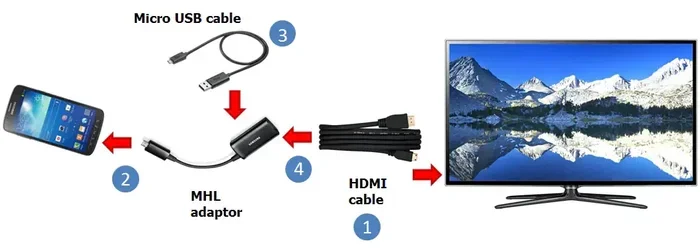
If you want to connect mobile devices, you might also need help with other connectivity tasks. For example, if you are trying to Gaming on a Bigger Screen
Gamers can benefit from a USB A to HDMI adapter too. Plug your laptop into your TV and enjoy games on the big screen. The adapter supports most casual and mid range games without lag. For competitive gaming, you might want a more direct connection, but for casual play, this setup works well. Small businesses sometimes use USB to HDMI setups for digital signs or kiosks. A computer with a USB A to HDMI adapter can power a display that shows menus, promotions, or information. It is a cost effective way to set up a digital display without expensive hardware.Digital Signage and Kiosks
Useful Tech Gadgets for Connectivity