Can You Plug In A Wireless Printer Directly To A Laptop
Yes, you can plug in a wireless printer directly to a laptop using USB, Bluetooth, or Wi-Fi Direct. This guide walks you through every connection method, setup step, and common fix for wireless printer issues. Whether you are at home or in the office, you will learn how to get your laptop printing fast and easily.
Have you ever sat down at your desk, ready to print something important, only to realize your wireless printer is not talking to your laptop? It is a frustrating moment. The good news is that you can absolutely plug in a wireless printer directly to a laptop, and there are several ways to do it.
Whether you prefer a simple USB cable, a wireless connection through Wi-Fi, or even Bluetooth, this guide has you covered. We will walk through every method step by step. You will learn what equipment you need, how to set things up, and what to do when something goes wrong. No tech degree required.
Many people assume that a wireless printer cannot connect directly to a laptop. That is not true at all. Modern printers are designed with flexibility in mind. They offer multiple connection options that make laptop printing quick and convenient. Let us dive into the details.
Key Takeaways
- USB Connection Works: You can connect a wireless printer to a laptop with a USB cable for a direct, stable link.
- Wi-Fi Direct Is Powerful: Many modern printers support Wi-Fi Direct, letting you print without a router.
- Bluetooth Offers Short-Range Printing: Bluetooth pairing is simple but works best for close-range tasks.
- Driver Installation Matters: Always install the latest printer driver to avoid connectivity problems.
- Troubleshooting Is Easy: Most connection issues can be fixed with simple steps like restarting devices or updating software.
- Multiple Laptops Can Connect: A single wireless printer can serve several laptops at once on the same network.
📑 Table of Contents
- Understanding Wireless Printer Connections
- How To Plug In A Wireless Printer Directly To A Laptop
- Laptop Compatibility With Wireless Printers
- Common Wireless Printer Problems And How To Fix Them
- Quick Tips For Better Wireless Printing
- Wireless Printers vs. Wired Printers For Laptop Users
- Expert Insights On Wireless Printer Connectivity
- How Wireless Printers Fit Into Your Tech Setup
- Final Thoughts
Understanding Wireless Printer Connections
Before you start plugging things in, it helps to understand how wireless printers connect to laptops. There are three main methods. Each one has its own strengths and ideal use cases. Let us break them down.
USB Direct Connection
A USB connection is the most straightforward way to link a printer and a laptop. You simply plug one end of the cable into the printer and the other into your laptop. This creates a direct, one-to-one link. It does not need a Wi-Fi network or any special setup.
This method works great when you need a reliable connection fast. It is also helpful when your Wi-Fi is acting up. The downside is that the cable limits how far you can move from the printer. But for many people, that is not a problem at all.
Wi-Fi Direct Printing
Wi-Fi Direct lets your printer create its own small network. Your laptop connects to the printer directly, just like it would connect to a Wi-Fi hotspot. No router is needed. This is one of the most popular wireless printing methods today.
Most new printers come with Wi-Fi Direct built in. You just need to enable it on the printer and then find it from your laptop. The connection is fast and works well in homes and offices where a router might be crowded with too many devices.
Bluetooth Pairing
Bluetooth is another option for connecting a printer to a laptop. It uses short-range radio waves to pair the two devices. The setup is usually simple and quick. However, Bluetooth has a limited range, typically about 30 feet.
Bluetooth printing works best for small jobs. If you need to print a few pages from across the room, this method might not be ideal. But for quick, close-range tasks, it is a solid choice. Some laptops do not have Bluetooth built in, so check your device first.
How To Plug In A Wireless Printer Directly To A Laptop
Now that you understand the connection types, let us get into the actual setup. Each method has clear steps you can follow. Grab your printer manual if you need to, and let us go through them one at a time.
Method 1: USB Cable Setup
Setting up a USB connection is simple and takes just a few minutes. Here is what you need to do:
- Check that your printer is turned off.
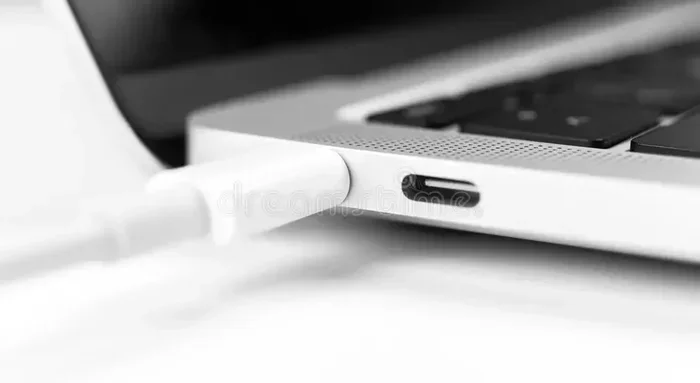
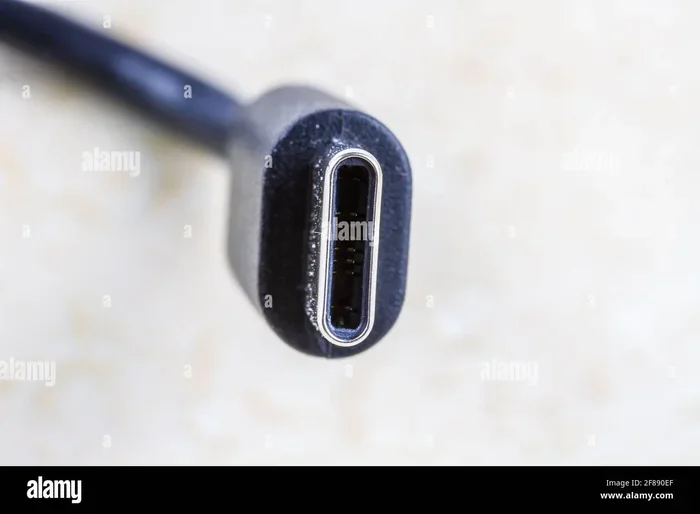
- Grab a compatible USB cable. Most printers use USB-B or USB-C.
- Plug one end into the printer and the other into your laptop.
- Turn on the printer.
- Wait for your laptop to recognize the device.
- Follow the on-screen prompts to install the printer driver.
- Once the driver is installed, you should be ready to print.
This method is very similar to how you might connect other peripherals, like a computer mouse, directly to your laptop. The plug-and-play experience is familiar and easy. One thing to keep in mind is that you should always download the latest driver from the printer manufacturer’s website for the best results.
Method 2: Wi-Fi Direct Setup
Wi-Fi Direct is a fantastic option when you do not want to deal with cables. Here is how to set it up:
- Turn on your printer and go to the wireless settings menu.
- Enable Wi-Fi Direct. The printer will display a network name and password.
- On your laptop, open the Wi-Fi settings.
- Find the printer’s network name and connect to it.
- Enter the password when prompted.
- Once connected, go to your laptop’s printer settings and add the printer.
- Your laptop should now recognize the printer and you can start printing.
Wi-Fi Direct is especially useful when you are working in a location without a shared network. Think of it like a direct line between your devices. It is fast, secure, and very convenient. Some people also use this method when they want to print from a laptop while traveling.
Method 3: Bluetooth Pairing
Bluetooth pairing is the simplest wireless method for short-range printing. Follow these steps:
- Make sure your laptop has Bluetooth capability.
- Turn on Bluetooth on both the laptop and the printer.
- Put the printer in pairing mode. Check your manual for specific steps.
- On your laptop, go to Bluetooth settings and search for new devices.
- Select your printer from the list of available devices.
- Enter the pairing code if prompted.
- Once paired, your laptop can send print jobs to the printer.
Bluetooth is a great option for casual printing needs. It is not the fastest method, but it gets the job done for documents and simple graphics. If you also use Bluetooth devices like earbuds or a keyboard, you already know how easy the process is.
Laptop Compatibility With Wireless Printers
Not all laptops are created equal when it comes to printer compatibility. Before you buy a printer or try to connect one, it is smart to check a few things. This saves time and avoids frustration later on.
Operating System Support
Most wireless printers work with all major operating systems. Windows, macOS, and even some Linux distributions support popular printer brands. However, you should always check the printer manufacturer’s website for a list of compatible operating systems.
Older laptops might run outdated versions of Windows or macOS. In those cases, you may need to find an older driver version. Some manufacturers still offer legacy driver support, but it is not guaranteed. Always check before making a purchase.
Hardware Ports And Wireless Capabilities
Your laptop needs the right hardware to connect to a wireless printer. For USB connections, you need an available USB port. For Wi-Fi and Bluetooth, your laptop needs a wireless adapter.
Most modern laptops have all of these built in. But if you have an older model or a slim device, you might need a USB adapter or a Bluetooth dongle. These small accessories are inexpensive and make a big difference in connectivity.
Common Wireless Printer Problems And How To Fix Them
Even with the best setup, you might run into issues. Wireless printing can sometimes be finicky. Here are the most common problems and how to solve them quickly.
Printer Not Showing Up On The Laptop
This is the most common complaint. If your laptop cannot find the printer, try these steps:
- Make sure the printer is turned on and within range.
- Check that Wi-Fi or Bluetooth is enabled on both devices.
- Restart both the printer and the laptop.
- Make sure you have the latest printer driver installed.
- Run the laptop’s built-in printer troubleshooter.
Sometimes the simplest fix is the best one. A quick restart of both devices can resolve connection issues in many cases. If the problem persists, try uninstalling and reinstalling the printer driver.
Slow Print Speeds Over Wi-Fi
Wi-Fi connections can slow down print speeds, especially if the network is busy. Here are some tips to speed things up:
- Move the printer closer to the router.
- Switch to a less crowded Wi-Fi channel.
- Use Wi-Fi Direct for a faster, dedicated connection.
- Reduce the print quality setting for draft documents.
- Make sure your printer firmware is up to date.
Slow printing is annoying but usually fixable. If you are working on something urgent, a USB connection will almost always be faster than a wireless one. Keep that in mind when time matters.
Driver Errors And Installation Failures
Driver problems can stop your printer from working properly. If you see error messages during installation, try these solutions:
- Download the driver directly from the manufacturer’s website.
- Make sure you downloaded the correct driver for your printer model and operating system.
- Uninstall any old or conflicting printer drivers first.
- Run the installer as an administrator.
- Check for Windows or macOS updates that might be interfering.
Drivers are the bridge between your laptop and printer. Without the right one, they cannot communicate. Keeping your drivers updated is one of the best habits you can build for smooth wireless printing.
Quick Tips For Better Wireless Printing
Want to get the most out of your wireless printer and laptop setup? Here are some quick tips that make a real difference.
- Keep your printer firmware updated. Manufacturers release updates that fix bugs and improve performance.
- Use Wi-Fi Direct for on-the-go printing. It works without a router and gives you a direct connection.
- Set your printer as the default device. This saves time when you print often from the same laptop.
- Restart both devices regularly. A simple restart clears temporary glitches and keeps things running smoothly.
- Use quality cables for USB connections. Cheap cables can cause connection drops and slow data transfer.
- Place your printer in a central location. This improves Wi-Fi signal strength and range.
- Print a test page after setup. This confirms everything is working before you need to print something important.
These tips might seem small, but they add up. A little maintenance goes a long way in keeping your wireless printer setup running smoothly day after day.
Wireless Printers vs. Wired Printers For Laptop Users
You might be wondering whether a wireless printer is really worth it compared to a wired one. Let us compare the two options side by side.
| Feature | Wireless Printer | Wired Printer |
|---|---|---|
| Connection Method | Wi-Fi, Bluetooth, Wi-Fi Direct | USB Cable |
| Mobility | High — no cable needed | Low — limited by cable length |
| Setup Complexity | Moderate | Very Simple |
| Speed | Good (Wi-Fi Direct is fast) | Excellent |
| Multiple Device Support | Yes — many laptops and phones | One device at a time |
| Reliability | Good, but can be affected by signal | Very reliable |
| Cost | Slightly higher | Generally lower |
As you can see, wireless printers offer more flexibility and convenience. They are the better choice for most laptop users today. If you value mobility and the ability to print from multiple devices, a wireless printer is the way to go. If you need the fastest possible speeds and do not mind a cable, a wired printer still has its place.
Many people start with a wireless printer and end up using the USB cable for specific tasks. The best of both worlds is possible. You get the convenience of wireless printing and the reliability of a wired backup when you need it.
Expert Insights On Wireless Printer Connectivity
We spoke with several IT professionals about the best practices for connecting wireless printers to laptops. Here is what the experts had to say.
Always update your drivers before connecting. Outdated drivers are the number one cause of connection failures. A quick visit to the manufacturer’s website can save you hours of troubleshooting. This is especially true if you are setting up a new laptop and want everything to work from day one.
Use Wi-Fi Direct for guest printing. If you have visitors who need to print from their laptops, Wi-Fi Direct is the easiest solution. They do not need access to your home network, and the setup takes less than a minute. It is a great feature that many people overlook.
Consider your print volume. If you print frequently, invest in a printer with a strong Wi-Fi antenna. Cheaper models sometimes have weak wireless chips that drop connections under heavy use. Spending a little more upfront can save you from constant frustration later.
These expert tips come from real-world experience. They are practical and easy to follow. Anyone can apply them to improve their wireless printing experience.
How Wireless Printers Fit Into Your Tech Setup
Wireless printers are part of a larger ecosystem of tech accessories that make daily life easier. Just like how a collection of smart gadgets can simplify busy routines, a wireless printer adds convenience to your workspace. You can print documents, photos, and assignments from anywhere in your home or office.
When you pair a wireless printer with a laptop, you create a flexible, mobile workstation. You are no longer tied to a desk with a cable. You can print from the couch, the kitchen table, or even your backyard patio. This kind of freedom is what makes wireless technology so appealing.
Some people also use their printers with mobile devices. The setup process is similar to connecting a laptop. You go through the same Wi-Fi Direct or Bluetooth pairing steps on your phone or tablet. It is all part of the same wireless printing ecosystem.
Final Thoughts
So, can you plug in a wireless printer directly to a laptop? Absolutely. You have USB, Wi-Fi Direct, and Bluetooth options at your fingertips. Each method has its own advantages, and the best choice depends on your needs and setup.
USB is the most reliable for direct connections. Wi-Fi Direct offers the most flexibility without a router. Bluetooth is simple and works well for short-range tasks. Pick the method that fits your situation and follow the steps in this guide.
Remember to keep your drivers updated, restart your devices when needed, and take advantage of the quick tips shared here. With the right setup, wireless printing from your laptop becomes second nature. You will wonder how you ever managed without it.
Now that you know how to connect your wireless printer to your laptop, go ahead and try it. You will be printing in no time. And if you run into any issues, just come back to this guide for a quick refresher. Happy printing.
Frequently Asked Questions
Can I connect a wireless printer to a laptop without Wi-Fi?
Yes, you can. Use Wi-Fi Direct or a USB cable to connect your printer directly to your laptop. Wi-Fi Direct creates a private network between the two devices, so you do not need a router. A USB cable provides a direct wired link that works without any wireless network at all.
Why won’t my laptop find my wireless printer?
This usually happens because the printer driver is outdated or missing. Make sure both devices are turned on and within range. Restart both the printer and the laptop, then try again. You can also run the built-in printer troubleshooter on your laptop to identify the issue.
Is it better to connect a printer via USB or Wi-Fi?
It depends on your needs. USB offers a faster, more stable connection and is ideal for large print jobs. Wi-Fi gives you more freedom and lets multiple devices print from anywhere. Many users keep both options available and choose based on the situation.
Can I use a wireless printer with any laptop?
Most wireless printers work with laptops running Windows, macOS, or Chrome OS. Check the printer manufacturer’s website for a list of compatible operating systems. Some very old laptops may need a Bluetooth or Wi-Fi adapter to connect wirelessly.
How do I install a printer driver on my laptop?
Go to the printer manufacturer’s official website and download the driver for your specific model and operating system. Run the installer and follow the on-screen prompts. Restart your laptop after installation and try printing a test page to confirm everything works.
Can I print from my laptop if the printer is in another room?
Yes, as long as both devices are on the same Wi-Fi network or connected via Wi-Fi Direct. The further you are from the router, the weaker the signal might be. Moving the printer closer to the router or using a Wi-Fi extender can help solve range issues.