Can You Hook Up Usb C To Hdmi Easily Without Adapters
Yes, you can hook up USB C to HDMI easily without adapters in many cases. Modern devices with USB-C Alt Mode support direct video output to HDMI displays. This guide covers everything you need to know about USB C to HDMI connections, from cable types to troubleshooting common issues.
Key Takeaways
- Direct Connection Is Possible: Many laptops and phones support USB-C to HDMI output without any extra adapter, thanks to DisplayPort Alt Mode built into the USB-C standard.
- Cable Quality Matters: Using a certified USB-C to HDMI cable ensures you get the best resolution and reliable audio and video performance every time.
- Check Your Device Compatibility: Not every USB-C port supports video output. Always verify whether your device uses USB-C Alt Mode or Thunderbolt 3 before buying any cable.
- Common Issues Are Easy to Fix: Most problems like no signal or poor resolution can be solved with simple steps like reseating the cable or updating display drivers.
- Adapters Still Have Their Place: When direct connection isn’t possible, a quality USB-C to HDMI adapter remains a reliable backup option for connecting to external screens.
📑 Table of Contents
- Can You Hook Up USB C to HDMI Easily Without Adapters?
- Understanding USB-C and HDMI Basics
- How to Check If Your Device Supports Direct USB-C to HDMI Output
- Types of USB-C to HDMI Cables and Adapters
- Step-by-Step Guide to Connecting USB-C to HDMI Without Adapters
- Common Problems and How to Fix Them
- When Do You Actually Need an Adapter?
- Best Practices for USB-C to HDMI Connections
- USB-C to HDMI Across Different Devices
- Quick Tips for a Perfect Setup Every Time
- Final Thoughts
Can You Hook Up USB C to HDMI Easily Without Adapters?
The short answer is yes. You can hook up USB C to HDMI in many situations without needing a separate adapter. Modern devices like laptops, tablets, and even some smartphones come with USB-C Alt Mode. This feature lets the USB-C port carry video signals directly to an HDMI display. It is one of the most convenient developments in modern tech connectivity.
But here is the catch. Not every USB-C port supports video output. Some ports are designed only for high-speed data transfer or charging. Before you grab any cable, you need to know what your specific port can do. This guide walks you through everything step by step. You will learn how to check compatibility, which cables work best, and how to set up a direct USB-C to HDMI connection like a pro.
We also cover common problems and quick fixes. Whether you are connecting a laptop to a monitor or mirroring your phone screen to a TV, this guide has you covered. Let us dive right in and make your setup as simple as possible.
Understanding USB-C and HDMI Basics
What Is USB-C?
USB-C is a universal connector standard. It features a small, reversible design that plugs in either direction. This reversible connector has become the go-to choice for modern devices. Laptops, phones, tablets, and even gaming consoles now use USB-C ports.
The USB-C connector supports multiple protocols at once. It can handle data transfer, power delivery, and video output simultaneously. This makes it incredibly versatile. You can charge your device, transfer files, and send video to a display all through one single port.
However, the capabilities of a USB-C port depend on what the device manufacturer has enabled. Some ports support the full range of features. Others are limited to basic charging and data only. This is why checking your device specs matters so much.
What Is HDMI?
HDMI stands for High-Definition Multimedia Interface. It is the standard cable used to connect devices to TVs, monitors, and projectors. HDMI carries both high-quality video and audio through a single cable. This makes it ideal for presentations, gaming, and media streaming.
Most TVs and monitors still use HDMI inputs. Even though newer display standards exist, HDMI remains widely supported across all brands and price ranges. That is why connecting a USB-C device to an HDMI display is such a common need.
How Do USB-C and HDMI Work Together?
When a device supports DisplayPort Alt Mode over USB-C, it can send a video signal through the USB-C port. A USB-C to HDMI cable or adapter then converts that signal into standard HDMI output. The result is a clean digital display connection with minimal lag or quality loss.
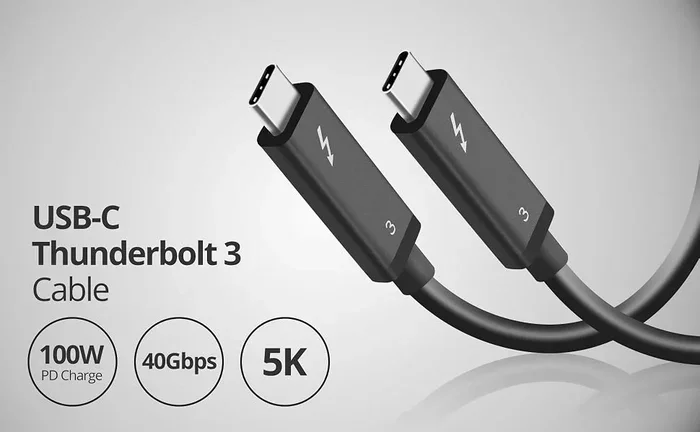
Some devices use Thunderbolt 3 or Thunderbolt 4 over their USB-C ports. These protocols also support video output and offer even higher bandwidth. Thunderbolt connections can drive multiple external displays at higher resolutions. This makes them excellent for professionals who need reliable digital display setups.
How to Check If Your Device Supports Direct USB-C to HDMI Output
Look for DisplayPort Alt Mode
The easiest way to confirm support is to check if your device lists DisplayPort Alt Mode in its specifications. This is a built-in feature of the USB-C standard. When a device supports it, the USB-C port can output video natively.
You can also look for a small DisplayPort icon next to the USB-C port on your device. This symbol tells you the port supports video output. If you do not see the icon, check the user manual or the manufacturer website for details.
Check for Thunderbolt Support
If your device has a Thunderbolt 3 or Thunderbolt 4 port, video output is guaranteed. Thunderbolt ports always support video output alongside data and charging. Look for the lightning bolt icon next to the port to confirm.
Thunderbolt connections offer the best performance for high-resolution displays. They support 4K and even 8K output depending on the version. If you have a Thunderbolt-enabled laptop, you are in great shape for a direct connection.
Use Online Compatibility Tools
Many manufacturers offer online tools where you can enter your device model and check its port capabilities. You can also search for your device name along with the phrase “USB-C video output” to find quick answers. Forums and support pages are great resources for real-world compatibility reports.
Types of USB-C to HDMI Cables and Adapters
Direct USB-C to HDMI Cables
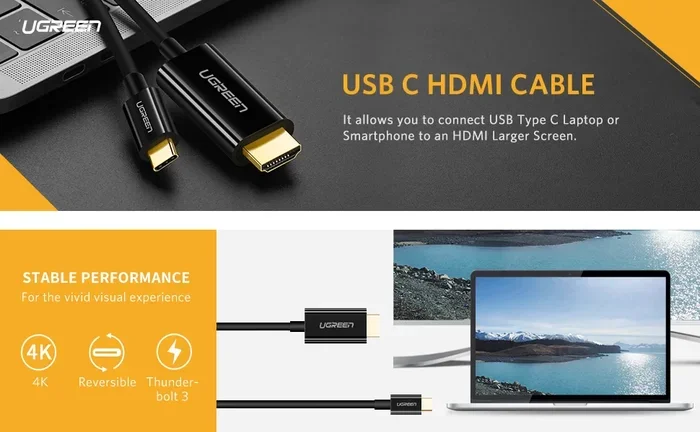
A direct USB-C to HDMI cable has a USB-C connector on one end and an HDMI connector on the other. These cables work when your device supports DisplayPort Alt Mode. They eliminate the need for any additional adapter or dongle. This makes them the simplest option for a clean, direct connection.
These cables are ideal for quick setups. You plug one end into your laptop or tablet and the other into your TV or monitor. The connection is instant in most cases. They also tend to be more affordable than full docking stations.
USB-C Hubs with HDMI Ports
A USB-C hub adds multiple ports to your device through a single USB-C connection. Most hubs include at least one HDMI port for external displays. They also often add USB-A ports, SD card readers, and Ethernet jacks.
Hubs are great if you need more than just video output. They turn one USB-C port into a full workstation. For professionals who travel frequently, a compact hub is an essential accessory. Just make sure the hub supports the resolution and refresh rate you need.
USB-C Docking Stations
A docking station is a more advanced version of a hub. It provides robust connectivity for desktop-like setups. Docking stations often support dual or triple monitor configurations. They also deliver higher power delivery for charging your device while it is connected.
If you work from home and need multiple displays, a docking station is the best choice. These stations handle video output, data transfer, and power delivery all at once. They keep your workspace tidy and organized.
Active vs. Passive Adapters
An active adapter has built-in circuitry to convert the signal. It is necessary when your device does not support Alt Mode natively. An active adapter does the heavy lifting and ensures the video signal reaches your display correctly.
A passive adapter simply passes the signal through without any conversion. It works only when both the source and display support compatible protocols. Passive adapters are cheaper and more reliable when they are compatible with your setup.
Step-by-Step Guide to Connecting USB-C to HDMI Without Adapters
Step 1: Gather Your Equipment
You need just two things for a direct connection. First, a USB-C to HDMI cable that supports your device’s video output protocol. Second, an HDMI-compatible display such as a TV, monitor, or projector. Make sure both ends of the cable are fully seated and undamaged before you begin.
Step 2: Plug In the Cable
Connect the USB-C end of the cable into your laptop, tablet, or phone. Then plug the HDMI end into your display. Because USB-C is reversible, you can insert the connector either way. You should feel a slight click when it is properly seated.
Step 3: Switch Your Display Input
On your TV or monitor, use the remote or the menu button to switch to the correct HDMI input. Most displays auto-detect the signal, but sometimes you need to select the input manually. Look for labels like “HDMI 1” or “HDMI 2” on your screen.
Step 4: Configure Display Settings
On your device, go to the display settings to configure the output. On Windows, right-click the desktop and select Display Settings. On a Mac, go to System Preferences and click Displays. You can choose to mirror your screen or extend your desktop to the external display.
Step 5: Adjust Resolution and Audio
Set the resolution to match your display for the best picture quality. Most modern displays support 4K resolution over USB-C connections. You can also configure audio output through the display settings. Choose whether you want sound to play through the external display or your device’s built-in speakers.
Common Problems and How to Fix Them
No Signal on the External Display
If you see no signal after connecting the cable, try unplugging and replugging both ends. Sometimes the connection needs a fresh start. You should also check that your display is set to the correct HDMI input channel.
Another common fix is to restart your device. A simple reboot can reinitialize the video output drivers and re-establish the connection. This solves the problem more often than you might expect.
Poor Image Quality or Flickering
Flickering or blurry images often point to a cable quality issue. Cheap, uncertified cables may not handle the full bandwidth needed for high-resolution output. Invest in a certified USB-C to HDMI cable from a reputable brand. Look for cables that are certified by HDMI Licensing LLC or USB-IF.
Also check your display settings. If the resolution is set too high for the cable to handle, the image may appear distorted. Lowering the resolution slightly can help identify whether the cable is the bottleneck.
No Audio Through HDMI
Video may work while audio does not. This usually happens when the system defaults to the wrong audio output device. Go to your device sound settings and select the HDMI display as the audio output. On Windows, click the speaker icon in the taskbar and choose the HDMI device from the list.
Connection Keeps Disconnecting
A loose connection can cause frequent disconnects. Make sure both the USB-C and HDMI ends are firmly plugged in. Dust or debris in the port can also interfere with the connection. Use compressed air to clean the ports gently before reconnecting.
When Do You Actually Need an Adapter?
There are situations where a direct USB-C to HDMI cable simply will not work. Some older devices only have USB-C ports for charging and data. They do not include video output support. In these cases, you need an adapter or a docking station to bridge the gap.
Devices that lack DisplayPort Alt Mode require an active adapter to convert the signal properly. This is common with some budget tablets and older laptops. If you are unsure, check your device specifications before purchasing any accessory.
Also, some specialized setups require adapters. For example, connecting a USB-C device to a very old HDMI display that only supports HDMI 1.4 might need a specific adapter. Always match your adapter to the version of HDMI on your display for the best results.
For a wide range of tech tips and gadget recommendations, you might enjoy checking out 10 Gadgets To Make Moms Life Easier for helpful accessory ideas that simplify daily tech use.
Best Practices for USB-C to HDMI Connections
Buy Certified Cables
Always purchase cables that carry certification marks. Certified cables meet strict quality and performance standards. They are tested to handle the bandwidth required for high-resolution video and audio. Avoid generic, unbranded cables from unknown sellers. They may work occasionally but often cause frustrating issues.
Keep Cables Short for Best Performance
Shorter cables maintain stronger signal quality. If you need a longer run, consider an active extension cable or a high-quality cable rated for longer distances. Signal degradation becomes more likely as cable length increases, especially at higher resolutions.
Update Your Device Drivers
Outdated display drivers can cause compatibility issues with external monitors. Keep your operating system and graphics drivers up to date. Most systems will notify you when updates are available. A quick driver update can often resolve connection problems that seem otherwise mysterious.
Protect Your Ports
USB-C ports are durable but not indestructible. Avoid forcing connectors in at odd angles. Keep ports clean and free of lint or debris. A damaged port can lead to intermittent connections or complete signal loss. Handle your cables and ports with care to ensure long-lasting performance.
USB-C to HDMI Across Different Devices
Many modern devices support direct USB-C to HDMI output. Here is a quick look at how this works across different device categories.
- Laptops: Most modern Windows laptops and MacBooks with USB-C ports support video output. Check your specific model for Alt Mode support.
- Tablets: iPads with USB-C and many Android tablets can output video directly to HDMI displays using a compatible cable.
- Smartphones: Some Android phones with USB-C support video output. iPhones with USB-C (iPhone 15 and newer) also support external display connections.
- Gaming Consoles and Handhelds: Devices like the Steam Deck and Nintendo Switch (with USB-C models) can connect to HDMI displays for extended gaming screens.
For tips on managing device accessories and mobile tech, also check out our guide on Adding Prefixes To Numbers On Iphone for useful mobile device insights.
Quick Tips for a Perfect Setup Every Time
- Always test your cable with your specific device and display before relying on it for important presentations or events.
- Keep a spare USB-C to HDMI cable in your bag for emergencies or unexpected setup needs.
- Label your cables so you always know which one supports video output and which is for charging only.
- Use a cable management solution to prevent tangling and reduce wear on the connectors.
- When in doubt, consult your device manufacturer’s support page for the most accurate compatibility information.
Final Thoughts
Hooking up USB C to HDMI without adapters is simpler than most people think. As long as your device supports DisplayPort Alt Mode or Thunderbolt, a direct cable connection works beautifully. You get high-quality video and audio through a single cable with no extra hardware needed.
Always check your device compatibility first. Use certified cables for the best performance. And keep the troubleshooting tips from this guide handy for those rare moments when things do not go as planned. With the right cable and a little knowledge, your USB-C to HDMI setup will be seamless every single time.
Start experimenting with your setup today. You will be amazed at how easy and reliable a direct connection can be. Say goodbye to adapter clutter and enjoy a cleaner, simpler way to share your screen on any display.
Frequently Asked Questions
Do all USB-C ports support HDMI output?
No, not all USB-C ports support video output. Only ports that include DisplayPort Alt Mode or Thunderbolt capability can output video to HDMI. Always check your device specifications to confirm before purchasing a cable or adapter.
What resolution can I get with a USB-C to HDMI connection?
Most USB-C to HDMI cables support 4K resolution at 60Hz. Some premium cables and Thunderbolt connections can handle 8K output. The actual resolution depends on your device, cable quality, and display capabilities.
Can I use a USB-C to HDMI cable with a Samsung TV?
Yes, you can. Samsung TVs have standard HDMI inputs that work with USB-C to HDMI cables. Simply connect the cable to your device and the TV, then switch the TV input to the correct HDMI port.
Do I need a special cable for MacBook USB-C to HDMI?
Most modern MacBooks with USB-C or Thunderbolt ports support direct video output. You can use a standard certified USB-C to HDMI cable without any adapter. Make sure the cable supports the resolution you need for your external display.
Why does my USB-C to HDMI connection have no sound?
This usually happens when the audio output is set to the wrong device. Go to your system sound settings and select the HDMI display as the audio output device. A quick setting change almost always fixes this problem.
Are USB-C to HDMI cables reversible?
The USB-C end of the cable is reversible and can plug in either direction. The HDMI end is not reversible and only fits one way. This is standard for all HDMI connectors regardless of the source device.
=== CONCLUSION ===
Connecting USB C to HDMI without adapters is straightforward and incredibly convenient. With the right cable and a compatible device, you can enjoy seamless video output to any HDMI display in seconds. Remember to verify your port supports video output, invest in certified cables, and keep those troubleshooting tips nearby for peace of mind.