Can You Go VGA To HDMI Here Is What You Should Know
Going from VGA to HDMI is absolutely possible with the right adapter or converter. This guide covers everything you need to know about connecting older VGA devices to modern HDMI displays. You will learn how signal conversion works, which adapters to buy, common problems, and practical tips to get the best image quality.
Have you ever looked at an older computer or projector and wondered how to hook it up to a modern TV or monitor? The answer is not always straightforward. If you have a VGA output and an HDMI input, you might be asking yourself, can you go VGA to HDMI? The short answer is yes. But the full story is a bit more involved, and knowing the details will save you time, money, and a lot of headaches.
Many people still have devices with VGA ports. Old laptops, desktop computers, and projectors often use this connection type. Meanwhile, most modern TVs, monitors, and projectors now use HDMI. Bridging that gap requires a little knowledge and the right equipment. This guide will walk you through every step of the process.
Whether you are setting up a home office, connecting a classroom projector, or just trying to get an old laptop to display on a new monitor, this article has you covered. Let us dive into the world of VGA to HDMI connections and make sure you get it right the first time.
Key Takeaways
- VGA to HDMI conversion requires an active converter box or adapter. You cannot simply plug a VGA cable into an HDMI port.
- VGA carries an analog signal while HDMI carries a digital signal. This difference is why you need a converter to bridge the two.
- Audio is not carried through VGA cables. You will need a separate audio connection or a converter that handles both video and audio.
- Not all converters are equal. Cheap adapters may produce poor image quality or no signal at all.
- Resolution limitations exist. VGA maxes out at lower resolutions compared to modern HDMI standards.
- Testing your setup before a permanent install is always smart. This helps you avoid frustration and wasted time.
📑 Table of Contents
What Is VGA and What Is HDMI
Before we talk about converting between them, it helps to understand what each connection type actually is. Both VGA and HDMI serve the same basic purpose. They carry video from a source device to a display. But they do it in very different ways.
Understanding VGA
VGA stands for Video Graphics Array. It has been around since the late 1980s and was developed by IBM. A VGA cable carries an analog signal. This means the video data is sent as continuous electrical waves rather than discrete digital packets.
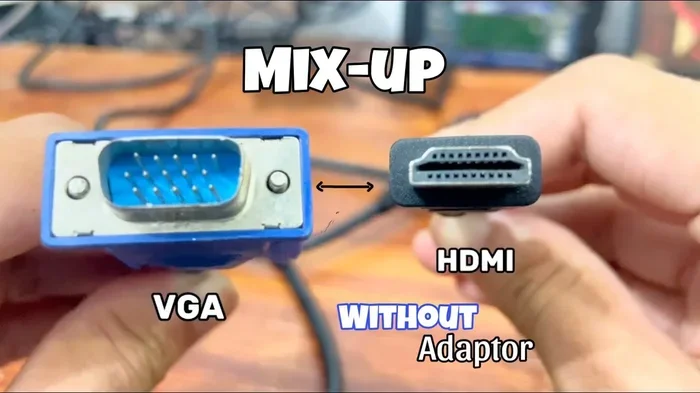
VGA connectors are typically blue and have 15 pins arranged in three rows. You will find VGA ports on older computers, projectors, and some industrial equipment. The maximum resolution VGA supports is usually 2048 x 1536, but practical quality often drops at higher resolutions due to signal degradation.
One important thing to know about VGA is that it does not carry audio. It only transmits video signals. If you need sound along with your picture, you will need a separate audio connection.
Understanding HDMI
HDMI stands for High-Definition Multimedia Interface. It was introduced in the early 2000s and quickly became the standard for modern displays. Unlike VGA, HDMI carries a digital signal. This means the video and audio data is transmitted as precise digital code.
HDMI cables can carry both high-definition video and multi-channel audio through a single cable. They also support features like HDCP copy protection and higher resolutions including 4K and even 8K on the latest versions. HDMI ports come in several sizes, including standard HDMI, mini HDMI, and micro HDMI.
The key takeaway here is that VGA and HDMI are fundamentally different technologies. One is analog, and the other is digital. This difference is at the heart of why you need a converter to go from one to the other.
Can You Go VGA to HDMI Directly
Now for the big question. Can you take a VGA cable and plug it straight into an HDMI port? The answer is no. You cannot go VGA to HDMI without some kind of conversion device. Here is why.
A VGA port sends an analog signal. An HDMI port expects a digital signal. These two types of signals are not compatible at a basic physical or electrical level. It is like trying to plug a round peg into a square hole. The connection simply will not work.
Some people think a simple cable with a VGA plug on one end and an HDMI plug on the other will do the trick. These cables exist, but they do not work as a simple passive link. If you see one of these cables, it contains a small active conversion chip inside the connector. Without that chip, the signals cannot talk to each other.
So what you really need is a dedicated VGA to HDMI converter or adapter. These devices take the analog VGA signal, convert it to digital, and output it through an HDMI port. Some also handle audio conversion, which we will cover in detail later.
Why Active Conversion Matters
Active conversion is the process of taking one type of signal and transforming it into another using electronic components. In the case of VGA to HDMI, an active converter does three important things.
- It converts the analog video signal to digital. This involves sampling the continuous VGA signal and turning it into discrete digital data.
- It scales the resolution. Many converters can upscale or downscale the input signal to match the native resolution of your HDMI display.
- It combines video and audio if needed. Some converters accept a separate audio input and mux it into the HDMI output stream.
Understanding this process helps you choose the right converter. A cheap passive cable will not do any of this. You need an active device with built-in conversion circuitry.
How to Convert VGA to HDMI
Setting up a VGA to HDMI connection is not difficult, but it does require the right steps. Here is a practical walkthrough of the process.
Step-by-Step Setup Guide
- Identify your VGA output device. Check your laptop, desktop, or projector for a VGA port. It will be a blue, D-shaped connector with 15 pins.
- Choose your converter. Decide between a standalone VGA to HDMI converter box or a VGA to HDMI adapter cable. A converter box usually provides better signal quality.
- Connect the VGA cable. Plug one end of your VGA cable into the VGA output on your source device. Plug the other end into the VGA input on your converter.
- Connect the HDMI cable. Plug one end of your HDMI cable into the converter’s HDMI output. Plug the other end into your TV, monitor, or projector.
- Add audio if needed. If your converter has a 3.5mm audio input, connect it from your source device’s headphone jack to the converter.
- Power on the converter. Many active converters need their own power supply. Plug in the USB cable or power adapter that came with the converter.
- Switch your display input. On your TV or monitor, use the input selector to choose the correct HDMI port where the converter is connected.
- Adjust settings. Go into your source device’s display settings and configure the resolution and output to match your HDMI display.
Tips for a Smooth Setup
- Always turn off your devices before making connections. This prevents potential signal spikes from damaging your equipment.
- Use high-quality VGA and HDMI cables. Cheap cables can introduce signal noise and reduce image quality.
- If you experience no signal, try unplugging and replugging the VGA connector. VGA connections can be sensitive to slight misalignment.
- Keep your converter firmware updated if the manufacturer provides updates. This can fix compatibility issues with newer displays.
- For the best results, match the converter’s output resolution to your display’s native resolution.
Once you have everything connected and powered on, you should see your VGA source displayed on your HDMI screen. If you also connected audio, you should hear sound as well.
Best VGA to HDMI Adapters and Converters
Not all converters are created equal. The market is full of options at different price points, and choosing the right one can make a big difference in your experience. Here are some things to look for and some general recommendations.
What to Look For in a Converter
- Active vs. passive. Always choose an active converter. Passive adapters simply re-route pins and do not actually convert the signal.
- Audio support. If you need sound, make sure the converter includes audio input or can pass through audio from the source.
- Resolution support. Look for converters that support at least 1080p. Some support 4K, but VGA’s analog nature limits the real-world quality.
- Build quality. Metal housings and gold-plated connectors tend to last longer and provide better signal integrity.
- Brand reputation. Stick with well-known brands or read reviews carefully before purchasing.
Popular Converter Types
There are three main types of VGA to HDMI conversion devices on the market.
- Standalone converter boxes. These are small boxes that sit between your VGA source and HDMI display. They usually have VGA input, HDMI output, and a USB power port. They tend to offer the best signal quality.
- VGA to HDMI adapter cables. These combine a VGA connector on one end and an HDMI connector on the other with a built-in conversion chip. They are compact and convenient but may not match the quality of a standalone box.
- USB-powered adapters. Some converters draw power from a USB port on your source device. These are great for laptops where you do not want an extra power brick.
When shopping for a converter, you might also come across VGA to DVI adapters. DVI is another digital connection type that was popular before HDMI became dominant. A VGA to DVI adapter works similarly but outputs a DVI signal instead of HDMI. If your display has DVI inputs, this can be a viable alternative.
For a broader look at tech accessories that can simplify your setup, check out our article on 10 Gadgets To Make Moms Life Easier. Many of these gadgets include connectivity solutions that complement your home tech setup.
Common Problems and How to Fix Them
Even with the right converter, you might run into issues. VGA to HDMI setups can be finicky at times. Here are the most common problems and how to solve them.
No Signal on the HDMI Display
This is the most common issue. If your HDMI screen shows no signal or a blank screen, try these steps.
- Check that all cables are firmly connected at both ends.
- Make sure the converter is powered on and receiving power.
- Verify that you have selected the correct HDMI input on your display.
- Try a different HDMI cable or a different HDMI port on your display.
- Restart both the source device and the converter.
Poor Image Quality or Flickering
If your image looks blurry, has static, or flickers, the problem is usually related to signal quality.
- Replace your VGA cable with a shorter, higher-quality one. Longer VGA cables lose more signal strength.
- Make sure the VGA connector is clean and free of dust or debris.
- Check the resolution settings on your source device. Setting it too high for VGA can cause display issues.
- Try a different converter. Some budget converters produce inferior image quality.
No Audio Through HDMI
Since VGA does not carry audio, you will need to handle sound separately if your converter does not include audio input.
- If your converter has a 3.5mm audio input, connect it to your source device’s headphone or audio-out port.
- Check your display’s audio settings to make sure HDMI audio is enabled.
- On Windows, right-click the speaker icon in your taskbar and select the correct audio output device.
- On macOS, go to System Preferences and select the HDMI output as your audio device.
Resolution Mismatch
Sometimes the image looks stretched, cut off, or has black bars around it.
- Go to your display settings and match the output resolution to your HDMI display’s native resolution.
- Some converters have a small button or switch to toggle between resolution modes.
- Update your graphics card drivers. Outdated drivers can cause resolution detection problems.
Is VGA to HDMI Conversion Worth It
After all this information, you might be wondering if going VGA to HDMI is even worth the effort. The answer depends on your situation.
If you have an old laptop or desktop that only has VGA output, a converter is a practical and affordable solution. A good VGA to HDMI converter costs between $15 and $50. For that price, you can breathe new life into older equipment and connect it to modern displays.
However, if you are buying new equipment, it is better to choose devices with native HDMI or even DisplayPort connections. These digital connections offer better quality, higher resolutions, and simpler setup. Converting from VGA should be seen as a bridge solution, not a long-term strategy.
For situations like classrooms, conference rooms, or home theaters where older projectors are still in use, VGA to HDMI converters are incredibly useful. They let you connect modern laptops and streaming devices to legacy projection systems.
One thing to keep in mind is that VGA technology is aging. The analog signal is more susceptible to interference, and the maximum resolution is limited compared to modern digital standards. If you find yourself converting often, it may be time to invest in newer equipment with digital outputs.
On the other hand, if you are dealing with a one-time setup or a temporary need, a converter does the job well. Many people use them for presentations, gaming on older consoles, or connecting retro computers to modern monitors.
Also worth noting, if you are managing multiple device connections in a home or office setup, you might benefit from exploring other connectivity guides. For instance, if you ever need to manage phone number settings, our guide on adding prefixes to numbers on iPhone can be a helpful resource for keeping your devices organized.
Expert Tips for Best Results
Here are some expert-level tips to get the most out of your VGA to HDMI setup.
- Use the shortest VGA cable possible. Shorter cables maintain better signal integrity and reduce interference.
- Avoid splitting VGA signals. VGA splitters can degrade signal quality significantly. Use one direct connection whenever possible.
- Update your graphics drivers. Updated drivers often include better support for external display configurations and resolution detection.
- Test with multiple displays. If you have access to more than one HDMI display, test your converter on each one. Some displays handle converted signals better than others.
- Keep your converter cool. Active conversion generates heat. Make sure your converter has ventilation and is not buried under papers or inside a closed cabinet.
- Consider upgrading. If you find yourself converting signals frequently, it might be time to upgrade your source device to one with a digital output like HDMI or DisplayPort.
These tips come from real-world experience with VGA to HDMI setups in home offices, classrooms, and conference rooms. They can help you avoid common pitfalls and get a reliable, high-quality connection every time.
Conclusion
So, can you go VGA to HDMI? Absolutely yes. With the right active converter or adapter, you can connect almost any VGA-equipped device to a modern HDMI display. The key is understanding that VGA and HDMI use different signal types, and you need a device that bridges that gap.
Remember to choose an active converter rather than a passive cable, check for audio support if you need sound, and troubleshoot common issues using the tips in this guide. A good VGA to HDMI setup can serve you well for presentations, home use, or connecting legacy equipment to modern screens.
The world of display connections continues to evolve, but VGA is not going away overnight. Millions of devices still use this connection type, and knowing how to convert it to HDMI is a valuable skill. Keep this guide handy for your next setup, and you will be confident in your ability to connect any VGA source to any HDMI display.
Take your time, choose quality equipment, and enjoy the process of getting your older devices talking to your modern screens. It is easier than you think, and the results are well worth the effort.
Frequently Asked Questions
Can I connect a VGA laptop directly to an HDMI TV?
No, you cannot connect them directly. VGA sends an analog signal while HDMI expects a digital signal. You need a VGA to HDMI converter or adapter to bridge the two. The converter takes the analog VGA signal, converts it to digital, and outputs it through the HDMI port on your TV.
Will VGA to HDMI conversion support audio?
It depends on the converter you use. Some VGA to HDMI converters include a 3.5mm audio input that allows you to send sound along with the video. Others only handle video. Check the specs of your converter before buying if audio support is important to you.
What resolution can I expect from a VGA to HDMI conversion?
Most VGA to HDMI converters support up to 1080p. Some higher-end models claim 4K support, but VGA’s analog nature limits the real-world quality. For best results, match the output resolution to your display’s native resolution and use a short, high-quality VGA cable.
Do I need to install drivers for a VGA to HDMI converter?
Most active VGA to HDMI converters are plug-and-play and do not require drivers. They use a built-in chip to handle the signal conversion. However, if you experience display issues, updating your graphics card drivers can sometimes help your device detect the external display correctly.
Can I use a VGA to HDMI cable instead of a converter box?
Yes, VGA to HDMI adapter cables exist and they contain an active conversion chip inside the connector. However, standalone converter boxes generally offer better signal quality and more reliable performance. Adapter cables are a good option for temporary setups or when space is limited.
Is it better to use VGA or HDMI for a gaming setup?
HDMI is far better for gaming. It supports higher resolutions, faster refresh rates, and carries both video and audio through one cable. VGA is limited in resolution and refresh rate and does not carry audio. If you have the choice, always use HDMI for gaming. If you must use VGA, a good converter can still provide a playable experience for older or less demanding games.