Can You Get A Hdmi To Usb C Cable Find Out The Answer
Yes, you can get an HDMI to USB C cable, and it is one of the most useful connectivity solutions for modern devices. These cables let you connect laptops, tablets, and phones to external monitors, TVs, and projectors with a single cable. Whether you need to present at work or set up a home theater, an HDMI to USB C cable makes it simple and fast.
Key Takeaways
- HDMI to USB C cables exist: They are real, widely available, and work with many modern devices.
- They support high resolutions: Many cables handle 4K and even 8K video output with ease.
- Not all cables are equal: Quality, bandwidth, and length matter when choosing the right one.
- USB C alternate mode is key: This technology allows video signals to travel through USB C ports.
- They are plug and play: Most cables work instantly without needing extra software or drivers.
- Thunderbolt 3 and 4 cables work too: These offer even more bandwidth and versatility.
📑 Table of Contents
What Is an HDMI to USB C Cable?
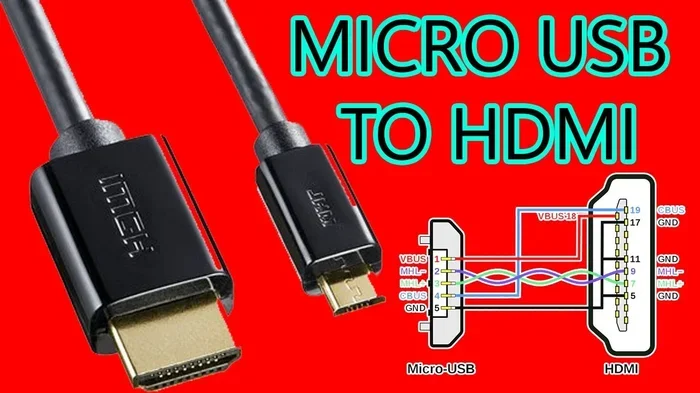
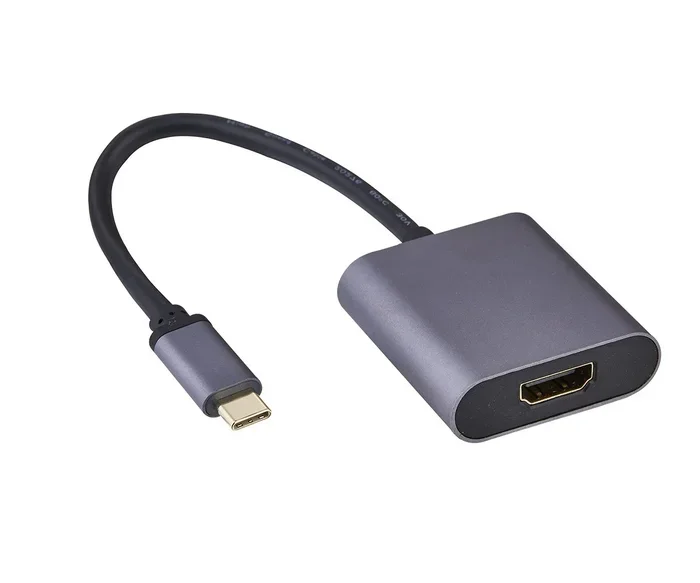
An HDMI to USB C cable is a connector cable that links a USB C port to an HDMI display. It lets you send video and audio from a device with a USB C port to a screen with an HDMI input. This includes laptops, tablets, smartphones, and even some gaming consoles.
USB C is a small, reversible connector. It has become the standard port on many modern devices. HDMI is the most common display connection for TVs, monitors, and projectors. So when you need to bridge these two worlds, an HDMI to USB C cable is the answer.
These cables come in different shapes. Some are a single cable with USB C on one end and HDMI on the other. Others are adapters that you plug into your device and then connect a separate HDMI cable. Both options get the job done, but a single cable is more convenient.
Why Do People Need This Cable?
Many newer laptops no longer have full-size HDMI ports. They only have USB C ports. So if you want to connect your laptop to a TV or projector, you need a way to convert the signal. That is where this cable comes in handy. It saves you from carrying multiple adapters.
People use these cables for many reasons. You might want to mirror your screen for a presentation. Or you might want to play mobile games on a big TV. Whatever the reason, a USB C to HDMI cable makes it possible with just one plug.
How Does HDMI to USB C Technology Work?
The technology behind this cable is called USB C alternate mode. This is a feature built into the USB C standard. It allows the port to carry non-USB signals, like video and audio. When your device supports alternate mode, it can send an HDMI signal through the USB C port.
Here is how it works in simple terms. Your device sends a video signal through the USB C port. The cable or adapter converts that signal into HDMI format. The HDMI end then sends the signal to your display. The whole process happens in seconds. You do not need any software or extra steps.
Understanding Bandwidth and Speed
Not all USB C ports are the same. Some support more bandwidth than others. Bandwidth determines how much data can travel through the cable at once. More bandwidth means higher resolution and smoother video.
USB 3.1 and USB 3.2 ports offer more bandwidth than older USB 3.0 ports. Thunderbolt 3 and Thunderbolt 4 ports offer the most bandwidth of all. If you want to run 4K at 60Hz or even 8K, you need a cable that supports enough bandwidth. Always check the specs before you buy.
The Role of DisplayPort Alt Mode
Many USB C devices use something called DisplayPort alternate mode. This is a protocol that carries video signals through USB C. The HDMI to USB C cable then translates that signal into HDMI format. It is a seamless process that happens behind the scenes.
Some devices use Thunderbolt instead. Thunderbolt uses the USB C connector but has its own protocol. Thunderbolt cables can carry both data and video. They are more versatile but also more expensive. For most people, a standard USB C to HDMI cable works perfectly fine.
Benefits of Using an HDMI to USB C Cable
There are many reasons to use an HDMI to USB C cable. Let us look at the biggest benefits.
Simple and Convenient
The biggest advantage is simplicity. You do not need a bunch of adapters. You do not need to carry extra dongles. One cable connects your device to your display. Just plug it in and go. It really is that easy.
This is especially helpful when you are on the go. You can quickly set up a second screen at a coffee shop or in a hotel room. No fuss, no hassle. Just plug in and start working.
High-Quality Video and Audio
Modern HDMI to USB C cables support high resolutions. Many can handle 4K at 60Hz. Some even support 8K at higher refresh rates. You also get high-quality audio through the same cable. HDMI carries both video and audio signals at the same time.
This makes them great for streaming movies, giving presentations, or gaming. The picture stays sharp and clear. The sound is rich and full. You get a premium experience without extra equipment.
Wide Compatibility
These cables work with a huge range of devices. Laptops, tablets, smartphones, and even some cameras can use them. Most modern devices have USB C ports. So the cable is compatible with almost everything you own.
You can connect to TVs, monitors, projectors, and even car entertainment systems. The versatility is one of the main reasons people love USB C to HDMI cables. One cable works across many setups and devices.
Cost Effective
Buying a single HDMI to USB C cable is cheaper than buying multiple adapters. It also saves you space in your bag. Many quality cables cost between $10 and $30. That is a small price for the convenience they offer.
Compare this to buying a docking station or a multi-port adapter. Those can cost $50 or more. A simple cable does the same job for a fraction of the price. It is a smart choice for anyone who wants value.
Things to Consider Before Buying
Not all HDMI to USB C cables are created equal. Before you buy, there are a few things you should know.
Check Your Device Compatibility
First, make sure your device supports video output through USB C. Not every USB C port can send video signals. Some ports are only for data and charging. Look up your device specifications to confirm it supports USB C alternate mode or Thunderbolt.
If your device does not support video output, no cable will work. You may need a docking station or a different solution. Always check before you spend money.
Cable Length Matters
The length of your cable affects performance. Longer cables can sometimes lose signal quality. For best results, keep your cable under 6 feet. If you need a longer run, consider an active cable with a built-in signal booster.
Also think about where you will use the cable. If you are at a desk, a 3-foot cable is perfect. If you are presenting in a large room, you might need 10 feet or more. Choose the right length for your setup.
Look for Certified Cables
Not every cable on the market is high quality. Some cheap cables may not support the resolutions they claim. Look for cables that are certified by HDMI or USB IF. Certified cables meet strict standards for performance and reliability.
Avoid cables that seem too cheap to be true. A $3 cable might not handle 4K video or may stop working after a few weeks. Investing in a good quality HDMI to USB C cable saves you from headaches later.
Data Transfer and Charging
Some USB C to HDMI cables also carry data and power. This means you can charge your device while using the external display. You can also connect USB devices through the same cable.
However, not all cables support this. If you need data transfer and charging along with video, look for a cable or adapter that offers those features. Read the product description carefully to know what you are getting.
Top HDMI to USB C Cable Options
The market is full of options. Here are some things to look for when choosing the best cable for your needs.
Budget-Friendly Options
If you just need a basic cable, you do not need to spend a lot. Many affordable HDMI to USB C cables work great for everyday use. Look for cables that support at least 1080p or 4K at 30Hz. These handle most tasks just fine.
Brands like Cable Matters, UGREEN, and Anker offer solid budget options. They are reliable and get the job done. You can often find these for under $15.
Premium Options
If you need the best performance, go for a premium cable. Look for cables that support 4K at 60Hz or even 8K. Thunderbolt-compatible cables offer the highest bandwidth. They are ideal for video editing, gaming, and professional presentations.
Premium cables from brands like Belkin, CalDigit, and OWC are built to last. They use better materials and shielding. They also tend to have longer warranties. If you use your cable every day, the extra cost is worth it.
Adapter vs. Cable
You also have the choice between a cable and an adapter. A cable is one piece that plugs in directly. An adapter is a small box that connects to your device, and you plug a separate HDMI cable into it.
Cables are more convenient. Adapters give you more flexibility because you can use any HDMI cable length. Think about your needs. If you want simplicity, go with a cable. If you want flexibility, go with an adapter.
Common Problems and How to Fix Them
Even with a good HDMI to USB C cable, you might run into issues. Here are the most common problems and how to solve them.
No Signal on the Display
If your screen shows nothing, try these steps. First, make sure both ends of the cable are plugged in firmly. Sometimes the connection feels secure but is not making full contact. Unplug and replug both ends.
Next, check your display settings. On Windows, press the display toggle key (usually Fn plus F4 or F5). On Mac, go to System Settings and look at Displays. Make sure the external display is detected and turned on.
Flickering or Poor Image Quality
Flickering usually means the cable cannot handle the resolution or refresh rate you are trying to use. Lower the resolution on your device and see if the problem goes away. If it does, you need a better cable that supports higher bandwidth.
Also check the cable length. Very long cables without signal boosters can cause quality issues. If you need a long cable, buy an active cable with built-in amplification.
Audio Not Working
Sometimes video works but audio does not. This is usually a settings issue. Go to your sound settings and make sure the HDMI output is selected as the audio device. On most systems, the audio follows the video output automatically.
If you still have no sound, try a different cable. Some cables only carry video and not audio. A certified HDMI to USB C cable should carry both, but cheap cables sometimes cut corners.
Final Thoughts
The short answer is yes, you can absolutely get an HDMI to USB C cable. They are widely available, affordable, and incredibly useful. Whether you need to connect a laptop to a TV, mirror your tablet screen, or set up a dual monitor workspace, this cable makes it easy.
Just remember to check your device compatibility. Choose the right cable length and quality for your needs. And look for certified products from trusted brands. With the right USB C to HDMI cable, you can enjoy high-quality video and audio on any display, anywhere.
Connectivity should be simple. And with the right cable, it is. Stop struggling with adapters and dongles. A single HDMI to USB C cable can do it all.
Similar to how you might compare the advantages and disadvantages of a computer mouse when choosing the right peripheral, you should weigh your options when picking a cable. Also, if you are looking for more ways to simplify your tech setup, check out these 10 gadgets to make moms life easier for creative connectivity solutions that work for everyone.
Frequently Asked Questions
Can I use any HDMI to USB C cable for 4K video?
Not all cables support 4K. You need a cable that specifically lists 4K support in its specifications. Look for cables rated for at least 4K at 30Hz or higher. Premium cables with higher bandwidth handle 4K at 60Hz and even 8K.
Will an HDMI to USB C cable charge my laptop?
Some cables can carry power and video at the same time. However, most standard cables only carry video. If you need charging while using an external display, look for a cable or adapter that supports power delivery. Always check the product details before you buy.
Are HDMI to USB C cables compatible with all devices?
Most modern devices with USB C ports support video output. But not all USB C ports can send video signals. Some are designed only for data and charging. Check your device manual or specifications to confirm it supports alternate mode or Thunderbolt.
What is the difference between an adapter and a cable?
A cable is one solid piece with USB C on one end and HDMI on the other. An adapter is a small device you plug into your USB C port, and then you connect a separate HDMI cable to it. Cables are more convenient, while adapters give you more flexibility with cable length.
Can I connect a gaming console to a laptop with an HDMI to USB C cable?
Yes, you can use an HDMI to USB C cable to send a console’s video output to your laptop screen. Your laptop must support USB C video input, though. Not all laptops can receive video through USB C. Check your laptop specs to be sure.
How long should my HDMI to USB C cable be?
For most uses, a 3 to 6-foot cable works perfectly. If you need more distance, consider an active cable with a signal booster. Very long passive cables can lose signal quality, especially at higher resolutions. Choose the length that fits your setup best.
If you ever run into issues with cables not working as expected, you are not alone. Many users face similar challenges. You might also find it helpful to explore adding prefixes to numbers on iPhone if you manage contact lists for presentations or calls, or learn about fixing common tech issues like when a line wont delete in Microsoft Excel to keep your workflow smooth and uninterrupted.