Can You Convert Usb To Ethernet This Guide Shows You
Yes, you can convert USB to Ethernet easily with a USB to Ethernet adapter. These small devices plug into your laptop, desktop, or tablet and give you a fast wired network connection in seconds. This guide covers every type of adapter, setup steps, and expert tips to boost your internet speed.
You are sitting at your desk, trying to get online, but the Wi-Fi just is not cutting it. Buffering videos, slow downloads, and dropped connections can ruin your entire day. What if there was a simple way to get a rock-solid internet connection without replacing your router? The answer might be sitting in your junk drawer right now.
Can you convert USB to Ethernet? Absolutely. A small adapter called a USB to Ethernet converter can turn any available USB port into a working network port. These handy little devices are affordable, easy to use, and can transform your internet experience in minutes. Whether you are using a laptop without an Ethernet port or need a backup connection, a USB Ethernet adapter has you covered.
In this guide, we will walk you through everything you need to know. From the different types of adapters to step-by-step setup instructions, you will find all the answers right here. Let us dive in and get you connected the reliable way.
Key Takeaways
- USB to Ethernet adapters are simple plug-and-play devices that turn any USB port into a wired network port.
- USB 3.0 and USB-C adapters offer the fastest speeds, reaching up to 1 Gigabit per second for smooth streaming and gaming.
- Choosing the right adapter depends on your device, port type, and speed needs.
- Setup is straightforward and usually takes less than two minutes with no extra software needed.
- Wired Ethernet connections are more stable and faster than Wi-Fi for heavy internet tasks.
- Common issues like driver problems are easy to fix with basic troubleshooting steps.
📑 Table of Contents
- What Is a USB to Ethernet Adapter?
- Why You Might Need a USB to Ethernet Converter
- Types of USB to Ethernet Adapters
- How to Choose the Right USB to Ethernet Adapter
- Step-by-Step Setup Guide
- Common Problems and How to Fix Them
- USB to Ethernet vs. Wireless: Which Is Better?
- Expert Tips for Getting the Best Performance
- Who Should Use a USB to Ethernet Adapter?
- Final Thoughts
What Is a USB to Ethernet Adapter?
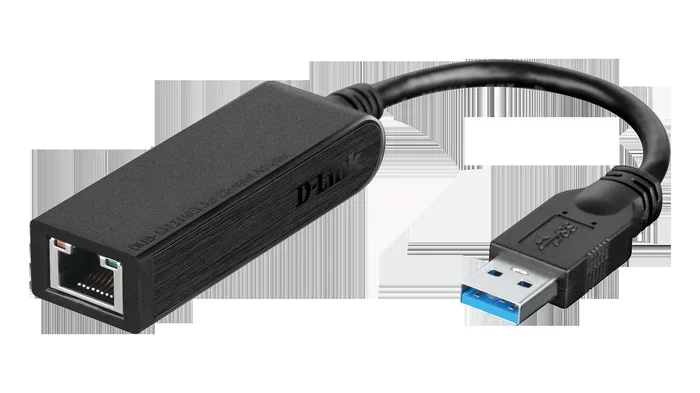
A USB to Ethernet adapter is a small device that bridges your USB port and an Ethernet cable. It acts as a network adapter, allowing your computer or laptop to connect to the internet through a wired LAN connection instead of relying on Wi-Fi. Think of it as a tiny translator between your USB port and your Ethernet cable.
These adapters come in different shapes and sizes. Some are small thumb-drive-style dongles. Others are larger units with extra USB ports built in. No matter the design, they all do the same job: they give your device a wired internet connection through a standard Ethernet jack.
How Does It Work?
The adapter contains a small chip that handles the network communication. When you plug it into your USB port, your operating system recognizes it as a new network interface. You then plug an Ethernet cable into the adapter and the other end into your router or modem. That is it. Your device now has a direct, wired connection to the internet.
Most modern adapters use plug and play technology. This means your computer detects them automatically. You do not need to install complicated software or fiddle with settings. Just plug it in, and you are good to go.
Why You Might Need a USB to Ethernet Converter
You might be wondering why anyone would bother with a wired network connection when Wi-Fi is everywhere. The truth is, there are many situations where a USB Ethernet connection is better than wireless. Let us look at the most common reasons people reach for these adapters.
Faster and More Stable Internet
Wi-Fi is convenient, but it has limitations. Walls, distance, and interference from other devices can slow down your wireless internet connection. A wired Ethernet connection eliminates all of that. You get a direct line from your router to your device, which means faster speeds and fewer dropouts.
If you are into online gaming, video conferencing, or streaming 4K content, a wired connection makes a huge difference. You will notice less lag, better call quality, and smoother playback. For anyone who depends on a reliable internet connection, a USB to Ethernet adapter is a game changer.
Laptops Without Ethernet Ports
Many modern laptops have dropped the Ethernet port to save space. While this makes devices thinner, it can be frustrating when you need a wired connection. A USB Ethernet dongle solves this problem instantly. You get the best of both worlds: a slim laptop design with the option for a wired connection whenever you need it.
Travel and Portable Internet
If you travel often, you know how unreliable hotel and airport Wi-Fi can be. A portable Ethernet adapter fits easily in your bag and lets you connect to wired internet in hotels, offices, or conference rooms. Some travelers even carry one as a backup for their daily commute or remote work setup. In fact, having the right travel gadgets and accessories can make a huge difference for productivity on the go, so you might want to check out some of the best options available for everyday carry.
Security and Privacy
Wired connections are inherently more secure than Wi-Fi. It is much harder for someone to intercept data over an Ethernet cable than over a wireless signal. If you handle sensitive information or work with confidential files, a wired LAN connection adds an extra layer of protection to your daily workflow.
Types of USB to Ethernet Adapters
Not all adapters are the same. Different types serve different needs and devices. Understanding your options helps you pick the right one for your situation. Here is a breakdown of the most common types you will find on the market.
USB-A to Ethernet Adapters
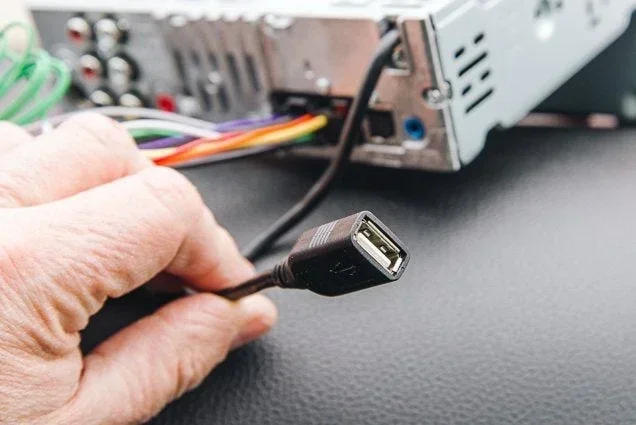
This is the most common type. It plugs into the standard rectangular USB-A port found on almost every desktop and older laptop. These adapters typically support Gigabit Ethernet speeds up to 1000 Mbps. They are affordable, widely available, and work with most computers without any extra drivers.
USB-C to Ethernet Adapters
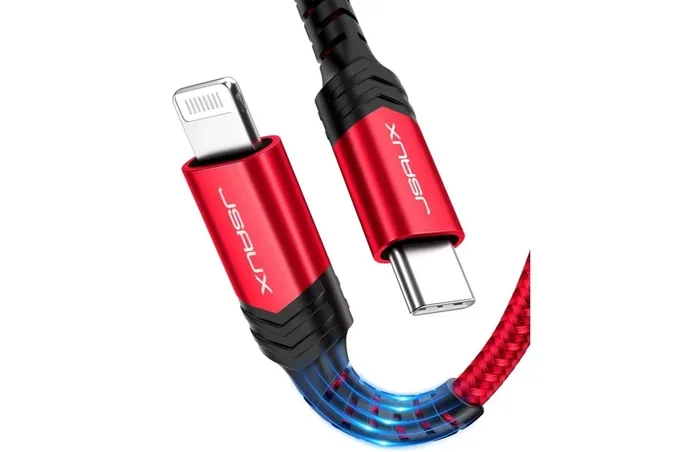
If you have a newer laptop or tablet with only USB-C ports, you need a USB-C to Ethernet adapter. These adapters are designed for the smaller, oval-shaped USB-C port. Many of them also support fast charging and data transfer through the same port, which makes them incredibly versatile. Some models even include extra USB-A ports so you can charge your phone while staying connected.
USB 3.0 vs. USB 2.0 Adapters
The version of USB matters more than you might think. A USB 3.0 to Ethernet adapter can handle Gigabit speeds easily. A USB 2.0 adapter, on the other hand, will cap your speeds at around 300 Mbps. If you want the fastest possible wired connection, always choose a USB 3.0 or USB-C adapter.
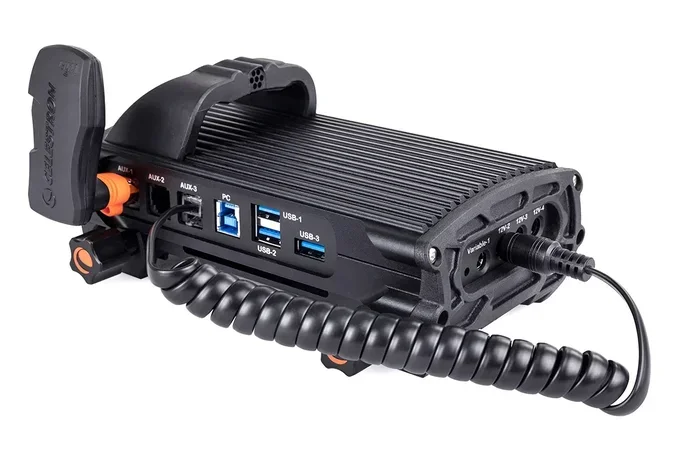
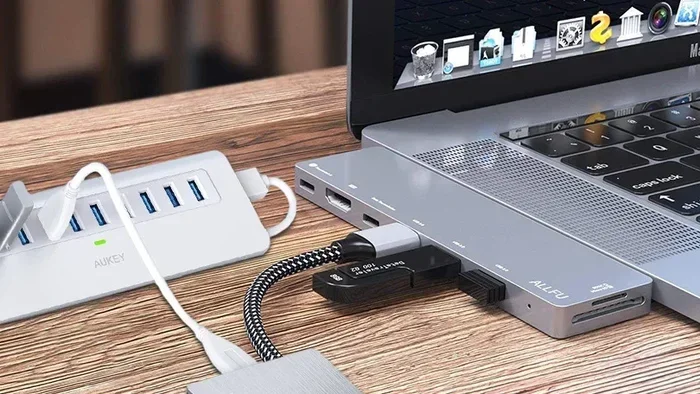
USB Ethernet Hubs
Some adapters come as full USB Ethernet hubs with multiple ports. These let you connect several devices at once, including your Ethernet cable, USB drives, and other peripherals. They are perfect for workstations or home offices where you need lots of connectivity in one place.
How to Choose the Right USB to Ethernet Adapter
With so many options available, picking the right USB Ethernet adapter can feel overwhelming. Here are the key factors to consider before you buy.
Check Your Port Type
First, look at what USB ports your device has. Do you have USB-A or USB-C? This single detail determines which adapter you need. Make sure to match the adapter to your port type for a proper fit.
Speed Requirements
Think about what you will be doing online. If you just browse the web and check email, a basic adapter works fine. But if you stream videos, game, or transfer large files, you need a Gigabit Ethernet adapter that supports speeds of 1000 Mbps or higher.
Build Quality and Brand
Cheap adapters might save you a few dollars, but they often have poor build quality and unreliable performance. Stick with reputable brands that offer solid construction and good customer support. A well-made network adapter will last you for years.
Driver Compatibility
Most modern adapters work on Windows, Mac, and even Chrome OS without extra drivers. But if you use Linux or an older operating system, check compatibility before buying. Some adapters require manual driver installation, which can be a hassle.
Portability
If you travel often, go for a compact, lightweight USB Ethernet dongle. You want something small enough to slip into your laptop bag without adding bulk. Some adapters are so tiny they can hang from your keychain.
Step-by-Step Setup Guide
Setting up a USB to Ethernet adapter is incredibly simple. Follow these steps and you will be online in under two minutes.
- Plug the adapter into your USB port. Wait a few seconds for your device to recognize it.
- Take an Ethernet cable and plug one end into the adapter and the other end into your router or modem.
- Wait for the connection to establish. You should see a small light on the adapter turn green or white.
- Check your network settings. On most devices, the wired connection activates automatically. Go to your network settings to confirm the connection is active.
- Test your speed. Visit a speed test website like Speedtest.net to make sure you are getting the speeds you expect.
That is all there is to it. No software downloads, no complicated configurations. Just plug and play. If you are using a mobile device and need help managing network settings on your phone, you might find additional tips on managing connectivity features like adding prefixes to numbers on your iPhone for better call and data organization.
Common Problems and How to Fix Them
While USB to Ethernet adapters are reliable, you might run into occasional issues. Here are the most common problems and their solutions.
Adapter Not Recognized
If your device does not detect the adapter, try plugging it into a different USB port. Sometimes USB ports can be finicky. You can also try restarting your computer. In most cases, a simple reboot fixes the issue.
Slow Speeds
Slow speeds usually mean you are using a USB 2.0 adapter or a low-quality cable. Switch to a USB 3.0 or USB-C adapter and make sure you are using a high-quality Ethernet cable. Also check that your router supports Gigabit speeds.
Intermittent Connection Drops
If your connection keeps dropping, the adapter might be overheating. Make sure it has proper ventilation and is not plugged into a cramped USB port. You can also try updating your network drivers through your device manager.
No Internet Access Despite Being Connected
This usually means your adapter has a valid connection to the router but is not getting an IP address. Go to your network settings and try renewing your IP address. On Windows, open Command Prompt and type ipconfig /release followed by ipconfig /renew.
USB to Ethernet vs. Wireless: Which Is Better?
Both wired and wireless connections have their place. But for certain tasks, a wired Ethernet connection clearly wins. Here is a quick comparison to help you decide.
| Feature | USB to Ethernet (Wired) | Wi-Fi (Wireless) |
|---|---|---|
| Speed | Up to 1000 Mbps (Gigabit) | Up to 300-9600 Mbps (varies) |
| Stability | Very stable, no interference | Can fluctuate with walls and distance |
| Latency | Low latency, great for gaming | Higher latency, occasional lag |
| Convenience | Requires cable, less mobile | Wireless freedom, easy to move |
| Security | More secure, harder to intercept | More vulnerable to interception |
| Setup | Plug and play in seconds | Requires password, sometimes tricky |
As you can see, a USB Ethernet connection offers superior speed, stability, and security. Wi-Fi wins on convenience and mobility. For most people, using both together is the best approach. Use Wi-Fi for casual browsing and your USB to Ethernet adapter for important tasks like gaming, video calls, and large file transfers.
Expert Tips for Getting the Best Performance
Want to squeeze every last bit of speed out of your USB to Ethernet adapter? Here are some expert tips that make a real difference.
- Always use a USB 3.0 port. USB 2.0 ports will bottleneck your speeds. Plug your adapter into a blue-colored USB-A port or a USB-C port for the best results.
- Use a high-quality Ethernet cable. A Cat6 or Cat6a cable supports Gigabit speeds and reduces signal loss. Cheap cables can limit your performance.
- Keep your adapter cool. Adapters can heat up during long use. Give them some breathing room and do not stack other devices on top of them.
- Update your network drivers regularly. Outdated drivers can cause slow speeds and connection issues. Check your manufacturer’s website for the latest updates.
- Use a powered USB hub if needed. If your laptop USB port does not supply enough power, a powered hub ensures your adapter gets the energy it needs for consistent performance.
These small tweaks can turn a good connection into a great one. You will notice the difference immediately in your browsing, streaming, and gaming experience.
Who Should Use a USB to Ethernet Adapter?
These adapters are not just for tech experts. Anyone can benefit from a reliable wired connection. Here are some examples of people who use USB Ethernet adapters every day.
- Remote workers who need stable connections for video calls and file uploads.
- Online gamers who cannot afford lag or latency during competitive matches.
- Students living in dorms with weak Wi-Fi signals.
- Travelers staying in hotels with unreliable wireless networks.
- Content creators who upload large video files and need fast, consistent upload speeds.
- Home office users who want the best possible internet experience for their workday.
Basically, if you use the internet for anything that matters, a USB to Ethernet converter is a smart investment. It is small, affordable, and delivers big improvements. And speaking of small accessories that make life easier, having the right tech gadgets on hand can really streamline your daily routine, especially for parents and busy professionals juggling multiple devices.
Final Thoughts
The answer to can you convert USB to Ethernet is a resounding yes. A USB to Ethernet adapter is one of the simplest and most affordable upgrades you can make to your setup. It gives you a stable, fast, and secure wired internet connection in seconds. Whether you are working from home, gaming, streaming, or traveling, these adapters solve real problems and improve your daily internet experience.
Pick the right adapter for your device, follow the setup steps, and enjoy the difference a wired connection makes. You will wonder how you ever managed without it. Happy connecting!
Frequently Asked Questions
Can I use a USB to Ethernet adapter on any computer?
Yes, most USB to Ethernet adapters work on Windows, Mac, and Chrome OS devices. They use plug and play technology, so you usually do not need to install any extra software. Just plug the adapter in, connect your Ethernet cable, and you are online.
What speed can I expect from a USB to Ethernet adapter?
Your speed depends on the adapter type. A USB 3.0 or USB-C Gigabit adapter can deliver speeds up to 1000 Mbps. Older USB 2.0 adapters are limited to around 300 Mbps. Your actual speed also depends on your internet plan and Ethernet cable quality.
Do USB to Ethernet adapters need drivers?
Most modern adapters do not need drivers. They work automatically on Windows 10, Windows 11, macOS, and Chrome OS. However, if you use Linux or an older operating system, you might need to install drivers manually. Check the product specifications before buying.
Can I use a USB to Ethernet adapter with my phone or tablet?
Yes, some smartphones and tablets support USB to Ethernet adapters, especially Android devices with USB-C ports. iPhones do not support Ethernet adapters natively. You would need a special Lightning-to-Ethernet adapter made specifically for Apple devices.
Is a wired connection really faster than Wi-Fi?
Yes, a wired Ethernet connection is almost always faster and more stable than Wi-Fi. It eliminates interference from walls, other devices, and distance. For tasks like gaming, video conferencing, and large file transfers, a wired connection provides a noticeably better experience.
Can I leave my USB to Ethernet adapter plugged in all the time?
Yes, you can leave it plugged in permanently. These adapters are designed for continuous use and consume very little power. Just make sure to keep it in a well-ventilated area to prevent overheating during long use periods.