Can You Connect A Tablet To A Tv With Usb Step By Step
Connecting your tablet to a TV with a USB cable is simpler than you think. Whether you want to stream movies, share photos, or play games on a bigger screen, this step-by-step guide walks you through every method. You will learn about the right cables, adapters, and settings to make your tablet to TV USB connection work perfectly every time.
Have you ever wanted to watch something on a bigger screen but did not know how to get your tablet connected to your TV? Maybe you are trying to share vacation photos with the whole family or stream a movie during a sleepover. A USB connection between your tablet and TV opens up a world of possibilities. It is convenient, affordable, and does not require a lot of technical know-how.
The good news is that you absolutely can connect a tablet to a TV with USB in most cases. The process depends on your tablet model, the type of USB port it has, and the TV you are using. This guide will walk you through every single step. You will learn what cables you need, what adapters work best, and how to fix common problems. By the end, you will feel confident setting up your own tablet to TV USB connection at home.
Let us get started. No jargon, no confusion, just clear and simple steps you can follow right now.
Key Takeaways
- Multiple Connection Methods: You can connect a tablet to a TV using USB cables, USB-C to HDMI adapters, or MHL cables depending on your device.
- Check Compatibility First: Not all tablets support video output over USB. Always verify your tablet model before buying any adapter.
- You Need the Right Adapter: A simple USB cable alone usually will not work. You need a USB-C to HDMI or micro USB to HDMI adapter for most setups.
- Troubleshooting Is Simple: Most connection issues come from incompatible cables, wrong settings, or unsupported file formats.
- Wireless Alternatives Exist: If USB does not work, screen mirroring via Chromecast, AirPlay, or smart TV apps offers a great backup.
- Quality Depends on Your Cable: Using a high-quality USB cable and adapter ensures better picture and sound quality.
📑 Table of Contents
- Understanding Your Tablet USB Port Types
- What You Need to Connect a Tablet to a TV With USB
- Step-by-Step Guide to Connecting Your Tablet to a TV
- Common Problems and How to Fix Them
- Comparing USB Connection Methods
- Tips for the Best Viewing Experience
- When USB Connection Might Not Work
- Final Thoughts
Understanding Your Tablet USB Port Types
Before you buy any cable or adapter, you need to know what kind of USB port your tablet has. This is the most important first step. Different tablets use different ports, and using the wrong cable will not work no matter what you try.
USB-C Ports
Most modern tablets use USB-C ports. These are small, oval-shaped connectors that you can plug in either way. Tablets like the Samsung Galaxy Tab S series, iPad Pro models, and many Google Pixel tablets use USB-C. The great thing about USB-C is that it supports video output. This means you can send your tablet screen directly to your TV through a USB-C to HDMI adapter.
Micro USB Ports
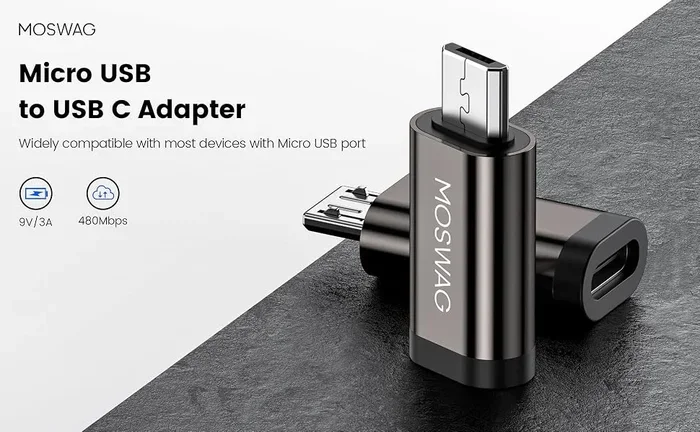
Older tablets and budget devices often use micro USB ports. These are the smaller rectangular connectors that have been around for years. If your tablet has a micro USB port, you will need a micro USB to HDMI adapter. These adapters are widely available and usually cost between ten and twenty dollars.
Lightning Ports
Apple iPads use Lightning connectors. If you have an iPad, you cannot use a standard USB cable to connect to a TV. You need a Lightning to HDMI adapter instead. Apple makes its own official adapter, but there are also reliable third-party options that work just as well.
What You Need to Connect a Tablet to a TV With USB
Getting the right equipment is half the battle. Here is a simple list of everything you might need for your tablet to TV USB setup.
Essential Items
- USB Cable: The cable that charges your tablet. This could be a USB-C cable, micro USB cable, or Lightning cable depending on your device.
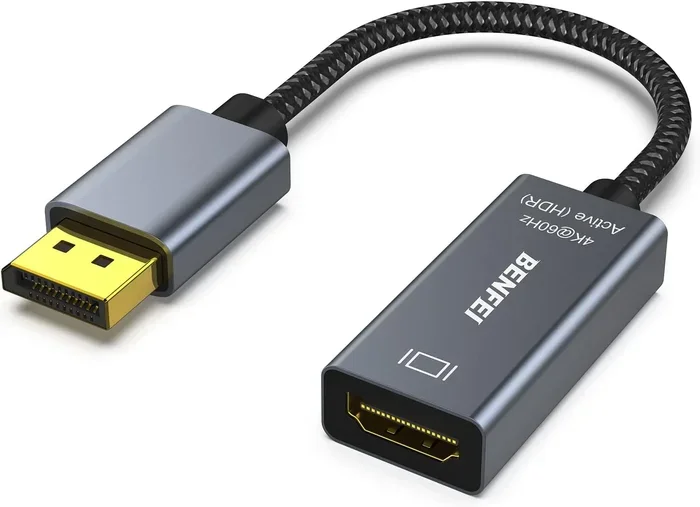
- USB to HDMI Adapter: This is the bridge between your tablet and TV. It converts the USB signal into an HDMI signal your TV can display.
- HDMI Cable: You need a standard HDMI cable to connect the adapter to your TV. Most TVs made after 2010 have HDMI ports.
- Your TV: Make sure your TV has an available HDMI input port.
Optional but Helpful Items
- USB Hub: If your tablet has limited USB power output, a small powered USB hub can help stabilize the connection.
- Screen Mirroring App: Some tablets need a companion app to enable video output over USB. Check your tablet manufacturer website for recommendations.
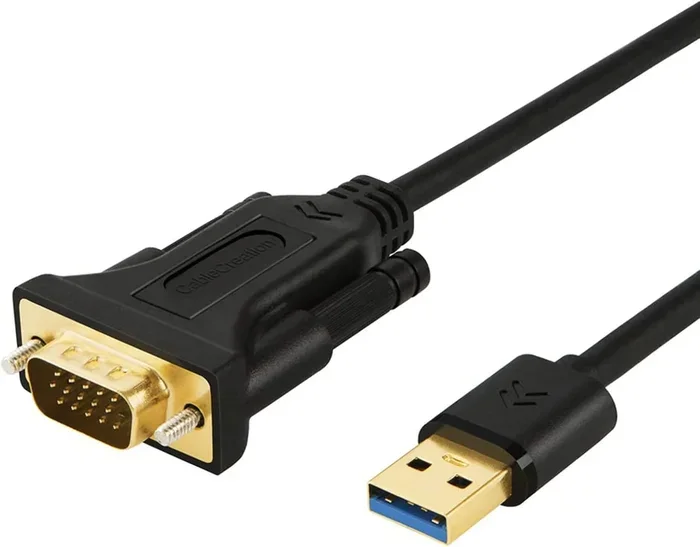
One thing worth noting is that not all USB cables carry video signals. A regular charging cable will only power your device. You need a cable or adapter specifically designed for video output. This is a common mistake many people make. They buy a USB cable and wonder why nothing shows up on the TV screen.
Step-by-Step Guide to Connecting Your Tablet to a TV
Now that you have everything you need, let us walk through the actual connection process. Follow these steps carefully and you will be watching your tablet content on the big screen in just a few minutes.
Step 1: Turn Off Both Devices
Start by turning off your tablet and your TV. While this is not strictly required, it helps prevent any electrical issues and ensures a clean connection. Think of it like plugging in a new speaker or headphone. Starting fresh always works better.
Step 2: Connect the Adapter to Your Tablet
Plug your USB to HDMI adapter into your tablet’s charging port. Make sure it clicks in firmly. If you are using a USB-C adapter, align the connector properly and push gently until it seats fully. For micro USB or Lightning adapters, the same applies. Do not force anything. If it does not fit, you might have the wrong adapter.
Step 3: Connect the HDMI Cable
Take your HDMI cable and plug one end into the adapter. Plug the other end into an available HDMI port on your TV. Most TVs label their HDMI ports as HDMI 1, HDMI 2, and so on. Remember which port you used because you will need to select it on your TV.
Step 4: Turn On Your TV and Select the Input
Turn on your TV and use your remote to select the HDMI input you plugged the cable into. Press the Input or Source button on your TV remote and choose the correct HDMI port. You should see your tablet screen appear on the TV. If you see a blank screen, do not worry. We will cover troubleshooting in a later section.
Step 5: Adjust Display Settings on Your Tablet
On your tablet, go to Settings and look for Display options. Some tablets have a specific setting for HDMI output or screen mirroring. You might need to enable “HDMI Output” or “External Display” depending on your device. Once you find this setting, toggle it on and your tablet screen should appear on the TV.
For tablets that support USB OTG (On-The-Go), the process is even simpler. USB OTG allows your tablet to act as a host device, meaning it can send video signals to external displays. Check if your tablet supports this feature before purchasing any adapter.
Common Problems and How to Fix Them
Even with the right equipment, things do not always work perfectly the first time. Here are the most common issues people face when trying to connect a tablet to a TV via USB and how to solve them.
No Signal on the TV Screen
If your TV shows no signal, the first thing to check is the HDMI connection. Unplug the HDMI cable from both the adapter and the TV, then plug it back in firmly. Try a different HDMI port on your TV. Sometimes the port you chose is not working properly.
Next, check your adapter. Make sure it is fully inserted into your tablet. A loose connection is the number one cause of no signal issues. If you have another adapter available, try that one instead.
Black Screen or Flickering Display
A black screen or flickering usually means your cable or adapter does not support the resolution your tablet is outputting. Try lowering the display resolution on your tablet. Go to Settings, then Display, then Screen Resolution, and select a lower option. This often fixes flickering and black screen problems.
Audio Not Working
Sometimes the video shows up on the TV but there is no sound. This happens when the audio output is still set to the tablet speakers instead of the HDMI connection. Go to your tablet Settings, find Sound or Audio settings, and change the output to HDMI. On some devices, you need to pull down the quick settings panel and select HDMI audio output manually.
Adapter Not Recognized by Tablet
If your tablet does not recognize the adapter at all, the adapter might be incompatible. Not all adapters work with all tablets. Check the adapter packaging or product description to confirm it supports your specific tablet model. Buying from a reputable brand helps avoid this problem.
Comparing USB Connection Methods
Not all USB connections to a TV are the same. Different methods work better for different situations. Here is a comparison of the most common ways to connect your tablet to a TV.
| Method | Cable Needed | Works With | Video Quality | Ease of Use |
|---|---|---|---|---|
| USB-C to HDMI | USB-C cable + HDMI cable | Modern tablets with USB-C | 4K possible | Very Easy |
| Micro USB to HDMI | Micro USB cable + HDMI cable | Older tablets, budget devices | 1080p max | Easy |
| Lightning to HDMI | Lightning cable + HDMI cable | iPads and iPhones | 1080p | Very Easy |
| MHL Cable | Single MHL cable | Select Samsung and other Android tablets | 1080p | Easy |
| USB OTG + Cable | USB OTG adapter + USB cable | Tablets supporting OTG | Varies | Moderate |
As you can see, the USB-C to HDMI method is the most versatile and future-proof option. It supports the highest resolutions and works with most modern tablets. If you have a newer tablet, this is the method I recommend every time.
For those with older devices, the micro USB to HDMI adapter still does a solid job. It might not support 4K, but for everyday watching of videos and photos, it works great. The Lightning to HDMI option is perfect for iPad users who want a simple wired connection without dealing with wireless setup.
One thing I always tell people is to check whether their tablet supports MHL (Mobile High-Definition Link). MHL is a technology that allows you to connect your mobile device to an HDTV using a single cable. Some Samsung tablets support MHL natively. If yours does, you can use an MHL cable and skip the adapter entirely. Just plug one end into your tablet and the other into the HDMI port on your TV. It is that simple.
Tips for the Best Viewing Experience
Once you have your tablet connected to your TV, there are a few things you can do to make the experience even better. These small tips make a big difference.
Use a High-Quality Cable
Cheap cables can cause signal loss, flickering, and poor audio quality. Invest in a good quality HDMI cable and a reliable adapter. Brands like Belkin, Anker, and AmazonBasics offer solid options that do not break the bank.
Keep Your Tablet Charged
Streaming video on a bigger screen uses more battery. If you are watching a long movie, keep your tablet plugged in. Some USB adapters pass through charging, which means you can charge your tablet while it outputs video to the TV. This is a great feature to look for when buying an adapter.
Adjust TV Picture Settings
Once your tablet screen appears on the TV, go into your TV picture settings. Adjust the brightness, contrast, and color to your liking. This simple step can make your tablet content look much more vibrant and clear on the big screen.
Use Landscape Mode
Most TV content is designed for landscape orientation. Rotate your tablet to landscape mode before connecting it to the TV. This ensures your content fills the screen properly and looks its best.
Consider the Distance
Place your tablet close to the TV to avoid cable strain. If your tablet is too far away, the cable might pull on the adapter and disconnect. A cable management clip or a small table near the TV can help keep everything neat and secure.
When USB Connection Might Not Work
Sometimes a USB connection simply will not work, and that is okay. There are many reasons why this might happen, and most of them have simple solutions. Let us look at when USB might not be the right choice and what you can do instead.
Some tablets simply do not support video output over USB. This is especially true with certain budget tablets and older models. If your tablet does not have a video output feature, no adapter in the world will make it work. In these cases, you have a few great alternatives.
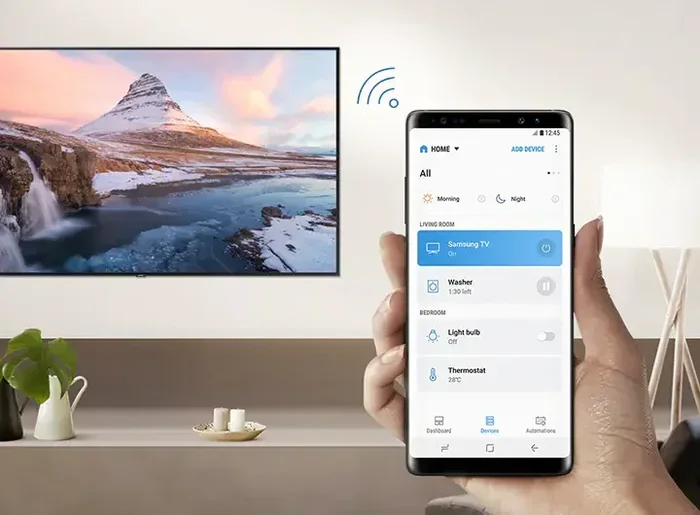
Wireless screen mirroring is the most popular alternative. Most smart TVs support screen mirroring through apps like Chromecast, AirPlay, or built-in casting features. You just need both your tablet and TV to be on the same Wi-Fi network. This method is incredibly convenient because you do not need any cables at all.
Another option is using a streaming device like a Roku, Amazon Fire Stick, or Apple TV. These devices connect to your TV and allow you to mirror your tablet screen wirelessly. They also let you use apps directly on the TV, which often works better than mirroring.
Some people also use a smart TV app on their tablet. Many streaming services like Netflix, YouTube, and Disney Plus have dedicated TV apps. You can cast content directly from the app to your smart TV without needing any cables or adapters. This is arguably the easiest method if you only want to watch specific content.
If you are looking for more tablet accessories that can simplify your life, check out our guide on 10 Gadgets To Make Moms Life Easier. It has some great recommendations for making your tablet setup even more useful around the house.
Final Thoughts
Connecting your tablet to a TV with USB is a straightforward process once you know what you are doing. The key is understanding your tablet port type, getting the right adapter, and following the steps carefully. Whether you use a USB-C to HDMI adapter, a micro USB to HDMI cable, or a Lightning to HDMI connection, the result is the same: your tablet content on a bigger, better screen.
Remember to check compatibility first, use quality cables, and do not be afraid to try a different method if USB does not work for your specific device. Wireless options like casting and screen mirroring are always there as a backup. The beauty of today’s technology is that you have multiple ways to achieve the same goal.
Now that you know how to connect a tablet to a TV with USB, you can enjoy your favorite shows, share memories with family, and play games on the big screen whenever you want. It is one of those simple upgrades that makes a real difference in your daily entertainment. Give it a try tonight and see the difference for yourself.
If you are curious about other tablet accessories or connectivity options, learning about the advantages and disadvantages of a computer mouse can help you understand different USB device connections better. Understanding how USB devices communicate with screens and computers gives you a broader perspective on connectivity options.
Also, if you ever need to manage device settings across multiple gadgets, knowing how to add prefixes to numbers on iPhone can be surprisingly useful when organizing contacts for your tablet-to-TV sharing setup. These small tech skills add up and make you more confident with your devices overall.
Frequently Asked Questions
Can any tablet connect to a TV using USB?
Not every tablet supports video output over USB. Most modern Android tablets with USB-C and iPads with Lightning can connect using the right adapter. However, some budget tablets only support charging through their USB port and cannot send video signals. Check your tablet specifications to confirm it supports display output before buying an adapter.
Do I need a special USB cable to connect my tablet to a TV?
Yes, you need more than just a regular USB cable. A standard USB charging cable will not transmit video. You need a USB to HDMI adapter that converts the USB signal into an HDMI signal your TV can display. The adapter does the heavy lifting, and the HDMI cable carries the signal to your TV.
Why does my tablet show no signal when connected to the TV via USB?
The most common reason is a loose connection. Try unplugging and replugging the adapter and HDMI cable. Also make sure you have selected the correct HDMI input on your TV. If the problem persists, your adapter might be incompatible with your tablet model. Try a different adapter or check if your tablet supports video output over USB.
Can I use a USB hub to connect my tablet to a TV?
Yes, you can use a powered USB hub if your tablet has limited power output. A powered hub provides extra electricity and can stabilize the connection. However, you still need a USB to HDMI adapter plugged into the hub. The hub itself does not convert the signal. It simply provides additional power and ports.
What is the best USB adapter for connecting a tablet to a TV?
The best adapter depends on your tablet model. For USB-C tablets, a USB-C to HDMI adapter from brands like Anker or Belkin works great. For iPads, Apple’s official Lightning to HDMI adapter is reliable. For older Android tablets with micro USB, a micro USB to HDMI adapter is your best bet. Always check compatibility with your specific tablet before purchasing.
Is it better to connect a tablet to a TV with USB or wirelessly?
It depends on your needs. A USB connection gives you a stable, lag-free connection with consistent quality. Wireless methods like Chromecast or AirPlay offer convenience but can experience slight delays or quality drops depending on your Wi-Fi strength. For watching movies or presenting slides, USB is often the better choice. For casual browsing and quick sharing, wireless works perfectly fine.