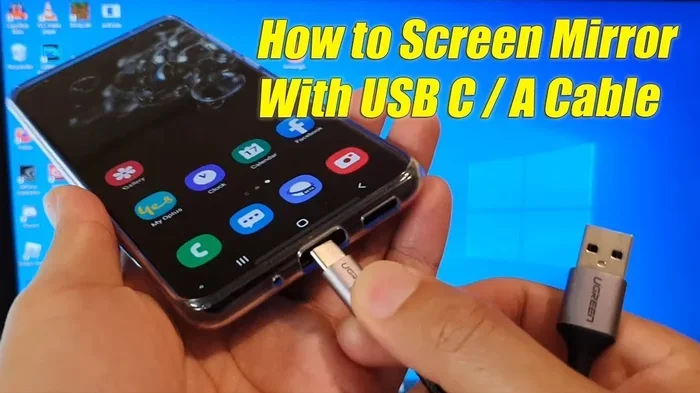
Can You Cast Phone Screen Via Usb And Why It Matters
Yes, you can cast phone screen via USB and it is one of the most reliable ways to mirror your device to a larger display. Wired screen casting offers zero latency, stable connections, and better quality than wireless options. Whether you want to share presentations, play games, or extend your display, USB screen mirroring gives you a plug-and-play solution that just works.
Have you ever wanted to show something on your phone but the screen was just too small? Maybe you are giving a presentation at work or sharing photos with family on the big TV. The question can you cast phone screen via USB comes up a lot, and the answer is a clear yes.
USB screen casting is one of the oldest and most dependable ways to mirror your phone to a larger display. Unlike wireless methods that depend on Wi-Fi signals and can lag or stutter, a wired connection gives you a rock-solid link with zero delay. Whether you are using an older Android phone or the latest flagship, there is a way to get your screen on a bigger monitor through a simple cable.
In this guide, we will walk you through everything you need to know. We will cover how it works, what cables and adapters you need, which phones are compatible, and how to set things up in minutes. By the end, you will have a solid understanding of wired screen projection and why it still matters in a world full of wireless options.
Key Takeaways
- USB casting is real and reliable: You can cast phone screen via USB using adapters, cables, and display protocols like MHL and SlimPort.
- Wired connections beat wireless: USB casting delivers zero lag, higher resolution, and a more stable experience than Wi-Fi-based mirroring.
- You need the right hardware: A compatible USB-C or Micro-USB adapter, an HDMI cable, and a display with an HDMI input are the basics.
- Not all phones support USB casting: Check your device for MHL, SlimPort, or USB-C DisplayPort Alt Mode support before buying accessories.
- Samsung DeX and similar modes: Some phones offer desktop-like experiences when connected via USB, making them great for productivity.
- Setup is simple: Most USB casting methods take under two minutes and require no software installation.
- Troubleshooting is straightforward: Most issues are solved by using certified cables, updating drivers, or checking display settings.
📑 Table of Contents
- What Is Casting Phone Screen Via USB?
- How Does USB Screen Casting Work?
- Best Methods to Cast Phone Screen Via USB
- USB Casting vs Wireless Casting: Which Is Better?
- Compatible Devices and What You Need
- Step-by-Step Guide to Set Up USB Screen Casting
- Troubleshooting Common USB Casting Problems
- Expert Tips for Better USB Casting
- Conclusion
What Is Casting Phone Screen Via USB?
The Basics of Wired Screen Mirroring
Casting phone screen via USB means using a physical cable connection to send your phone display to another screen. This could be a monitor, a television, a projector, or even a laptop with an HDMI input. Instead of relying on Wi-Fi or Bluetooth, the video signal travels through the cable directly from your phone to the display.
The concept is simple. Your phone outputs a video signal through its USB port or through a special adapter. That signal travels to a display device that accepts it, usually through HDMI. The result is a real-time mirror of everything happening on your phone screen.
There are a few different technologies that make this possible. The most common ones include MHL, SlimPort, and USB-C DisplayPort Alt Mode. Each one uses a slightly different method, but the end goal is the same: show your phone screen on a bigger display.
Why People Still Use USB Casting in 2024
You might wonder why anyone would use a cable in a world full of wireless casting options like Chromecast, AirPlay, or Miracast. The truth is that USB screen mirroring has some serious advantages that wireless methods simply cannot match.
First, there is no lag. When you tap your screen, the action shows up instantly on the display. This matters a lot for gaming, presentations, and anything where timing is important. Second, the connection is rock solid. No dropped frames, no signal drops, and no annoying buffering circles.
Third, USB casting does not need a Wi-Fi network. If you are at a conference with terrible internet or in a location where wireless signals are weak, a cable just works. Fourth, wired connections tend to offer better image quality because the signal is not compressed the way it is over the air.
How Does USB Screen Casting Work?
Understanding Display Protocols
When you cast phone screen via USB, your phone uses a display protocol to talk to the external screen. Think of a protocol like a language that both devices understand. Without the right protocol, the phone and the display cannot communicate properly.
The most well-known protocol is MHL, which stands for Mobile High-Definition Link. MHL was developed by a group of electronics companies and allows phones to output high-definition video through their Micro-USB or USB-C port. MHL supports up to 4K resolution and can also carry audio through the same cable.
Another important protocol is SlimPort, which was developed by a company called Analogix. SlimPort works similarly to MHL but uses a different type of connector. It also supports high-resolution output and can connect to displays through HDMI, VGA, or DisplayPort.
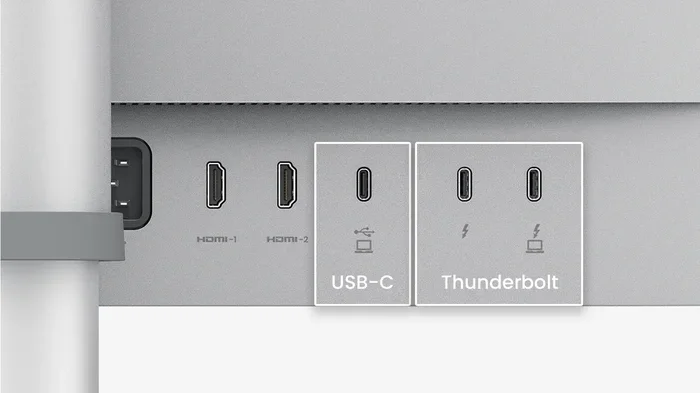
For modern phones with USB-C ports, there is USB-C DisplayPort Alt Mode. This is built directly into the USB-C standard and allows compatible phones to output video signals natively. Many newer Samsung, Google, and OnePlus phones support this feature.
The Role of Adapters and Cables
You cannot just plug any cable into your phone and expect it to work. You need the right casting adapter or screen casting cable to make the magic happen. The adapter converts the signal from your phone into a format that your display can understand.
Most setups involve a small adapter that plugs into your phone and an HDMI cable that connects the adapter to your TV or monitor. Some adapters are all-in-one, with the cable built right in. The quality of the adapter matters a lot. Cheap, uncertified adapters often cause flickering, no signal, or poor image quality.
When shopping for adapters, look for ones that are certified for MHL or SlimPort if your phone supports those standards. For USB-C phones, make sure the adapter supports DisplayPort Alt Mode. Buying from reputable brands like Samsung, Anker, or Cable Matters will save you a lot of headaches.
Best Methods to Cast Phone Screen Via USB
Method 1: MHL Adapter
If you have an older Android phone with a Micro-USB port, an MHL adapter is your best bet. These small adapters plug into your phone and have an HDMI output on the other end. You simply connect an HDMI cable from the adapter to your TV.
MHL adapters are widely available and affordable. You can find them for under twenty dollars online. Just make sure your phone supports MHL before buying one. You can check the MHL website or your phone manufacturer’s specifications.
The setup is incredibly simple. Plug the adapter into your phone, connect the HDMI cable, and switch your TV to the correct HDMI input. Your phone screen should appear on the TV within seconds. No apps to download, no settings to configure.
Method 2: USB-C to HDMI Adapter
If you have a newer phone with a USB-C port, a USB-C to HDMI adapter is the go-to solution. These adapters are slim, portable, and work with most modern Android phones and some iPhones.
Apple iPhones do not natively support USB-C to HDMI output without additional hardware. However, if you have an iPhone 15 or 16 with a USB-C port, you can use Apple’s official USB-C Digital AV Adapter to mirror your screen to a TV.
For Android users, USB-C to HDMI adapters support most phones that have DisplayPort Alt Mode. Samsung Galaxy S series phones, Google Pixel phones, OnePlus devices, and many others work great with this method. Just plug in the adapter, connect an HDMI cable, and you are ready to go.
Method 3: Samsung DeX Mode
Samsung phones have a special feature called DeX that turns your phone into a desktop-like experience when connected to a display. While DeX can work wirelessly, it works even better over a USB cable connection.
To use Samsung DeX with a USB cable, you need a Samsung DeX cable station or a USB-C hub that supports DeX. Once connected, your phone screen transforms into a desktop interface with a taskbar, resizable windows, and the ability to run multiple apps side by side.
DeX is fantastic for productivity. You can use your phone as a mini computer, complete with a keyboard and mouse. It is also great for presentations because the desktop interface looks polished and professional on a big screen.
Method 4: SlimPort Adapter
SlimPort adapters are another option for phones that support the technology. SlimPort is similar to MHL but uses a different connector and supports more display output options, including VGA and DisplayPort in addition to HDMI.
SlimPort adapters are less common today than MHL or USB-C options, but they still work well with older phones that have the SlimPort chip built in. Brands like LG and some Motorola phones supported SlimPort in the past.
One advantage of SlimPort is that it can output to a wider range of display types. If your TV or monitor only has VGA input, a SlimPort adapter can handle that where an MHL adapter cannot.
USB Casting vs Wireless Casting: Which Is Better?
Comparing Wired and Wireless Screen Mirroring
When people think about casting, they usually think about wireless methods first. Technologies like Chromecast, AirPlay, and Miracast have made it easy to share your screen without any cables. But how do they compare to USB screen mirroring?
Let us break down the key differences. Wired casting offers zero latency, which means there is no delay between your phone and the display. Wireless casting always has some amount of latency, even if it is just a fraction of a second. For gaming or presentations, this delay can be very noticeable.
Wired connections also provide a more stable experience. Wireless casting can drop frames or stutter if the Wi-Fi signal is weak or if too many devices are on the same network. A USB cable connection does not have these problems because it is a direct, dedicated link between your phone and the display.
On the other hand, wireless casting is more convenient. You do not need any cables or adapters, and you can cast from across the room. For casual use like streaming videos or sharing photos, wireless casting is often good enough.
| Feature | USB Wired Casting | Wireless Casting |
|---|---|---|
| Latency | Zero delay | Slight delay |
| Stability | Very stable | Depends on Wi-Fi |
| Setup | Cable and adapter needed | No cables required |
| Image Quality | High, uncompressed | Compressed, can vary |
| Convenience | Less convenient | Very convenient |
| Distance | Limited by cable length | Works across the room |
| Wi-Fi Required | No | Yes |
When to Choose USB Casting
You should choose USB screen casting when you need the best possible quality and zero lag. If you are giving a business presentation, playing a fast-paced game, or doing any work that requires real-time interaction, a wired connection is the way to go.
USB casting is also ideal when you are in an area with poor Wi-Fi or when you do not want to share your network with casting devices. It is a simple, plug-and-play solution that works reliably every time.
Compatible Devices and What You Need
Which Phones Support USB Casting?
Not every phone can cast its screen via USB. Compatibility depends on the hardware and software inside your device. Here is a general breakdown of what works and what does not.
Most Android phones from the last decade support some form of USB screen output. Older phones with Micro-USB ports typically use MHL or SlimPort. Newer phones with USB-C ports usually support DisplayPort Alt Mode or have built-in casting capabilities.
Samsung Galaxy phones are among the most compatible. The Galaxy S series, Note series, and many mid-range Samsung models support both MHL and USB-C video output. Samsung also offers DeX mode, which adds extra functionality when connected to a display.
Google Pixel phones support USB-C video output through DisplayPort Alt Mode. OnePlus, Xiaomi, and other major Android brands also support this feature on most of their newer models.
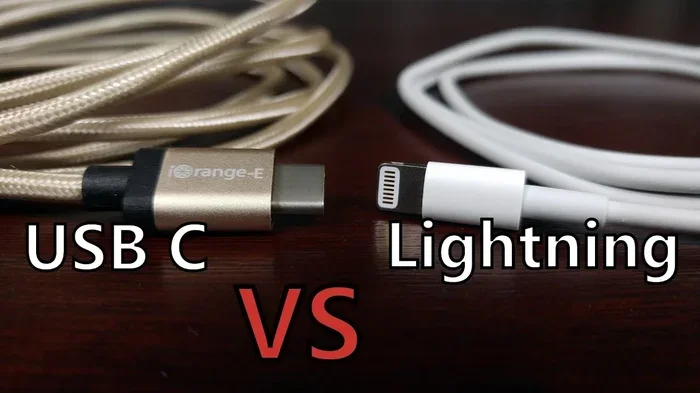
Apple iPhones are a bit more limited. iPhones with Lightning ports do not support direct USB video output without third-party adapters. However, iPhone 15 and 16 models with USB-C ports can use Apple’s official adapter for screen mirroring.
What Hardware Do You Need?
The hardware requirements for wired screen projection are minimal. Here is what you need to get started:
- A compatible phone: One that supports MHL, SlimPort, USB-C DisplayPort Alt Mode, or a manufacturer-specific casting feature.
- An adapter or cable: The right adapter for your phone’s port type. This could be an MHL adapter, a USB-C to HDMI adapter, or a manufacturer-specific cable.
- An HDMI cable: Most setups require an HDMI cable to connect the adapter to your TV or monitor. Make sure the cable supports the resolution you need.
- A display with HDMI input: Most modern TVs and monitors have HDMI inputs. If your display only has VGA or DisplayPort, you may need a different adapter type.
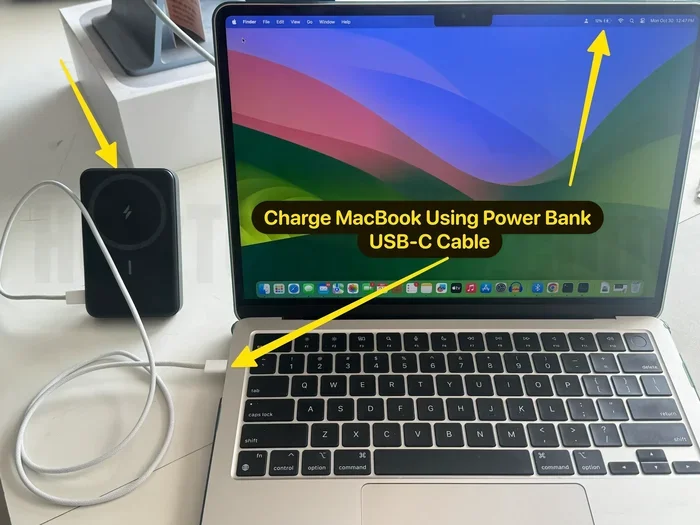
- A power source (optional but recommended): Some adapters draw power from your phone, which can drain your battery quickly. Using a USB power bank or plugging into a wall outlet can help.
Step-by-Step Guide to Set Up USB Screen Casting
Setting up USB screen mirroring is faster than you might think. Here is a simple walkthrough that works for most phones and adapters.
- Check your phone’s compatibility. Go to your phone’s settings or manufacturer website to confirm it supports USB video output. Look for terms like MHL, DisplayPort Alt Mode, or DeX.
- Buy the right adapter. If your phone has USB-C, get a USB-C to HDMI adapter. If it has Micro-USB, look for an MHL adapter. Make sure the adapter is certified and from a reputable brand.
- Connect the adapter to your phone. Plug the adapter into your phone’s charging port firmly.
- Attach the HDMI cable. Connect one end of the HDMI cable to the adapter and the other end to your TV or monitor.
- Switch your display input. Use your TV remote to switch to the correct HDMI input. You should see your phone screen appear on the TV.
- Adjust settings if needed. Some phones ask you to enable screen output in the settings menu. Check under Display or Connected Devices if nothing appears on the TV.
That is it. In less than two minutes, you should have your phone screen displayed on a larger monitor. No apps, no software, no complicated setup.
Quick Tips for a Smooth Setup
- Always use a high-quality HDMI cable. Cheap cables can cause signal issues.
- If your phone gets hot during casting, remove the phone case to help with heat dissipation.
- Keep your phone plugged into power during long casting sessions to avoid battery drain.
- Test your setup before an important presentation to make sure everything works.
Troubleshooting Common USB Casting Problems
Even though USB casting is straightforward, you might run into occasional issues. Here are the most common problems and how to fix them.
No Signal on the Display
If your TV or monitor shows no signal, the first thing to check is the HDMI connection. Make sure the cable is firmly plugged into both the adapter and the display. Try a different HDMI port on your TV if the current one is not working.
Next, check if your phone supports the casting protocol your adapter uses. Some adapters only work with phones that have specific hardware support. If you are unsure, check your phone’s specifications online.
Flickering or Poor Image Quality
Flickering usually means the adapter or cable is not working properly. Try a different HDMI cable first. If that does not help, try a different adapter. Cheap, uncertified adapters are the most common cause of flickering and poor image quality.
Image quality issues can also happen if the adapter does not support your phone’s maximum resolution. Make sure your adapter supports at least 1080p or 4K depending on what you need.
Phone Battery Drains Quickly
USB casting uses your phone’s processing power and battery to send the video signal. This can drain your battery faster than normal use. To prevent this, keep your phone plugged into a power source while casting.
You can also reduce the screen brightness on your phone or lower the output resolution on the adapter to reduce power consumption.
Expert Tips for Better USB Casting
Here are some professional tips that will help you get the most out of your USB screen mirroring setup.
- Use certified adapters: Certified adapters undergo testing to ensure they work reliably with your device. Look for MHL certification or USB-IF certification on the product.
- Keep cables short: Longer HDMI cables can cause signal degradation. Keep your cable runs under six feet for the best results.
- Update your phone software: Sometimes, a software update can improve compatibility with USB casting adapters. Keep your phone updated to the latest version.
- Close unnecessary apps: When casting, close apps you are not using. This frees up processing power and can improve the smoothness of the mirrored display.
- Use a USB hub for multi-device setups: If you need to connect multiple devices, a USB hub with an HDMI output can simplify your setup and reduce cable clutter.
Conclusion
Casting phone screen via USB is a practical, reliable, and high-quality way to share your phone display with a larger screen. It may not be as flashy as wireless casting, but it delivers where it counts: zero lag, stable connection, and excellent image quality.
Whether you are a professional giving a presentation, a gamer looking for a lag-free experience, or someone who simply wants to share photos on the big screen, USB casting has you covered. The setup is simple, the hardware is affordable, and the results are consistently great.
With the right adapter and cable, you can turn any compatible phone into a powerful screen-sharing tool. The next time someone asks you can you cast phone screen via USB, you will know the answer is a confident yes.
Give it a try. Pick up an adapter, connect your phone to your TV, and experience the difference that a wired connection can make. You will wonder how you ever managed without it.
Frequently Asked Questions
Can I cast my phone screen via USB to any TV?
Most modern TVs have HDMI inputs and will work with USB casting adapters. You just need the right adapter for your phone and an HDMI cable. If your TV only has older inputs like VGA, you may need a different type of adapter or a converter.
Does USB casting work on iPhones?
iPhones with Lightning ports do not support direct USB video output without third-party hardware. However, iPhone 15 and 16 models with USB-C ports can use Apple’s official USB-C Digital AV Adapter to mirror the screen to a TV via HDMI.
Is USB casting better than wireless casting?
USB casting is better for situations where you need zero lag, maximum stability, and the highest image quality. Wireless casting is more convenient and works well for casual use. The best choice depends on what you need the casting for.
Do I need any special apps to cast via USB?
No. Most USB casting setups work automatically without any apps. You plug in the adapter, connect the HDMI cable, and your phone screen appears on the display. Some phones may have a setting you need to enable, but no app installation is required.
Can I charge my phone while casting via USB?
Yes, and it is recommended. USB casting can drain your battery quickly. Using a USB power bank or plugging into a wall outlet while casting will keep your phone charged and prevent it from shutting down during use.
What is the difference between MHL and USB-C DisplayPort Alt Mode?
MHL is an older standard that works with Micro-USB phones and requires a special MHL adapter. USB-C DisplayPort Alt Mode is a newer standard built into the USB-C specification and works with most modern phones that have USB-C ports. DisplayPort Alt Mode is more versatile and does not require a dedicated MHL chip in your phone.