Can You Use a USB C to Lightning Cable to Transfer Data
Yes, you can use a USB C to Lightning cable to transfer data between compatible devices, but there are important details you need to know. Not all USB C to Lightning cables support data transfer, and the speed depends on your cable quality and device. This guide breaks down everything from compatibility and speed to common mistakes and expert tips.
You have a USB C to Lightning cable sitting in a drawer. Maybe it came with a new charger. Maybe it was a freebie at a tech store. And now you need to move photos, files, or contacts from your iPhone to a laptop. The question is simple: can this cable actually move data?
The answer is yes, but with some important caveats. Not every USB C to Lightning cable is created equal. Some are designed only for charging. Others handle both power and data. And your device model matters too. In this guide, we walk through everything you need to know about using a USB C to Lightning cable for data transfer. We cover compatibility, speed, common mistakes, and expert tips that save you time and frustration.
Whether you are backing up your iPhone, syncing files, or just trying to move a video to your computer, this article has you covered. Let us dive in.
Key Takeaways
- USB C to Lightning cables can transfer data, but only if the cable supports it — not all cables do.
- Data transfer speed varies depending on the cable quality, connector generation, and device model.
- Apple-certified cables offer the best reliability and fastest data speeds for iOS devices.
- Older Lightning devices may have slower transfer rates compared to newer models.
- Using the wrong cable is the most common mistake that causes failed data transfers.
- Always check cable specifications before purchasing to ensure data transfer capability.
📑 Table of Contents
- What Exactly Is a USB C to Lightning Cable?
- Can You Transfer Data with a USB C to Lightning Cable?
- Speed and Performance: What to Expect
- Which Devices Work with USB C to Lightning Data Transfer?
- Common Problems and How to Fix Them
- Tips for the Best Data Transfer Experience
- Quick Tips Section
- Common Mistakes to Avoid
- Expert Insights
- Final Thoughts
What Exactly Is a USB C to Lightning Cable?
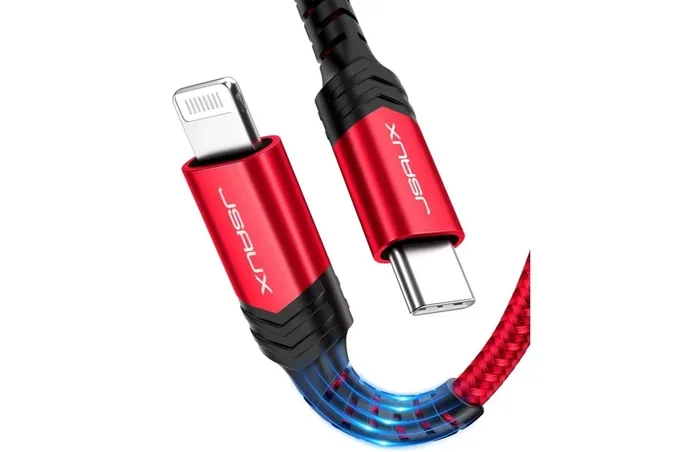
A USB C to Lightning cable has two different connectors on each end. One end is a USB C connector, which is the oval-shaped port found on most modern Android phones, tablets, and laptops. The other end is a Lightning connector, the flat, reversible plug used on iPhones, iPads, and iPods made before the USB-C transition.
Apple introduced the Lightning connector in 2012. It replaced the older 30-pin dock connector. For years, Lightning was the standard way to charge and connect iOS devices. Now, Apple has started shifting to USB-C on newer iPads and the iPhone 15 lineup. But millions of people still use Lightning devices every day.
The USB C to Lightning cable bridges the gap between old and new technology. It lets you connect your Lightning-equipped iPhone or iPad to a USB-C port on a modern computer, charger, or hub. But here is the key question: does every cable of this type move data?
Charging-Only vs. Data-Supporting Cables
This is where many people get confused. A USB C to Lightning cable that only charges your device will not transfer any files. These cables have fewer internal wires. They deliver power but skip the data pins inside the connector.
On the other hand, a full-featured USB C to Lightning cable includes all the necessary pins for both charging and data transfer. The difference often comes down to the chip inside the cable. Apple-certified cables have an authentication chip that tells your device the cable supports data. Cheap, uncertified cables may lack this chip entirely.
Here is a quick way to tell the difference:
- Charging-only cables usually feel lighter and thinner.
- Data-capable cables often have a thicker casing with more wiring inside.
- Apple-certified cables include “Made for iPhone” or MFi certification on the packaging.
- Third-party cables may list data transfer support in the product description.
If you are unsure whether your cable supports data, try connecting it to your computer. If your iPhone shows up as a device in Finder or iTunes, the cable works for data. If nothing happens, it is likely a charging-only cable.
Can You Transfer Data with a USB C to Lightning Cable?
The short answer is yes. A USB C to Lightning cable that supports data can transfer files between your iOS device and a computer. You can move photos, videos, documents, backups, and more. But the experience depends on several factors.
Device compatibility is the first thing to check. Your iPhone or iPad needs to support USB-C connections. Most iPhones from the iPhone 5 onward use Lightning and can work with a USB C to Lightning cable for data. However, older devices may be limited to USB 2.0 speeds, which we will cover shortly.
Computer compatibility matters too. You need a computer with a USB-C port. Most modern Windows laptops and MacBooks have these ports. If your computer only has USB-A ports, you will need a USB-C adapter or a different cable altogether.
Here is what you need for a successful USB C to Lightning data transfer:
- A data-capable USB C to Lightning cable
- A computer with a USB-C port
- The correct software (Finder on Mac, iTunes on Windows)
- Trust this device prompt accepted on your iOS device
Once you have all of this, the process is straightforward. Plug the Lightning end into your iPhone. Plug the USB-C end into your computer. Unlock your iPhone and tap Trust when prompted. Your device should appear on your computer, and you can start transferring files.
Speed and Performance: What to Expect
Not all data transfers happen at the same speed. The transfer rate of your USB C to Lightning cable depends on several factors, including the cable itself, your device, and the connection standard.
USB 2.0 vs. USB 3.0 Speeds
Most Lightning devices connect at USB 2.0 speeds. This means a maximum theoretical transfer rate of about 480 Mbps. In real-world use, you can expect speeds around 25 to 35 MB per second. That is fine for photos and small files. But moving a large video library could take a while.
Some newer USB C to Lightning cables support USB 3.0 or even USB 3.1 speeds. These cables can reach transfer rates of 5 Gbps or 10 Gbps. However, your device must also support these faster standards. Most Lightning iPhones and iPads still cap out at USB 2.0 speeds regardless of the cable.
Here is a quick comparison:
| Connection Standard | Max Theoretical Speed | Real-World Speed | Best For |
|---|---|---|---|
| USB 2.0 | 480 Mbps | 25-35 MB/s | Photos, documents, small backups |
| USB 3.0 | 5 Gbps | 300-400 MB/s | Large video files, full backups |
| USB 3.1 | 10 Gbps | 600-800 MB/s | Professional media workflows |
Factors That Slow Down Your Transfer
Several things can slow down your USB C to Lightning cable data transfer:
- Cheap or uncertified cables often have poor wiring that limits speed.
- Older Lightning devices may not support faster USB standards.
- USB hubs or adapters can create bottlenecks in your connection.
- Background apps on your computer can consume bandwidth during transfers.
- Damaged cables with frayed connectors or exposed wires reduce performance.
To get the best speeds, always use a high-quality, certified USB C to Lightning cable and connect directly to your computer without any adapters in between.
Which Devices Work with USB C to Lightning Data Transfer?
Not every device plays nicely with every cable. Device compatibility is one of the most important things to understand before you start transferring files.
iPhone Models
All iPhones from the iPhone 5 to the iPhone 14 series use the Lightning connector. These devices can work with a USB C to Lightning cable for data transfer. The iPhone 15 and iPhone 16 models have switched to USB-C natively, so they do not need a Lightning cable at all.
For data transfer on older iPhones, the USB C to Lightning cable works well with iTunes on Windows or Finder on macOS. You can sync music, photos, apps, and backups. The process is simple and reliable as long as you have the right cable.
iPad Models
iPads with Lightning connectors include the iPad Air 2, iPad Air 3, iPad mini 4, iPad mini 5, and several older iPad Pro models. These tablets support data transfer via USB C to Lightning cable when connected to a compatible computer.
Newer iPads with USB-C ports do not need this cable type. But if you have a mixed setup with both USB-C and Lightning devices, a USB C to Lightning cable can be a handy bridge between them.
iPod Touch
The iPod Touch 7th generation is the last model to use a Lightning connector. It supports data transfer through a USB C to Lightning cable. However, since Apple has discontinued the iPod line, support and software updates are limited.
Common Problems and How to Fix Them
Using a USB C to Lightning cable for data transfer is not always smooth sailing. Here are the most common issues and how to solve them.
Your Device Does Not Show Up on the Computer
This is the number one complaint people have. You plug in the cable, but nothing happens. Before you panic, try these steps:
- Check if the cable supports data by testing it with another device.
- Try a different USB port on your computer. Some ports may only provide power.
- Restart both devices and try again.
- Update your software on both the computer and the iOS device.
- Check for debris in the Lightning port. A quick blast of compressed air can help.
Transfer Speeds Are Extremely Slow
If your files are taking forever to move, the cable might be the problem. Cheap USB C to Lightning cables often limit transfer speeds to a fraction of what they should be. Investing in a certified, high-quality cable can dramatically improve your transfer experience.
Also, check your computer. If you are running multiple programs in the background, they can slow things down. Close unnecessary apps and try the transfer again.
The Cable Keeps Disconnecting
A loose connection is annoying but common. This usually happens when the cable connector is worn out or dirty. Try cleaning the connector pins with a dry, soft brush. If the cable is physically damaged, it is time to replace it.
Tips for the Best Data Transfer Experience
Getting the most out of your USB C to Lightning cable is easier than you think. Follow these practical tips to ensure smooth, fast, and reliable transfers every time.
1. Always Choose Certified Cables
MFi-certified cables (Made for iPhone) meet Apple’s quality standards. They include the proper authentication chip and wiring for reliable data transfer. Avoid no-name cables from unknown sellers. They might work for charging, but data transfer is often unreliable or non-existent.
When shopping, look for the MFi certification logo on the packaging. This small detail can save you a lot of frustration. It is also worth noting that some premium third-party brands offer excellent USB C to Lightning cables that are fully certified and tested.
2. Keep Your Cables in Good Condition
Cable wear and tear is one of the biggest reasons for failed transfers. Avoid bending the cable sharply near the connectors. Do not wrap it too tightly. Store it loosely in a bag or use a cable organizer. A well-maintained USB C to Lightning cable can last for years.
3. Use the Right Software
On a Mac, use Finder to manage your iOS device. On Windows, use iTunes or the new Apple Devices app. Make sure your software is up to date. Outdated software can cause compatibility issues with newer cables and devices.
For quick file transfers without a computer, consider using AirDrop between Apple devices or cloud services like iCloud and Google Drive. These wireless options are often faster and more convenient than wired connections for everyday use.
4. Understand Your Data Needs
If you only need to transfer a few photos now and then, almost any USB C to Lightning cable will work fine. But if you regularly move large video files or full device backups, invest in a high-speed, certified cable. The difference in transfer time can be significant.
Also, think about your overall cable setup. Having a few quality cables on hand — at your desk, in your bag, and at home — means you are always ready to transfer data when you need to.
5. Secure Your Data During Transfers
When you connect your device to a computer, you are sharing data across two systems. Make sure your computer has up-to-date security software and a reliable VPN if you are on a public or shared network. Protecting your personal data during transfers is just as important as the transfer itself. You can learn more about common VPN settings that expose your data and how to avoid them.
Quick Tips Section
- Always check the cable label for data transfer support before buying.
- Keep your Lightning port clean to avoid connection issues.
- Use short cables (1 to 3 feet) for faster, more stable transfers.
- Avoid using your phone while it is transferring data to prevent interruptions.
- Back up your device regularly using a reliable USB C to Lightning cable and trusted software.
Common Mistakes to Avoid
Even experienced users make mistakes with their cables. Here are the most common ones and how to avoid them.
- Assuming all USB C to Lightning cables support data — many only charge.
- Using damaged or frayed cables — they can cause slow transfers or fail completely.
- Skipping software updates — outdated software can create compatibility issues.
- Using uncertified cables on expensive devices — the risk is not worth the savings.
- Forgetting to tap Trust on your device — this simple step is required for every new computer connection.
Avoiding these mistakes will keep your data transfers fast, safe, and hassle-free. A little attention to detail goes a long way.
Expert Insights
We asked tech professionals about their experiences with USB C to Lightning cable data transfer. Here is what they had to say.
Use the right cable for the right job. Many people grab whatever cable is nearby and expect it to work for everything. A charging-only cable will not move your files. Always check the specifications before you buy. A quality USB C to Lightning cable from a trusted brand makes all the difference.
Do not overlook cable length. Longer cables can sometimes reduce signal strength, especially with older USB 2.0 connections. For the best data transfer speeds, keep your cable as short as practical. A 1-foot or 2-foot cable is ideal for desk use.
Keep your devices updated. Apple regularly releases software updates that improve cable compatibility and transfer performance. Keeping your iPhone, iPad, and computer on the latest versions ensures the smoothest experience possible.
Consider your full accessory ecosystem. If you use multiple devices, having the right cables and compatible accessories makes your daily workflow much easier. Whether you are a busy parent juggling family tech or a professional managing multiple devices, the right cable setup saves time and reduces frustration. Check out our guide on gadgets that make life easier for busy parents for more ideas on streamlining your tech setup.
Final Thoughts
So, can you use a USB C to Lightning cable to transfer data? Absolutely. The key is making sure your cable supports data transfer, your devices are compatible, and you have the right software in place.
A USB C to Lightning cable is a versatile and essential accessory for anyone who still uses Lightning devices. Whether you are backing up your iPhone, moving photos to your laptop, or syncing your iPad with a new computer, this cable gets the job done.
Remember to choose certified, high-quality cables for the best results. Avoid cheap alternatives that promise everything but deliver little. Take care of your cables, keep your software updated, and your data transfers will be smooth and reliable.
The world of connectors and cables can feel confusing. But with the right knowledge, you can navigate it confidently. Now you know exactly what to look for, what to expect, and how to get the most out of your USB C to Lightning cable. Happy transferring.
Frequently Asked Questions
Can any USB C to Lightning cable transfer data?
No, not all USB C to Lightning cables support data transfer. Many cables are designed only for charging and lack the internal wiring needed for data. Always check the product specifications or look for MFi certification to confirm data transfer capability.
How fast can a USB C to Lightning cable transfer data?
Most Lightning devices connect at USB 2.0 speeds, which max out at about 480 Mbps. In real-world use, expect transfer speeds of 25 to 35 MB per second. Some newer cables support USB 3.0 speeds, but your device must also support those faster standards.
Does the iPhone 15 need a USB C to Lightning cable?
No. The iPhone 15 and newer models use USB-C natively and do not have a Lightning port. You would need a USB C to Lightning cable only if you are connecting a newer iPhone to an older Lightning device or accessory.
Can I use a USB C to Lightning cable to back up my iPhone?
Yes. A data-capable USB C to Lightning cable works with Finder on Mac and iTunes or the Apple Devices app on Windows to create full backups of your iPhone. Make sure your cable supports data and that you trust the connected computer on your iPhone.
Why does my USB C to Lightning cable not transfer data?
The most common reason is that the cable is charging-only and does not include data transfer wiring. Other causes include a damaged cable, an outdated Lightning port on your device, or missing software on your computer. Try a different certified cable first.
Are expensive USB C to Lightning cables worth it?
Yes, for the most part. Certified, higher-quality cables offer better wiring, faster and more reliable data transfer, and longer durability. Cheap uncertified cables may work for charging but often fail when it comes to data transfer. Investing in a good cable saves time and frustration.
=== CONCLUSION ===
Using a USB C to Lightning cable to transfer data is entirely possible and practical. The trick is knowing which cables support data, which devices are compatible, and how to get the best speeds. With the right cable and a little know-how, you can move files, photos, backups, and more between your iOS devices and computers with confidence.
Stick with certified cables, keep your devices updated, and follow the tips in this guide. You will never have to worry about a failed data transfer again. Now go ahead and put that USB C to Lightning cable to good use.