Can I Use HDMI For A Docking Station Complete Guide
Yes, you can use HDMI with a docking station to connect your laptop or device to an external display. An HDMI docking station simplifies your workspace by delivering video, audio, and data through a single cable connection. Whether you need a dual monitor setup or just a reliable external display, an HDMI docking station is a powerful and convenient solution for work and play.
Have you ever plugged your laptop into a docking station and wondered whether the HDMI connection would actually work? You are not alone. Many people ask the same question every day. The short answer is yes. You can absolutely use HDMI with a docking station, and it is one of the most popular ways to extend your screen or mirror your display. But there is more to it than just plugging in a cable. In this guide, we will walk you through everything you need to know about using HDMI with a docking station. We will cover how it works, what to look for when buying one, how to set it up, and how to troubleshoot common issues. By the end, you will feel confident choosing and using the right HDMI docking station for your setup.
Whether you work from home, travel often, or just want a cleaner desk, an HDMI docking station can make a huge difference. It turns your laptop into a full workstation with external monitors, speakers, and peripherals all connected through one simple hub. Let us dive in and explore everything you need to know.
Key Takeaways
- HDMI docking stations are compatible with most modern laptops and devices: They work with USB-C, Thunderbolt, and DisplayPort connections.
- You get high-quality video output: HDMI supports up to 4K resolution, making it great for work, gaming, and media.
- Setup is simple and straightforward: Most HDMI docking stations plug and play with minimal configuration.
- Choose the right dock based on your needs: Consider resolution support, port availability, and build quality.
- Common issues are easy to fix: Driver updates, cable checks, and firmware resets solve most problems.
📑 Table of Contents
- What Is an HDMI Docking Station and How Does It Work?
- Benefits of Using HDMI with Your Docking Station
- How to Choose the Right HDMI Docking Station
- Setting Up Your HDMI Docking Station Step by Step
- Common HDMI Docking Station Problems and How to Fix Them
- HDMI Docking Station vs. Other Connection Types
- Expert Tips for Getting the Most from Your HDMI Docking Station
What Is an HDMI Docking Station and How Does It Work?
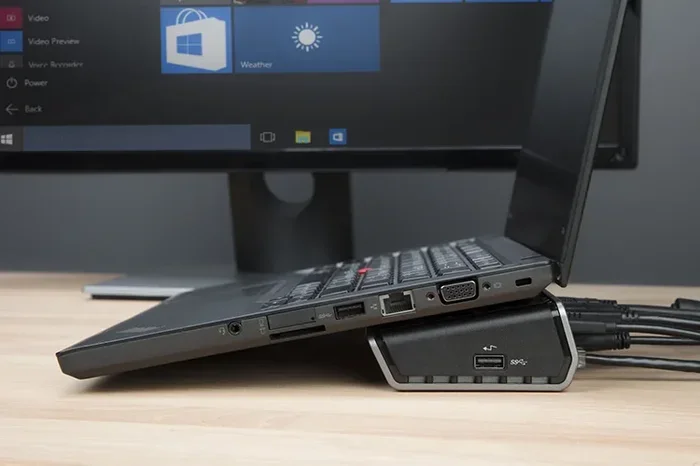
A docking station is a device that connects to your laptop or computer and expands its capabilities. Think of it as a hub that gives you extra ports and connections. When you add an HDMI connection to the mix, you get the ability to send high-definition video and audio to an external monitor or display.
Most modern docking stations connect to your laptop through a USB-C port or a Thunderbolt port. These ports carry both data and video signals. The docking station then uses an internal chip to convert that signal into an HDMI output. This means your laptop does not need a dedicated HDMI port to work with an HDMI dock.
How HDMI Connects Inside a Docking Station
Inside the dock, there is a small processor chip that handles the video conversion. When your laptop sends a signal through USB-C, the chip translates it into an HDMI signal. This signal then travels through the HDMI cable to your monitor or TV. The process happens almost instantly. You plug in the dock, and within seconds, your external display lights up.
Some docking stations also support DisplayPort Alt Mode over USB-C. This is another way to send video signals. But HDMI remains one of the most widely used and universally supported options. Almost every monitor, TV, and projector has an HDMI port. That is why so many people choose an HDMI docking station for their setup.
Many productivity tools can complement your docking station setup. For example, if you are looking for ways to streamline your mobile workflow, check out 4 Apps That Are Like Uber For Finding Dog Walkers for ideas on how automation apps can simplify other parts of your daily routine.
Benefits of Using HDMI with Your Docking Station
Using HDMI with a docking station offers several real-world benefits. Let us look at why this connection type remains so popular among professionals and casual users alike.
High-Quality Video Output
HDMI supports high resolutions, including 4K and even 8K on newer standards. This means you get sharp, clear images on your external monitor. Whether you are editing photos, watching movies, or working on spreadsheets, the picture quality is excellent. An HDMI docking station delivers this quality without any extra adapters or converters.
Easy Connection and Plug-and-Play Setup
Most HDMI docking stations work right out of the box. You do not need to install complicated software or configure settings. Just plug the dock into your laptop, connect an HDMI cable to your monitor, and you are good to go. This plug-and-play nature makes it ideal for people who want a simple and fast setup.
Audio and Video Through One Cable
HDMI carries both audio and video signals. This is a big advantage. You do not need separate cables for sound and picture. One HDMI cable from the dock to your monitor or TV handles everything. This keeps your desk tidy and reduces cable clutter.
Wide Device Compatibility
HDMI is supported by almost every modern display device. Monitors, TVs, projectors, and even some tablets have HDMI inputs. This means your docking station HDMI setup will work with whatever display you already own. You are not locked into a specific brand or ecosystem.
How to Choose the Right HDMI Docking Station
Not all docking stations are the same. Choosing the right one can feel overwhelming with so many options on the market. Here are the key factors to consider before you buy.
Check Your Laptop’s Ports
First, look at what ports your laptop has. If your laptop has a USB-C port, most HDMI docking stations will work. If it has Thunderbolt 3 or Thunderbolt 4, even better. These ports offer faster data transfer and more reliable video output. If your laptop only has older USB-A ports, you may need a different type of dock or an adapter.
Resolution and Refresh Rate Support
Think about what resolution you need. Do you want 1080p for everyday tasks? Or do you need 4K for creative work? Make sure the HDMI docking station you choose supports your desired resolution. Some docks also support higher refresh rates, which is great for gaming or video editing.
Number of Ports and Connectivity
Consider how many devices you need to connect. A good docking station should offer multiple USB ports, an Ethernet jack, an SD card reader, and of course, an HDMI output. The more ports it has, the more useful it is. Think about your daily workflow and what peripherals you use regularly.
Build Quality and Brand Reputation
Not all docks are built the same. Some feel cheap and break easily. Others are sturdy and built to last. Look for brands with good reviews and solid warranty policies. Spending a little more on a quality dock can save you headaches down the road.
Power Delivery
Many HDMI docking stations also charge your laptop through the same connection. This is called USB-C power delivery. It means you only need one cable to charge your laptop and connect all your peripherals. This is a huge convenience for anyone who wants a clean and minimal setup.
For those interested in maximizing productivity on the go, you might also enjoy exploring 4 Apps That Are Like Uber For Finding Dog Walkers to discover how smart app integrations can simplify everyday tasks and free up your time for more important work.
Setting Up Your HDMI Docking Station Step by Step
Setting up an HDMI docking station is easier than you might think. Follow these steps for a smooth and hassle-free setup.
Step 1: Unbox and Inspect Your Dock
Take the dock out of the box and check that all parts are included. You should have the dock itself, a power adapter, an HDMI cable, and any documentation. Make sure there is no visible damage to the unit or the cables.
Step 2: Connect the Dock to Your Laptop
Plug the dock into your laptop’s USB-C or Thunderbolt port. If the dock requires external power, connect the power adapter to an outlet. Some docks draw power directly from the laptop, but larger docks usually need their own power source.
Step 3: Connect Your Monitor
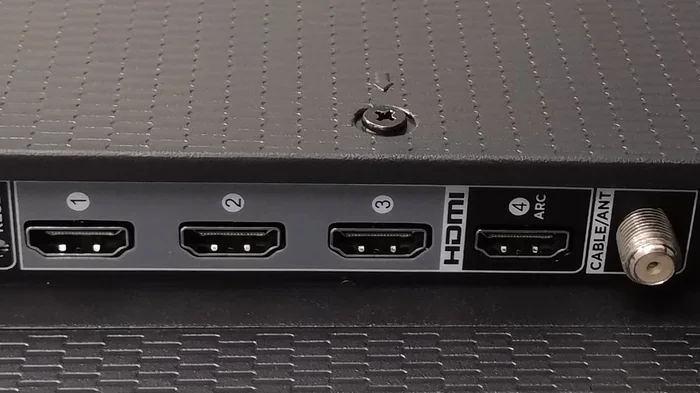
Take an HDMI cable and plug one end into the dock’s HDMI output. Plug the other end into your monitor or TV. Make sure the connection is firm and secure.
Step 4: Power On and Configure
Turn on your monitor and switch it to the correct HDMI input. Your laptop should detect the external display automatically. If it does not, go to your display settings and choose to extend or mirror your screen. Most modern laptops recognize the dock within seconds.
Step 5: Install Drivers (If Needed)
In most cases, no drivers are needed. But if your dock has extra features like USB hubs or Ethernet, you may need to install a driver or software package. Check the manufacturer’s website for the latest updates. Keeping your dock’s firmware up to date ensures the best performance.
Many users also rely on smart tools to manage their daily workflows. For instance, check out 4 Apps That Are Like Uber For Finding Dog Walkers for insights on how automation can help you manage repetitive tasks more efficiently.
Common HDMI Docking Station Problems and How to Fix Them
Even the best docking stations can sometimes cause issues. Here are the most common problems and how to solve them quickly.
No Signal on the External Monitor
This is the most common issue. If your monitor shows no signal, first check that all cables are firmly connected. Try a different HDMI cable. Sometimes the cable is simply faulty. Also, make sure your monitor is set to the correct input source.
Flickering or Intermittent Display
Flickering usually means a loose connection or a cable quality issue. Try a shorter or higher-quality HDMI cable. If the problem persists, update your laptop’s graphics drivers. Outdated drivers often cause display flickering with docking stations.
Low Resolution or Blurry Image
If your external display looks blurry, check the resolution settings. Go to your display settings and set the resolution to the native resolution of your monitor. Some docking stations may default to a lower resolution if the HDMI standard does not match the monitor’s capabilities.
Dock Not Recognized by Laptop
If your laptop does not detect the dock at all, try a different USB-C port. Some ports may not support video output. Also, restart your laptop and try again. If the issue continues, update your laptop’s USB-C or Thunderbolt drivers. A simple restart often fixes temporary recognition issues.
Audio Not Working Through HDMI
HDMI carries audio, but sometimes the sound does not come through. Check your sound settings and make sure the HDMI output is selected as the default audio device. On Windows, right-click the speaker icon and choose the correct output. On Mac, go to Sound Preferences and select the HDMI display.
HDMI Docking Station vs. Other Connection Types
There are several ways to connect your laptop to an external display. Let us compare HDMI docking stations with other popular options.
| Feature | HDMI Dock | USB-C Dock | DisplayPort Dock |
|---|---|---|---|
| Video Quality | Up to 4K or 8K | Up to 4K or 8K | Up to 4K or 8K |
| Audio Support | Yes | Yes | No (usually) |
| Device Compatibility | Very wide | Wide | Narrower |
| Cable Availability | Very common | Common | Less common |
| Plug and Play | Yes | Yes | Sometimes |
| Price Range | Low to high | Low to high | Medium to high |
As you can see, an HDMI docking station offers excellent compatibility and solid performance. It is a great all-around choice for most users. USB-C docks are versatile and modern, while DisplayPort docks are more niche. For most people, HDMI is the best balance of quality, compatibility, and ease of use.
To get the most out of your docking station, consider pairing it with the right accessories and tools. A good HDMI cable, a surge protector, and a monitor stand can transform your workspace. Small investments like these make a big difference in daily comfort and productivity.
Expert Tips for Getting the Most from Your HDMI Docking Station
Here are some expert tips to help you get the best experience from your HDMI docking station setup.
- Use a high-quality HDMI cable: Cheap cables can cause signal loss and poor image quality. Invest in a certified cable that supports your desired resolution.
- Keep your dock’s firmware updated: Manufacturers often release updates that fix bugs and improve performance. Check the manufacturer’s website regularly.
- Use a powered dock for multiple monitors: If you plan to connect two or more external displays, choose a dock with its own power supply. This ensures stable performance.
- Organize your cables: Use cable ties or a cable management tray to keep your desk clean. A tidy workspace reduces stress and improves focus.
- Test your setup before important meetings: Always test your dock and external display before a big presentation or video call. Nothing is worse than tech issues during an important meeting.
An HDMI docking station is more than just a accessory. It is a gateway to a more organized, efficient, and enjoyable workspace. Whether you are a student, a professional, or a creative, the right dock can transform how you work and play.
Remember that the best setup is the one that fits your needs. Take the time to choose the right dock, the right cables, and the right monitor. A little planning goes a long way. And once you experience the convenience of a multi-monitor setup with a single cable connection, you will wonder how you ever worked without one.
So go ahead. Explore your options. Find the perfect HDMI docking station for your lifestyle. You will be amazed at how much smoother and more productive your workflow can become. Happy docking!
Frequently Asked Questions
Can I use HDMI with any docking station?
Most modern docking stations support HDMI output, especially those with USB-C or Thunderbolt connections. However, you should always check the specifications of the dock before purchasing. Not every dock includes an HDMI port, so confirm compatibility with your specific model.
Do I need special drivers for an HDMI docking station?
In most cases, no. HDMI docking stations are plug-and-play and do not require special drivers. However, if your dock offers extra features like USB hubs or Ethernet, you may need to install a driver or software package from the manufacturer’s website.
Can I connect two monitors using an HDMI docking station?
Yes, many HDMI docking stations support dual monitor setups. Check the dock’s specifications to confirm how many displays it can support. Some docks can drive two 4K monitors, while others are limited to a single display.
What resolution can an HDMI docking station support?
Most HDMI docking stations support up to 4K resolution at 60Hz. Some newer models can handle 8K or higher refresh rates. Always check the product specifications to ensure it meets your resolution and refresh rate needs.
Why does my HDMI docking station keep disconnecting?
Frequent disconnections are often caused by loose cables, outdated drivers, or power issues. Try using a different HDMI cable, updating your drivers, or connecting the dock to a powered USB-C port. If the problem continues, the dock itself may need a firmware update.
Is an HDMI docking station better than a USB-C direct connection?
It depends on your needs. A USB-C direct connection works well for simple setups, but an HDMI docking station offers more ports, better compatibility with older monitors, and often includes power delivery. For a full workstation setup, an HDMI dock is usually the better choice.