Can I Use Both Hdmi Ports At The Same Time On My TV
Yes, you can use both HDMI ports on your TV at the same time. This lets you connect two different devices, like a gaming console and a streaming box, without unplugging anything. We will walk you through everything you need to know about using both HDMI ports simultaneously.
Have you ever looked at the back of your TV and wondered if you could plug in two things at once? Maybe you have a gaming console and a streaming stick. Or perhaps you want to connect a soundbar and a Blu-ray player. The good news is that yes, you can use both HDMI ports at the same time on most modern TVs. This guide will show you exactly how it works, what to watch out for, and how to get the best experience from your setup.
Using both HDMI ports simultaneously is simpler than most people think. You do not need expensive gear or technical skills. Whether you are a casual viewer or a dedicated gamer, understanding how your TV handles multiple HDMI connections makes a big difference. Let us dive into the details and help you get the most out of your setup.
Key Takeaways
- Both HDMI ports work at once: You can run two separate devices on your TV without any special equipment in most cases.
- No splitter is always needed: A basic TV with two HDMI inputs handles dual connections natively.
- HDMI splitters and switches serve different purposes: Knowing the difference saves money and frustration.
- Resolution and refresh rate matter: Using both ports may affect display quality depending on your TV model.
- Common setups include gaming and streaming: Many users pair a console with a streaming device for convenience.
- Troubleshooting is simple: Most issues with dual HDMI use come down to cable quality or TV settings.
📑 Table of Contents
Understanding HDMI Ports on Your TV
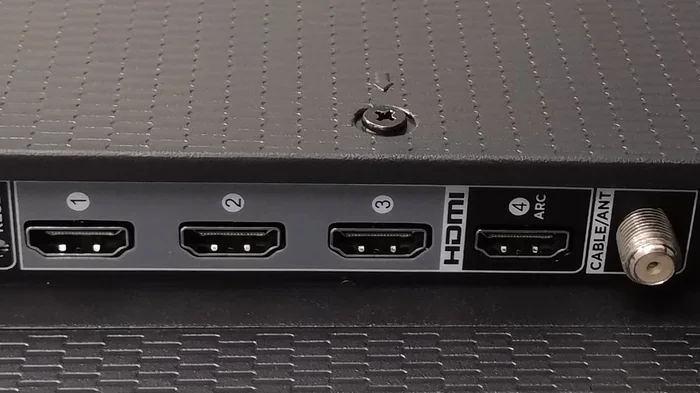
HDMI stands for High-Definition Multimedia Interface. It is the standard cable used to carry both video and audio from a source device to your TV. Most TVs made in the last decade come with at least two HDMI ports. Some high-end models have three, four, or even more. Each port acts as an independent input channel. This means each one can receive a separate signal from a different device.
The number of HDMI ports varies by TV size and brand. A basic 32-inch TV might have two ports. A 55-inch smart TV often has three or four. Before you buy any extra equipment, check the back or side panel of your TV. Count how many ports you actually have. This simple step prevents unnecessary purchases.
What Each HDMI Port Does
Every HDMI port on your TV works the same way at its core. It receives a digital signal that contains both video and audio. The TV then decodes that signal and displays it on screen. When you use both HDMI ports at the same time, each port handles its own independent signal. They do not interfere with each other.
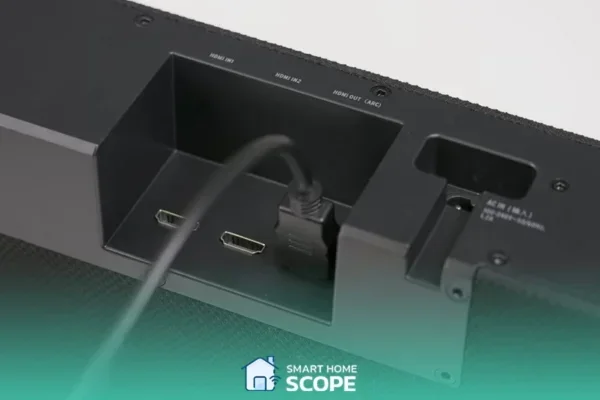
Some TVs label their HDMI ports as HDMI 1, HDMI 2, HDMI 3, and so on. Others use names like “ARC” or “eARC” for specific ports. An ARC port sends audio back to a soundbar or receiver. But for basic dual-device use, any standard HDMI port works fine. You can plug a gaming console into HDMI 1 and a streaming device into HDMI 2. Both will work at the same time without any problems.
How to Use Both HDMI Ports Simultaneously
Setting up two devices on your TV using both HDMI ports is straightforward. You do not need any special tools or technical knowledge. Here is how it works in practice.
Step-by-Step Setup
Follow these simple steps to get both devices running:
- Plug the first device into HDMI port 1 using an HDMI cable.
- Plug the second device into HDMI port 2 using another HDMI cable.
- Turn on your TV and press the Input or Source button on your remote.
- Select HDMI 1 to see the first device.
- Press the Input button again and select HDMI 2 to see the second device.
That is it. You are now using both HDMI ports on your TV at the same time. You can switch between devices anytime by pressing the Input button. There is no need to unplug anything. This setup works for almost every TV and every combination of devices.
What Devices Work Well Together?
Many people pair a gaming console with a streaming device. For example, you might have a PlayStation or Xbox plugged into one port and a Roku or Amazon Fire Stick in the other. This gives you instant access to games and streaming content without swapping cables. Some popular combinations include:
- A gaming console and a streaming stick
- A Blu-ray player and a cable box
- A laptop and a game console
- A soundbar with HDMI ARC and a cable box
All of these setups use both HDMI ports at the same time on the TV. The TV handles each signal independently. You just switch between inputs when you want to use a different device.
HDMI Splitter vs HDMI Switch – What Is the Difference?
Some people confuse HDMI splitters with HDMI switches. These are two very different devices that serve different purposes. Understanding the difference helps you avoid buying the wrong product.
What Is an HDMI Splitter?
An HDMI splitter takes one input signal and copies it to multiple outputs. For example, you plug one device into the splitter, and the splitter sends the same signal to two or more TVs. Splitters are useful when you want to display the same content on multiple screens. They are not needed when you simply want to use two ports on one TV.
If your goal is to connect two different devices to one TV, a splitter will not help. In that case, you already have two inputs available on your TV. You just need to use them. Splitters are for a different use case entirely.
What Is an HDMI Switch?
An HDMI switch does the opposite of a splitter. It lets you connect multiple devices to a single HDMI port on your TV. The switch has several input ports and one output port. You press a button or use a remote to select which device you want to see. This is helpful when your TV does not have enough HDMI ports for all your devices.
For example, if your TV only has two HDMI ports but you want to connect a console, a streaming stick, and a Blu-ray player, an HDMI switch solves the problem. You connect two devices to the switch, and the switch connects to the TV. This way, you can still use both HDMI ports on your TV and add a third device through the switch.
Which One Do You Need?
For most people, the answer is neither. If your TV has at least two HDMI ports, you can use both at the same time without any extra gear. You only need a splitter or switch if you have more devices than available ports. Before buying any accessory, count your ports and count your devices. This simple check saves money and keeps your setup clean.
| Feature | HDMI Splitter | HDMI Switch |
|---|---|---|
| Takes one input and sends to many outputs | Yes | No |
| Takes many inputs and sends to one output | No | Yes |
| Use case | Same content on multiple TVs | Multiple devices on one TV port |
| Needed for dual-device setup | No | No |
| Cost range | $10 to $50 | $10 to $40 |
Common Devices You Can Connect to Both Ports
One of the best things about using both HDMI ports on your TV at the same time is the flexibility. You can connect almost any HDMI-compatible device. Here are the most common setups people use every day.
Gaming Console and Streaming Device
This is the most popular dual-HDMI setup. A gaming console like the PlayStation 5 or Xbox Series X takes one port. A streaming device like a Roku, Apple TV, or Chromecast takes the other. You get instant access to games and streaming content without ever unplugging a cable. Just press the Input button on your remote to switch between them.
Many gamers also use this setup to stream their gameplay while playing. They plug a capture card or streaming device into the second HDMI port. This lets them broadcast their game to platforms like Twitch or YouTube while playing on the main screen.
Cable Box and Soundbar
If you have a cable or satellite box, it usually needs its own HDMI port. A soundbar with HDMI ARC capability uses the second port. This setup gives you both live TV and improved audio quality. The ARC port sends audio from the TV back to the soundbar automatically. You get clear dialogue and rich sound without extra cables.
Laptop and Game Console
Some people use their TV as a computer monitor. You can plug a laptop into one HDMI port and a game console into the other. This is great for people who work from home and also want a big screen for gaming. Switching between work and play is as easy as pressing a button on your remote.
Blu-ray Player and Cable Box
Movie lovers often pair a Blu-ray player with a cable box. Both devices use HDMI for the best picture quality. With both HDMI ports active, you can watch a movie on disc or switch to live TV in seconds. No cables to unplug, no signal loss, no hassle.
Troubleshooting When Both HDMI Ports Do Not Work
Sometimes things do not go as planned. Maybe one port stops working, or both devices show no signal. Before you panic, try these simple fixes. Most problems have easy solutions.
Check Your Cables First
The most common cause of HDMI problems is a bad cable. Try unplugging both cables and plugging them back in firmly. Look for any visible damage like bent pins or frayed wires. If a cable looks worn out, replace it. A new HDMI cable costs just a few dollars and often solves the problem completely.
Try a Different Port
If one device is not showing up, try plugging it into the other HDMI port. This tells you whether the problem is with the cable, the device, or the port itself. If the device works in the other port, the original port might be faulty. If it still does not work, the cable or device is the issue.
Check Your TV Settings
Some TVs have settings that affect how HDMI ports work. Go into your TV’s settings menu and look for HDMI options. Make sure the correct input is selected. Some TVs have an auto-detect feature that should switch inputs when you turn on a device. If this is turned off, you may need to manually switch inputs each time.
Update Your TV Firmware
Older TVs sometimes have HDMI compatibility issues that get fixed through firmware updates. Check your TV manufacturer’s website or go into the TV’s settings to look for a software update. Keeping your TV updated ensures the best performance from all HDMI ports.
When to Contact Support
If none of these steps work, the problem might be with the TV itself. A damaged HDMI port needs professional repair. Contact the TV manufacturer’s support team or consult a technician. In many cases, the port can be repaired without replacing the entire TV.
Expert Tips for Getting the Most From Your HDMI Ports
You now know how to use both HDMI ports at the same time on your TV. Here are some expert tips that take your setup to the next level.
Label Your Cables and Ports
It is easy to forget which device is plugged into which port. Use small labels or colored tape to mark each cable and port. For example, put a blue sticker on the cable for your streaming device and a red sticker on the cable for your console. This simple habit saves time and frustration every time you switch inputs.
Use High-Speed HDMI Cables
Not all HDMI cables are the same. Cheap cables may not support 4K resolution or high refresh rates. Look for cables labeled “High Speed HDMI” or “Ultra High Speed HDMI.” These cables handle the best picture and sound quality your TV can deliver. They cost a little more but make a noticeable difference.
Keep Your Cables Organized
Multiple cables behind your TV can create a tangled mess. Use cable ties or a cable management box to keep things neat. Organized cables make it easier to unplug and replug devices. They also improve airflow around your TV, which helps prevent overheating.
Consider an HDMI-Compatible Sound System
If you want better audio, look for a soundbar or AV receiver with HDMI ARC or eARC support. These devices connect to one of your TV’s HDMI ports and automatically receive audio from any input. You get theater-quality sound without running extra cables from each device to the sound system.
Check for HDMI Version Compatibility
Different HDMI versions support different features. HDMI 2.0 supports 4K at 60Hz. HDMI 2.1 supports 4K at 120Hz and even 8K in some cases. Check what HDMI version your TV and devices support. Matching versions ensures you get the best possible picture quality from your dual-port setup.
Conclusion
Using both HDMI ports at the same time on your TV is simple, practical, and completely doable. Whether you want to connect a gaming console and a streaming device, or a cable box and a soundbar, your TV handles it all without any extra equipment. The key is understanding how your ports work and setting up your devices correctly.
Remember to check your TV for enough ports before buying extra gear. Use quality HDMI cables for the best picture and sound. And if you run into any issues, the troubleshooting steps in this guide will help you fix most problems quickly. With the right setup, you can enjoy multiple devices on your TV without ever unplugging a single cable.
Now that you know how easy it is to use both HDMI ports, go ahead and set up your dual-device configuration. You will wonder why you did not do it sooner. Happy viewing!
Frequently Asked Questions
Can I use both HDMI ports on my TV at the same time without any extra equipment?
Yes, absolutely. Most modern TVs come with at least two HDMI ports that work independently. You simply plug each device into a separate port and switch between them using your TV remote. No splitters, switches, or additional gear are needed for a basic dual-device setup.
Will using both HDMI ports affect my TV’s picture quality?
No, using both ports does not reduce picture quality. Each HDMI port handles its own signal independently. The picture quality depends on your cable quality, your source device, and your TV’s resolution settings. Use high-speed HDMI cables to ensure the best results.
Do I need an HDMI splitter to use both ports?
No, you do not need a splitter to use both HDMI ports. A splitter copies one signal to multiple screens. You only need a splitter if you want to show the same content on two TVs. For connecting two different devices to one TV, both ports work perfectly on their own.
Can I connect a gaming console and a streaming device to both HDMI ports?
Yes, this is one of the most common and popular setups. Plug your gaming console into one port and your streaming device into the other. You can switch between them anytime using your TV remote. This setup gives you instant access to both games and streaming content.
What should I do if one of my HDMI ports stops working?
Start by checking the cable and trying a different port. Unplug the cable and plug it back in firmly. If the port still does not work, try a different cable or device. If none of these steps fix the issue, the port may need professional repair. Contact your TV manufacturer’s support team for assistance.
How many devices can I connect using both HDMI ports and a switch?
With both TV ports plus an HDMI switch, you can connect three or more devices. The switch expands one port into multiple inputs. This is helpful when you have more devices than available ports on your TV. Just remember to switch between inputs using the switch or your TV remote.