Can I Use An Hdmi For My Wii Console And How To Connect
Yes, you can use HDMI with your Wii console, but you need a Wii to HDMI adapter or converter. The original Nintendo Wii does not have a built-in HDMI port, so you will need an extra accessory to upgrade your video output. This guide walks you through every step, from choosing the right adapter to troubleshooting common issues, so you can enjoy your favorite games in higher quality.
Your Nintendo Wii has been a trusty gaming companion for years. But if you have a modern TV, you might have noticed the picture quality is not what it used to be. The old composite cables that came in the box look fuzzy and outdated on today’s screens. This raises a common question among Wii owners: can I use an HDMI for my Wii? The short answer is yes, but there is a little more to it than just plugging in a cable.
Many gamers want that clean, crisp picture that HDMI delivers. Whether you are playing Super Smash Bros. or exploring Hyrule in Twilight Princess, the way your Wii connects to your TV makes a big difference. In this guide, we will walk you through everything you need to know. We will cover what HDMI is, why it matters, how to set it up, and what to do when things go wrong. By the end, you will have all the knowledge you need to upgrade your Wii setup with confidence.
Key Takeaways
- The Wii does not support HDMI natively: You must use a Wii to HDMI adapter or converter to get HDMI output.
- Video quality improves significantly: Switching from composite cables to HDMI gives you a much clearer and sharper picture.
- Setup is simple and affordable: Most adapters cost under $20 and take just a few minutes to install.
- Audio comes through HDMI too: You get both video and audio from a single cable, which simplifies your setup.
- Compatibility matters: Make sure your adapter works with your specific Wii model and TV type.
- Common issues are easy to fix: Most problems like no signal or poor image quality have straightforward solutions.
📑 Table of Contents
- Understanding Your Wii Console’s Video Output Options
- Can You Use HDMI With Your Wii Console
- How To Connect HDMI to Your Wii Console
- Benefits of Using HDMI With Your Wii
- Common Problems and How To Fix Them
- Comparing Wii Connection Options
- Expert Tips for the Best Gaming Experience
- Is It Worth Upgrading Your Wii to HDMI
- Final Thoughts on Using HDMI With Your Wii
Understanding Your Wii Console’s Video Output Options
Before you dive into HDMI, it helps to understand what your Wii can do right now. The Nintendo Wii was released in 2006, and at that time, HDMI was not standard on every TV. Nintendo designed the Wii to work with the cables most people already had. Let us look at the options your Wii gives you out of the box.
Composite AV Cables (The Default Option)
When you buy a Wii, it comes with composite AV cables. These are the red, white, and yellow RCA plugs. The yellow cable carries the video signal, while the red and white cables handle audio. This connection type was standard for many years. It works fine on older TVs, but on modern displays, the image can look soft or blurry.
Composite cables send a standard definition signal, usually at 480i resolution. That is fine for older tube TVs, but flat-screen and 4K TVs are built for much sharper images. This is why many Wii owners look for better connection options.
Component Video Cables (A Step Up)
Nintendo also offered component video cables as a separate accessory. These cables use three RCA plugs for video (green, blue, and red) plus the red and white audio cables. Component cables support 480p resolution, which is a noticeable improvement over composite.
If you want better picture quality without HDMI, component cables are a good choice. They give you a clearer image and more vibrant colors. However, they still do not match what HDMI can deliver.
S-Video and Other Options
Some players have explored S-Video connections for their Wii. This is a less common option, but it can offer a slightly better picture than composite. There are also SCART adapters available for users in Europe and other regions. These options exist, but none of them match the quality of a true HDMI connection.
Can You Use HDMI With Your Wii Console
The Nintendo Wii does not have an HDMI port built into the back of the console. This is the key fact to understand. Unlike the Wii U or newer gaming consoles, the original Wii was designed before HDMI became universal. So you cannot just grab an HDMI cable and plug it straight into the Wii.
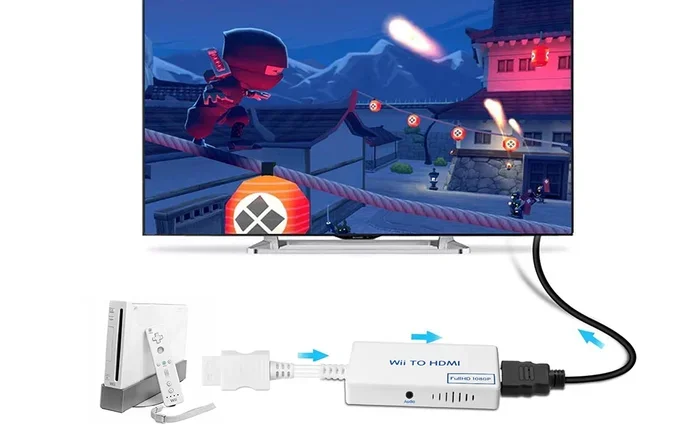
However, that does not mean you are stuck with fuzzy visuals. You have a path to HDMI, and it is simpler than you might think. The solution is a Wii to HDMI adapter or converter. This small device sits between your Wii and your TV, converting the Wii’s output into a signal your modern TV can read through HDMI.
What You Need to Know About Wii HDMI Compatibility
Not all Wii to HDMI adapters are created equal. Some are cheap and produce poor results. Others deliver a clean, sharp picture that makes your games look almost new. Here is what to keep in mind when shopping for an adapter.
First, check that the adapter supports your Wii model. The original Wii and the Wii Mini have slightly different internal hardware. Most quality adapters work with both, but it is always smart to double-check the product description. Second, look for adapters that support at least 720p output. This gives you a high definition picture that looks great on modern TVs. Third, read reviews from other buyers. Real-world feedback tells you a lot about build quality and performance.
Popular brands like RetroTINK, Kinivo, and generic brands on Amazon offer Wii to HDMI adapters. Prices typically range from $10 to $30. You do not need to spend a fortune to get a solid upgrade.
The Difference Between Standard Definition and High Definition
Understanding the difference between standard definition and high definition helps you appreciate why HDMI matters. Standard definition, or SD, is the resolution your Wii outputs through its default composite cables. The image is 480 pixels tall, which looks fine on older screens but appears blurry on modern displays.
High definition, or HD, starts at 720p and goes up to 1080p or even 4K. When you use an HDMI adapter, your Wii can output a 720p signal. This means every pixel is sharper, colors are more vivid, and text is easier to read. For a console that is over 15 years old, this is a remarkable improvement.
The jump from SD to HD is especially noticeable on larger TVs. If you have a 40-inch or bigger screen, the difference is dramatic. Small text in games becomes readable, and textures look much cleaner. It is one of the easiest and cheapest upgrades you can make to your retro gaming setup.
How To Connect HDMI to Your Wii Console
Setting up an HDMI connection for your Wii is straightforward. You do not need technical skills or special tools. Just follow these steps, and you will be gaming in HD in no time.
Step-by-Step Connection Guide
Here is the full process to connect your Wii to HDMI. Follow each step carefully for the best results.
- Gather your equipment: You need your Wii console, a Wii to HDMI adapter, an HDMI cable, and your TV with an available HDMI port.
- Plug the adapter into the Wii: Connect the Wii’s AV output into the adapter. Most adapters accept the standard composite cables that came with your Wii.
- Connect the HDMI cable: Run an HDMI cable from the adapter to an open HDMI port on your TV.
- Power on your Wii: Turn on the console and switch your TV to the correct HDMI input channel.
- Adjust the Wii settings: Go to Wii Settings and change the screen resolution to 480p or 720p, depending on your adapter’s capabilities.
- Test the connection: Play a game or navigate the menu to confirm the picture looks clear and sharp.
That is it. The entire setup takes less than five minutes. No software, no drivers, no complicated configuration. Just plug and play.
Setting Up Your Wii to HDMI Adapter Correctly
A few extra tips can help you get the best results from your adapter. First, make sure your HDMI cable is high quality. A cheap or damaged cable can cause signal issues. Second, place the adapter in a well-ventilated spot. Adapters can get warm during extended play sessions, so give them room to breathe.
Third, check your TV’s aspect ratio settings. Some TVs default to a zoom or stretch mode that distorts the Wii’s picture. Set your TV to 16:9 or just mode for the most accurate display. Fourth, if you experience any audio issues, make sure the adapter supports audio through HDMI. Most modern adapters handle both video and audio in a single cable.
For those who want even more control over their setup, there are advanced options like upscaling adapters that can improve image quality further. These are not necessary for everyone, but they are worth exploring if you are a serious retro gaming enthusiast.
Benefits of Using HDMI With Your Wii
Switching your Wii to HDMI brings several real benefits that enhance your gaming experience. Let us break them down so you can see exactly why this upgrade is worth your time.
- Sharper image quality: HDMI delivers a much clearer picture than composite or component cables. Text, menus, and in-game graphics all look noticeably better.
- Single cable convenience: HDMI carries both audio and video in one cable. This means fewer cables cluttering your entertainment center and a cleaner setup overall.
- Better color and contrast: HDMI supports better color depth and contrast ratios. Colors pop more, and dark scenes in games look richer and more detailed.
- Easy compatibility with modern TVs: Modern TVs are designed for HDMI. Almost every TV made in the last 15 years has multiple HDMI ports ready to go.
- Affordable upgrade: A Wii to HDMI adapter costs between $10 and $30. This is one of the cheapest ways to breathe new life into an older console.
- Improved gaming experience: When the picture looks better, you enjoy your games more. It is that simple. Playing Mario Kart Galaxy in HD just feels better than the fuzzy composite version.
If you are looking for other ways to enhance your Wii setup, you might also want to explore apps that help you find tech services and local helpers for setting up your gaming area or finding accessories nearby.
Common Problems and How To Fix Them
Even with a simple setup like HDMI, you might run into a few hiccups along the way. Most of these issues are easy to solve. Here are the most common problems and their fixes.
No Signal or Black Screen
If your TV shows no signal after connecting the Wii to HDMI, do not panic. First, check that the HDMI cable is firmly plugged into both the adapter and the TV. Second, make sure you have selected the correct HDMI input on your TV. Third, try unplugging the adapter, waiting 10 seconds, and plugging it back in. Sometimes a simple reset resolves the issue.
Poor Image Quality or Flickering
If the picture looks bad or flickers, the problem is often the HDMI cable itself. Try a different cable to rule out a faulty connection. Also, check that your adapter is not overheating. If the adapter feels very hot, turn it off and let it cool down before trying again. Finally, make sure your Wii’s resolution settings match what your TV supports.
No Audio Through HDMI
Some adapters do not pass audio through HDMI. If you have video but no sound, check your adapter’s specifications. You may need to use the Wii’s audio cables alongside the HDMI adapter for sound. Many adapters include a 3.5mm audio output that you can connect directly to your TV or sound system.
Wii Does Not Recognize the Adapter
If your Wii does not detect the adapter, try connecting it to a different USB port if your adapter uses USB power. Some adapters draw power from the Wii itself, while others need a USB connection. Check the adapter’s manual for specific power requirements. Also, make sure the adapter is compatible with your Wii model.
Comparing Wii Connection Options
To help you decide which connection method is best for your setup, here is a quick comparison of the main options available for the Nintendo Wii.
| Connection Type | Resolution | Picture Quality | Ease of Setup | Cost |
|---|---|---|---|---|
| Composite AV (Default) | 480i (SD) | Fuzzy, soft image | Very Easy | Free (included) |
| Component Video | 480p (SD) | Better colors, sharper | Easy | $10 to $15 |
| Wii to HDMI Adapter | 480p / 720p (HD) | Clear, crisp, vibrant | Very Easy | $10 to $30 |
| RetroTINK or FPGA Adapter | 480p / 720p / 1080p | Best possible quality | Moderate | $50 to $150 |
As you can see, the Wii to HDMI adapter offers the best balance of quality and affordability. It gives you a huge upgrade over the default composite cables without breaking the bank. If you want the absolute best picture, a RetroTINK or FPGA solution is the top tier, but it costs more and requires more setup effort.
Expert Tips for the Best Gaming Experience
Once you have your Wii connected via HDMI, a few extra tips can help you get the most out of your setup. These small adjustments make a big difference over time.
- Use a powered USB hub: Some Wii to HDMI adapters draw a lot of power. If you notice flickering or shutdowns, plug the adapter into a powered USB hub instead of the Wii directly.
- Keep cables short: Shorter HDMI cables reduce signal loss and give you a cleaner picture. Try to keep your HDMI cable under six feet if possible.
- Update your TV firmware: Some modern TVs benefit from firmware updates that improve HDMI compatibility. Check your TV manufacturer’s website for updates.
- Clean your Wii’s AV port: Dust buildup in the AV port can cause connection issues. Use a can of compressed air to gently clean the port before plugging in your adapter.
- Store your Wii properly: If you are not using your Wii every day, keep it in a cool, dry place. Heat and moisture can damage the console and its accessories over time.
These tips come from years of retro gaming experience. They are simple but effective. Follow them and your Wii HDMI setup will run smoothly for years to come.
One thing worth mentioning is that the Wii is not the only classic console people want to connect to modern TVs. If you also have a GameCube, PlayStation 2, or other older system, similar HDMI adapters exist for those too. It is worth exploring all your options to create the best possible retro gaming setup. And if you are also looking into other tech accessories or services, you might want to check out tools and apps that simplify finding local tech support or accessories. There are even platforms similar to Uber that connect you with local helpers for various tasks, which can come in handy when setting up or troubleshooting your gaming gear.
Is It Worth Upgrading Your Wii to HDMI
The honest answer is yes. If you still play your Wii regularly, an HDMI upgrade is one of the best investments you can make. The cost is minimal, the setup is easy, and the improvement in picture quality is significant. Games that looked dull on composite cables come alive with a clean HDMI signal.
Think about how much time you spend playing your Wii. Whether it is a few hours on the weekend or a daily session, you deserve to see those games the way they were meant to look. The Wii was a groundbreaking console in its time, and HDMI helps you experience it the way modern gaming deserves.
Even if you only play occasionally, the upgrade is still worthwhile. A Wii to HDMI adapter sits behind your TV and is out of sight once installed. You do not have to think about it. It just works, every single time you turn on your console.
Final Thoughts on Using HDMI With Your Wii
Connecting your Wii to HDMI is easier and more affordable than most people think. You do not need to be a tech expert. You just need the right adapter, a basic HDMI cable, and about five minutes of your time. The result is a dramatically better picture that makes your favorite Wii games feel fresh again.
Remember that the Wii was built for composite cables, so HDMI requires an adapter. But that adapter opens the door to high definition gaming on a console that is over 15 years old. That is pretty impressive when you think about it. The Nintendo Wii may be an older console, but with the right HDMI setup, it still has plenty to offer.
We hope this guide has answered your question about using HDMI with your Wii and given you the confidence to make the switch. Grab an adapter, follow the steps, and enjoy your Wii in high definition. Your eyes will thank you.
Frequently Asked Questions
Can I plug an HDMI cable directly into my Wii console?
No, the original Nintendo Wii does not have an HDMI port. You must use a Wii to HDMI adapter or converter to get HDMI output. The adapter connects to your Wii’s AV output and then provides an HDMI connection to your TV.
What kind of HDMI adapter do I need for my Wii?
You need a Wii to HDMI converter or adapter that supports composite or component input. Look for adapters that output at least 720p for the best picture quality. Popular options are available on Amazon and electronics stores for around $10 to $30.
Will using HDMI improve the sound quality of my Wii games?
Yes, HDMI carries both audio and video in one cable. The audio quality is the same as what the Wii outputs, but you get a cleaner, more convenient connection. You will not notice a huge difference in sound, but the setup is much simpler with fewer cables.
Can I use HDMI with the Wii Mini model?
Yes, most Wii to HDMI adapters work with the Wii Mini as well. The Wii Mini has a similar AV output to the original Wii. Just make sure the adapter you buy lists the Wii Mini as a compatible model before purchasing.
Do I need any special tools or technical skills to set up HDMI on my Wii?
No special tools or skills are needed. The setup is plug and play. You just need a Phillips screwdriver if you need to move your TV or console, and about five minutes of time. The adapter handles all the conversion automatically.
Can I use my Wii with an HDMI splitter to connect to multiple TVs?
Yes, you can use an HDMI splitter after your Wii to HDMI adapter. This lets you display the same Wii output on multiple TVs. However, using a splitter may slightly reduce signal quality. For the best experience, connect the adapter directly to one TV.
=== CONCLUSION ===
Using HDMI with your Wii console is not only possible but also one of the easiest and most rewarding upgrades you can make. The original Nintendo Wii was designed for an era before HDMI was standard, but with a simple adapter, you can enjoy your favorite games in high definition on modern TVs. The setup takes just a few minutes, costs very little, and makes a noticeable difference in picture quality.
Whether you are a casual player revisiting old favorites or a dedicated retro gaming fan, HDMI breathes new life into your Wii. Sharper images, better colors, and a cleaner setup all come from this small, affordable accessory. Do not let outdated cables hold you back from enjoying your Wii the way it was meant to be seen.
Now that you know the answer to the question can I use an HDMI for my Wii, it is time to take action. Pick up a compatible adapter, follow the setup steps in this guide, and start enjoying your Wii in HD today. Your gaming experience will thank you for it.