Can I Use A Printer Without Installing Any Software
Yes, you can use a printer without installing software in most cases. Modern printers support plug and play connections, wireless printing, and built-in operating system drivers that eliminate the need for extra downloads. This guide covers every method, from USB setups to cloud printing, so you can start printing quickly and easily.
Key Takeaways
- Plug and Play Works: Most printers connect via USB and work instantly without any software installation.
- Wireless Options Exist: Wi-Fi Direct and Bluetooth printing let you print from phones and laptops without drivers.
- Driverless Printing Is Real: Many modern printers use built-in protocols like IPP and AirPrint to skip software entirely.
- Cloud Printing Is Convenient: Services like Google Cloud Print let you send print jobs from anywhere without local software.
- Software Still Helps: For advanced features like scan management or photo editing, printer software can be useful but is not always required.
- Troubleshooting Is Simple: Most issues without software can be fixed through your operating system’s device manager or network settings.
📑 Table of Contents
How Printers Connect Without Software
Printing a document used to mean sitting through a long installation process. You would pop in a CD, wait for the setup wizard, and hope everything worked. Those days are mostly gone. Today, many printers connect to your computer or phone without any software at all. This shift has made printing faster, easier, and far less frustrating.
The technology behind software-free printing has improved a lot. Printers now use standard communication protocols that your operating system already understands. This means your Windows PC, Mac, or even your smartphone can talk to the printer without needing extra programs. Let us look at how this actually works.
USB Plug and Play Printing
The simplest way to print without software is through a USB cable. When you plug a printer into your computer using a USB cord, the operating system often recognizes it right away. This is called plug and play. Windows, macOS, and most Linux systems come with built-in drivers for hundreds of printer models.
Here is what happens when you connect a printer via USB:
- You plug the USB cable into your computer and the printer.
- The operating system detects the new device.
- It automatically loads the right printer driver from its built-in library.
- The printer appears in your list of available devices.
- You can start printing immediately.
This process takes less than a minute in most cases. You do not need to download anything or visit the manufacturer’s website. It is one of the biggest advantages of modern printing technology. However, not every printer supports full plug and play. Some older models or specialty printers may still require a manual driver install.
Wireless and Wi-Fi Direct Connections
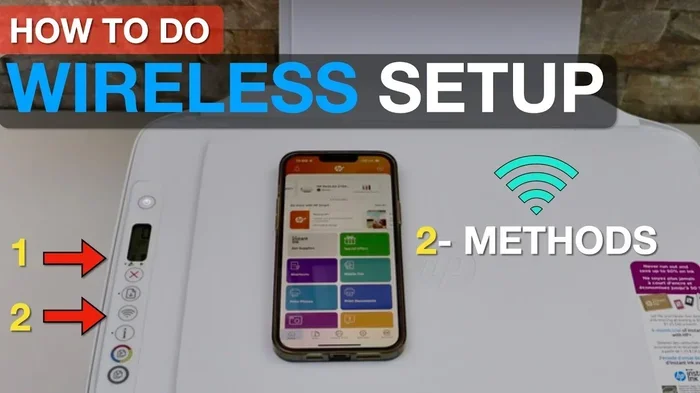
Wireless printing has become the go-to method for many people. You do not need cables, and you do not always need software. Most modern printers support Wi-Fi Direct, which lets your device connect to the printer without a router. Your phone, tablet, or laptop finds the printer on the network and sends print jobs directly.
Here are the main wireless printer connection types you can use without installing software:
- Wi-Fi Direct: The printer creates its own small network. Your device connects directly to it.
- Bluetooth Printing: Short-range wireless connection works well for mobile devices and laptops.
- AirPrint (Apple): Built into iOS and macOS. You can print from iPhones and Macs without any extra software.
- Google Cloud Print / Wi-Fi Printing: Works with Android devices and Chromebooks through cloud services.
Each of these methods relies on standard protocols built into your device’s operating system. This means the printer setup without software is smooth and straightforward. You just select the printer from your print menu and hit print.
Methods to Print Without Installing Software
There are several reliable ways to print without touching any installation discs or downloading software. Let us walk through each method so you can pick the one that works best for your situation.
Using Built-In Operating System Support
Both Windows and macOS have extensive libraries of printer drivers built right into the system. When you add a printer through your device settings, the operating system searches its database and finds the right driver automatically. This is the most common way people print without installing anything extra.
To add a printer on Windows without software:
- Go to Settings and select Devices or Printers and Scanners.
- Click Add a printer or scanner.
- Wait for your printer to appear in the list.
- Select it and follow the on-screen prompts.
On a Mac, the process is just as simple. You go to System Settings, then Printers and Scanners, and click the plus button to add a new printer. macOS handles the rest. The operating system support for printers has improved dramatically over the years, making software-free setup the default for most users.
Quick Tip: If your printer does not show up automatically, try restarting both your computer and the printer. Sometimes a simple reboot forces the device to be detected. Also, make sure both devices are on the same network if you are using a wireless connection.
Leveraging Cloud and Mobile Printing
Cloud printing is a game changer. It lets you send print jobs from anywhere using an internet connection. Google Cloud Print, Apple AirPrint, and manufacturer-specific apps all use the cloud to bridge the gap between your device and the printer. No software installation is needed on your end.
Mobile printing has also exploded in popularity. Most new printers work with companion apps that let you print directly from your phone. These apps often do not need a full software install. They connect through Wi-Fi or Bluetooth and handle the print job in seconds. This is perfect for people who need to print receipts, photos, or documents on the go.
Here is a quick comparison of popular software-free printing methods:
| Method | Device Types | Software Needed? | Speed |
|---|---|---|---|
| USB Plug and Play | PC, Mac, Linux | No | Fast |
| Wi-Fi Direct | PC, Mac, Phone, Tablet | No | Moderate |
| AirPrint | iPhone, iPad, Mac | No | Fast |
| Google Cloud Print | Android, Chromebook | No | Moderate |
| Bluetooth | Phone, Tablet, Laptop | No | Slow |
| Manufacturer App | Phone, Tablet | Light App Only | Fast |
As you can see, nearly every device type has a software-free printing option available. The key is knowing which method your printer supports.
The Rise of Driverless Printing Technology
Driverless printing is one of the most exciting developments in printer technology. Instead of requiring you to install a driver, the printer and your device communicate using universal standards. These standards are built into the hardware and the operating system, so everything works out of the box.
What Is Driverless Printing?
Driverless printing uses protocols like Internet Printing Protocol (IPP), AirPrint, and Mopria. These are open standards that any device can support. When your device and printer both speak the same protocol, they can exchange print jobs without any middleman software. It is like two people speaking the same language, no translator needed.
This technology is especially common in newer printer models from brands like HP, Canon, Epson, and Brother. Many of their latest printers come with driverless printing as a standard feature. If you bought a printer in the last few years, there is a good chance it supports this already.
Which Printers Support It?
Most printers released after 2018 support some form of driverless or software-free printing. Here are a few things to check on your printer:
- Look for AirPrint compatibility on the box or in the manual.
- Check if the printer supports Wi-Fi Direct.
- Look for Mopria certification, which is common on Android-compatible printers.
- Check the manufacturer’s website for a list of IPP-compatible models.
If your printer supports any of these standards, you can likely print without installing anything. The printer compatibility check is quick and easy. Just look for the wireless or smart features on the product page before you buy.
When You Might Still Need Printer Software
Even though software-free printing works for most everyday tasks, there are times when you might want or need printer software. Let us be honest about when software adds real value and when it is just extra clutter.
Advanced Features That Require Software
Basic printing, scanning, and copying work fine without software. But if you want to use advanced features, you may need the full printer suite. These features include:
- Scan to Email or Cloud: Sending scanned documents directly to your email or Google Drive often requires the manufacturer’s software.
- Photo Editing and Printing: Many printer bundles include software for editing photos before you print them.
- Firmware Updates: Some printers need their software to check for and install firmware updates.
- Ink Level Monitoring: The software tracks your ink levels and sends alerts when you need replacements.
- Network Configuration: Setting up a print server or configuring advanced network settings often requires the setup utility.
If any of these features matter to you, installing the software makes sense. But if you only need to print documents and basic photos, you can skip it entirely. The printer setup without software covers the vast majority of what most people need.
Managing Print Queues and Document Workflows
Sometimes your documents can cause issues when printing without the full software suite. For instance, if you are printing a complex spreadsheet and encounter formatting problems, having the printer software can help troubleshoot. In some cases, you may find that a line that won’t delete in Excel causes confusion when you try to print the document cleanly. In that situation, fixing the document itself first, perhaps by resolving a line that won’t delete in Excel, can save you a lot of frustration before you even hit the print button. For more details on fixing such document issues, you can refer to our guide on this topic. The point is that clean documents lead to clean prints, regardless of whether you use printer software or not.
The print queue is another area where software can help. When you send a print job, it sits in the queue until the printer processes it. Without the printer software, you can still view and manage the queue through your operating system. But the manufacturer’s software often gives you more control, like pausing, resuming, or canceling specific jobs.
Common Mistake: Many people install printer software and never use it. They forget to uninstall it, and it sits on their computer taking up space and sometimes causing conflicts. Before you install any printer software, ask yourself if you actually need the advanced features. If not, skip it.
Troubleshooting Common Issues When Printing Without Software
Printing without software is generally smooth, but problems can still happen. Here are the most common issues and how to fix them quickly.
Connection Problems
If your printer does not show up on your device, the first thing to check is the connection. For USB connections, try a different cable or port. For wireless connections, make sure both devices are on the same network. Restarting your router, printer, and computer can also work wonders.
On Windows, you can check for printer issues through the Device Manager. Look for any yellow warning icons next to your printer. This usually means the driver is missing or corrupted. The Device Manager lets you update or reinstall the driver without needing the full printer software package.
Expert Insight: The Windows Print Spooler service manages all print jobs. If it stops working, nothing will print. Restarting this service through the Services app often fixes mysterious printing problems. It is a simple trick that many people overlook.
Document Formatting Issues
Sometimes the problem is not with the printer but with the document itself. Complex formatting, embedded fonts, or hidden elements can cause printing errors. If you are working with spreadsheets and notice strange output, check your document for hidden objects or formatting quirks. For example, if you are dealing with a document where a line that won’t delete in Excel is causing layout issues, it is best to fix the document first before sending it to the printer.
Quick Tip: Try printing a simple text document first. If that works, the problem is with your original file, not the printer. This simple test can save you a lot of time and guesswork.
Paper and Ink Issues
Not all printing problems are software-related. Sometimes the issue is physical. Check that you have enough paper in the tray and that the ink cartridges are properly seated. Low ink or empty paper trays are the most common reasons a printer seems to be “not working” even though everything is set up correctly.
Also, make sure your printer is set as the default printer on your device. If it is not, your print jobs might be going to the wrong place. You can change this in your device’s printer settings with just a couple of clicks.
Final Thoughts on Using a Printer Without Software
The short answer to the question Can I Use A Printer Without Installing Software is a clear yes. For most people, most of the time, you do not need to install anything. Your operating system handles the heavy lifting through built-in drivers and standard protocols. USB plug and play, Wi-Fi Direct, AirPrint, and cloud printing all make it possible to print without ever touching a setup disc or downloading a large software package.
That said, printer software is not useless. If you need advanced scanning features, detailed ink management, or network configuration tools, the software can be helpful. The key is knowing when you need it and when you do not. For everyday printing tasks, you are almost always fine without it.
Printer firmware updates are another consideration. Even without installing the full software suite, you should occasionally check for firmware updates. These updates fix bugs, improve performance, and add new features. Many printers let you update firmware directly through their touchscreen menu or through a simple web interface.
In summary, software-free printing is not just possible, it is the new normal. Embrace it. Set up your printer the simple way, and only reach for the software when you truly need its advanced capabilities. Your computer will thank you for the extra storage space, and your sanity will thank you for the simpler setup process.
Frequently Asked Questions
Can I use a wireless printer without installing any software?
Yes, most modern wireless printers work without any software installation. They use built-in protocols like AirPrint, Wi-Fi Direct, or IPP that your operating system already supports. You just connect to the printer’s network and start printing.
Do I need to install drivers if I connect my printer via USB?
Usually no. Most operating systems have a large library of built-in printer drivers. When you connect via USB, the system automatically finds and loads the right driver. You can start printing within minutes without downloading anything.
What is driverless printing and is it reliable?
Driverless printing uses universal communication protocols like IPP and AirPrint instead of manufacturer-specific drivers. It is very reliable and works seamlessly across most modern devices. Many new printers come with driverless printing as a standard feature.
Can I print from my phone without installing a printer app?
Yes, if your printer supports AirPrint (for Apple devices) or Mopria (for Android devices), you can print directly from your phone without any app. Both protocols are built into the operating system and work over Wi-Fi.
Why does my printer not show up when I try to add it without software?
This usually happens because of a connection issue or a missing network configuration. Make sure both devices are on the same Wi-Fi network, restart your printer and router, and check that the printer’s wireless feature is turned on. Also verify that your operating system is up to date.
Is it safe to skip printer software updates?
For basic printing, skipping software updates is generally safe. However, firmware updates are important because they fix bugs and security vulnerabilities. You can usually update firmware directly through the printer’s menu without installing any computer software.