Can I Print From My Phone On Canon Pixma Quick Answer
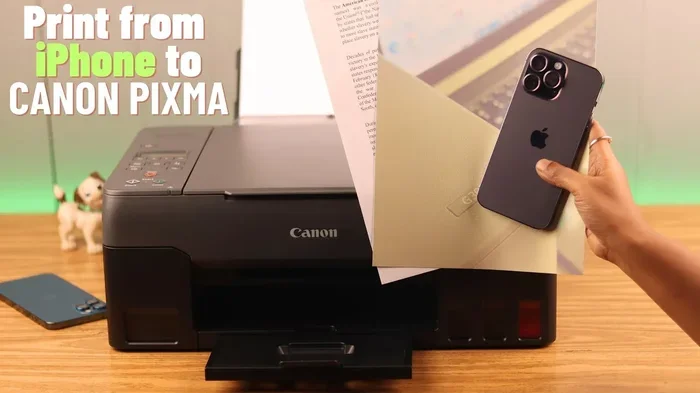
Yes, you can print from your phone on a Canon Pixma printer! Whether you use an iPhone or Android device, Canon offers built-in wireless printing options like AirPrint and the Canon Print app. This guide walks you through every step, from initial setup to troubleshooting common problems, so you can start printing from your mobile device in minutes.
Have you ever been sitting on your couch, scrolling through a beautiful photo, and thought, “I wish I could print this right now”? Or maybe you need a hard copy of an important document, and your computer is across the room. The good news is that can I print from my phone on Canon Pixma has a very simple answer: yes, absolutely! Modern Canon Pixma printers are designed with mobile printing in mind, and connecting your phone is easier than you might think.
In this guide, we will walk you through everything you need to know about printing from your phone on a Canon Pixma printer. We will cover setup steps for both iPhone and Android devices, explore the best apps to use, and share tips to make your printing experience smooth. Whether you are a beginner or just need a quick refresher, this article has you covered.
Key Takeaways
- Wireless Printing Is Built-In: Most Canon Pixma models support AirPrint and Wi-Fi Direct, making phone printing seamless.
- Canon Print App Is Essential: The official app unlocks advanced features like photo printing, scanning, and ink management.
- Both iPhone and Android Work: You are not limited to one platform. Both major mobile operating systems connect to Canon Pixma printers.
- Setup Takes Minutes: You do not need tech expertise. A few simple steps get your phone and printer talking.
- Troubleshooting Is Simple: Most printing issues can be fixed with basic steps like restarting your devices or checking Wi-Fi.
- Multiple Printing Options Exist: You can print documents, photos, emails, and web pages directly from your phone.
📑 Table of Contents
- Understanding Canon Pixma Mobile Printing
- How to Print From Your Phone on Canon Pixma
- Setting Up Wi-Fi Direct on Your Canon Pixma
- Using the Canon Print App for Advanced Printing
- Troubleshooting Common Printing Issues
- Comparing Printing Methods for Canon Pixma
- Tips for Better Mobile Printing on Canon Pixma
- Is Your Phone Compatible with Canon Pixma?
- Final Thoughts
Understanding Canon Pixma Mobile Printing
Canon Pixma printers come packed with features that make mobile printing a breeze. Before diving into setup, it helps to understand what you are working with. Most Canon Pixma models released in the last several years support wireless printing right out of the box. This means no cables, no hassle, and no need for a computer.
What Makes Canon Pixma Phone-Friendly?
Canon designed their Pixma line with wireless connectivity at the forefront. Here are the key technologies that enable phone printing:
- AirPrint: Apple’s built-in printing protocol works with supported Canon Pixma models. If you own an iPhone, this is your fastest path to printing.
- Wi-Fi Direct: This lets your phone connect directly to the printer without needing a home Wi-Fi network.
- Canon Print App: Canon’s official app unlocks extra features like photo editing before printing and ink level monitoring.
- Google Cloud Print and Mopria: Android users can leverage these services for seamless printing.
Knowing which of these your printer supports helps you pick the right method. Check your printer’s manual or visit Canon’s website for your specific model. Most modern Pixma printers support at least two of these options, giving you flexibility.
How to Print From Your Phone on Canon Pixma
Now let us get into the nitty-gritty. Setting up printing from your phone on a Canon Pixma involves a few straightforward steps. The process differs slightly depending on whether you use an iPhone or an Android phone, so we will cover both.
Printing From iPhone on Canon Pixma
If you are an iPhone user, you are in luck. Apple’s AirPrint technology works hand-in-hand with most Canon Pixma printers. Here is how to get started:
- Connect your iPhone and Canon Pixma to the same Wi-Fi network. This is the most important step. Both devices need to be on the same network.
- Open the app or file you want to print. This could be a photo, a PDF, a webpage, or an email.
- Tap the Share button. It looks like a square with an arrow pointing up on most iPhones.
- Select “Print” from the menu. You will see a list of available printers.
- Choose your Canon Pixma printer. It should appear by name.
- Tap “Print” in the top right corner. Your document or photo starts printing immediately.
That is it! The entire process takes less than a minute once your devices are connected. If your printer does not appear, make sure both devices are on the same network. Sometimes restarting your Wi-Fi router helps too.
One thing to keep in mind: if you need to customize print settings like the number of copies or paper size, you can do that in the print menu before hitting the print button. iPhone printing settings are intuitive and easy to navigate.
Printing From Android on Canon Pixma
Android users have a couple of great options for mobile printing with Canon Pixma. You can use the built-in print feature or download the Canon Print app for more control.
Here is how to print using the default Android print feature:
- Make sure your Android phone and Canon Pixma are on the same Wi-Fi network.
- Open the file, photo, or document you want to print.
- Tap the menu icon (three dots) and select “Print.”
- Choose your Canon Pixma printer from the list.
- Adjust settings if needed, then tap “Print.”
For more advanced features, download the Canon Print app from the Google Play Store. The app lets you print photos with border options, scan documents directly to your phone, and check ink levels. It is a free download and very user-friendly.
Some Android users also use the Mopria Print Service, which is a built-in printing standard for Android devices. It works well with Canon Pixma printers and offers a clean, simple interface.
Setting Up Wi-Fi Direct on Your Canon Pixma
What if you do not have access to a Wi-Fi network? Wi-Fi Direct is a lifesaver. It creates a direct connection between your phone and the printer without needing a router. This is perfect for quick prints when you are on the go or in a location without Wi-Fi.
How to Enable Wi-Fi Direct
Setting up Wi-Fi Direct on your Canon Pixma is simple. Follow these steps:
- Press the Home button on your Canon Pixma printer.
- Navigate to Settings, then Device Settings.
- Select “LAN Settings” and choose “Wi-Fi Direct.”
- Turn Wi-Fi Direct on. The printer will display a password on its screen.
- On your phone, go to Wi-Fi settings.
- Find your Canon Pixma in the list of available networks and connect. Enter the password shown on the printer screen.
Once connected, you can print directly from your phone using the same steps we covered earlier. Wi-Fi Direct is incredibly handy for quick mobile printing when you do not want to fuss with network settings.
When to Use Wi-Fi Direct vs. Regular Wi-Fi
Wi-Fi Direct is great for single-device printing on the go. However, if multiple people need to print from the same printer, a regular Wi-Fi network setup is better. Wi-Fi Direct only allows one device to connect to the printer at a time, so keep that in mind when choosing your method.
Using the Canon Print App for Advanced Printing
The Canon Print app is the official companion app for Canon Pixma printers. It is available for both iPhone and Android, and it opens up a world of possibilities beyond basic printing.
What Can You Do With the Canon Print App?
- Print photos with custom borders and layouts. You can choose from several templates before printing.
- Scan documents and save them to your phone. The app turns your Canon Pixma into a scanner.
- Check ink levels remotely. No more surprises when ink runs out mid-print.
- Print from cloud services. Google Drive, Dropbox, and OneDrive are all supported.
- Access recently printed files. The app keeps a history of your print jobs.
To get started, download the Canon Print app from the App Store or Google Play Store. Follow the on-screen instructions to connect it to your Canon Pixma printer. The app detects your printer automatically if both are on the same network.
One of the best features of the Canon Print app is its photo printing capabilities. You can crop, adjust colors, and add filters before sending the job to your printer. This makes it an excellent tool for printing phone photos on Canon Pixma with professional-looking results.
Tips for Getting the Most Out of the Canon Print App
Keep your app updated to enjoy the latest features and bug fixes. Also, make sure your printer firmware is current. Canon regularly releases updates that improve compatibility with newer phone models. You can check for firmware updates through the printer’s settings menu or the Canon Print app.
Troubleshooting Common Printing Issues
Even with the best setup, you might run into hiccups. Printer troubleshooting is a normal part of the mobile printing experience. Here are the most common issues and how to fix them quickly.
Printer Not Showing Up on Your Phone
This is the most common complaint. If your Canon Pixma does not appear in the print menu, try these steps:
- Check that both devices are on the same Wi-Fi network. This is the number one cause of connection issues.
- Restart your printer and phone. A simple reboot often resolves the problem.
- Turn Wi-Fi Direct off and back on. This refreshes the connection.
- Check for software updates. Both your phone and printer may need updates.
If you are still having trouble, try resetting your printer’s network settings. You can find this option in the printer’s settings menu under LAN Settings.
Print Jobs Stuck in the Queue
Sometimes print jobs get stuck and nothing happens. Here is what to do:
- Check the printer screen for error messages. The printer will often tell you what went wrong.
- Cancel the stuck job from your phone. Go to your print queue and delete the pending job.
- Clear the print queue on the printer itself. Most Canon Pixma models have a menu option for this.
- Try printing again. Start a new print job from scratch.
Poor Print Quality
If your prints look faded or streaky, the issue is usually with the ink cartridges or printhead. Try running a printhead cleaning cycle from the printer menu. You can also check ink levels in the Canon Print app and replace any empty cartridges.
Comparing Printing Methods for Canon Pixma
There are several ways to print from your phone on a Canon Pixma. Here is a quick comparison to help you choose the best method for your needs.
| Method | Best For | Setup Difficulty | Features |
|---|---|---|---|
| AirPrint (iPhone) | Quick iPhone printing | Very Easy | Basic print, no extra apps needed |
| Android Print | Quick Android printing | Very Easy | Basic print, built into Android |
| Canon Print App | Advanced features and photo printing | Easy | Photo editing, scanning, ink monitoring |
| Wi-Fi Direct | Printing without a Wi-Fi network | Moderate | Direct phone-to-printer connection |
| Mopria (Android) | Android users wanting a universal standard | Easy | Clean interface, broad compatibility |
Each method has its strengths. For most users, AirPrint and the default Android print feature are more than enough. Power users who want more control will appreciate the Canon Print app and Wi-Fi Direct options.
Tips for Better Mobile Printing on Canon Pixma
Want to get the most out of your Canon Pixma mobile printing experience? Here are some expert tips that make a big difference.
- Keep your printer and phone close. Wi-Fi signals weaken with distance, which can slow down or interrupt prints.
- Use the Canon Print app for photos. It gives you far more control over color, cropping, and layout than default print menus.
- Update your printer firmware regularly. Updates fix bugs and improve compatibility with newer phone models.
- Use genuine Canon ink cartridges. Third-party cartridges can cause quality issues and may void your warranty.
- Print a test page first. Before printing a large batch, do a quick test print to make sure everything looks right.
- Organize your print queue. Too many pending jobs can slow things down. Clear old jobs regularly.
These small habits add up over time. They keep your printer running smoothly and your prints looking their best.
Is Your Phone Compatible with Canon Pixma?
Most modern smartphones work with Canon Pixma printers. If you own an iPhone running iOS 12 or later, you are good to go with AirPrint. For Android phones, version 8.0 or later should work with the Canon Print app and default print features.
Even older phones can often connect, though you may need to use the Canon Print app instead of built-in features. The key requirement is that your phone supports Wi-Fi connectivity. If your phone can connect to a Wi-Fi network, it can likely print to a Canon Pixma.
If you ever need to manage your phone’s network settings for printing purposes, you might find our guide on adding prefixes to numbers on iPhone helpful for organizing your contact and network configurations.
Final Thoughts
Can I print from my phone on Canon Pixma? The answer is a resounding yes! Whether you use an iPhone or an Android device, Canon Pixma printers offer multiple ways to print wirelessly. From the simple AirPrint feature to the powerful Canon Print app, you have everything you need to print documents and photos right from your phone.
The setup process is quick, the apps are free, and the results are impressive. With Wi-Fi Direct, you can even print without a home network. And when issues pop up, most problems have simple fixes that take just a few minutes.
Take a few minutes today to set up mobile printing on your Canon Pixma. Once it is working, you will wonder how you ever managed without it. Mobile printing is one of those features that makes a real difference in everyday life, and your Canon Pixma printer is ready to deliver.
Frequently Asked Questions
Can I Print From My Phone On Canon Pixma Without Wi-Fi?
Yes, you can! Use Wi-Fi Direct to create a direct connection between your phone and the printer. No home Wi-Fi network is needed. Just enable Wi-Fi Direct on your Canon Pixma, connect your phone to it, and start printing.
Which Canon Pixma Models Support Phone Printing?
Most Canon Pixma models released since 2015 support mobile printing. Look for models that mention AirPrint, Wi-Fi, or wireless connectivity in their specs. Popular lines like the TS, TS3, TS5, and TR series all support phone printing.
Do I Need to Download an App to Print From My Phone?
For basic printing, no. iPhones use AirPrint and Android phones have built-in print features that work without any extra apps. However, downloading the Canon Print app gives you access to advanced features like photo editing, scanning, and ink monitoring.
Can I Print Photos From My Phone On Canon Pixma?
Absolutely! Canon Pixma printers are excellent for photo printing. Use the Canon Print app for the best results. It lets you adjust colors, crop images, and choose border styles before sending the job to your printer.
Why Is My Phone Not Finding My Canon Pixma Printer?
The most common reason is that your phone and printer are not on the same Wi-Fi network. Check your Wi-Fi connection on both devices. If that is not the issue, try restarting both your phone and printer. You can also try enabling and disabling Wi-Fi Direct on the printer.
Can I Print From Multiple Phones on One Canon Pixma?
Yes! When your Canon Pixma is connected to a shared Wi-Fi network, any phone on that network can print to it. Just make sure each phone is connected to the same network and that the printer is turned on.