Can I Convert Hdmi To Displayport And How To Do It
Yes, you can convert HDMI to DisplayPort using an adapter or active converter. The right choice depends on your devices, resolution needs, and whether you need audio support. This guide walks you through every option, common mistakes, and the best adapters to buy.
Have you ever plugged in a new monitor or display only to realize the cable does not fit? Maybe you have an HDMI cable but your shiny new monitor only accepts DisplayPort. It is a frustrating moment. The good news is that you can convert HDMI to DisplayPort, and the process is simpler than most people think. In this guide, we will walk you through everything you need to know about HDMI to DisplayPort conversion. You will learn how adapters work, which type to buy, and how to set everything up without any headaches.
Whether you are a gamer chasing a smoother experience, a creative professional needing accurate colors, or someone just trying to get a second monitor working, this article has you covered. We will break down the technical stuff into plain language so anyone can follow along. Let us dive in and solve your display connection problem once and for all.
Key Takeaways
- HDMI to DisplayPort conversion is possible with the right adapter or active converter, but passive cables alone will not work in most cases.
- Active adapters are essential when converting from HDMI output to DisplayPort input because the signals work differently.
- Check your device compatibility before buying, as older GPUs and monitors may not support certain resolutions or refresh rates.
- Audio may not transfer through all adapters, so always verify the product specs if sound matters to your setup.
- 4K and high refresh rate support depends on the adapter version, your graphics card, and the display you are using.
- Buying the wrong adapter is the most common mistake, so always match the conversion direction (HDMI to DisplayPort, not the reverse).
📑 Table of Contents
- What Is HDMI and What Is DisplayPort?
- Can You Convert HDMI to DisplayPort?
- How to Convert HDMI to DisplayPort Step by Step
- Active vs Passive Adapters: What Is the Difference?
- Common Problems and How to Fix Them
- Which HDMI to DisplayPort Adapter Should You Buy?
- Frequently Asked Questions
- Final Thoughts
What Is HDMI and What Is DisplayPort?
Before we talk about conversion, it helps to understand what these two connection types actually are. Both HDMI and DisplayPort carry video and audio signals from a source device to a display. However, they were designed with different purposes in mind.
HDMI stands for High-Definition Multimedia Interface. It is the most common connection found on TVs, Blu-ray players, game consoles, and budget monitors. Most people recognize the flat, trapezoidal HDMI plug. It has been around since the early 2000s and has gone through several versions. Each new version supports higher resolutions and faster refresh rates.
DisplayPort was developed by VESA, a group of display industry professionals. It is most commonly found on computer monitors, graphics cards, and laptops designed for professional or gaming use. DisplayPort offers higher bandwidth than HDMI in many cases, which means it can handle 4K and even 8K resolutions at high refresh rates more easily.
Here is the key takeaway. Even though both cables carry digital video and audio, they use different signaling technologies. This is exactly why a simple cable swap does not work, and why you need a proper HDMI to DisplayPort adapter to bridge the gap.
Can You Convert HDMI to DisplayPort?
The short answer is yes. The longer answer is that it depends on the direction of conversion and the type of adapter you use. Converting from HDMI output to DisplayPort input requires an active adapter. A passive cable will not do the job in this scenario.
Here is why. Your computer or laptop sends out an HDMI signal. Your monitor expects a DisplayPort signal. These are two completely different protocols. An active adapter contains a chip that converts the HDMI signal into a DisplayPort signal in real time. Without that chip, the connection simply will not work.
Some people confuse this with the reverse direction. Converting DisplayPort output to HDMI input is much simpler. In that case, a passive adapter often works fine because the DisplayPort signal can be easily down-converted. But going the other way requires active conversion technology.
Also, keep in mind that adapter compatibility varies. Some adapters only support certain resolutions or refresh rates. Always check the specs before making a purchase. If you want a reliable option, look for adapters that explicitly state they support 4K at 60Hz or higher.
When Do You Need an HDMI to DisplayPort Converter?
You might need a converter in several situations. Maybe you bought a DisplayPort monitor but your PC only has HDMI outputs. Perhaps you are using a laptop with HDMI and want to connect it to a DisplayPort dock. Or you might be setting up a multi-monitor display and one of your screens only accepts DisplayPort input.
Another common scenario involves older devices. Some legacy computers or graphics cards only output HDMI, but modern monitors favor DisplayPort for its higher bandwidth. In these cases, an active converter becomes essential.
Setting up a home office with multiple screens can feel overwhelming at first. If you are also looking for handy tools to simplify your daily routine, check out this guide on 10 gadgets that make life easier for some creative productivity ideas that apply to any workspace.
How to Convert HDMI to DisplayPort Step by Step
Now that you understand the basics, let us walk through the actual process. Converting HDMI to DisplayPort does not require advanced technical skills. You just need the right adapter and a few minutes of your time.
Step 1: Identify your output and input. Check what kind of port your computer or source device has. Then check what kind of port your monitor or display has. If your source has HDMI and your display has DisplayPort, you need an HDMI to DisplayPort active adapter.
Step 2: Choose the right adapter. Look for an active adapter that matches your resolution needs. If you plan to use 4K at 60Hz, make sure the adapter supports that. Cheaper adapters may only handle 1080p or 4K at 30Hz, which can cause flickering or lag.
Step 3: Connect the adapter. Plug the HDMI end into your computer or source device. Then plug the DisplayPort cable into the adapter and connect the other end to your monitor.
Step 4: Power the adapter if needed. Some active adapters require a USB power connection. If your adapter came with a USB cable, plug it into a power source or a USB port on your computer. This ensures the conversion chip gets enough power to work properly.
Step 5: Configure your display settings. On Windows, right-click your desktop and select Display Settings. On macOS, go to System Settings and click Displays. Make sure your monitor is detected and set to the correct resolution and refresh rate.
It is also worth noting that organizing device names across multiple screens can sometimes get confusing, especially on iPhones and iPads used as secondary displays. You can learn how to add prefixes to numbers on iPhone to keep your device labels neat and identifiable when managing several screens at once.
Quick Tips for a Smooth Setup
- Always use a high-quality DisplayPort cable alongside your adapter for the best results.
- If your screen shows no signal, try unplugging everything and reconnecting in the correct order.
- Restart your computer after making new display connections to force the system to detect the new monitor.
- Update your graphics card drivers before setting up a new display to avoid compatibility issues.
- Keep your adapter firmware updated if the manufacturer provides updates through their software.
Active vs Passive Adapters: What Is the Difference?
This is one of the most confusing topics for people shopping for adapters. The difference between active and passive adapters matters a lot, and choosing the wrong one will leave you with a useless cable.
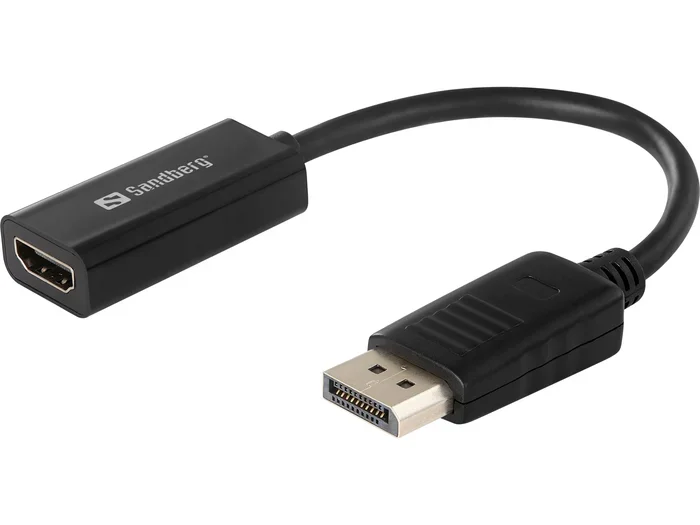
Active adapters contain electronic circuitry, usually a conversion chip. They actively convert one signal type into another. For HDMI to DisplayPort conversion, you almost always need an active adapter. The chip inside takes the HDMI signal and re-encodes it as a DisplayPort signal that your monitor can understand.
Passive adapters do not contain any chips. They simply change the physical shape of the connector. They work when the underlying signal protocol is similar or compatible. Passive adapters are great for DisplayPort to HDMI conversion in most cases, but they will not work for HDMI to DisplayPort conversion.
Here is a simple way to remember it. Think of an active adapter as a translator. It takes one language (HDMI) and converts it into another language (DisplayPort). A passive adapter is just a bridge that changes the accent but keeps the same language.
Comparison Table: Active vs Passive Adapters
| Feature | Active Adapter | Passive Adapter |
|---|---|---|
| Signal Conversion | Yes, converts HDMI to DisplayPort | No, only changes connector shape |
| Power Required | Usually yes, via USB | No |
| Price Range | $15 to $50 | $5 to $15 |
| HDMI to DisplayPort Support | Yes | No |
| DisplayPort to HDMI Support | Yes | Usually yes |
| Best For | Cross-protocol conversions | Same-protocol or compatible connections |
When in doubt, always go with an active adapter for HDMI to DisplayPort conversion. It is the only reliable option. Spending a little extra money on the right adapter saves you from frustration and wasted time.
Common Problems and How to Fix Them
Even with the right adapter, you might run into issues. Display connection problems are more common than you would think, and most of them have simple fixes.
Problem 1: No signal on the monitor. This is the most common issue. First, check that all cables are firmly plugged in. Then try a different port on your computer. If you are using a USB-powered adapter, make sure it is receiving power. Sometimes simply restarting your computer resolves the problem.
Problem 2: Flickering or intermittent display. This often happens when the adapter does not receive enough power. Try plugging the USB cable into a different port, preferably one that is directly on your computer rather than through a hub. You can also try a shorter DisplayPort cable, which reduces power loss.
Problem 3: Low resolution or refresh rate. Your adapter might not support the resolution you are trying to use. Check the adapter specifications and make sure it supports your desired resolution. Also check your display settings and manually select the correct resolution and refresh rate.
Problem 4: No audio through DisplayPort. Some adapters do not carry audio because DisplayPort and HDMI handle audio differently. Check your sound settings on your computer and make sure the DisplayPort output is selected as the audio device. If the adapter does not support audio, you may need a separate audio cable.
Problem 5: Adapter works sometimes but not always. This usually points to a compatibility issue. Some adapters work better with certain graphics cards or operating systems. Try updating your GPU drivers, or consider purchasing a different brand of adapter that is known for better compatibility.
Most of these problems have straightforward solutions. Patience and a little troubleshooting go a long way. Do not throw your adapter away at the first sign of trouble. Work through the list above, and you will likely find the fix.
Which HDMI to DisplayPort Adapter Should You Buy?
The market is full of adapters, and the quality varies wildly. You do not need to spend a fortune, but you should avoid the cheapest options. A poor-quality adapter can cause signal loss, flickering, and even damage your equipment in rare cases.
Here are the features to look for when shopping:
- Active conversion for HDMI to DisplayPort direction.
- 4K at 60Hz support if you want smooth, high-resolution visuals.
- USB power support for adapters that need external power.
- Audio pass-through if you need sound along with your video signal.
- Good brand reputation with positive user reviews.
- Warranty or return policy in case the adapter does not work with your setup.
Some popular brands that consistently make reliable adapters include Cable Matters, Uni, and Adaptek. These brands offer active HDMI to DisplayPort converters that handle 4K resolution well and include proper power delivery. Read recent reviews before buying, as adapter quality can vary between production batches.
For gamers, look for adapters that support high refresh rates like 144Hz or 165Hz at your target resolution. For creative professionals who need accurate colors, look for adapters that support 10-bit color depth or HDR passthrough.
Setting up a great home workspace is about more than just cables and adapters. If you are looking for ways to make your workspace more efficient and enjoyable, these gadgets for everyday life include several items that work beautifully in any home office or creative setup.
Quick Tips for Choosing the Right Adapter
- Always match the conversion direction to your needs. HDMI output to DisplayPort input requires an active adapter.
- Do not assume all 4K adapters support 60Hz. Check the specifications carefully.
- Buy from reputable sellers to avoid counterfeit products that look real but perform poorly.
- Consider getting a slightly more expensive adapter with better build quality and a longer warranty.
Frequently Asked Questions
Can I use a passive HDMI to DisplayPort cable?
No, a passive cable will not work for HDMI to DisplayPort conversion. These two protocols use different signaling methods, so you need an active adapter with a conversion chip to make the connection work properly.
Does HDMI to DisplayPort conversion affect video quality?
A good quality active adapter will not noticeably affect video quality. You should be able to enjoy the same resolution and refresh rate as a native DisplayPort connection. Cheap adapters, however, may limit your resolution or cause flickering.
Can I convert DisplayPort to HDMI instead?
Yes, converting DisplayPort to HDMI is much simpler. In most cases, a passive adapter works fine because the DisplayPort signal can be easily converted to HDMI without needing active chip conversion.
Will my audio work through an HDMI to DisplayPort adapter?
It depends on the adapter. Many active adapters support audio passthrough, but not all of them do. Always check the product specifications if audio is important to your setup. Some adapters may require you to configure your sound output settings manually.
What is the best resolution for an HDMI to DisplayPort adapter?
Most modern active adapters support 4K at 60Hz, which is the sweet spot for most users. If you have an older monitor or graphics card, you may be limited to 1080p or 1440p. Always match your adapter to your display and graphics card capabilities.
Do I need to install drivers for an HDMI to DisplayPort adapter?
Most adapters work plug and play without any driver installation. However, updating your graphics card drivers before setup can help prevent detection issues. Some adapters with advanced features may require specific software from the manufacturer.
Final Thoughts
Converting HDMI to DisplayPort is something anyone can do with the right tools and a little patience. The most important thing to remember is that you need an active adapter for this specific conversion direction. Passive cables and adapters simply will not bridge the gap between these two different signal protocols.
Take the time to choose a quality adapter that supports your desired resolution and refresh rate. Check your device compatibility before buying, and do not be afraid to troubleshoot if something does not work right away. Most display issues have simple solutions, and the right adapter will give you a seamless, high-quality connection between your devices.
Whether you are connecting a single monitor to your laptop or building a multi-screen workspace, understanding how HDMI to DisplayPort conversion works puts you in control. You no longer have to worry about mismatched ports or confusing cables. With the knowledge you have gained from this guide, you can confidently pick the right adapter, set it up, and enjoy your display without any hassle.
Now go ahead and make that connection. Your new setup is just one adapter away from being complete.