Can I Convert From Usb C to Hdmi Without Any Hassle
Yes, you can convert USB C to HDMI without any hassle using the right adapter or cable. This guide covers everything you need to know about USB C to HDMI conversion, from choosing the right gear to troubleshooting common issues. Whether you need a USB C to HDMI adapter for your laptop, phone, or tablet, we have you covered with simple, actionable steps.
Key Takeaways
- USB C to HDMI conversion is simple: You just need the right adapter or cable to connect your device to an external display.
- Multiple adapter types exist: From passive cables to active docking stations, there is an option for every device and budget.
- Most modern devices support it: Laptops, smartphones, tablets, and even some desktops come with USB C ports that handle video output.
- Setup takes minutes: Plug in the adapter, select the right input on your display, and you are good to go.
- Common issues are easy to fix: Driver updates, cable quality, and port compatibility solve most problems.
- Consider a USB C hub: A hub with HDMI output adds extra ports and gives you more flexibility for daily use.
📑 Table of Contents
- Can I Convert From USB C to HDMI Without Any Hassle?
- What Is USB C to HDMI Conversion?
- Types of USB C to HDMI Adapters and Cables
- Which Devices Support USB C to HDMI?
- Step-by-Step Guide to Converting USB C to HDMI
- Common Problems and How to Fix Them
- Expert Insights on USB C to HDMI Connectivity
- How to Choose the Right USB C to HDMI Adapter for You
- Final Thoughts on USB C to HDMI Conversion
Can I Convert From USB C to HDMI Without Any Hassle?
The short answer is yes. Converting USB C to HDMI is one of the easiest things you can do in todays tech world. You do not need to be a tech expert. You do not need expensive gear either. A simple adapter or cable does the job in most cases. People use this setup every day for work, school, gaming, and streaming. If you have a device with a USB C port, you can likely connect it to a TV, monitor, or projector. This guide walks you through everything step by step. You will learn what you need, how it works, and how to avoid common pitfalls.
USB C has become the go-to port for many devices. It is small, reversible, and fast. But the real magic is that USB C can carry video signals too. This means you can turn any USB C port into an HDMI output. Whether you are presenting at work or casting a movie to your living room TV, the process is straightforward. USB C to HDMI conversion opens up a world of possibilities for your devices.
Many people hesitate because they think the process is complicated. That is not the case at all. With the right adapter, you can go from USB C to HDMI in seconds. This article will show you exactly how. We will cover the different types of adapters, which devices work best, and how to troubleshoot if something goes wrong. By the end, you will feel confident connecting your device to any HDMI display.
What Is USB C to HDMI Conversion?
USB C to HDMI conversion means sending a video signal from a USB C port to an HDMI display. Your laptop or phone sends the video through the USB C cable or adapter. The adapter or cable converts that signal into HDMI format. Your TV or monitor then displays the content. It is really that simple.
USB C is a universal connector. It handles data, power, and video all at once. This makes it incredibly versatile. You can charge your device, transfer files, and output video using a single cable. The HDMI side connects to any standard display with an HDMI input. This includes TVs, monitors, projectors, and even some car screens.
How Does the Signal Transfer Work?
USB C supports a standard called DisplayPort Alt Mode. This allows video signals to pass through the USB C port. When you plug in a USB C to HDMI adapter, the adapter reads the video signal and converts it. The adapter then sends that signal out through the HDMI connector. Your display receives it and shows your screen.
Some adapters do this passively, meaning they just route the signal. Others are active, meaning they have a chip inside that helps with the conversion. Passive adapters work great with most modern laptops and phones. Active adapters are useful for older devices or specific setups. Either way, the result is the same. Your USB C device connects to an HDMI screen.
Types of USB C to HDMI Adapters and Cables
Not all adapters are the same. There are several types to choose from. Each one suits different needs and devices. Let us break them down so you can pick the right one.
USB C to HDMI Cables
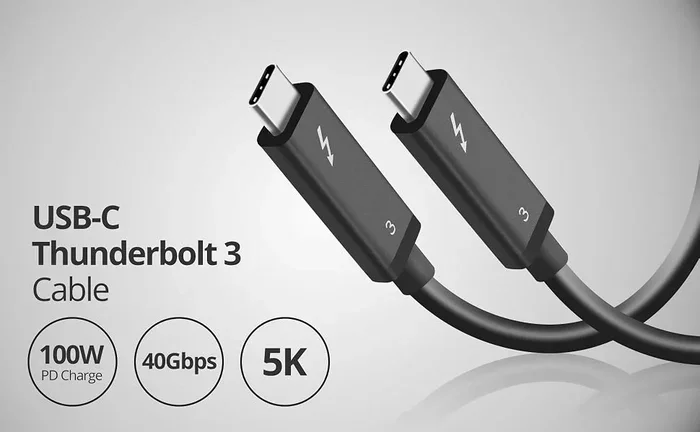
A USB C HDMI cable is the simplest option. One end plugs into your device. The other end plugs directly into your TV or monitor. No extra adapter needed. These cables are great for people who want a clean, minimal setup. They work well with most modern laptops and phones.
The biggest advantage is simplicity. You just plug it in and go. There is no extra dongle or brick to carry around. These cables are also usually affordable. You can find a good one for under twenty dollars. Just make sure the cable supports video output. Not every USB C cable carries video signals.
USB C to HDMI Adapters
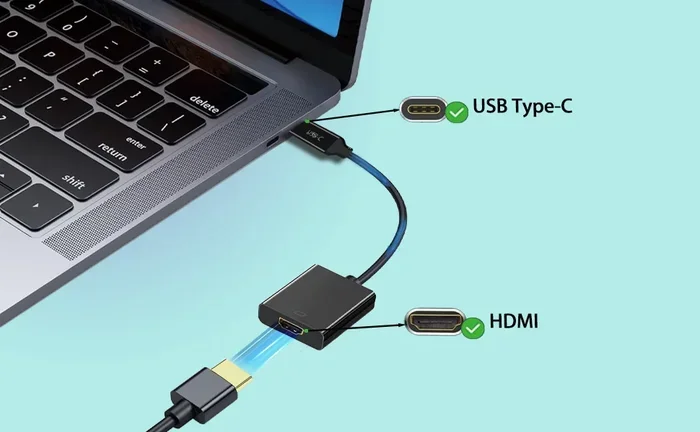
An adapter is a small dongle that connects to your USB C port. You then plug an HDMI cable into the adapter. This setup gives you more flexibility. You can use any HDMI cable you already own. Adapters also tend to be more compact than cables. They are easy to toss in a bag or pocket.
Adapters come in different shapes. Some are small and sleek. Others are bulkier but offer extra ports. When picking an adapter, look for one that supports the resolution you need. If you want 4K output, make sure the adapter supports 4K. Cheap adapters sometimes only support 1080p.
USB C Docking Stations with HDMI
A USB C docking station is the most powerful option. It connects to your device and gives you multiple ports. Most docks include an HDMI output, USB ports, an SD card reader, and a charging port. You can connect a monitor, keyboard, mouse, and external drive all at once.
Docking stations are perfect for people who work from home or travel often. They turn your laptop into a full desktop setup with one connection. The downside is size and cost. Docks are bigger than simple adapters. They also cost more. But if you need multiple ports, a dock is worth every penny. It makes daily work so much smoother.
Which Devices Support USB C to HDMI?
Most modern devices support USB C to HDMI output. But not all of them. Here is a quick look at the most common devices that work with a USB C to HDMI adapter.
Laptops and Computers
Many newer laptops come with USB C ports that support video output. Brands like Dell, HP, Lenovo, Apple, and Microsoft all use USB C on their newer models. If your laptop has a USB C port, check the specs to see if it supports DisplayPort Alt Mode. Most do. This is the most common use case for USB C to HDMI conversion.
Even older laptops can work if you use the right adapter. Some laptops have USB C ports that only carry data and power. These will not output video. Always check your devices specifications before buying an adapter.
Smartphones and Tablets
Android phones and tablets with USB C can often connect to HDMI. Samsung, Google Pixel, OnePlus, and many other brands support this feature. iPhones with USB C (like the iPhone 15 and 16 models) also support video output through USB C.
iPads with USB C can connect to HDMI too. This is great for presentations or watching movies on a bigger screen. If you are someone who uses your iPad for work, a USB C to HDMI adapter for iPad is a game changer. You can mirror your screen or extend it to a monitor. Some people even use their iPad as a second display for their laptop.
Gaming Consoles and Other Devices
Some handheld gaming devices use USB C. The Steam Deck, for example, can output video through USB C. Nintendo Switch uses a different connector, but many portable monitors and docks work with it too. If you have any device with a USB C port, there is a good chance it can output video. Always check the manual or the manufacturers website to be sure.
Step-by-Step Guide to Converting USB C to HDMI
Setting up your USB C to HDMI connection is easy. Follow these steps and you will be up and running in no time.
- Check your devices port: Make sure your device has a USB C port. Look for the oval-shaped connector.
- Choose your adapter or cable: Pick a USB C to HDMI cable or adapter that matches your needs. Consider resolution, portability, and extra ports.
- Connect the adapter to your device: Plug the USB C end into your laptop, phone, or tablet.
- Connect the HDMI cable: Plug an HDMI cable into the adapter and then into your TV or monitor.
- Switch your display input: On your TV or monitor, select the HDMI input that the cable is plugged into.
- Adjust display settings: On your device, go to display settings and choose to mirror or extend your screen.
That is it. Six simple steps and you are connected. Most people get it done in under two minutes. The beauty of USB C to HDMI conversion is that it is so fast and painless.
Quick Tips for a Smooth Setup
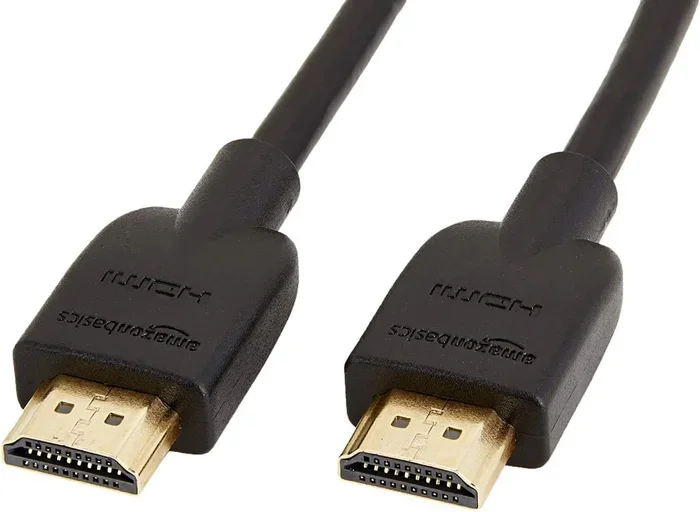
- Use a high-quality HDMI cable to avoid signal issues.
- If your screen does not show up, try unplugging and replugging the adapter.
- Make sure your adapter supports the resolution you want.
- Close unnecessary apps before connecting to reduce lag.
- Keep your devices drivers updated for the best performance.
Common Problems and How to Fix Them
Even though USB C to HDMI conversion is simple, you might run into a few hiccups. Here are the most common issues and how to solve them.
No Signal on the Display
This is the most common problem. Usually, it happens because the adapter is not fully seated. Unplug everything and plug it back in firmly. Also, check that your TV or monitor is on the correct HDMI input. Sometimes the input changes accidentally.
If that does not work, try a different HDMI cable. A faulty cable can cause a no-signal issue. Also, make sure your USB C port supports video output. Some ports only handle data and charging. If your device has both USB C and HDMI ports natively, try using the native HDMI port first to rule out hardware issues.
Low Resolution or Flickering Screen
A blurry or flickering screen usually means the adapter does not support your desired resolution. Cheap adapters often max out at 1080p. If you need 4K, invest in a better adapter. Also, update your display drivers. On Windows, go to Device Manager and check for display adapter updates. On Mac, go to System Preferences and check for software updates.
Audio Not Working Through HDMI
Sometimes video works but audio does not. This happens when your device is still sending audio through its own speakers. Go to your sound settings and change the output device to HDMI. On most systems, this takes just a few clicks. If the option does not appear, disconnect and reconnect the adapter.
Adapter Overheats
Some adapters get warm during use. This is normal, especially with active adapters. If it gets too hot to touch, stop using it and check for ventilation. Avoid using your device while it is charging and outputting video at the same time. This can cause overheating in some cases. If the problem persists, try a different adapter or dock.
Expert Insights on USB C to HDMI Connectivity
Tech experts agree that USB C to HDMI conversion is one of the most useful features in modern computing. The universal nature of USB C means you only need one cable or adapter for most tasks. This reduces clutter and makes life easier. Whether you are at home, in the office, or on the go, a USB C to HDMI adapter keeps you connected.
For people who travel frequently, a compact adapter is a must-have. It weighs almost nothing and fits in any bag. For home office setups, a docking station adds serious value. You get multiple ports and a clean workspace. The key is choosing the right accessory for your specific needs. Think about what you do most often. Do you need a quick connection for presentations? A simple cable works. Do you need a full workstation? A dock is the way to go.
One thing many people overlook is cable quality. A cheap, low-quality cable can cause all sorts of problems. It might not support the resolution you need. It might lose connection frequently. Investing in a well-reviewed cable or adapter saves you a lot of frustration. Look for brands with good reviews and solid warranties. A little extra spending upfront goes a long way.
Another tip is to keep your adapters organized. A small pouch or case keeps them safe and easy to find. If you use multiple devices, label your adapters so you always grab the right one. These small habits make a big difference in your daily tech routine.
How to Choose the Right USB C to HDMI Adapter for You
With so many options on the market, picking the right adapter can feel overwhelming. Here are the key factors to consider.
Resolution Support
Check what resolution the adapter supports. Most adapters handle 1080p just fine. If you need 4K, make sure the adapter explicitly supports it. Some adapters only support 4K at 30Hz, which can feel laggy. Look for adapters that support 4K at 60Hz for the smoothest experience.
Build Quality
A sturdy adapter lasts longer. Metal-bodied adapters tend to be more durable than plastic ones. They also dissipate heat better. If you travel often, a compact and lightweight adapter is ideal. If you use your setup at a desk, build quality matters less because the adapter stays in one place.
Extra Ports
Some adapters come with extra USB ports or an SD card reader. These are handy if you need to connect peripherals on the go. A USB C hub with HDMI output is a great all-in-one solution. You get video output plus extra connectivity in one small device.
Price
You do not need to spend a fortune. Simple adapters start around ten to fifteen dollars. Docking stations can cost anywhere from fifty to two hundred dollars. Set a budget based on what you need. For most people, a basic adapter works perfectly fine.
| Type | Price Range | Best For | Resolution |
|---|---|---|---|
| USB C to HDMI Cable | $8 – $20 | Simple, clean setups | 4K @ 30Hz or 60Hz |
| USB C to HDMI Adapter | $10 – $30 | Portability and flexibility | 4K @ 30Hz or 60Hz |
| USB C Docking Station | $50 – $200 | Full workstation setups | 4K @ 60Hz |
When choosing, always read user reviews. They give you real-world insights that product descriptions do not. Look for feedback on reliability, ease of use, and video quality. A well-reviewed adapter under twenty dollars often outperforms an expensive one with poor reviews.
Final Thoughts on USB C to HDMI Conversion
Converting USB C to HDMI is one of the easiest and most useful tech skills you can learn. It does not matter if you are a student, a professional, or just someone who likes watching movies on a bigger screen. A USB C to HDMI adapter or cable makes it all possible. The process is fast, affordable, and works with most modern devices.
Remember to choose the right adapter for your needs. Check your devices specs before buying. And do not be afraid to troubleshoot if something does not work right away. Most issues have simple fixes. With the right gear and a little patience, you will be connected to any HDMI display in minutes.
If you are looking to simplify your tech setup even further, consider exploring some great gadgets that make life easier. Many of these tools work hand in hand with USB C connectivity to streamline your daily routine. Also, if you ever need help with device-specific settings, check out our guide on adding prefixes to numbers on iPhone for helpful tips on managing your devices.
The world of USB C connectivity is vast and growing. Every year, more devices adopt this versatile port. Learning how to use it to its full potential gives you an edge. You stay connected, productive, and entertained. So go ahead, grab a USB C to HDMI adapter, and start casting your screen today. You will wonder how you ever lived without it.
Frequently Asked Questions
Do I need a special adapter to convert USB C to HDMI?
Yes, you need either a USB C to HDMI adapter or a USB C to HDMI cable. Regular USB C cables do not carry video signals. Make sure the adapter or cable you buy explicitly supports video output. Check the product description for details on resolution and compatibility before purchasing.
Can I use a USB C to HDMI adapter with any TV?
Most modern TVs have HDMI inputs, so yes, you can use a USB C to HDMI adapter with almost any TV. Just make sure your TV has an available HDMI port. If your TV is older and only has other inputs, you may need a different adapter. Always check your TVs ports before buying an adapter.
Why is my USB C to HDMI connection not working?
There are a few common reasons. The adapter may not be fully plugged in. The HDMI cable might be faulty. Or your devices USB C port might not support video output. Try unplugging and replugging everything. If that does not work, try a different cable or adapter. Updating your devices drivers can also help resolve connection issues.
Can I connect a USB C to HDMI adapter to a Mac?
Yes, MacBooks with USB C ports fully support HDMI output through an adapter. Apple includes adapters with some models, but third-party adapters work just as well. Make sure the adapter supports the resolution your Mac can output. Most adapters handle up to 4K, which is more than enough for everyday use.
Does USB C to HDMI support audio?
Yes, most USB C to HDMI adapters and cables support both video and audio. The audio travels through the HDMI cable to your TV or monitor. If you do not hear sound, check your devices sound settings and make sure the output is set to HDMI. This is an easy fix that many people overlook.
Can I use a USB C hub with HDMI for multiple devices?
Absolutely. A USB C hub with HDMI lets you connect multiple devices at once. You can plug in a monitor, keyboard, mouse, and external drive through one hub. This is perfect for creating a clean and organized workspace. Hubs are especially useful for laptops that have limited ports.
=== CONCLUSION ===
Converting USB C to HDMI is easy, affordable, and incredibly useful. Whether you need to present at work, watch a movie on the big screen, or extend your display, the right adapter gets the job done. Remember to choose an adapter that matches your devices capabilities and your display needs. Keep your cables and adapters in good condition, and update your drivers when needed. With the tips and tricks in this guide, you are fully equipped to handle any USB C to HDMI setup. Start exploring your options today and enjoy seamless connectivity with every device you own.