Can I Connect Two Monitors Without Hdmi Splitter Guide
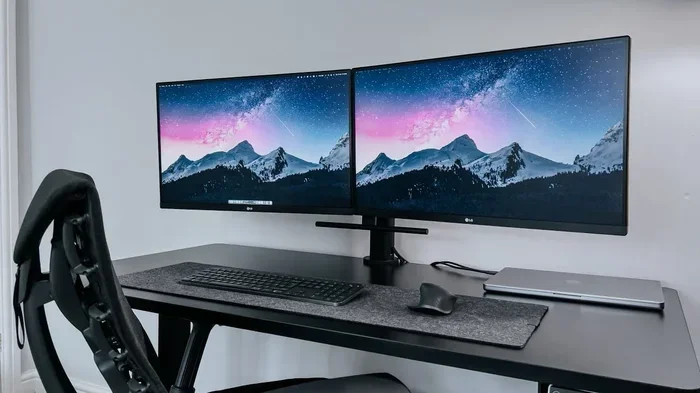
Yes, you can connect two monitors without an HDMI splitter. There are several easy ways to set up a dual monitor setup using adapters, USB-C docks, and built-in ports on your laptop or PC. Whether you use a USB-C to HDMI adapter, a docking station, or wireless display tech, this guide walks you through every option step by step.
So you want more screen space. Maybe you are working from home, editing videos, or just trying to get more done at once. The idea of a dual monitor setup sounds great. But then you see the price of an HDMI splitter and think, “Wait, do I really need one?”
Here is the good news. You absolutely can connect two monitors without HDMI splitter. There are several simple ways to do it. Some methods cost almost nothing. Others use gear you might already own. This guide shows you every option, step by step.
Whether you are using a laptop, a desktop PC, or a mini PC, you have options. Let us dive in and explore them all.
Key Takeaways
- Multiple Connection Methods: You can use USB-C adapters, DisplayPort, VGA converters, and docking stations to connect two monitors without a splitter.
- No Special Hardware Needed: Most modern laptops and PCs already have the ports required for a second monitor.
- Wireless Options Exist: Miracast and wireless display adapters let you go cable-free for a clean desk setup.
- Docking Stations Are Versatile: A single USB-C dock can power two monitors, charge your laptop, and connect peripherals.
- Check Your Ports First: Knowing what ports your device has is the first step to a successful dual monitor setup.
- Avoid Common Mistakes: Using the wrong cable or adapter can cause resolution issues and frustration.
📑 Table of Contents
- Why You Might Want Two Monitors Without a Splitter
- Check Your Ports First
- Method 1: Use a USB-C to HDMI Adapter
- Method 2: Use a Docking Station
- Method 3: Use DisplayPort and HDMI Together
- Method 4: Go Wireless with a Wireless Display Adapter
- Common Mistakes to Avoid
- Expert Insights on Dual Monitor Setups
- How to Set Up Your Displays in Windows
- Key Takeaways
- Conclusion
Why You Might Want Two Monitors Without a Splitter
A splitter sends the same image to two screens. That is great for presentations. But it is not ideal for everyday work. When you connect two monitors without a splitter, you get an extended display. That means each screen shows different content. You can have your email open on one screen and your spreadsheet on the other.
Here are some real reasons people choose this route:
- More workspace: Spread out your tools and windows without constantly minimizing and maximizing.
- Better multitasking: Watch a tutorial on one screen while working on the other.
- Cleaner setup: Avoid extra cables and boxes cluttering your desk.
- Cost savings: Skip buying a splitter when adapters are cheaper and more versatile.
- Flexibility: Switch between extended and mirrored modes easily.
When you extend your display instead of mirroring it, you unlock a whole new way of working. It feels like having two separate desks in one.
Check Your Ports First
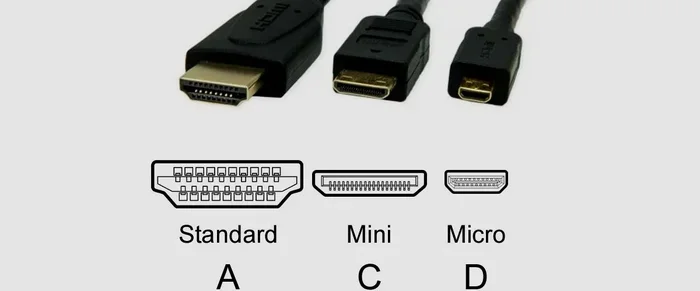
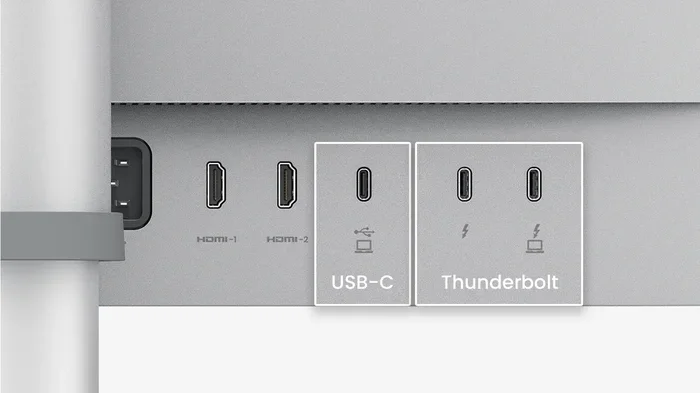
Before buying anything, look at the back of your laptop or PC. What ports do you see? This determines which method works best for you. Most modern devices come with at least one or two of the following:
- HDMI port
- USB-C port
- DisplayPort
- VGA port
- Thunderbolt 3 or 4
If your device has more than one video output port, you are in luck. You can plug in two monitors directly. No splitter needed. Just use the right cables for each port.
But what if you only have one video port? That is where adapters and docking stations come in. Let us look at those next.
Common Port Types Explained
Not sure what all those ports do? Here is a quick breakdown:
- HDMI: The most common port. Carries both video and audio through one cable.
- USB-C: A modern, reversible port that can carry video signals with the right adapter.
- DisplayPort: Found on many desktops and monitors. Great for high resolutions and refresh rates.
- VGA: An older analog port. Still works but offers lower quality than digital options.
- Thunderbolt: A super-fast USB-C variant. Can connect to almost anything including two monitors.
Knowing your ports makes the rest of the process much easier. You will not guess which adapter or cable to buy.
Method 1: Use a USB-C to HDMI Adapter
This is one of the easiest ways to connect two monitors without a splitter. If your laptop has a USB-C port and an HDMI port, you are golden. Plug one monitor into the HDMI port directly. Then use a USB-C to HDMI adapter for the second monitor.
Here is how it works in practice:
- Plug your first monitor into the HDMI port using an HDMI cable.
- Connect a USB-C to HDMI adapter to your laptop.
- Attach the second monitor to the adapter using another HDMI cable.
- Go to display settings on your computer.
- Select “Extend these displays” instead of “Duplicate.”
That is it. You now have two separate screens. No splitter required.
Quick Tip: Make sure your USB-C port supports video output. Not all USB-C ports do. Look for a little lightning bolt or a DisplayPort icon next to the port. If you are unsure, check your laptop manual.
What If Your Laptop Has Only USB-C Ports?
Many newer laptops, especially MacBooks, have only USB-C ports. In that case, you need two USB-C to HDMI adapters. Plug one into each port and connect your monitors. Simple as that.
Just be aware that using two adapters can sometimes strain your laptop’s graphics processing. For most everyday tasks, this is not a problem. But if you are doing heavy video editing or gaming, you might notice a small performance dip.
Method 2: Use a Docking Station
A docking station is one of the best solutions for a dual monitor setup. It connects to your laptop through a single USB-C cable and gives you multiple ports. Most docks support two monitors, plus charging and peripheral connections.
Here is why a docking station is so popular:
- One cable connection: Plug in one USB-C cable and everything works.
- Multiple video outputs: Most docks have two or three HDMI or DisplayPort outputs.
- Power delivery: Many docks charge your laptop while you work.
- Extra ports: USB-A ports for mice, keyboards, and external drives.
- Clean desk: Less cable mess compared to using multiple adapters.
When choosing a dock, look for one that explicitly supports dual monitors. Not all docks do. Check the product specifications before buying. Brands like CalDigit, Anker, and Dell make reliable options.
Quick Tip: If you use a USB-C docking station, make sure it supports the resolution you need. A 4K dock costs more than a 1080p dock, but it gives you sharper images on both screens.
Docking Station vs. Multiple Adapters
Both options work well. Here is a quick comparison:
- Adapters are cheaper: A single USB-C to HDMI adapter costs under $15. Two adapters might run you $20 to $30.
- Docks are more convenient: One cable connects everything. You do not unplug and replug adapters every day.
- Docks cost more: A good dual-monitor dock runs $100 to $300.
- Adapters are portable: Easy to throw in a bag. Great for people who work from coffee shops.
If you work from a fixed desk most days, a docking station is worth the investment. If you move around often, adapters are the better choice.
Method 3: Use DisplayPort and HDMI Together
Your desktop PC might have both a DisplayPort and an HDMI port. This is perfect for connecting two monitors without any splitter. You just use one cable for each port.
Here is what to do:
- Connect Monitor 1 to the HDMI port with an HDMI cable.
- Connect Monitor 2 to the DisplayPort with a DisplayPort cable.
- Go to your display settings on Windows or Mac.
- Choose “Extend desktop” to use both screens independently.
This method gives you the best image quality. DisplayPort supports higher resolutions and refresh rates than HDMI in many cases. And you do not need any extra adapters.
If your desktop has two HDMI ports, that works too. Just use two HDMI cables and you are set. No splitter. No adapter. No hassle.
Can You Daisy Chain Monitors?
Yes, you can in some cases. Daisy chaining means connecting one monitor to another, and then that monitor to your PC. This works with DisplayPort and USB-C/Thunderbolt monitors. You need a monitor that supports DisplayPort Out or Thunderbolt Pass-through.
Here is how it works:
- Connect your PC to Monitor 1 using a DisplayPort or USB-C cable.
- Use a DisplayPort cable to connect Monitor 1 to Monitor 2.
- Configure the display settings to extend your desktop.
Daisy chaining reduces cable clutter. But not all monitors support it. Check your monitor specifications before trying this method.
Method 4: Go Wireless with a Wireless Display Adapter
Not a fan of cables? You can connect two monitors wirelessly in some setups. Wireless display adapters plug into your monitor’s HDMI port and connect to your computer over Wi-Fi.
Popular wireless options include:
- Miracast: Built into many Windows PCs and smart TVs. No extra hardware needed.
- Wireless HDMI kits: Devices like the IOGEAR Wireless 3D HDMI Kit send video through the air.
- Chromecast: Can mirror your screen to a TV or monitor with an HDMI input.
Wireless setups are great for a clean desk. But they do have limitations. Latency can be an issue. The image quality might not match a wired connection. And you need a strong Wi-Fi signal for smooth performance.
Quick Tip: Wireless display works best for static content like presentations and document editing. For fast-moving content like gaming or video editing, stick with wired connections.
Wireless vs. Wired: Which Is Better?
Here is a quick look at the trade-offs:
- Wired connections offer better quality: No lag, no compression artifacts, and consistent frame rates.
- Wireless connections offer freedom: No cables running across your desk. Easy to set up and move around.
- Wired is more reliable: No dropped connections or interference from other devices.
- Wireless is more convenient: Great for temporary setups or when running cables is impractical.
For most people, a wired setup with adapters or a dock is the better choice. But wireless is a great option if you value a clean workspace above all else.
Common Mistakes to Avoid
Setting up a second monitor without a splitter is usually straightforward. But people make a few common mistakes that cause frustration. Here is what to watch out for:
Using the Wrong Adapter
Not all adapters are the same. A USB-C to HDMI adapter will not work if your laptop only has a USB-A port. Check your device’s ports carefully before buying anything. Using the wrong adapter wastes money and time.
Forgetting to Change Display Settings
This is the number one mistake. People plug in a second monitor but do not change the display settings from “Duplicate” to “Extend.” Your second screen just shows the same image as the first. It feels like nothing worked. But all you need to do is go into settings and select “Extend these displays.”
Ignoring Resolution Mismatches
If your two monitors have different sizes or resolutions, the display might look odd. One screen could appear blurry while the other looks sharp. Go to your display settings and adjust the resolution and scaling for each monitor individually. This ensures both screens look great.
Using a Low-Quality Cable
Cheap cables can cause signal loss, flickering, or no signal at all. Invest in decent quality cables. A good HDMI or DisplayPort cable costs $5 to $15 and makes a huge difference in reliability.
Overlooking Power Delivery
If you use a docking station, make sure it can charge your laptop. Some docks only support data and video, not power. This means your laptop battery drains while you work. Check the wattage of the dock before purchasing.
Expert Insights on Dual Monitor Setups
We asked a few tech professionals about their favorite ways to connect two monitors without a splitter. Here is what they had to say.
Sarah, a graphic designer, says, “I use a USB-C docking station every single day. It connects my two 4K monitors, charges my laptop, and connects all my peripherals through one cable. It has changed how I work.”
Mike, a software developer, prefers the adapter route. “I keep two USB-C to HDMI adapters in my laptop bag. I can set up a dual monitor anywhere. Coffee shop, hotel room, office. It takes me about two minutes.”
Lisa, a data analyst, uses a mix of wired and wireless. “My main monitor is wired for performance. My second monitor is wireless through Miracast. It works great for viewing dashboards and reports.”
Each approach has its strengths. The best method depends on your workflow, budget, and workspace.
How to Set Up Your Displays in Windows
Once your monitors are physically connected, you need to configure them in your operating system. Here is how to do it on Windows:
- Right-click on your desktop and select “Display settings.”
- You should see two rectangles representing your monitors.
- Click “Identify” to see which number corresponds to which screen.
- Drag the rectangles to match the physical layout of your monitors.
- Scroll down to “Multiple displays” and choose “Extend these displays.”
- Click “Keep changes” to save.
On a Mac, the process is similar:
- Go to System Settings and click “Displays.”
- Hold the Option key and click “Detect Displays” if your second monitor does not appear.
- Arrange the displays by dragging them in the layout view.
- Select “Extend display” instead of mirroring.
Once your displays are extended, you can drag windows between screens. You can also set different wallpapers and resolutions for each monitor. It is a really nice workflow upgrade.
Key Takeaways
- Multiple Connection Methods: You can use USB-C adapters, DisplayPort, VGA converters, and docking stations to connect two monitors without a splitter.
- No Special Hardware Needed: Most modern laptops and PCs already have the ports required for a second monitor.
- Wireless Options Exist: Miracast and wireless display adapters let you go cable-free for a clean desk setup.
- Docking Stations Are Versatile: A single USB-C dock can power two monitors, charge your laptop, and connect peripherals.
- Check Your Ports First: Knowing what ports your device has is the first step to a successful dual monitor setup.
- Avoid Common Mistakes: Using the wrong cable or adapter can cause resolution issues and frustration.
Conclusion
So, can you connect two monitors without HDMI splitter? Absolutely. You have more options than you might think. From simple USB-C adapters to full-featured docking stations, there is a solution for every budget and workspace. You can even go wireless if you prefer a cable-free desk.
The key is to know what ports your device has. Then pick the right adapter, dock, or wireless solution. Adjust your display settings to extend your desktop, and you are good to go.
Setting up a dual monitor setup without a splitter is one of the easiest productivity upgrades you can make. It costs very little, takes just minutes, and makes a real difference in how you work. Give it a try today. Your workflow will thank you.
Frequently Asked Questions
Can I connect two monitors with only one HDMI port on my laptop?
Yes, you can. Use a USB-C to HDMI adapter for the second monitor. Plug one monitor directly into the HDMI port and connect the other through the adapter. This gives you an extended display without any splitter.
Do I need a special graphics card to run two monitors?
Not necessarily. Most modern integrated graphics cards support dual displays. Check your device specifications to confirm. If you have one HDMI port and one USB-C port, you can run two monitors with the right adapters.
Can I use a VGA cable to connect a second monitor?
Yes, you can. VGA is an older analog connection, but it still works for basic display output. You will need a USB-C to VGA adapter if your laptop lacks a VGA port. Keep in mind that VGA does not carry audio and offers lower image quality than HDMI or DisplayPort.
Does connecting two monitors slow down my laptop?
For most everyday tasks, no. Browsing, document editing, and video calls work fine with dual monitors. However, if you run graphics-intensive applications like video editing or gaming, you may notice a slight performance drop. A docking station with its own graphics processing can help minimize this.
Can I use different sized monitors in a dual setup?
Yes, you can. Many people pair a larger monitor for their main work with a smaller one for secondary tasks. Just adjust the resolution and scaling in your display settings so both screens look clear and comfortable to use.
Is a wireless dual monitor setup as good as a wired one?
Wireless setups offer convenience and a clean desk, but they come with trade-offs. You may experience slight latency or lower image quality compared to wired connections. For tasks that require real-time responsiveness like gaming or video editing, wired connections are the better choice.