Can I Connect My Phone To Projector With HDMI Cable
Yes, you can connect your phone to a projector with an HDMI cable. This wired connection delivers sharp visuals and reliable performance for presentations, movies, and gaming. Whether you use Android or iPhone, the right HDMI adapter makes it simple and fast.
Have you ever wanted to share your phone screen on a big display? Maybe you are giving a work presentation, hosting a movie night, or showing off vacation photos. The simplest and most reliable way to do this is by using a HDMI cable. It gives you a direct, stable connection with no lag, no buffering, and no Wi-Fi needed.
So, can you connect your phone to a projector with HDMI? The short answer is yes. But the process depends on your phone type, the projector you are using, and the right adapter. In this guide, we walk you through everything you need to know. From picking the right cable to fixing common issues, you will find all the details here.
We also compare wired and wireless options so you can decide what works best for you. By the end, you will feel confident setting up your phone-to-projector connection in minutes. Let us get started.
Key Takeaways
- HDMI is the best wired option: It offers stable, high-quality video and audio without lag or buffering.
- You need the right adapter: USB-C to HDMI or Lightning to HDMI adapters are essential depending on your phone model.
- Both Android and iPhone work: Each requires a slightly different cable or adapter, but the process is straightforward.
- Common issues are easy to fix: Most problems like no signal or poor quality come down to cable choice or settings.
- HDMI beats wireless for reliability: Wired connections avoid delays, compatibility issues, and Wi-Fi dependency.
- Check compatibility first: Not all phones support video output, so verify your device before buying cables.
📑 Table of Contents
- Why Connect Your Phone to a Projector with HDMI?
- What You Need to Connect Your Phone to a Projector
- Step-by-Step Guide to Connecting Your Phone to a Projector
- Common Problems and How to Fix Them
- HDMI vs Wireless: Which Connection Method Is Better?
- Expert Tips for the Best Projecting Experience
- Frequently Asked Questions
- Conclusion
Why Connect Your Phone to a Projector with HDMI?
There are many ways to display your phone on a larger screen. But using an HDMI cable stands out for several reasons. Let us look at why this method is worth your time.
Stable and Reliable Connection
Unlike wireless options that depend on your Wi-Fi signal, a wired HDMI connection does not drop or stutter. You get a consistent stream of video and audio. This matters a lot during presentations or when you do not want interruptions.
High-Quality Picture and Sound
HDMI cables support high resolutions, often up to 4K. That means your phone content looks crisp and clear on the projector. Plus, HDMI carries both video and audio through one cable. You do not need separate speakers or extra wires.
Low Latency
If you are playing games or watching fast-action videos, lag can be annoying. A direct HDMI connection has almost zero latency. What you see on your phone appears instantly on the big screen.
Simple Setup
You do not need to install apps or fiddle with network settings. Plug in the cable, select the right input on your projector, and you are good to go. It really is that simple.
What You Need to Connect Your Phone to a Projector
Before you start, make sure you have the right gear. The items you need depend on your phone model and the projector available to you.
Step 1: Check Your Phone’s Port Type
Most modern phones use one of two ports. Android phones typically use USB-C. Older Android models may have a micro-USB port. iPhones use a Lightning connector (on older models) or USB-C (on newer models like iPhone 15 and later).
Knowing your port type is the first step. It determines which HDMI adapter you need to buy.
Step 2: Get the Right HDMI Adapter
Here are the most common adapters you will need:
- USB-C to HDMI adapter: Works with most modern Android phones and newer iPhones.
- Lightning to HDMI adapter: Needed for older iPhone models (iPhone 14 and earlier).
- USB-C to HDMI cable: A direct cable with USB-C on one end and HDMI on the other. No separate adapter needed.
Make sure your adapter supports video output. Not all USB-C cables carry video signals. Look for adapters that mention MHL or DisplayPort Alt Mode support.
Step 3: Pick the Right HDMI Cable
You also need a standard HDMI cable to connect the adapter to the projector. Any good-quality HDMI cable will work. For best results, choose a cable that supports high-definition output. A basic HDMI 2.0 cable handles 4K resolution just fine for most uses.
Step 4: Confirm Projector Compatibility
Check that your projector has an HDMI input port. Most modern projectors do. Some older models might only have VGA or composite inputs. In those cases, you would need a different connection method entirely.
If you are looking for more ways to enhance your setup, check out these 10 Gadgets To Make Moms Life Easier for creative accessory ideas that work well with projection setups.
Step-by-Step Guide to Connecting Your Phone to a Projector
Now that you have everything ready, let us walk through the actual setup process. Follow these steps carefully for a smooth connection.
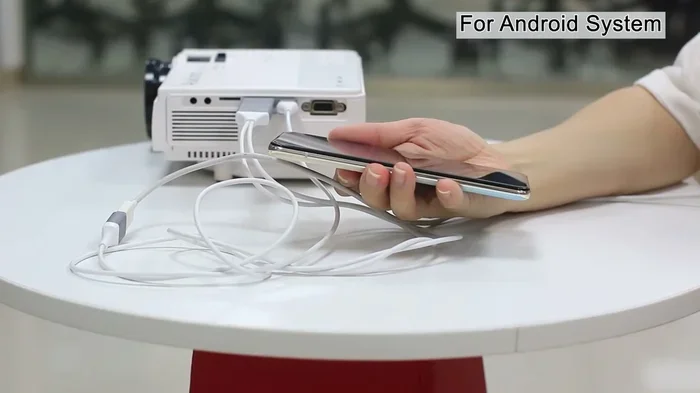
For Android Phones
- Plug the USB-C to HDMI adapter into your Android phone.
- Connect the HDMI cable from the adapter to the projector.
- Turn on the projector and select the correct HDMI input source.
- Your phone screen should mirror onto the projector automatically.
- If nothing appears, go to your phone’s Settings > Display > Cast/Screen Output and enable video output.
For iPhone Users
- Plug the Lightning to HDMI adapter into your iPhone.
- Connect the HDMI cable from the adapter to the projector.
- Power on the projector and switch to the right HDMI input.
- A prompt may appear on your iPhone asking you to trust the device. Tap “Trust.”
- Your screen should now display on the projector.
If you run into issues with iPhone settings or connectivity, you might find it helpful to review how to manage basic iPhone configurations. For instance, learning about adding prefixes to numbers on iPhone can help you organize contacts that you may want to share during presentations.
Quick Tips for a Smooth Connection
- Always use a high-quality adapter from a trusted brand.
- Keep your phone charged or plugged into power during long sessions.
- Turn off auto-rotate on your phone to prevent the projected image from flipping.
- Adjust the projector focus after connecting for the sharpest image.
Common Problems and How to Fix Them
Even with the right equipment, you might run into issues. Here are the most common problems and their solutions.
No Signal on the Projector
This is the most frequent issue. Try these fixes:
- Check that the HDMI cable is firmly plugged into both the adapter and the projector.
- Make sure the projector is set to the correct HDMI input.
- Try a different HDMI port on the projector if available.
- Restart your phone and the projector.
- Replace the adapter if it is faulty or unsupported.
Poor Picture Quality
If the image looks blurry or pixelated:
- Check that your HDMI cable supports the resolution you need.
- Adjust your phone’s display resolution in the settings.
- Clean the projector lens with a soft cloth.
- Move the projector closer to the screen for a sharper image.
No Audio Through the Projector
Sometimes the video works but there is no sound:
- Go to your phone’s Settings > Sounds and check the volume.
- Make sure the projector’s speakers are turned on.
- Some adapters handle audio differently. Try a different adapter model if sound issues persist.
Phone Overheating During Use
Projection uses your phone’s processor heavily:
- Remove your phone case to help with heat dissipation.
- Keep the phone in a cool, ventilated area.
- Plug your phone into a charger to reduce battery strain.
HDMI vs Wireless: Which Connection Method Is Better?
You might wonder whether a wired HDMI connection is better than wireless options like screen mirroring, Chromecast, or Miracast. Let us compare them side by side.
| Feature | HDMI (Wired) | Wireless (Wi-Fi/Bluetooth) |
|---|---|---|
| Connection Stability | Very stable, no drops | Can fluctuate with signal strength |
| Video Quality | High-definition, consistent | Good, but may compress |
| Latency | Almost zero | Noticeable delay possible |
| Setup Complexity | Simple, plug and play | Requires app or network setup |
| Mobility | Limited by cable length | Full freedom of movement |
| Cost | Low (cable and adapter) | May require extra devices |
| Audio Quality | Excellent, uncompressed | Good, but can vary |
For presentations, gaming, or anything where reliability matters, HDMI is the clear winner. Wireless is great for casual use where you want flexibility, but it comes with trade-offs. If you want the best mobile projection experience, go with a wired connection.
Expert Tips for the Best Projecting Experience
Want to get the most out of your setup? Here are some pro tips that make a big difference.
Optimize Your Phone’s Display Settings
Before you connect, adjust your phone’s display settings for the best results:
- Set your screen brightness to a comfortable level.
- Turn off blue light filters if they affect color accuracy.
- Disable do not disturb mode to prevent interruptions.
- Turn off auto-brightness so the projected image stays consistent.
Use a Phone Stand or Mount
Holding your phone while projecting is tiring and causes shaky images. A phone mount or stand keeps your device steady and at the right angle. This is especially important for long presentations or movie sessions.
Manage Your Cables Neatly
Loose cables can cause disconnections. Use cable clips or ties to keep everything organized. A clean setup also looks more professional during meetings or events.
Test Before the Big Event
Always do a test run before you present or host a movie night. Check the image quality, sound, and overall setup. Fixing problems early saves you from embarrassment later.
Keep Your Adapter and Cables in Good Condition
HDMI adapters and cables can wear out over time. Store them properly and avoid bending them sharply. A well-maintained cable lasts longer and performs better.
Frequently Asked Questions
Can I connect any phone to a projector using HDMI?
Most modern phones support video output through HDMI. However, very old or budget phones may not have the necessary hardware. Check if your phone supports MHL or DisplayPort Alt Mode before buying an adapter. If your phone lacks these features, you may need a wireless alternative.
Do I need a special HDMI cable for phone projection?
No, you do not need a special cable. A standard HDMI cable works perfectly fine. What you do need is the right adapter for your phone’s port. The adapter handles the conversion from your phone’s output to standard HDMI.
Will connecting my phone to a projector drain the battery?
Yes, projecting your screen uses significant battery power. It is best to keep your phone plugged into a charger during use. This prevents the battery from draining and also keeps your phone cool during extended sessions.
Can I use a USB-C hub instead of a dedicated adapter?
Yes, a USB-C hub with HDMI output works just as well. Just make sure the hub supports video output. Not all USB-C hubs carry video signals, so check the product specifications before purchasing.
Why is there a delay when I mirror my phone wirelessly?
Wireless screen mirroring depends on your Wi-Fi network speed and stability. Delays happen because the video data must compress, transmit, and decompress in real time. A wired HDMI connection eliminates this process entirely, giving you instant, lag-free projection.
Can I connect multiple phones to the same projector?
Yes, you can. Each phone will need its own HDMI adapter and cable. Simply switch the HDMI input on the projector to the corresponding port when you want to display a different phone. This is handy for collaborative presentations or group settings.
Conclusion
Connecting your phone to a projector with an HDMI cable is one of the simplest and most effective ways to share your screen on a big display. Whether you are using Android or iPhone, the right adapter and cable make the process quick and painless. You get high-quality video, clear audio, and a connection that does not depend on Wi-Fi.
The key is to have the right equipment and follow the steps correctly. Check your phone’s port type, get a compatible HDMI adapter, and use a good-quality HDMI cable. If you run into issues, the troubleshooting tips in this guide should help you resolve them fast.
Now that you know how to set up your phone-to-projector connection, you are ready to present, stream, or share anything on the big screen. Grab your cables, try it out, and enjoy the experience. Happy projecting!