Can Epson Printers Print From Phone Without A Computer
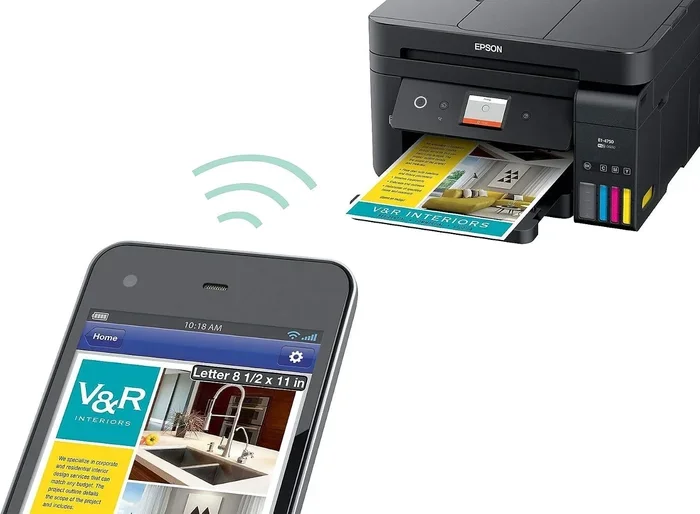
Yes, Epson printers can print directly from your phone without needing a computer. You can use Epson iPrint, Epson Connect, Wi-Fi Direct, and even cloud printing to send documents and photos straight from your smartphone. This guide walks you through every method step by step so you can start mobile printing right away.
Have you ever been sitting on your couch, trying to print something urgent, and realized your computer is turned off? It happens to all of us. The good news is that Can Epson Printers Print From Phone without a computer. The answer is a clear yes. Epson has built many of its printers with mobile printing in mind. Whether you have a smartphone running Android or an iPhone, you can print documents, photos, emails, and web pages directly from your device.
In this guide, we will walk you through every method you can use to print from your phone without a computer. We will cover apps, wireless setups, Bluetooth options, and even cloud-based solutions. By the end, you will know exactly which method works best for your Epson printer model and your needs. No computer required. No hassle. Just simple wireless printing from your phone.
The world of phone printing has come a long way. Epson understands that people want convenience. You carry your phone everywhere. It makes sense that your printer should work just as easily. Let us dive into how this all works.
Key Takeaways
- Phone printing is fully supported: Most Epson printers allow direct printing from phones without a computer.
- Epson iPrint is the go-to app: It works on both Android and iOS devices for easy wireless printing.
- Wi-Fi Direct lets you print without a router: You can connect your phone straight to the printer.
- Epson Connect enables remote printing: Send print jobs from anywhere using email or the Epson Print app.
- Setup is simple: Most methods take less than five minutes to configure.
- Troubleshooting is straightforward: Common issues like connection drops have easy fixes.
- Cloud printing is built in: Epson supports Google Cloud Print and Epson Cloud services.
📑 Table of Contents
- How Can Epson Printers Print From Phone Directly
- Setting Up Phone Printing With Your Epson Printer
- Which Epson Printer Models Support Phone Printing
- Common Problems and How to Fix Them
- Expert Tips for Better Phone Printing
- Epson Phone Printing vs. Computer Printing: What Is the Difference
- Final Thoughts on Printing From Your Epson Printer Without a Computer
How Can Epson Printers Print From Phone Directly
Epson printers use several technologies to connect with your phone. Each method has its own strengths. Some work best at home, while others are great when you are on the go. Let us break down each option so you can choose the right one for your situation.
Wi-Fi Printing
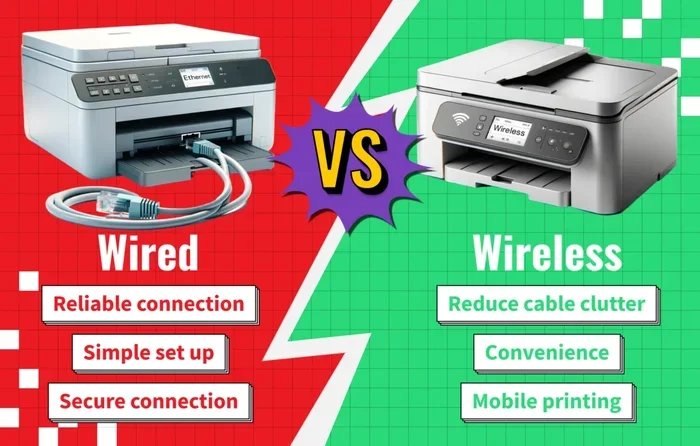
The most common way to print from your phone is through Wi-Fi. If your Epson printer and your phone are on the same Wi-Fi network, they can talk to each other. You do not need a computer in the middle. Just install the printer driver or app on your phone, and you are good to go.
Most Epson printers made in the last five years support Wi-Fi printing. Look for the Wi-Fi icon on your printer or check the product specifications on the Epson website. Models like the Epson WorkForce series and Epson EcoTank series are especially good at this. They have strong wireless modules that give you a stable connection.
Wi-Fi Direct Printing
Wi-Fi Direct is a game changer. It lets your phone connect directly to the printer without needing a router or Wi-Fi network at all. This is perfect when you are at a friend’s house, in a meeting room, or anywhere without a shared Wi-Fi network.
To use Wi-Fi Direct with your Epson printer, you turn on the feature in the printer settings. Your phone then sees the printer as a separate network. You connect to it just like you would connect to any Wi-Fi network. Once connected, you can send print jobs directly. The range is usually about 50 to 100 feet, which is more than enough for most home and office setups.
Bluetooth Printing
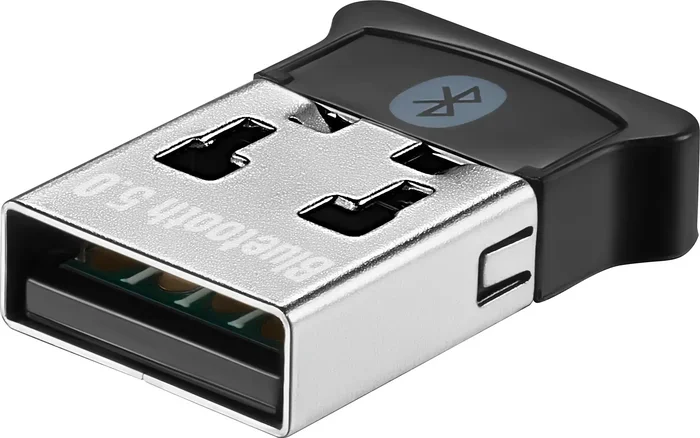
Some Epson printers also support Bluetooth printing. This is a shorter-range option, but it is very convenient for quick jobs. You pair your phone with the printer through your phone’s Bluetooth settings. Then you can print without any cables or Wi-Fi at all.
Bluetooth printing works best for small documents and photos. It is not ideal for large print jobs because the transfer speed is slower than Wi-Fi. But for a quick homework assignment or a photo printout, it gets the job done fast.
Epson iPrint App
The Epson iPrint app is Epson’s official mobile printing application. It is free to download on both the Google Play Store and the Apple App Store. This app is the easiest way to print from your phone to an Epson printer. It supports Wi-Fi, Wi-Fi Direct, and even Bluetooth connections.
With Epson iPrint, you can print photos, PDFs, Word documents, and web pages. The app also lets you scan documents using your phone’s camera and send them to your printer. It has a clean, simple interface that anyone can use, even if you are not very tech-savvy.
Epson Connect
Epson Connect is a powerful feature that lets you print from your phone even when you are not at home. It uses cloud technology to send print jobs to your printer from anywhere in the world. You can send an email with a document attached, and your Epson printer will print it automatically.
This is incredibly useful for people who travel often or work remotely. You can send an important contract to your home printer while you are at a coffee shop. Epson Connect makes remote printing possible without any complicated setup. You just need to register your printer with your Epson account and enable the feature.
Setting Up Phone Printing With Your Epson Printer
Now that you know the different ways your Epson printer can connect to your phone, let us walk through the actual setup process. The steps are simple and should take less than five minutes for most methods.
Step-by-Step Setup for Wi-Fi Printing
Here is how you set up Wi-Fi printing with your Epson printer and phone:
- Make sure your Epson printer is turned on and connected to your Wi-Fi network. You can check this on the printer’s display screen or by looking at the Wi-Fi indicator light.
- Download the Epson iPrint app from the App Store (iPhone) or Google Play Store (Android).
- Open the app and let it search for printers on your network.
- Select your Epson printer when it appears in the list.
- Choose the document or photo you want to print.
- Adjust settings like color, quality, and number of copies.
- Tap the Print button and wait for your printer to do its work.
That is it. You are now printing from your phone without a computer. The whole process is wireless and straightforward.
Setting Up Wi-Fi Direct
Wi-Fi Direct setup is slightly different because you do not need a router. Here is what to do:
- On your Epson printer, go to the Setup menu and select Wi-Fi Direct. Turn it on.
- A network name and password will appear on the printer screen.
- On your phone, go to Wi-Fi settings and look for the printer’s network name.
- Connect to it using the password shown.
- Open the Epson iPrint app or your phone’s built-in print feature.
- Select your printer and send the print job.
Wi-Fi Direct is especially handy when your home internet is down. You can still print as long as both devices are powered on. It is a reliable backup method that every phone user should know about.
Using the Built-In Phone Print Feature
Both Android and iPhone have built-in printing features that work with Epson printers. You do not even need to download a separate app if you are on the same Wi-Fi network.
On Android, go to the document you want to print, tap the menu button (three dots), and select Print. Choose your Epson printer from the list and tap Print.
On iPhone, open the document, tap the Share button, and select Print. Your Epson printer should appear if it is on the same network. This works for photos, PDFs, emails, and web pages. It is a built-in feature that Apple and Google have designed to work seamlessly with Wi-Fi printers.
Which Epson Printer Models Support Phone Printing
Not all printers are created equal when it comes to mobile printing. Most modern Epson printers support phone printing, but some older or budget models may not. Here is a quick look at the Epson printer lines that are known for excellent phone printing support.
| Printer Series | Phone Printing | Wi-Fi Direct | App Support |
|---|---|---|---|
| Epson EcoTank | Yes | Yes | Epson iPrint, Epson Connect |
| Epson WorkForce | Yes | Yes | Epson iPrint, Epson Connect |
| Epson Expression | Yes | Yes | Epson iPrint |
| Epson Stylus | Most models | Most models | Epson iPrint |
| Epson Expression Photo | Yes | Yes | Epson iPrint, Epson Connect |
As a general rule, any Epson printer made after 2017 will have strong phone printing capabilities. If you are buying a new printer and mobile printing is important to you, look for models that list Wi-Fi Direct and Epson iPrint in the features. The Epson EcoTank series is a popular choice for homes because it has low running costs and great wireless features.
If you are not sure whether your specific model supports phone printing, you can check the Epson support website. Just enter your model number, and the page will list all supported mobile printing methods. You can also look at the control panel on your printer. If you see a Wi-Fi or smartphone icon, your printer likely supports wireless printing from phones.
Common Problems and How to Fix Them
Phone printing is generally reliable, but sometimes things go wrong. Here are the most common issues people face and simple ways to fix them.
Printer Not Showing Up on the Phone
This is the most common problem. If your phone cannot find your Epson printer, the first thing to check is the Wi-Fi connection. Make sure both your phone and printer are on the same network. Sometimes restarting the router, phone, and printer fixes the issue quickly.
Another fix is to update the Epson iPrint app. Older app versions may not detect newer printers. Check the app store for any available updates. You can also try turning Wi-Fi Direct off and back on again. This refreshes the connection and often solves the problem.
Print Jobs Stuck in the Queue
If your print job seems to hang and never prints, try canceling the job from your phone and sending it again. Sometimes the print queue gets stuck, especially after a router restart or a network change. Restarting the printer can also clear the queue. Just turn the printer off, wait 10 seconds, and turn it back on.
Poor Print Quality from Phone
If your prints look faded or blurry when printed from your phone, check the print settings in the app. Make sure you have selected the right paper type and print quality. Printing in high quality mode uses more ink but gives much better results for photos and important documents.
Also, make sure your phone and printer are close enough. Weak wireless signals can cause data transfer issues that affect print quality. If you are using Wi-Fi Direct, stay within 50 feet of the printer for the best results.
Connection Drops During Printing
If your connection keeps dropping mid-print, your Wi-Fi signal may be weak. Try moving closer to the router or printer. You can also try switching to Wi-Fi Direct instead of regular Wi-Fi. This creates a direct connection that is less likely to be interrupted by other devices on the network.
Expert Tips for Better Phone Printing
Here are some pro tips that will make your Epson phone printing experience smoother and faster.
- Keep your printer firmware updated: Epson releases updates that improve wireless performance and fix bugs. Check the Epson support site regularly for updates.
- Use the Epson iPrint app instead of your phone’s built-in print feature: The Epson app gives you more control over settings like color, quality, and paper size.
- Print photos on photo paper: Phone prints look much better on glossy or matte photo paper than on regular office paper.
- Set your printer as the default: In your phone’s print settings, you can set your Epson printer as the default so you do not have to select it every time.
- Use Wi-Fi Direct for guests: If friends or family need to print, share the Wi-Fi Direct password instead of giving them access to your home network.
- Turn off the printer when not in use: This saves energy and keeps the printer ready when you need it. Epson printers have a quick start mode that turns them on in seconds.
- Organize your print queue: If you have multiple print jobs, group them together to save time and ink. Most mobile printing apps let you view and manage the queue.
Epson Phone Printing vs. Computer Printing: What Is the Difference
You might wonder if there is any difference between printing from your phone and printing from a computer. The short answer is no. Both methods send the same data to the printer. The only difference is the device you use to send the print job.
However, there are a few small differences worth noting. When you print from a computer, you have access to more advanced settings. You can adjust color profiles, page layout, and driver settings in more detail. When you print from your phone, the Epson iPrint app gives you most of the same options, but the interface is simpler and more streamlined.
For everyday printing tasks like homework, photos, and quick documents, phone printing is just as good as computer printing. In many cases, it is even faster because you do not have to transfer files to a computer first. You can print directly from your phone’s gallery, email, or web browser.
The biggest advantage of printing from your phone is convenience. You do not need to be near a computer. You can print from your couch, your bed, or even from outside your home using Epson Connect. This level of flexibility is something that computer printing simply cannot match.
Final Thoughts on Printing From Your Epson Printer Without a Computer
The short answer to the question “Can Epson Printers Print From Phone Without A Computer” is a resounding yes. Epson has made mobile printing easy, reliable, and accessible. Whether you use Wi-Fi, Wi-Fi Direct, Bluetooth, or Epson Connect, you have multiple ways to print directly from your phone.
The Epson iPrint app is your best friend in this journey. It ties all the methods together and gives you a simple, intuitive interface for sending print jobs. With built-in support on both Android and iPhone, you do not need any special technical skills to get started.
Remember the key steps: connect your printer to Wi-Fi or Wi-Fi Direct, download the Epson iPrint app, and start printing. If you run into any issues, the troubleshooting tips in this guide should help you resolve them quickly.
Phone printing is not a gimmick. It is a practical, everyday tool that saves you time and effort. Once you set it up, you will wonder how you ever lived without it. So go ahead, pick up your phone, and print something. Your Epson printer is ready to go.
Frequently Asked Questions
Do all Epson printers support printing from a phone?
Most Epson printers made in the last five years support mobile printing. However, very old or basic models may not have wireless capabilities. Check your printer’s specifications on the Epson website or look for a Wi-Fi icon on the control panel. If your printer has Wi-Fi, it likely supports phone printing.
Do I need to install any app to print from my phone?
For the best experience, download the Epson iPrint app. It is free and works on both Android and iPhone. However, both Android and iPhone also have built-in printing features that work with Epson printers on the same Wi-Fi network. You can use those without any extra app.
Can I print from my phone if I am not connected to my home Wi-Fi?
Yes, you can. Wi-Fi Direct lets your phone connect directly to the printer without a router. You can also use Epson Connect to print remotely from anywhere using the internet. Both methods work without you being on the same Wi-Fi network as the printer.
Is phone printing slower than printing from a computer?
Not really. For most documents and photos, the print speed is the same because the printer does the actual printing work. The only slight difference is that sending the job from your phone may take a second or two longer for very large files. For everyday use, you will not notice any difference.
Can I print photos directly from my phone to an Epson printer?
Absolutely. Epson printers are great at printing photos from phones. Use the Epson iPrint app for the best results. Make sure you select the right paper type, such as glossy photo paper, and choose high print quality for vibrant, sharp photos.
What should I do if my Epson printer and phone will not connect?
Start by making sure both devices are on the same Wi-Fi network. Restart the printer, phone, and router. Update the Epson iPrint app to the latest version. If the problem persists, try Wi-Fi Direct as an alternative connection method. You can also reset the printer to factory settings, which often fixes connection issues.
=== CONCLUSION ===
Can Epson Printers Print From Phone Without A Computer? Yes, they absolutely can. Epson has designed its printers to work seamlessly with smartphones through Wi-Fi, Wi-Fi Direct, Bluetooth, and cloud services. The Epson iPrint app makes the process simple and intuitive, while Epson Connect gives you the freedom to print from anywhere in the world.
Setting up mobile printing takes just a few minutes, and once it is done, you will never need to turn on your computer just to print something again. Whether it is a homework assignment, a photo, a work document, or a quick shopping list, your phone can handle it all.
Remember to keep your printer updated, use the right app, and troubleshoot any connection issues with the tips shared in this guide. With a little setup, your Epson printer becomes a powerful wireless printing companion that fits right in your pocket. Start printing from your phone today and enjoy the convenience of computer-free printing at its finest.