Can Displayport Be Converted To HDMI Without Issues
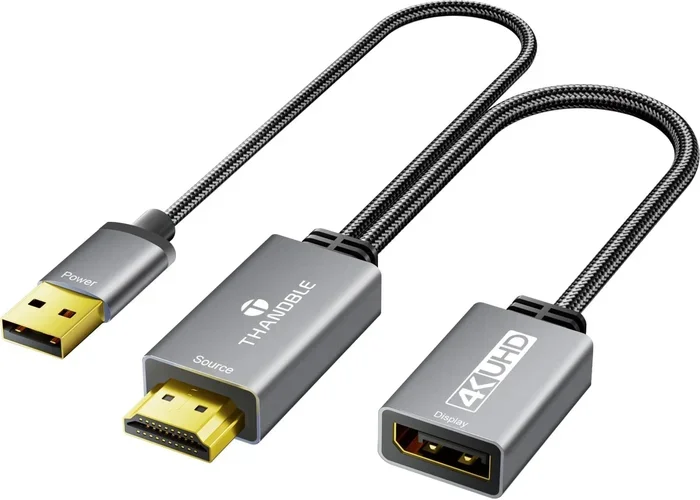
Yes, you can convert DisplayPort to HDMI easily using an adapter or cable. Whether you are connecting a gaming monitor, a graphics card, or a laptop, the right adapter makes it simple. This guide walks you through the entire process, including the types of adapters available, common issues, and how to pick the best one for your setup.
Key Takeaways
- DisplayPort to HDMI conversion is straightforward: You just need the right adapter or cable to make the connection work.
- Passive adapters work for most setups: They are affordable and plug-and-play for standard resolutions.
- Active adapters are needed for high-resolution displays: If you want 4K or higher refresh rates, an active adapter is the way to go.
- Check compatibility before buying: Not all adapters support every DisplayPort or HDMI version.
- Audio travels with the signal: You can get both video and audio through a DisplayPort to HDMI adapter.
- Common issues are easy to fix: No signal, no audio, or flickering can usually be resolved with a few simple steps.
📑 Table of Contents
- Can Displayport Be Converted to HDMI Without Issues?
- What Is DisplayPort and Why Do People Convert It to HDMI?
- How DisplayPort to HDMI Conversion Works
- Step-by-Step Guide to Converting DisplayPort to HDMI
- Common Issues When Converting DisplayPort to HDMI (And How to Fix Them)
- Which Adapter Should You Choose?
- Expert Tips for the Best DisplayPort to HDMI Experience
- Is DisplayPort to HDMI Conversion Lossless?
- Final Thoughts
Can Displayport Be Converted to HDMI Without Issues?
The short answer is yes. DisplayPort to HDMI conversion is something millions of people do every single day. Whether you are setting up a new monitor, connecting a laptop to a TV, or hooking up a gaming monitor to your graphics card, the process is simpler than most people think.
But “simple” does not mean “foolproof.” There are a few things you need to know before you plug anything in. Not all adapters are created equal. Some will give you crystal-clear picture and sound, while others might leave you scratching your head. This guide breaks it all down so you can make the right choice the first time.
We will cover the different types of adapters, how the conversion works, common problems, and expert tips to get the best results. By the end, you will feel confident about your DisplayPort HDMI connection and know exactly what to look for.
Let us get into it. No jargon, no fluff, just practical advice you can use right away.
What Is DisplayPort and Why Do People Convert It to HDMI?
DisplayPort is a digital display interface developed by VESA. It is commonly found on computers, graphics cards, and high-end monitors. HDMI, on the other hand, is the standard connection for TVs, projectors, and many home entertainment devices.
So why do people need to convert between the two? Here are the most common reasons:
- Your monitor only has DisplayPort, but your TV only has HDMI. This is one of the most frequent scenarios in home setups.
- Your graphics card outputs DisplayPort, but your display uses HDMI. Many modern GPUs favor DisplayPort for its higher bandwidth.
- You want to use a laptop with a DisplayPort output on a projector or TV with HDMI input. This is very common in conference rooms and classrooms.
- You are building a multi-monitor setup and need to mix different connection types.
No matter the reason, the video signal conversion from DisplayPort to HDMI is well-supported across the industry. You just need the right tool for the job.
How DisplayPort to HDMI Conversion Works
Understanding the basics of how this conversion works helps you choose the right adapter. It is not magic, but it is not complicated either.
Passive Adapters vs Active Adapters
This is the most important distinction you will encounter. There are two main types of DisplayPort to HDMI adapter options on the market.
Passive adapters simply change the shape of the connector. They do not modify the signal. These work great when your DisplayPort source supports dual-mode (DisplayPort++), which most modern graphics cards and laptops do. A passive adapter is plug-and-play and usually costs between $5 and $15.
Active adapters contain a chip that converts the signal from one format to another. You need an active adapter when your DisplayPort source does not support dual-mode or when you are pushing higher resolutions and refresh rates. These cost more, typically between $20 and $60, but they offer more flexibility.
Does Audio Travel Through the Adapter?
Yes, in most cases. When you convert DisplayPort to HDMI, the audio transmission travels along with the video signal. This means you can connect your computer to a TV and get both picture and sound through a single cable. That is a huge convenience compared to older setups where you needed separate audio and video cables.
However, there is one thing to watch out for. Some active adapters may need external power to pass audio correctly. If you notice no sound after connecting, check whether your adapter has a USB power cable and plug it in.
Step-by-Step Guide to Converting DisplayPort to HDMI
Setting up a DisplayPort HDMI connection takes just a few minutes. Here is exactly what to do.
- Identify your output. Check your computer or graphics card for a DisplayPort or Mini DisplayPort output. Make sure you know which version it is.
- Choose your adapter. Pick a passive adapter for standard setups. Choose an active adapter for 4K resolution or higher refresh rates.
- Connect the DisplayPort end. Plug it firmly into your source device. You should feel a click.
- Connect the HDMI end. Plug the HDMI cable into your adapter and then into your display.
- Power on both devices. Turn on your computer and your monitor or TV.
- Select the correct input. On your TV or monitor, switch to the HDMI input that you plugged into.
- Check your settings. Go to your display settings and make sure the resolution and refresh rate match your display capabilities.
That is it. In most cases, you will have a working picture and sound within seconds. If something does not work, do not panic. We will cover troubleshooting in the next section.
For more tips on setting up your tech workspace, you might also enjoy our article on 10 Gadgets To Make Moms Life Easier, which covers useful accessories for any home setup.
Common Issues When Converting DisplayPort to HDMI (And How to Fix Them)
Even with the right adapter, you might run into problems. Here are the most common ones and how to solve them.
No Signal on the Display
This is the most frustrating issue, but it is usually easy to fix. Start by checking that both ends of the adapter and cable are fully seated. Sometimes a loose connection is all it takes. Next, try a different HDMI port on your display. If that does not work, test with a different cable or adapter to rule out a faulty adapter.
Also, make sure your DisplayPort version and HDMI version are compatible. Older adapters may not support newer signal standards, and vice versa.
No Audio Through HDMI
If you get video but no sound, the first thing to check is your computer’s audio output settings. On Windows, right-click the speaker icon in your taskbar and select your HDMI output device. On a Mac, go to System Settings and choose the HDMI display as your audio output.
If that does not fix it, try unplugging the adapter and plugging it back in. Sometimes the system needs a fresh detection cycle to recognize the audio channel.
Flickering or Poor Image Quality
Flickering usually points to a bandwidth issue. Your adapter or cable may not support the resolution or refresh rate you are trying to use. Lower the resolution temporarily to test. If the flickering stops, your adapter is the bottleneck. Upgrade to a better one that supports your desired resolution support levels.
Adapter Not Recognized by the Computer
Some computers are picky about which adapters they accept. Try a different USB port if your active adapter has a power cable. Update your graphics drivers, as outdated drivers can cause detection problems. If nothing works, the adapter itself may be incompatible with your specific hardware combination.
For general tech troubleshooting tips, check out our guide on Adding Prefixes To Numbers On Iphone, which covers helpful device connectivity solutions.
Which Adapter Should You Choose?
Not all adapter compatibility situations are the same. Here is a quick comparison to help you decide.
| Feature | Passive Adapter | Active Adapter |
|---|---|---|
| Price Range | $5 – $15 | $20 – $60 |
| Power Required | No | Sometimes (USB) |
| Max Resolution | 4K at 30Hz or 1080p at 60Hz | 4K at 60Hz or higher |
| Best For | Basic setups, office use | Gaming, 4K displays, high refresh |
| Setup Difficulty | Plug and play | Plug and play (may need drivers) |
| Audio Support | Yes | Yes (may need power for audio) |
For most everyday users, a passive adapter is all you need. If you are a gamer or working with 4K content, invest in an active adapter. The extra cost is worth the peace of mind and the better performance.
When shopping, look for adapters that explicitly list the HDMI version and DisplayPort version they support. Reputable brands like Cable Matters, UGREEN, and Sabrent offer reliable options across both categories.
Expert Tips for the Best DisplayPort to HDMI Experience
Here are some insider tips that will save you time and frustration.
- Always check your resolution settings after connecting. Your computer might default to a lower resolution than your display supports. Go into your display settings and manually select the native resolution of your monitor or TV.
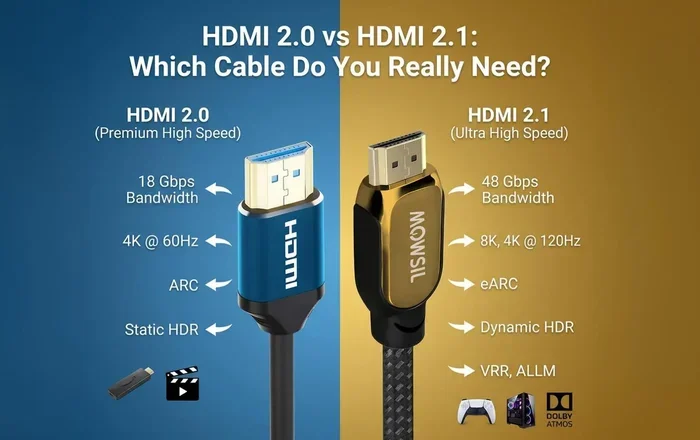
- Use high-quality cables. A cheap HDMI cable can undo the work of a great adapter. Look for cables rated for the bandwidth you need, especially for 4K and 120Hz setups.
- Keep your drivers updated. Graphics drivers from NVIDIA, AMD, and Intel are frequently updated to improve display compatibility. A quick update can solve many connection issues.
- Consider a docking station. If you need multiple connections, a docking station with DisplayPort and HDMI outputs can simplify your setup and reduce adapter clutter.
- Test with a different device if possible. This helps you determine whether the problem is with the adapter, the cable, or the source device.
These small steps make a big difference. Most people skip them and then wonder why their setup is not working perfectly. Take the extra five minutes to check these things, and you will save yourself hours of frustration.
Is DisplayPort to HDMI Conversion Lossless?
One question that comes up often is whether converting from DisplayPort to HDMI degrades the signal. The honest answer is: it depends.
For standard resolutions like 1080p and 4K at 30Hz, a quality passive adapter introduces no noticeable loss. The digital signal stays intact from end to end. You get the same picture quality as if you were using a native HDMI output.
At higher refresh rates and resolutions, the picture quality depends on the adapter quality and the cable bandwidth. A cheap active adapter might compress the signal or drop to a lower refresh rate. This is why investing in a well-reviewed adapter matters more than you might think.
The bottom line: for most users, the conversion is completely lossless and you will not notice any difference in picture quality compared to a native HDMI connection.
Final Thoughts
Converting DisplayPort to HDMI is one of the most common and straightforward tasks in modern tech setups. With the right adapter, a few minutes of your time, and the tips in this guide, you can connect any DisplayPort source to any HDMI display without a hitch.
Remember to match your adapter type to your needs. Passive for simple setups, active for high-performance displays. Check your versions, update your drivers, and do not be afraid to troubleshoot when something goes wrong. Most issues have quick and easy fixes.
The world of display cable connections can feel overwhelming at first, but it does not have to be. Once you understand the basics of how DisplayPort and HDMI talk to each other, you will feel confident tackling any setup. Whether you are a gamer chasing high refresh rates, a professional working with 4K displays, or just someone who wants to connect their laptop to the living room TV, you now have everything you need to get it done right.
Go ahead and make that connection. You have got this.
Frequently Asked Questions
Can I use a DisplayPort to HDMI adapter for 4K gaming?
Yes, but you need an active adapter that supports 4K at your desired refresh rate. A passive adapter may only support 4K at 30Hz, which is not ideal for gaming. Look for an adapter that explicitly states it supports 4K at 60Hz or higher for a smooth gaming experience.
Do I need any special drivers for a DisplayPort to HDMI adapter?
Most passive adapters do not need any drivers. They work instantly when you plug them in. Active adapters sometimes require drivers or firmware updates, especially for higher resolutions. Always check the manufacturer’s website for the latest support information.
Will I get audio when I convert DisplayPort to HDMI?
Yes, in most cases audio travels through the HDMI connection along with the video. If you do not hear sound, check your computer’s audio output settings and make sure the HDMI display is selected as the audio device.
Can I convert HDMI to DisplayPort as well?
Yes, but it works differently. Converting HDMI to DisplayPort almost always requires an active adapter because the signal direction is reversed. Passive adapters only work for DisplayPort to HDMI in most cases. Make sure you buy the right direction for your needs.
Why does my DisplayPort to HDMI adapter keep disconnecting?
This is usually caused by a loose connection, an incompatible adapter, or outdated graphics drivers. Try reseating the adapter and cables, testing a different adapter, and updating your GPU drivers. If the problem persists, the adapter itself may be faulty.
What is the difference between DisplayPort and Mini DisplayPort for adapters?
The signal is the same, but the connector shape is different. Mini DisplayPort is a smaller version used on some laptops and Apple devices. You just need an adapter that matches the connector type on your device. The conversion process and compatibility remain the same.
=== CONCLUSION ===
Can DisplayPort be converted to HDMI? Absolutely, and without major issues if you follow the right steps. The key is choosing the right type of adapter, checking your compatibility, and knowing how to troubleshoot when something goes wrong. With passive adapters for simple jobs and active adapters for demanding setups, you have options for every situation and budget.
Keep the expert tips in mind, update your drivers regularly, and invest in quality cables. Your DisplayPort to HDMI connection will be rock solid, and you will enjoy seamless video and audio every time you connect your devices.