Are USB 3 and USB C the Same Thing You Need to Know
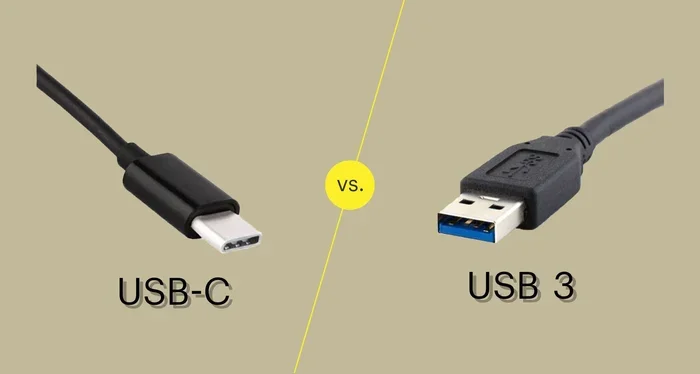
USB 3 and USB-C are not the same thing. USB 3 refers to a data transfer standard, while USB-C refers to a physical connector shape. Understanding this difference helps you pick the right cables and ports for your devices without confusion or wasted money.
Have you ever picked up a cable and wondered if it was the right one for your device? You are not alone. Many people mix up USB 3 and USB-C because the names sound similar. But here is the truth: they are not the same thing at all. One refers to a data transfer standard, and the other refers to a physical connector shape. Once you understand this simple difference, choosing the right cable becomes much easier.
This guide walks you through everything you need to know. We will break down what each term means, how they differ, and how to pick the right setup for your needs. By the end, you will never confuse the two again.
Key Takeaways
- USB 3 and USB-C are different concepts: One is a data standard, the other is a connector type.
- USB-C is a reversible connector: It works with multiple USB standards including USB 3 and USB 4.
- Speed depends on the USB standard: USB 3.0, 3.1, and 3.2 offer different data transfer speeds regardless of connector type.
- Not all USB-C cables support USB 3: Some USB-C cables only carry power or USB 2.0 speeds.
- Check your device specs: Always verify what USB standard your port and cable support before buying.
- Adapters exist for compatibility: You can use USB-C to USB-A adapters to connect older devices.
- Future-proofing matters: USB-C is becoming the universal standard for most modern devices.
📑 Table of Contents
What Is USB 3?
USB 3 is a data transfer standard developed by the USB Implementers Forum. It defines how fast data moves between devices. Think of it as a highway. The wider the highway, the more cars can travel at once. USB 3 is a wider highway compared to older USB versions.
USB 3 comes in several versions. Each one improves on the last. Here is a quick look at the main versions:
- USB 3.0: Also called USB 3 Gen 1. It offers speeds up to 5 Gbps. This was a huge step up from USB 2.0.
- USB 3.1: Also called USB 3 Gen 2. It doubles the speed to 10 Gbps. Great for fast file transfers.
- USB 3.2: This version can reach 20 Gbps using two-lane operation. It uses better encoding technology.
The USB 3 Standard Explained
When people say USB 3, they are talking about the protocol or specification. This is the set of rules that governs how data moves through a cable. It has nothing to do with the shape of the plug. You can have a USB 3 connection using different connector types like USB-A or USB-B.
For example, an external hard drive might use a USB 3.0 connection with a standard USB-A plug. The data moves fast, but the connector looks like the classic rectangular shape you have seen for years.
USB 3 Speed and Power
Data transfer speed is the main benefit of USB 3. But it also improves power delivery. USB 3 can supply more current than USB 2.0. This means devices charge faster. It also allows for better power management, which helps extend battery life on laptops and tablets.
Here is a simple comparison of USB versions:
- USB 2.0: 480 Mbps max speed, 500 mA power
- USB 3.0: 5 Gbps max speed, 900 mA power
- USB 3.1 Gen 2: 10 Gbps max speed, 900 mA power
- USB 3.2 Gen 2×2: 20 Gbps max speed, improved power delivery
As you can see, each new version brings faster speeds and better efficiency. This is why upgrading your cables and ports matters.
What Is USB-C?
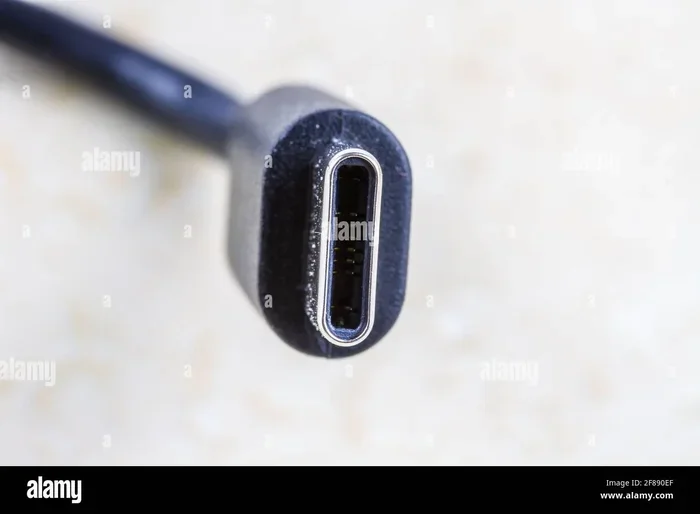
USB-C is a connector type. It is a small, reversible oval-shaped plug. You can insert it either way, which is a huge convenience. No more flipping the cable three times to get it right.
USB-C has become the go-to connector for many modern devices. Smartphones, laptops, tablets, and even gaming consoles now use USB-C ports. Its compact size and versatility make it ideal for thin, lightweight devices.
Understanding the USB-C Connector
The USB-C connector is not tied to any single USB standard. It is simply a shape. A USB-C port can support USB 2.0, USB 3.0, USB 3.1, USB 3.2, or even USB 4. The port shape stays the same, but the underlying technology can vary.
This is where confusion often starts. People see a USB-C port and assume it means fast speeds. But that is not always true. A USB-C port could be running at USB 2.0 speeds, which maxes out at 480 Mbps. Always check what USB standard the port supports.
Many devices also use Thunderbolt 3 or Thunderbolt 4 through USB-C connectors. These are even faster and support video output and docking stations. Thunderbolt 3 can deliver up to 40 Gbps, which is much faster than standard USB 3.
USB-C and Power Delivery
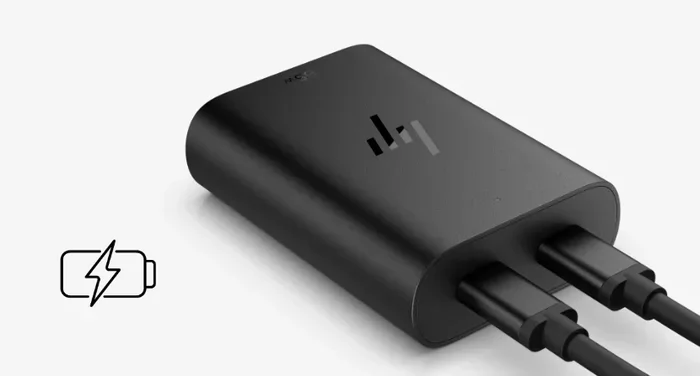
USB Power Delivery (USB PD) is a big part of why USB-C became so popular. It can deliver up to 100 watts of power. This means you can charge a laptop with the same cable you use for your phone. The USB-C connector supports higher voltage and current than older USB types.
USB-C also supports USB Alternate Mode. This allows video signals to travel through the same cable. You can connect your laptop to a monitor using just one USB-C cable. No adapters needed in many cases.
Key Differences Between USB 3 and USB-C
Now that you know what each term means, let us look at the real differences. These are not competing technologies. They serve different purposes in the USB ecosystem.
Speed vs. Shape
The biggest difference comes down to this: USB 3 is about speed, USB-C is about shape. Think of it this way. USB 3 tells you how fast data travels. USB-C tells you what the plug looks like. They are two different layers of the same technology.
Here is a simple way to remember it:
- USB 3: The engine under the hood. It determines performance.
- USB-C: The steering wheel. It is the physical interface you touch.
Compatibility Matters
Not all USB-C cables support USB 3 speeds. A cheap USB-C cable might only support USB 2.0. This means you get slow data transfer even if your device has a USB 3-capable USB-C port. Always buy cables from reputable brands and check the specifications.
Similarly, USB 3 cables do not always use USB-C connectors. Many USB 3 cables use the traditional USB-A connector. So a USB 3 cable and a USB-C port might not match without an adapter.
Many modern devices bridge both worlds. A laptop might have a USB-C port that supports USB 3.2. This gives you both the reversible connector and fast speeds. But the two features are independent of each other.
Can USB-C and USB 3 Work Together?
Yes, they can work together. In fact, many modern setups do. A USB-C port on your laptop might support USB 3.1 speeds. The USB-C connector plugs in, and the USB 3.1 standard governs the data transfer rate. Both technologies work hand in hand.
Backward Compatibility Explained
USB is backward compatible. This means newer USB standards work with older devices. A USB 3.0 device can connect to a USB 2.0 port. The speed will drop to USB 2.0 levels, but it will still work. This is a great feature that keeps older devices useful.
The same goes for USB-C. You can use a USB-C to USB-A adapter to connect a USB-C cable to an older USB-A port. The connection works, but the speed depends on the older port’s capabilities.
Many access control systems and security devices still rely on traditional USB-A ports. If you are setting up a security or access system, the connection type matters. Understanding the differences between USB standards helps you choose the right cables and adapters for your setup. You can read more about the advantages and disadvantages of access control systems to see how USB connectivity plays a role in modern security infrastructure.
Adapters and Dongles
Adapters make it easy to mix and match USB types. Here are some common ones you might need:
- USB-C to USB-A adapter: Connects USB-C devices to older USB-A ports.
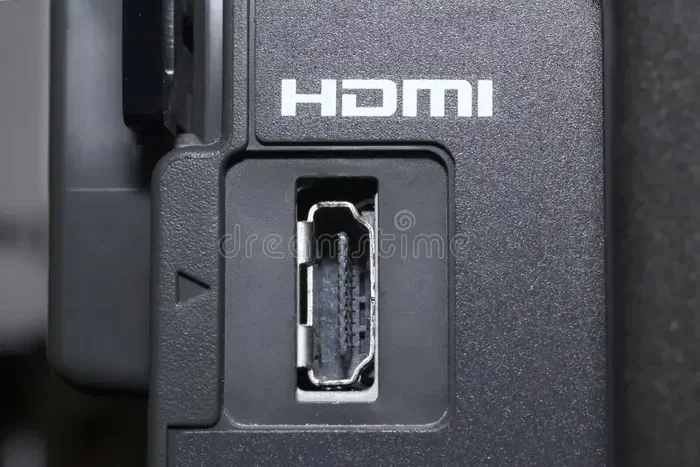
- USB-C to HDMI adapter: Sends video to a monitor from a USB-C port.
- USB-C docking station: Adds multiple ports including USB-A, HDMI, and Ethernet.
- USB-A to USB-C cable: A direct cable with different connector types on each end.
When buying adapters, make sure they support the USB standard you need. A cheap adapter might limit your speeds to USB 2.0 even if your devices support USB 3.
Which One Should You Choose?
Choosing between USB 3 and USB-C depends on what you need. Let us look at some practical scenarios to help you decide.
For Speed and Performance
If you need fast data transfers, focus on the USB standard. Look for USB 3.1 or USB 3.2 cables and ports. These will give you the best speeds for large file transfers, video editing, and backups.
Make sure your cable supports the speed you need. A USB 3.2 Gen 2 cable rated for 10 Gbps will not deliver its full potential if it plugs into a USB 3.0 port that maxes out at 5 Gbps. Always match your cable and port to the highest standard available.
For Everyday Use
For most everyday tasks, USB-C is the way to go. It is reversible, compact, and supports fast charging. Even if you only need USB 2.0 speeds for basic file transfers, USB-C gives you a better experience than older connector types.
If you are shopping for accessories, look for devices that use USB-C with USB 3 support. This gives you the best of both worlds. You get the convenient connector shape and fast data speeds. Many modern laptops, tablets, and phones offer this combination.
Even in your daily tech life, you might rely on various apps and devices that sync through USB connections. For instance, some pet care tech and lifestyle tools, like apps that are like Uber for finding dog walkers, depend on stable USB connections for syncing data and charging devices on the go.
Common Mistakes and Expert Tips
Buying the Right Cable
One of the biggest mistakes people make is buying the wrong cable. They see a USB-C connector and assume it supports fast speeds. This is not always true. Here are some tips to avoid common pitfalls:
- Check the cable spec: Look for the USB standard printed on the cable or its packaging.
- Buy from trusted brands: Cheap no-name cables often only support USB 2.0.
- Look for the SS logo: The “SS” (SuperSpeed) logo means the cable supports USB 3 speeds.
- Test your speeds: Use a speed test tool to verify your cable is performing as expected.
Future-Proofing Your Setup
USB-C is the future. More and more devices are dropping older connector types in favor of USB-C. If you are buying new accessories, go with USB-C. It will work with current and future devices.
For the best future-proofing, choose cables that support USB 3.2 or USB4. These standards will serve you well for years. They offer the fastest speeds and best compatibility with emerging devices.
Expert insiders also recommend keeping a few USB-C cables of different lengths on hand. You never know when you will need to charge or transfer data. Having the right cable ready saves time and frustration.
Expert Insights on USB Evolution
The USB standard has come a long way since its introduction in the mid-1990s. Each new version brought faster speeds, better power delivery, and improved features. The introduction of USB-C marked a turning point in how we connect devices.
USB4 is the latest development in the USB world. It is built on the Thunderbolt 3 protocol and uses the USB-C connector exclusively. USB4 supports speeds up to 40 Gbps and can handle data, video, and power all through a single cable. This represents the next step in USB evolution.
Industry experts predict that USB-C will eventually replace all other connector types. The USB Implementers Forum continues to push for universal adoption. As more devices adopt USB-C, the ecosystem becomes simpler and more consistent for consumers.
When you understand the difference between USB 3 and USB-C, you are better equipped to navigate this evolving landscape. You can make smart buying decisions and avoid the confusion that trips up so many people.
Conclusion
USB 3 and USB-C are not the same thing, but they work together in modern devices. USB 3 defines how fast data moves. USB-C defines the shape of the connector. Both matter when you are choosing cables and ports for your tech setup.
The good news is that most modern devices combine both. A USB-C port with USB 3 support gives you speed and convenience in one package. As technology continues to evolve, USB-C will become even more dominant. Understanding this difference now puts you ahead of the curve.
Next time you shop for cables or devices, remember what you learned here. Check the USB standard. Check the connector type. With this knowledge, you will always pick the right connection for your needs.
Frequently Asked Questions
Can a USB-C cable be USB 3?
Yes, a USB-C cable can support USB 3 speeds. The USB-C connector is just the shape of the plug. The cable itself can carry data at USB 3 standards like USB 3.0, 3.1, or 3.2. Always check the cable specifications to confirm its speed rating.
Why is my USB-C cable slow if it says USB 3?
Your cable might be slow because the port it is connected to does not support USB 3. Or the cable itself might be a low-quality one that only supports USB 2.0 speeds. Always verify both the cable and the port support the same USB standard for the best performance.
Is USB-C faster than USB 3?
This is a common mix-up. USB-C is not a speed standard, so it cannot be compared directly to USB 3. USB-C is a connector shape. USB 3 is a data standard. A USB-C port can support USB 3 speeds, but it can also support slower USB 2.0 speeds. The speed depends on the USB standard, not the connector.
Do all USB-C ports support USB 3?
No, not all USB-C ports support USB 3. Some USB-C ports only support USB 2.0, which is much slower. Always check your device specifications to see what USB standard the USB-C port supports. Look for terms like USB 3.0, USB 3.1, or USB 3.2 in the product details.
Can I use a USB 3 cable with a USB-C port?
Yes, you can use a USB 3 cable with a USB-C port if the cable has a USB-C connector on one end. If the cable has a USB-A connector, you will need a USB-C adapter. The connection will work, and you will get USB 3 speeds as long as the port also supports USB 3.
What is the difference between USB 3 and USB 4?
USB 4 is the newest USB standard and offers much faster speeds than USB 3. USB 4 can reach up to 40 Gbps and always uses the USB-C connector. USB 3 maxes out at 20 Gbps with USB 3.2 Gen 2×2. USB 4 also supports Thunderbolt 3 and 4 protocols, making it more versatile for professional use.
=== CONCLUSION ===
Now you know the answer to the question “Are USB 3 and USB-C the same thing?” They are not. USB 3 is a data transfer standard that defines speed. USB-C is a physical connector shape that defines how the plug looks and fits. Both play important roles in your tech setup, and understanding both helps you make better buying decisions.
Take a moment to check your current cables and devices. See what USB standards and connector types they use. This small step can save you money, time, and frustration. Share this guide with friends who still confuse the two. The more people understand this difference, the easier tech shopping becomes for everyone.