Are There Two Types Of Micro Usb Cables You Should Know
Yes, there are two types of Micro USB cables — the standard Micro USB and the Micro USB 3.0. They look similar but serve different purposes, with one offering faster data transfer and the other being more common in everyday devices. Knowing the difference helps you pick the right cable for charging, syncing, and data transfer without wasting money on the wrong one.
Have you ever dug through a junk drawer full of cables and wondered whether they all do the same thing? If you have a pile of Micro USB cables lying around, you might have noticed that some look slightly different from others. That is not your imagination. There really are two types of Micro USB cables, and they are not interchangeable in every situation.
Understanding the difference between these two cables can save you time, money, and a lot of frustration. Whether you are charging your phone, transferring files from a camera, or connecting a portable hard drive, using the right cable makes all the difference. In this guide, we break down everything you need to know about Micro USB cable types, how to tell them apart, and which one you actually need.
By the end of this article, you will never mix up your cables again. We will walk you through the physical differences, compatibility issues, and practical tips for choosing the right one. Let us get into it.
Key Takeaways
- Two types exist: Standard Micro USB (2.0) and Micro USB 3.0 cables look different and work differently.
- Physical design matters: The Micro USB 3.0 cable is wider and has extra pins for faster speeds.
- Compatibility is key: Plugging a Micro USB 3.0 cable into a Micro USB 2.0 port won’t work properly.
- Check your device: Older phones and gadgets use standard Micro USB, while newer portable hard drives use Micro USB 3.0.
- Charging speed varies: Both cables charge devices, but data transfer speeds differ significantly.
- Type C is replacing Micro USB: Many newer devices have moved to USB Type C, but Micro USB is still everywhere.
📑 Table of Contents
- What Exactly Is a Micro USB Cable?
- The Two Types of Micro USB Cables Explained
- How to Tell the Two Types Apart
- Which Micro USB Cable Do You Actually Need?
- Common Mistakes People Make with Micro USB Cables
- Micro USB vs. USB Type C: What Is the Difference?
- Tips for Buying the Right Micro USB Cable
- Final Thoughts
What Exactly Is a Micro USB Cable?
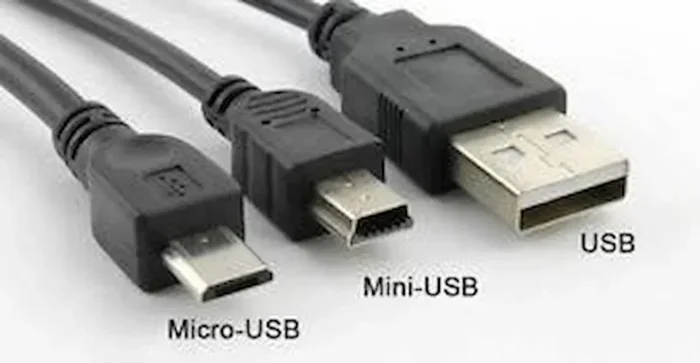
A Micro USB cable is a small, rectangular connector used to charge devices and transfer data. It has been a standard connector for many years and appears in countless gadgets. From older Android phones to Bluetooth speakers, GPS devices, and digital cameras, the Micro USB cable has been a go-to connector for a long time.
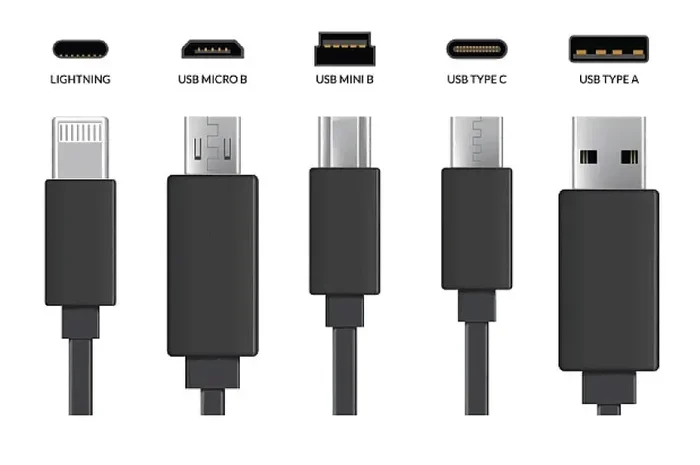
The USB Implementers Forum (USB-IF) introduced the Micro USB connector back in 2007. It was designed to be smaller than the Mini USB connector that came before it. This made it perfect for slim devices like smartphones and fitness trackers. Even though USB Type C is taking over now, millions of devices still rely on Micro USB cables every single day.
Here are some common devices that use Micro USB cables:
- Older Android smartphones and tablets
- Portable Bluetooth speakers
- Digital cameras and camcorders
- GPS navigation devices
- E-readers like older Kindle models
- Portable hard drives and flash drives
- Fitness trackers and smartwatches
- Game controllers and peripherals
Not all Micro USB cables are the same, though. That is the key thing to understand. There are two distinct types, and each has its own design, capabilities, and best use cases.
The Two Types of Micro USB Cables Explained
When people ask, “Are there two types of Micro USB cables?” the answer is a definite yes. The two types are the Micro USB 2.0 (standard) and the Micro USB 3.0. They share the same basic connector shape, but they differ in size, pin configuration, and speed capabilities.
Micro USB 2.0 (Standard Micro USB)
The standard Micro USB cable is the one you have probably used the most. It is the slim, five-pin connector found in millions of devices. This is the original Micro USB design that became the universal charging and data standard for mobile devices.
Here are the key features of the Micro USB 2.0 cable:
- Five pins inside the connector
- Data transfer speed up to 480 Mbps (USB 2.0 standard)
- Compact and slim design
- Widely compatible with most older devices
- Black-colored interior in the connector (usually)
The standard Micro USB cable handles charging and basic data transfer with ease. For most everyday tasks like syncing contacts, transferring photos, or charging your phone overnight, this cable gets the job done perfectly. It is also the most affordable and widely available option.
Micro USB 3.0 (SuperSpeed Micro USB)
The Micro USB 3.0 cable is the newer, faster version. It was introduced to support the USB 3.0 SuperSpeed standard, which offers much faster data transfer rates. But to achieve those speeds, the connector had to be redesigned with more pins.
Here are the key features of the Micro USB 3.0 cable:
- Nine pins inside the connector (five original plus four extra)
- Data transfer speed up to 5 Gbps (SuperSpeed USB 3.0)
- Wider connector body compared to the standard version
- Blue-colored interior in the connector (this is a key identifier)
- Backward compatible with Micro USB 2.0 devices (but at slower speeds)
The Micro USB 3.0 cable is most commonly found in portable hard drives, some cameras, and certain external SSDs. If you need to move large files quickly — like backing up hours of 4K video — this is the cable you want.
How to Tell the Two Types Apart
Telling the difference between the two Micro USB cable types is easier than you might think. You do not need any special tools or technical knowledge. Just look at the connector and check a few simple things.
Check the Color Inside the Connector
This is the easiest way to identify your cable. Look at the plastic piece inside the USB end of the cable. If it is black, you are looking at a Micro USB 2.0 cable. If it is blue, you have a Micro USB 3.0 cable. That is it. The color coding was specifically designed by the USB-IF to help consumers tell the difference at a glance.
Look at the Size and Width
The Micro USB 3.0 connector is noticeably wider than the standard Micro USB 2.0 connector. This is because of the extra pins packed inside. If you hold both cables side by side, the difference in width is immediately obvious. The standard cable is sleek and narrow, while the USB 3.0 version feels chunkier.
Count the Pins (If You Can See Inside)
If you look closely at the metal connector tip, you might be able to see the pins. The standard Micro USB 2.0 has five pins arranged in two rows. The Micro USB 3.0 has nine pins with an additional row of pins on the back side. This extra set of pins is what enables the SuperSpeed data transfer capability.
Check Your Device Manual or Specs
When in doubt, check the device specifications. Most manufacturers clearly state which type of Micro USB connector their device uses. If your device supports USB 3.0 speeds, it will require a Micro USB 3.0 cable for those speeds. If it only supports USB 2.0, a standard cable is all you need.
Which Micro USB Cable Do You Actually Need?
Choosing the right Micro USB cable depends on what you are doing with it. Not every situation requires the faster Micro USB 3.0 cable. In fact, for most everyday users, the standard Micro USB 2.0 cable is perfectly fine.
When to Use a Micro USB 2.0 Cable
The standard Micro USB 2.0 cable is the right choice for most situations. Here are some common scenarios where it works great:
- Charging your phone or tablet — Charging speed depends on the power source, not the cable type.
- Syncing contacts and calendars — These small data transfers do not need high speeds.
- Transferring photos and music files — For typical file sizes, the 480 Mbps speed is more than enough.
- Connecting to older accessories — Speakers, fitness trackers, and GPS devices usually only support USB 2.0.
When to Use a Micro USB 3.0 Cable
The Micro USB 3.0 cable shines when you need fast data transfer. Consider using it in these situations:
- Backing up large files from a portable hard drive — The 5 Gbps speed makes this much faster.
- Transferring video footage from a camcorder — Large video files benefit from SuperSpeed transfer.
- Connecting an external SSD — To get the full speed of an SSD, you need the right cable.
- Any device that specifically requires USB 3.0 — Check your device manual to be sure.
Common Mistakes People Make with Micro USB Cables
Even though Micro USB cables are simple devices, people make mistakes with them all the time. Here are some common errors and how to avoid them.
Assuming All Micro USB Cables Are the Same
This is the biggest mistake. Not all Micro USB cables are created equal. Using a Micro USB 2.0 cable when you need a Micro USB 3.0 cable will limit your data transfer speeds. On the flip side, using a Micro USB 3.0 cable for a device that only supports USB 2.0 will not give you any extra benefit.
Forcing the Cable Into the Wrong Port
The Micro USB 3.0 connector is wider than the standard one. If you try to force it into a Micro USB 2.0 port, you can damage the port or the cable. Always match the connector to the right port. If it does not fit easily, do not force it.
Buying Cheap, Low-Quality Cables
Not all cables are built the same. Cheap cables may use thinner wires that cannot handle the power or data speeds they claim to support. This can lead to slow charging, failed data transfers, or even safety hazards. Look for cables from reputable brands or those that are USB-IF certified.
Ignoring Cable Length and Its Impact
Longer cables can result in slightly slower charging and data transfer due to resistance in the wire. If you need fast charging or high-speed data transfer, keep your cable as short as practical — ideally under 6 feet (about 2 meters).
Micro USB vs. USB Type C: What Is the Difference?
You have probably heard that USB Type C is replacing Micro USB. This is true for many newer devices. But understanding the difference helps you know what to expect as technology evolves.
The Micro USB cable has been around since 2007 and served the mobile world well for over a decade. It is small, reliable, and works with a huge range of devices. However, it has limitations in terms of speed, power delivery, and reversible design.
USB Type C is the newer standard that addresses many of these limitations. It is reversible (you can plug it in either way), supports faster data transfer speeds, and can deliver more power for faster charging. Many modern smartphones, laptops, and tablets now use USB Type C instead of Micro USB.
Here is a quick comparison:
- Micro USB 2.0: 480 Mbps data speed, non-reversible, widely available, low cost
- Micro USB 3.0: 5 Gbps data speed, non-reversible, less common, slightly higher cost
- USB Type C: Up to 40 Gbps data speed (USB 3.2/4), reversible, modern standard, becoming the new normal
If you are buying a new device today, there is a good chance it uses USB Type C. But if you are managing a collection of older devices, Micro USB cables are still essential to keep around.
Tips for Buying the Right Micro USB Cable
Shopping for a Micro USB cable seems simple, but there are a few things to keep in mind to make sure you get a good one.
Look for USB-IF Certification
Cables that are USB-IF certified have been tested to meet official USB standards. This means they deliver the speeds and power they promise. Non-certified cables may be misleading about their capabilities.
Check the Wire Gauge
Thicker wires (lower gauge numbers) can carry more current and transfer data faster. For fast charging, look for cables with at least 24 AWG wire gauge. For data transfer, a good quality cable with proper shielding reduces interference.
Consider Your Needs
Think about what you will use the cable for most often. If you just need to charge your phone, a basic Micro USB 2.0 cable is fine. If you transfer large files regularly, invest in a quality Micro USB 3.0 cable or consider upgrading to a USB Type C cable for your devices.
Buy from Reputable Sellers
Avoid buying the cheapest cables from unknown sellers. These cables often fail to meet safety standards and may damage your devices. Stick with trusted brands or well-reviewed products from reliable retailers.
Final Thoughts
So, are there two types of Micro USB cables? Absolutely. The standard Micro USB 2.0 cable and the Micro USB 3.0 SuperSpeed cable each serve a purpose. The key is knowing which one your device needs and when to use each type. The color-coded connector (black for 2.0, blue for 3.0) makes identification simple once you know what to look for.
While USB Type C is quickly becoming the new standard, Micro USB cables are far from obsolete. Millions of devices still use them every day. Having the right cable on hand can make a real difference in your daily tech routine.
Take a moment to sort through your cable collection. Identify which cables are Micro USB 2.0 and which are Micro USB 3.0. Label them if needed. This small step can save you a lot of confusion and wasted time in the future.
For more information on how access control systems and other technology accessories work, check out our guide on the advantages and disadvantages of access control systems to learn how technology connectors play a role in modern security infrastructure.
And if you are exploring other tech accessories and tools, our article on apps like Uber for finding dog walkers shows how connectivity and cable accessories power many modern app-based services you use every day.
The right cable is a small thing that makes a big difference. Keep this guide handy, and you will always have the right Micro USB cable when you need it.
Frequently Asked Questions
Can I use a Micro USB 3.0 cable with a Micro USB 2.0 device?
Yes, you can. The Micro USB 3.0 connector is backward compatible with Micro USB 2.0 ports. However, your data transfer speeds will be limited to USB 2.0 speeds. The cable will still charge your device normally, but you will not get the SuperSpeed benefits.
Why is my Micro USB 3.0 cable blue inside?
The blue color inside the connector is an industry-standard identifier for USB 3.0 cables. The USB Implementers Forum (USB-IF) chose blue specifically so users can easily distinguish USB 3.0 cables from USB 2.0 cables at a glance.
Can I charge my phone faster with a Micro USB 3.0 cable?
Not necessarily. Charging speed depends mainly on the power adapter (charger) and the device’s charging circuitry, not the cable type. Both Micro USB 2.0 and 3.0 cables can deliver the same charging current. The difference is in data transfer speeds, not charging speed.
Are Micro USB cables being phased out completely?
Many manufacturers are shifting to USB Type C, but Micro USB cables are still widely used in budget devices, accessories, and older gadgets. They are not disappearing overnight and remain an important part of the tech ecosystem.
What happens if I force a Micro USB 3.0 cable into a Micro USB 2.0 port?
You should never force a cable into a port that does not fit. The Micro USB 3.0 connector is wider and will not fit into a Micro USB 2.0 port. Forcing it can damage the port, the cable, or both. Always use the correct connector for each port.
How long do Micro USB cables typically last?
A good quality Micro USB cable can last two to three years with regular use. Cables that are frequently bent, stretched, or exposed to heat tend to wear out faster. Buying well-made cables with reinforced connectors helps extend their lifespan significantly.
=== CONCLUSION ===
Understanding the difference between the two types of Micro USB cables is simpler than most people think. The standard Micro USB 2.0 cable handles everyday charging and basic data transfer, while the Micro USB 3.0 cable delivers faster speeds for larger file transfers. By checking the connector color and width, you can easily identify which cable you have and which one you need.
As technology continues to evolve toward USB Type C, Micro USB cables remain essential for a huge number of devices in use today. Keep the right cables organized, invest in quality options, and you will always be ready to charge, sync, and transfer data without any headaches.