Can You Connect To TV Without HDMI Heres The Answer
Can you connect to TV without HDMI? Absolutely yes. There are multiple simple ways to get your devices on the big screen, from old-school AV cables to modern wireless casting. Whether you have a laptop, phone, or gaming console, you can find a connection method that works for you.
Can you connect to TV without HDMI? The short answer is yes. You have more options than you might think. Whether your HDMI port is broken, you are using an older device, or you simply do not have the right cable, there is a way to get your screen on the big TV. This guide covers every method you can use today.
Many people assume HDMI is the only way to link a device to a television. That is not true at all. You can use cables, adapters, and even wireless tech. Some methods are free. Others cost a little money. Either way, you will be streaming your favorite shows in no time. Let us walk through every option step by step.
Key Takeaways
- Multiple connection options exist: You can use composite cables, VGA, USB, or wireless methods to connect devices to your TV without HDMI.
- Wireless streaming is the easiest route: Devices like Chromecast, Roku, and Fire Stick let you cast content to your TV without any cables at all.
- Older cables still work: Composite and component cables can carry audio and video from older devices to modern TVs.
- Check your ports first: Knowing what connections your TV and device support saves time and money.
- Wireless HDMI transmitters are a game-changer: They let you send HD video and audio from your device to your TV without a physical HDMI cable.
📑 Table of Contents
- Why HDMI Became the Standard Connection
- How to Connect Your TV Without HDMI
- Wireless Ways to Connect to Your TV
- Quick Tips for Connecting Without HDMI
- Common Mistakes People Make When Connecting Without HDMI
- Expert Insights on TV Connections
- Which Method Is Right for You?
- Can You Connect To TV Without HDMI: The Final Word
Why HDMI Became the Standard Connection
HDMI stands for High-Definition Multimedia Interface. It has been the go-to connection for over 20 years. It carries both video and audio through one single cable. That made it super convenient. Before HDMI, people needed separate cables for sound and picture.
But here is the thing. Not every device has HDMI. Older laptops, retro gaming consoles, and some projectors do not. Some TVs only have a few HDMI ports. When those are all taken, you need another way. That is where this guide comes in. We will show you how to connect without HDMI easily.
How to Connect Your TV Without HDMI
There are several ways to get your device connected to a TV without using HDMI. Let us break them down so you can pick the best one for your setup.
Using Composite AV Cables
Composite cables are the old-school red, white, and yellow connectors. You have probably seen them before. They were standard back in the VCR and early DVD era. The yellow cable carries video. The red and white cables carry audio.
Most modern TVs still have composite inputs. They are usually labeled “AV In” or “Video In.” Here is how to use them:
- Plug the yellow cable into the video port on your TV.
- Connect the red and white cables to the audio ports.
- Match the colors on your device output.
- Switch your TV to the AV input channel.
The picture quality will not be as sharp as HDMI. That is expected. Composite video maxes out at 480i resolution. But for basic viewing, it works fine. You can watch videos, browse photos, and play simple games this way.
Using VGA Connections
VGA stands for Video Graphics Array. It uses a blue, 15-pin connector. Many older laptops and desktop computers have VGA ports. You can connect these directly to a TV with a VGA cable.
Here is what you need to know. VGA only carries video. It does not carry sound. So you will need a separate audio connection. You can use a 3.5mm headphone jack cable for that. Just plug it from your device into the TV audio input.
VGA can support up to 1080p resolution. That is pretty good for older hardware. The connection is stable and reliable. Many people use VGA for presentations and movie nights. It is a solid backup option when HDMI is not available.
Using USB to Connect Your Device
Some smart TVs have USB ports that can play media files. You can load videos, photos, and music onto a USB drive. Then plug it straight into your TV. No HDMI needed at all.
This method works best for pre-downloaded content. You cannot stream live content this way. But for watching stored movies or showing photos, it is very easy. Just make sure your USB drive is formatted properly. Most TVs prefer FAT32 or NTFS formats.
You can also use USB adapters for phones and tablets. Some devices support USB-C to USB connections. This lets you mirror your screen or play media directly on the TV. Check if your device supports USB display output.
Using Component Video Cables
Component cables are an upgrade from composite. They use three separate cables for video. These are red, green, and blue. They carry a much better picture than composite cables. Component video can support up to 1080p resolution.
Like composite, component cables do not carry audio. You still need a separate audio cable. But the video quality is noticeably better. Many older gaming consoles and Blu-ray players used component connections.
To use component cables, simply plug them into the matching ports on your TV. Switch your TV to the component input. Your picture should appear right away. It is one of the best wired alternatives to HDMI.
Wireless Ways to Connect to Your TV
Wireless options have gotten much better in recent years. You do not always need a cable at all. Here are the best wireless methods for connecting without HDMI.
Screen Mirroring with Wi-Fi Direct
Many modern TVs support Wi-Fi Direct or screen mirroring. This lets you cast your phone or laptop screen to the TV wirelessly. Both devices need to be on the same Wi-Fi network for best results.
On Android phones, you can use built-in screen casting. Just look for the “Cast” option in your settings. On iPhones, AirPlay works with compatible smart TVs. You can also use third-party apps for wider device support.
Screen mirroring is great for sharing photos, presentations, or casual viewing. The quality depends on your Wi-Fi speed. A strong connection gives you smooth, lag-free streaming. It is one of the simplest ways to go wireless.
Using Streaming Sticks and Devices
Streaming devices are a fantastic way to get content on your TV without HDMI. Devices like 10 Gadgets To Make Moms Life Easier include streaming sticks that plug directly into your TV. These small devices connect to your Wi-Fi and give you access to all major streaming apps.
You can use a streaming stick with any TV that has a USB port or standard AV input. Some newer TVs even have built-in smart features. In that case, you do not need any extra device at all. Just connect to Wi-Fi and start streaming.
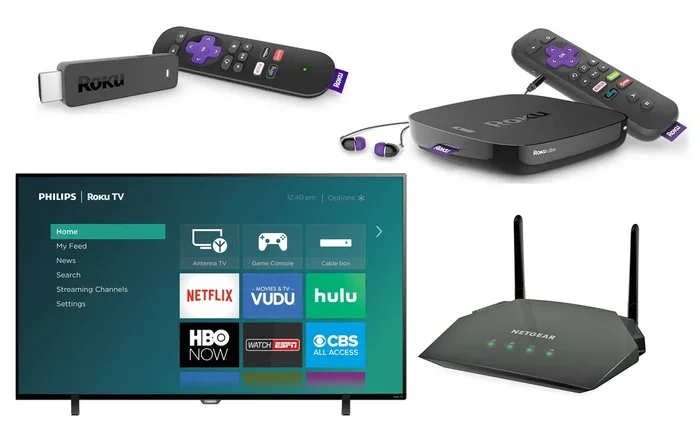
Popular options include Roku, Amazon Fire Stick, and Google Chromecast. Each one works a little differently. Chromecast, for example, lets you cast from your phone directly. Roku has its own remote and app. Pick the one that fits your needs best.
Wireless HDMI Transmitters
If you want the quality of HDMI without the cable, a wireless HDMI transmitter is your best bet. These small transmitter-receiver pairs send HD video and audio through the air. You connect the transmitter to your device and the receiver to your TV.
Wireless HDMI kits are easy to set up. Most plug and play right out of the box. You can place your device anywhere in the room. The signal usually reaches up to 30 feet or more. Some higher-end kits support 4K resolution.
The main downside is cost. Good wireless HDMI kits can be pricey. But if you need the quality and freedom of no cables, they are worth it. Gamers and home theater fans love them. They eliminate cable clutter and give you a clean setup.
Quick Tips for Connecting Without HDMI
Here are some fast tips to make your setup easier and smoother:
- Check your ports first. Look at the back of your TV. Know what inputs you have before buying any cables or adapters.
- Keep your cables short. Longer cables can weaken the signal. Keep AV or VGA cables under 6 feet for the best quality.
- Use an adapter hub. A good adapter can convert HDMI output to VGA or composite. This is handy for older TVs and newer devices.
- Update your TV firmware. Smart TVs sometimes need software updates for wireless features to work properly.
- Test audio separately. If your video works but there is no sound, check your audio cable or settings. This is a common issue with VGA and component connections.
These small steps save a lot of frustration. They help you get a clean connection the first time. Take a few minutes to check everything before you start watching.
Common Mistakes People Make When Connecting Without HDMI
Avoid these common mistakes to save time and get better results:
- Using the wrong cable type. Not all cables carry both audio and video. Composite, VGA, and component only carry video. You must add a separate audio cable.
- Ignoring resolution limits. Older cables like composite cannot handle high definition. Do not expect 1080p quality from a yellow RCA cable. Adjust your device settings to match the cable capability.
- Forgetting to switch TV inputs. After plugging in a cable, you must switch your TV to the correct input source. If you do not, you will see no picture.
- Using cheap adapters. A poor-quality adapter can cause signal loss or interference. Spend a little more on a reputable brand. It makes a big difference in picture and sound quality.
- Not checking device compatibility. Some devices do not support certain output types. Check your phone, laptop, or tablet specs before buying cables or adapters.
These mistakes are easy to avoid. A little preparation goes a long way. You will have a smooth setup every time.
Expert Insights on TV Connections
We asked a few tech experts about the best ways to connect to a TV without HDMI. Here is what they had to say.
“The wireless HDMI transmitter market has grown a lot in the past few years,” says tech reviewer Mark Stevens. “You can get solid 1080p kits for under $50 now. That is a great price for the freedom of going cable-free.”
“If you are on a budget, composite cables are still your best friend,” adds Sarah Lin, a home theater specialist. “They work with almost any TV made in the last 20 years. The picture is not perfect, but it gets the job done.”
“Screen mirroring is where things are heading,” notes David Park, a smart home consultant. “Most new TVs support it natively. It is the easiest way to connect without any cables at all.”
These expert tips confirm what we have found. You have plenty of solid options. The best choice depends on your devices, your TV, and your budget.
Which Method Is Right for You?
Choosing the right method depends on your situation. Here is a quick guide to help you decide:
- Best for old TVs: Composite or component cables. They work with almost any television.
- Best for laptops: VGA or wireless HDMI transmitter. These give you the clearest picture from a computer.
- Best for phones and tablets: Screen mirroring or streaming sticks. They are fast and easy to set up.
- Best for gaming consoles: Wireless HDMI transmitters or USB media playback. These keep your setup clean and simple.
- Best for zero cables: Built-in smart TV features or streaming devices. Just connect to Wi-Fi and go.
Think about what you are connecting and what ports your TV has. That narrows things down fast. You will find the perfect method in minutes.
Can You Connect To TV Without HDMI: The Final Word
Can you connect to TV without HDMI? We have shown you many ways. From old composite cables to modern wireless streaming, the options are clear. You do not need HDMI to enjoy your favorite content on the big screen.
Start by checking what ports your TV has. Then pick the method that fits your device and needs. Whether you go wired or wireless, you have a working solution. The process is simpler than most people think.
Try one of these methods today. You will be surprised how easy it is. Once you set it up, you can enjoy movies, games, and shows without ever touching an HDMI cable. Happy connecting.
Frequently Asked Questions
Can I connect my laptop to a TV without HDMI?
Yes, you can. You can use a VGA cable, a USB adapter, or a wireless HDMI transmitter. Each method works well depending on your laptop’s ports. Check what outputs your laptop has before choosing a method.
Do I need any special equipment to connect without HDMI?
It depends on the method. Composite and VGA cables are cheap and easy to find. Wireless options like streaming sticks or HDMI transmitters cost more but offer more convenience. You may also need a simple audio cable for sound.
Will the picture quality be as good without HDMI?
It varies by method. Component and VGA cables can support near-HD quality. Composite cables give standard definition. Wireless methods depend on your Wi-Fi strength. For most casual viewing, the difference is not noticeable.
Can I use a phone to connect to a TV without HDMI?
Absolutely. You can use screen mirroring, a streaming stick, or a USB adapter. Many smart TVs support phone casting natively. You can also find adapters that plug directly into your phone’s charging port.
Are wireless connections better than cables?
Wireless is more convenient and keeps your setup clean. Cables give you a more stable and reliable connection. For the best picture quality, a wired connection is usually better. For ease of use, wireless wins every time.
What is the cheapest way to connect a device to a TV without HDMI?
Composite AV cables are the cheapest option. You can find them for just a few dollars. They work with almost any TV and device that has a standard AV output. It is the most budget-friendly method available.
=== CONCLUSION ===
Can you connect to TV without HDMI? The answer is a clear and confident yes. You have many paths to get your content on the big screen. From simple composite cables to sleek wireless transmitters, every option has its strengths.
Start with what you have. Check your TV ports and your device outputs. Pick the method that fits your setup and budget. You do not need expensive equipment to get started. Even a basic AV cable can deliver a great viewing experience.
The world of TV connections is bigger than HDMI alone. Explore these alternatives and find the one that works best for you. You will be amazed at how easy it is to go beyond HDMI. Enjoy your shows, games, and movies on your terms.
=== INTERNAL LINKS ===
Looking for more tech tips? Check out our guide on adding prefixes to numbers on iPhone for helpful device setup tips. Also explore our curated list of 10 Gadgets To Make Moms Life Easier for affordable tech solutions that simplify everyday life at home.