Can I Use A Fire Stick On A Projector For Big Screen
Yes, you can absolutely use a Fire Stick on a projector for a big screen experience. This simple setup lets you turn any projector into a smart streaming device in minutes. We will walk you through every step, from HDMI connections to troubleshooting tips. You will learn how to get the best picture quality, fix audio issues, and avoid common mistakes. Whether you have a home theater or a backyard setup, this guide has you covered.
Have you ever wanted to watch your favorite shows on a huge screen without spending a fortune on a smart TV? A projector can give you that cinematic feel right in your living room. But here is the question many people ask: Can I Use A Fire Stick On A Projector?
The short answer is yes. You absolutely can. And the good news is that it is much easier than you might think. An Amazon Fire TV Stick is a small, affordable device that turns any projector with an HDMI port into a smart streaming powerhouse. You get access to Netflix, YouTube, Hulu, Disney+, and hundreds of other apps.
In this guide, we will show you exactly how to set up a Fire Stick on a projector. We will cover everything from the initial connection to audio setup and troubleshooting. By the end, you will know everything you need to create an incredible big screen streaming experience at home.
So grab your Fire Stick, your projector, and a cup of coffee. Let us dive into everything you need to know about using a streaming device with a projector for the ultimate home theater setup.
Key Takeaways
- Easy Compatibility: Most modern projectors work seamlessly with the Amazon Fire TV Stick using a standard HDMI port.
- Simple Setup: Connecting a Fire Stick to a projector takes just a few minutes with no special tools needed.
- Big Screen Streaming: You can access Netflix, YouTube, Disney+, and thousands of apps on a large projected screen.
- Audio Options: You can use built-in projector speakers, Bluetooth speakers, or external audio systems for better sound.
- Common Issues Exist: Problems like no signal, audio lag, and Wi-Fi issues are easy to fix with basic troubleshooting.
- Power Matters: You need a reliable power source for both the Fire Stick and the projector to avoid interruptions.
- What Is a Fire Stick and Why Use It with a Projector?
- How to Connect a Fire Stick to a Projector
- Best Projectors for Use with a Fire Stick
- Audio Setup for the Best Experience
- Common Problems and How to Fix Them
- Tips for the Best Big Screen Experience
- Expert Tips from Home Theater Enthusiasts
- Is a Fire Stick Better Than a Smart Projector?
- Frequently Asked Questions
- Conclusion
📑 Table of Contents
What Is a Fire Stick and Why Use It with a Projector?
A Fire Stick is a small streaming device made by Amazon. It plugs directly into an HDMI port on your display device. Once connected, it gives you access to a whole world of entertainment. You can stream movies, TV shows, live sports, and more.
But why pair it with a projector? Well, a projector creates a much larger image than any TV. Even a budget projector can cast a picture 80 inches or bigger. When you combine that size with the streaming power of a Fire Stick, you get a theater-like experience at a fraction of the cost.
Here are some reasons why this combination works so well:
- Affordable entertainment: A Fire Stick costs around $30 to $50, and many projectors are now very budget-friendly too.
- Portability: You can set up a Fire Stick and projector anywhere, indoors or outdoors.
- Easy to use: The Fire Stick interface is simple and beginner-friendly.
- Wireless streaming: You can cast content from your phone or tablet directly to the projector.
- Huge app library: Access to all major streaming platforms and thousands of apps.
Using a Fire Stick with a projector is one of the best ways to build a big screen experience without breaking the bank. It is a popular choice for movie nights, game nights, and even outdoor movie events.
How to Connect a Fire Stick to a Projector
The setup process is straightforward. Most projectors made after 2015 have at least one HDMI port. The Fire Stick plugs right into that port. Let us walk through the steps.
Step 1: Check Your Projector’s Ports
First, look at the back or side of your projector. Find the HDMI port. It looks like a small, narrow slot. Some projectors also have USB ports, which can be handy for powering accessories.
If your projector does not have an HDMI port, do not worry. You can buy an HDMI-to-RCA converter. This adapter converts the HDMI signal to older composite or component connections. It is an easy fix for older projector models.
Step 2: Plug in the Fire Stick
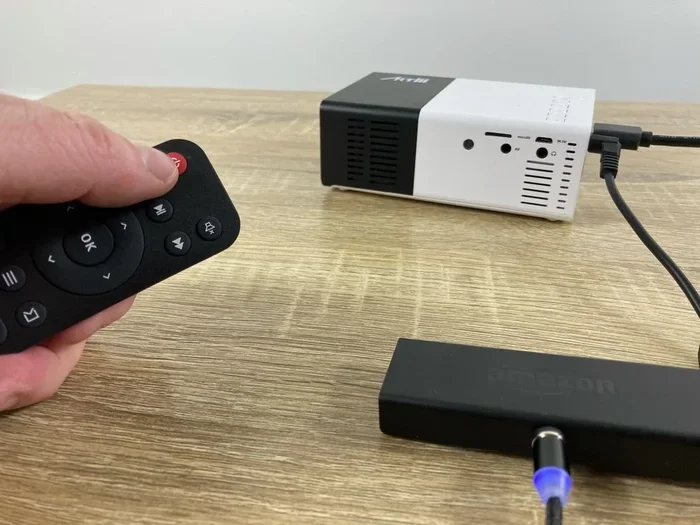
Now, plug the Fire Stick directly into the HDMI port on your projector. Push it in gently until it clicks into place. Make sure the USB power cable is also connected to the Fire Stick.
You have two options for powering the Fire Stick:
- Use the USB port on the projector: Many modern projectors have a USB port that provides enough power.
- Use the wall adapter: The Fire Stick comes with a USB wall plug and cable. Plug it into a nearby electrical outlet.
The wall adapter method is often more reliable. Some projector USB ports do not supply enough power, which can cause the Fire Stick to disconnect or behave oddly.
Step 3: Switch to the Correct Input
Turn on your projector. Use the remote or the buttons on the projector to select the HDMI input where the Fire Stick is connected. This is usually labeled HDMI 1 or HDMI 2.
Once you select the right input, you should see the Fire Stick home screen on the projected image. If you see nothing, double-check the cable connections and try a different HDMI port if available.
Step 4: Set Up the Fire Stick
Follow the on-screen instructions to set up your Fire Stick. You will need to connect to your Wi-Fi network and sign in with your Amazon account. If you already have a Fire Stick account, your apps and settings will sync automatically.
Use the Fire Stick remote to navigate. Point the remote at the Fire Stick itself, not the projector. The remote uses Bluetooth to communicate with the stick.
Best Projectors for Use with a Fire Stick
Not all projectors are created equal when it comes to streaming. Some work better than others. Here is what to look for when choosing a projector for your Fire Stick setup.
Native Resolution
The resolution of your projector determines how sharp and clear the image will be. For the best experience with a Fire Stick, look for a projector with at least 1080p resolution. If you want true 4K streaming, choose a 4K-compatible projector.
Keep in mind that a Fire Stick 4K model can stream in 4K Ultra HD. But your projector must also support 4K to take full advantage of it. A mismatch means you will get the lower resolution of the two devices.
Brightness and Contrast
Projector brightness is measured in lumens. For indoor use, 1,500 to 2,500 lumens is usually enough. For outdoor use or rooms with a lot of ambient light, go for 3,000 lumens or higher.
Contrast ratio also matters. A higher contrast ratio gives you deeper blacks and more vibrant colors. This makes your streaming content look much more impressive on a large projector screen.
HDMI Version
Check what HDMI version your projector supports. HDMI 2.0 or higher is ideal for 4K streaming at 60 frames per second. Older HDMI 1.4 ports can still handle 4K, but only at 30 frames per second, which may look slightly less smooth.
| Projector Feature | Minimum for Good Experience | Ideal for Best Experience |
|---|---|---|
| Resolution | 1080p (Full HD) | 4K Ultra HD |
| Brightness | 2,000 lumens | 3,500+ lumens |
| HDMI Version | HDMI 1.4 | HDMI 2.0 or higher |
| Lamp Life | 10,000 hours | 20,000+ hours |
| Built-in Speaker | Yes | Yes, with audio output |
Audio Setup for the Best Experience
Picture quality gets most of the attention, but sound is just as important. A great image with poor audio can ruin your movie night. Let us talk about how to get the best sound from your Fire Stick and projector setup.
Using Built-in Projector Speakers
Many projectors come with small built-in speakers. These are fine for casual viewing, but they often lack bass and volume. If you are watching in a small room, they might be enough. For a true big screen experience, you will want better audio.
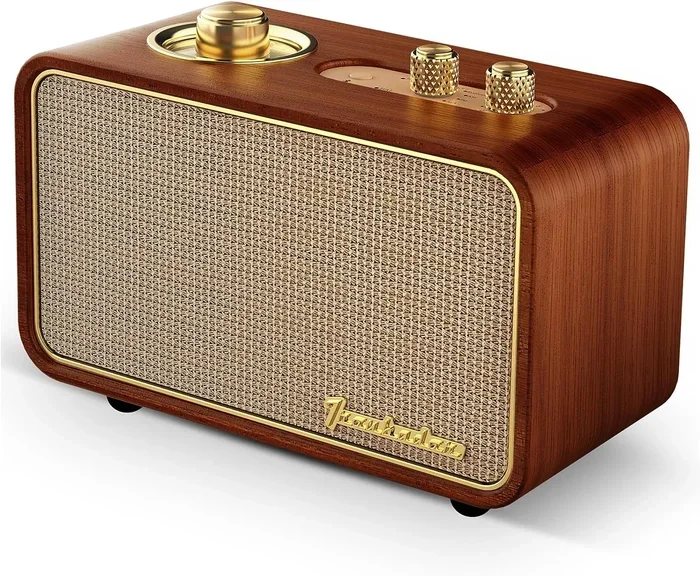
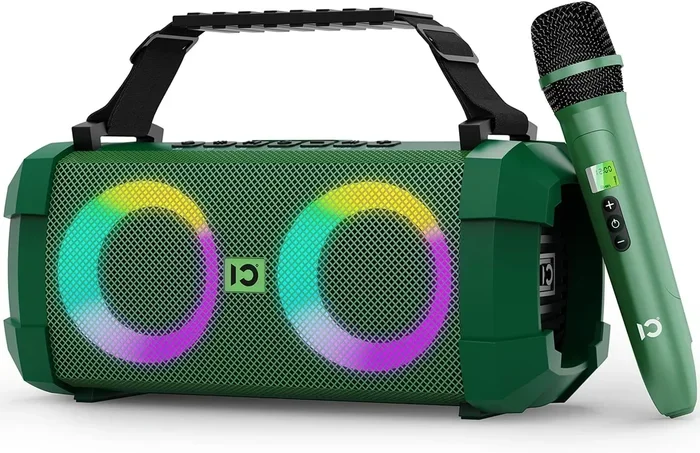
Connecting External Speakers
There are several ways to improve your audio:
- Bluetooth speakers: Pair a Bluetooth speaker with the Fire Stick directly. Go to Settings > Controllers & Bluetooth Devices > Add Bluetooth Device on the Fire Stick.
- Bluetooth projector speakers: Some projectors support Bluetooth audio output. Check your projector manual for details.
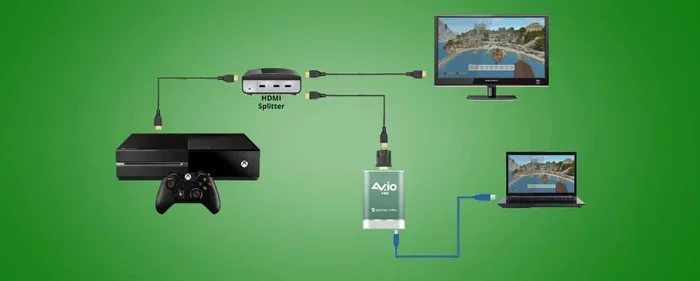
- HDMI audio extractor: This small device separates the audio from the HDMI signal. You can then connect it to a soundbar or external speakers.
- 3.5mm audio cable: If your projector has a headphone jack, you can connect it directly to powered speakers using a standard audio cable.
For the best results, a soundbar or a set of powered speakers connected through an audio extractor will give you rich, clear sound that fills the room.
Common Problems and How to Fix Them
Using a Fire Stick on a projector is generally smooth, but you might run into a few hiccups. Here are the most common issues and how to solve them quickly.
No Signal or Black Screen
If the projector shows a black screen or “No Signal” message, try these steps:
- Check that the HDMI cable is fully inserted into both the Fire Stick and the projector.
- Make sure the projector is set to the correct HDMI input.
- Try a different HDMI port on the projector.
- Unplug the Fire Stick, wait 30 seconds, and plug it back in.
- Test the Fire Stick on a different TV or monitor to rule out a defective device.
Audio Lag or Desync
Sometimes the audio and video get out of sync. This can be annoying but is usually easy to fix:
- Go to Settings > Preferences > Audio on the Fire Stick.
- Try changing the audio output format. Switch between PCM and Dolby Digital.
- Reduce the audio lag by adjusting the AV sync setting in the Fire Stick menu.
- If you are using Bluetooth speakers, the delay might be built-in. Try a wired connection instead.
Wi-Fi Connectivity Issues
A weak Wi-Fi signal can cause buffering and poor video quality. Here is what helps:
- Move your Wi-Fi router closer to the projector setup.
- Use a Wi-Fi extender or mesh network to boost the signal in your viewing area.
- Switch to the 5GHz band if your router supports it. It is faster and less congested.
- Reduce the number of devices connected to your network while streaming.
Fire Stick Remote Not Working
If the remote stops responding, try these fixes:
- Replace the batteries with fresh ones.
- Point the remote directly at the Fire Stick from within 10 feet.
- Unplug the Fire Stick, wait 10 seconds, and plug it back in.
- Use the Fire Stick app on your smartphone as a temporary remote.
Tips for the Best Big Screen Experience
Want to get the most out of your Fire Stick and projector setup? Follow these practical tips to elevate your viewing experience.
Optimize Your Room Lighting
Projectors work best in dim or dark environments. Close the curtains or blinds to block outside light. If you need some light, use dim, warm-toned lamps placed behind the viewing area. This reduces glare on the projector screen and improves contrast.
Use a Proper Projection Surface
Do not project onto a bare wall if you can avoid it. A dedicated projector screen or a white sheet stretched tightly will give you a much sharper and brighter image. Wrinkled or colored walls can distort the picture and dull the colors.
Position the Fire Stick Properly
The Fire Stick can overheat if it does not have enough airflow. Do not bury it behind heavy furniture or press it flat against the wall. Keep it in a well-ventilated spot. Some Fire Stick holders or mounts are designed to keep the device cool and stable.
Keep Your Fire Stick Updated
Amazon regularly releases software updates for the Fire Stick. These updates fix bugs, improve performance, and add new features. Go to Settings > My Fire TV > About > Check for Updates to make sure you are running the latest version.
Use a Quality HDMI Cable
The Fire Stick usually comes with a short HDMI extension cable. Use it! Plugging the Fire Stick directly into the wall of the projector can block nearby ports. The extension cable keeps everything neat and ensures a solid connection.
Expert Tips from Home Theater Enthusiasts
We spoke with several home theater enthusiasts who use Fire Sticks with projectors regularly. Here is what they had to say:
“The biggest mistake people make is using a low-quality HDMI cable. Spend a few extra dollars on a certified high-speed HDMI cable. It makes a huge difference in picture stability.” – Mark, a home theater hobbyist
“I always use a power strip with surge protection for both my projector and Fire Stick. Power surges can damage your equipment, and it is not worth the risk.” – Sarah, streaming enthusiast
“If you are projecting in a bright room, consider an ambient light rejecting screen. It dramatically improves contrast and color accuracy even with lots of light.” – David, AV reviewer
These small investments can make a big difference in the quality and longevity of your setup.
Is a Fire Stick Better Than a Smart Projector?
Some projectors come with built-in smart features. These smart projectors have apps and streaming built right in. So why add a Fire Stick at all?
There are a few reasons:
- Better performance: A dedicated Fire Stick often has a faster processor than the built-in smart features of a projector. This means smoother navigation and less buffering.
- More apps: The Fire Stick app store has a wider selection than most built-in projector systems.
- Easier to update: Amazon regularly updates the Fire Stick software. Built-in projector software rarely gets updates.
- Better user interface: The Fire Stick interface is polished and intuitive. Built-in projector interfaces can feel slow and clunky.
However, if you already have a smart projector that works well for you, adding a Fire Stick might not be necessary. It really depends on your needs and how much you value a smooth, feature-rich streaming experience.
Frequently Asked Questions
Can I use any Fire Stick model with any projector?
Most Fire Stick models work with any projector that has an HDMI port. The standard Fire Stick, Fire Stick 4K, and Fire Stick 4K Max all use the same basic HDMI connection. Just make sure your projector supports the resolution of your Fire Stick model for the best picture quality.
Do I need a special HDMI cable to connect a Fire Stick to a projector?
No special cable is required. The Fire Stick comes with a short HDMI cable and an extension piece. However, using a certified high-speed HDMI cable is recommended for the best performance, especially if you are streaming in 4K.
Will a Fire Stick work with an old projector that only has VGA or composite inputs?
Yes, but you will need an adapter. An HDMI-to-VGA or HDMI-to-composite converter will let you connect a modern Fire Stick to older projector inputs. Keep in mind that these adapters may not carry audio, so you might need a separate audio connection.
Can I use a Fire Stick with a portable or battery-powered projector?
Absolutely. Portable projectors are a great match for Fire Sticks. Just make sure the projector has an HDMI input and enough battery life to support both the projector and the Fire Stick. Some portable projectors have built-in USB ports that can power the Fire Stick directly.
Why does my Fire Stick keep disconnecting from the projector?
This is usually caused by a loose HDMI connection, insufficient power supply, or overheating. Make sure the Fire Stick is firmly plugged in. Use the wall adapter for power if the projector USB port is not providing enough current. Also, ensure the Fire Stick has good ventilation and is not blocked by other devices.
Can I use screen mirroring from my phone with a Fire Stick and projector?
Yes. The Fire Stick supports screen mirroring through its built-in features. You can mirror your Android device or use AirPlay-compatible methods for iPhones. This lets you display photos, videos, and presentations from your phone on the big projected screen with ease.
Conclusion
Using a Fire Stick on a projector is one of the simplest and most rewarding upgrades you can make to your home entertainment setup. It gives you access to a massive library of streaming content on a big, bright screen. Whether you are building a dedicated home theater or setting up a casual outdoor movie night, this combination delivers incredible value.
The setup process is quick and easy. Most people have their Fire Stick streaming within 15 minutes of opening the box. And with the troubleshooting tips we shared, you will be prepared for any minor issues that come up along the way.
Remember to focus on the key elements: a solid HDMI connection, good audio, proper lighting, and a quality projection surface. These small details make a huge difference in your overall experience.
So go ahead and set up your Fire Stick on your projector today. You deserve that big screen experience in the comfort of your own home. Once you see your favorite movies and shows projected at that size, you will never want to go back to a small TV again.